
Unpivot Monthly Columns in Power Query Without Losing the Meaning
Turn month columns into reporting rows, preserve the difference between zero and missing data, and test what happens when next month arrives.
Published October 22, 2026

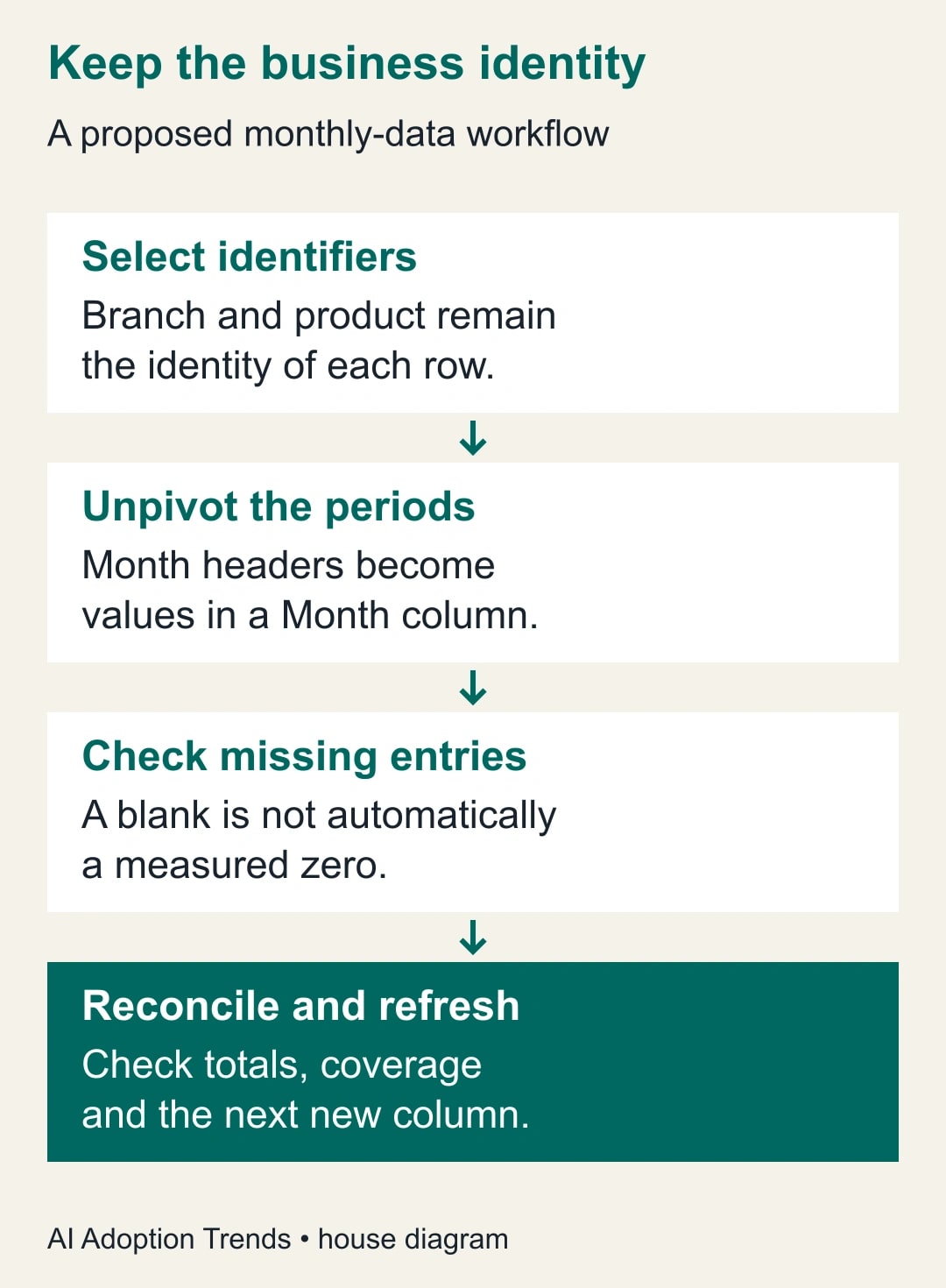
If each new month adds another column to your spreadsheet, turn those month headings into rows before building a repeatable report. In Power Query, that transformation is called unpivoting. Keep the identifying columns, such as branch and product, and create one column for the period and one for the amount. Then check both totals and missing values: a correct grand total can still conceal an incomplete month.
This guide is for finance and operations analysts who receive a wide monthly worksheet and need a stable reporting table. It is distinct from combining several files or merging a lookup table. The immediate job is to change the shape of one dataset without changing what its values mean. The process below is our proposed control method, illustrated with invented branch figures.
Decide what one output row represents
Write the meaning of a row before opening the transformation menu. For example: “One row is the reported sales amount for one branch in one month, in pounds.” That sentence identifies the dimensions you must preserve and the measure you can add. If product is also part of the source, the sentence needs to include product.
Do not combine several measures under one vague Amount heading. Monthly revenue, headcount and percentage margin need different treatment. Adding pounds to people produces a number with no business meaning. If a worksheet mixes measures, separate them or retain a Measure field and its unit before reporting. The same applies to currencies and different reporting calendars.
This approach fits a stable group of identifier columns with repeating period columns. Skip automatic reshaping when the worksheet is primarily a presentation: merged headings, explanatory rows, subtotal sections and several unrelated tables. Extract one clean table first. A few minutes spent defining the source can prevent hours spent explaining a plausible but wrong report.
You need an Excel or Power BI environment that exposes Power Query, access to the source, and permission to save a separate output. Use the licenses your organization already has and verify the available commands in that environment. No additional AI subscription is required for the method. Allow time for the source owner to explain blanks and totals; software cannot decide those definitions for the business.
Choose the identifier columns deliberately
In the Power Query editor, select the columns that should remain identifiers, then use Unpivot other columns. Microsoft documents that this converts the remaining headings and their values into an Attribute and Value pair; new columns outside the retained identifiers are also included on refresh. Rename the two outputs for their actual meaning, such as Month and SalesAmount. Microsoft's unpivot instructions
That behavior is convenient when the only additions are new months. It is dangerous when someone also adds a Notes or AnnualTotal column. The transformation has no business reason to treat those additions differently. Your process must either reject unexpected headings or explicitly separate them before the unpivot step.
For a deliberately fixed set of periods, Microsoft's Unpivot only selected columns option keeps that selection fixed. Do not assume all similarly named commands respond identically to next month's file. Choose the behavior you need, then test a new month and a non-month column. Unpivot option differences
Keep the original worksheet unchanged during the pilot. Work from a copy or a connection whose output goes to a separate location. Record the input filename, sheet or table, and the last included period. A reviewer should be able to reproduce the transformation without asking which version was on your desktop.
A small example that exposes the missing-value problem
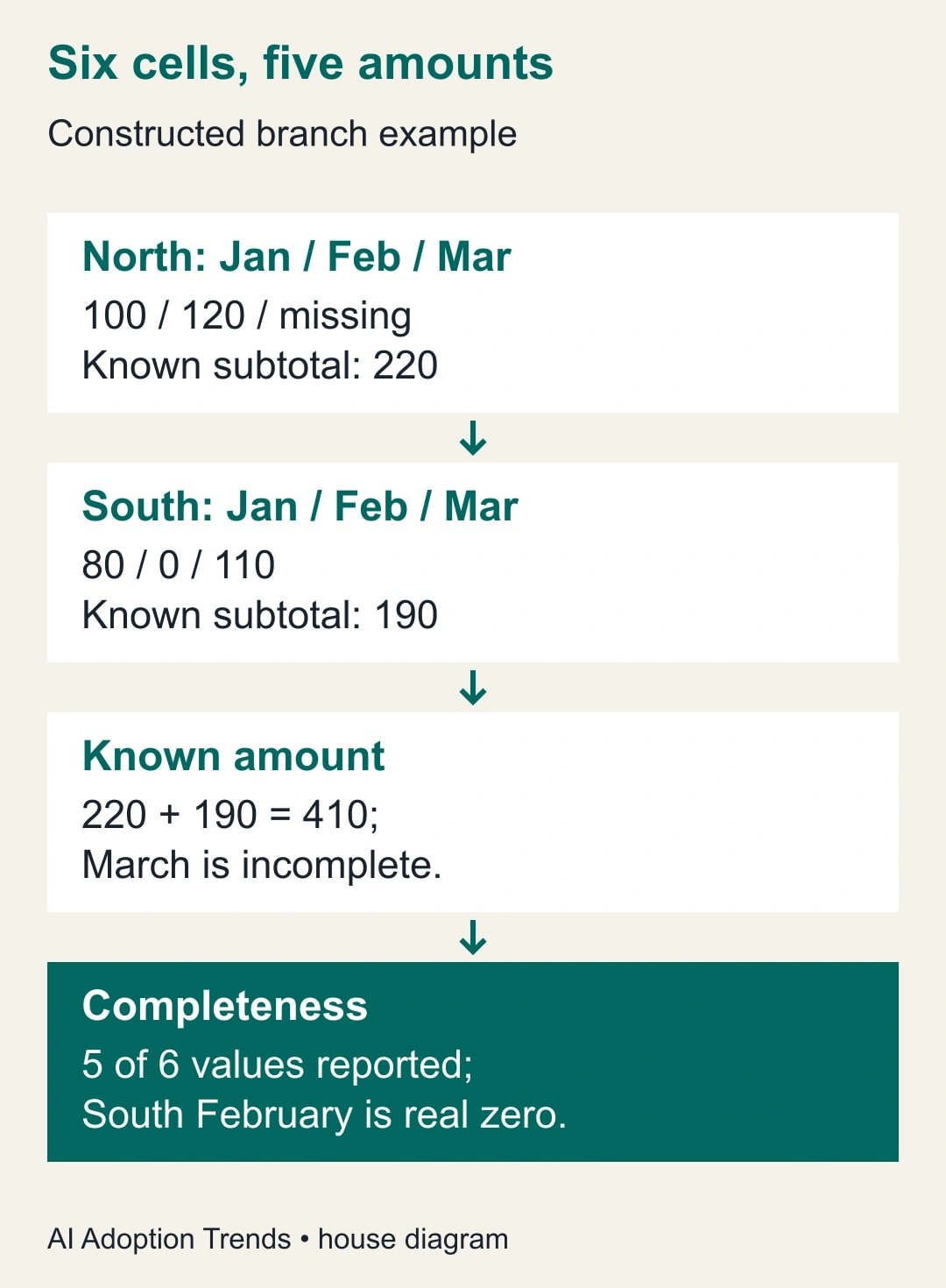
Consider two branches and three months. These are constructed figures. North reports January sales of 100 and February sales of 120; March is missing. South reports January sales of 80, February sales of zero and March sales of 110. All amounts use the same illustrative unit. There are six branch-month positions, five reported amounts and one unresolved position.
The known subtotal for North is 220. South totals 190. Together the known amounts total 410. That sum is useful, but it is not a complete three-month total for both branches. Calling it “quarterly sales” without qualification would silently treat North's missing March amount as if it were zero.
After reshaping, the expected reported rows are North–January–100, North–February–120, South–January–80, South–February–0 and South–March–110. The source has six possible positions but only five numeric observations. Preserve a separate completeness check for North–March rather than inventing an amount to make the table rectangular.
Microsoft's Table.Unpivot example shows null entries omitted from its output. A null is a missing value in this context; it is different from numeric zero. Your source may also contain empty text, spaces or formula results, so inspect how those cells arrive in Power Query rather than assuming every visually blank cell has the same representation. Table.Unpivot example and output
Build a repeatable transformation
First, inspect the source boundaries. Confirm that the table includes every intended branch and month, and excludes a grand-total row. Give identifiers and periods clear, unique headings. If a period is labeled simply Jan, establish the reporting year before combining it with another year's data. A month name alone cannot distinguish January 2025 from January 2026.
Second, identify the columns to retain. In the example that is Branch. In a real file it might be Branch, Product and Currency. Check that the combination identifies the intended observation. Two records for the same branch and month may be legitimate if they represent different products; they may be duplicates if the product field was accidentally removed.
Third, separate totals and commentary. A column called QuarterTotal should not become another month in the output. Store it as a control for reconciliation or remove it from the transformed data while keeping the unchanged source. The distinction matters because including both monthly values and their total doubles the amount when a report sums every row.
Fourth, apply the selected unpivot operation and rename the resulting fields. Set types deliberately: identifiers as text, the reporting period in a form appropriate to your model, and the amount as the correct numeric type. Microsoft explains that types determine how Power Query interprets and transforms values. A displayed number is not sufficient evidence of the intended type. Power Query data types
Fifth, inspect the steps before and after the transformation. An earlier step that keeps a fixed set of columns can discard April before unpivoting ever sees it. A later filter can remove zero amounts. Diagnose the first step where a known value disappears; changing the last step may hide rather than repair the cause.
Finally, load to a separate output table and build the first report from that output. Keep manual corrections out of the query result unless your process explicitly stores them elsewhere and reapplies them. Otherwise the next refresh can erase a correction that someone thought was permanent.
Reconcile three controls, not just the sum
The first control is money or quantity. In the example, the transformed known values should sum to 410. Reconcile by branch and by period as well as in total. A value assigned to the wrong branch can preserve the grand total while corrupting the management decision.
The second control is identity. Verify the branch-period combinations, including a known zero and the missing position. A count of five rows cannot distinguish the correct five observations from four correct observations plus a duplicate. Compare the actual identifying values, not just the row count.
The third control is coverage. The example expects six branch-month positions but has five reported amounts. Record coverage as five of six, with North–March outstanding. Do not turn that into a performance score for the branch; it is a statement about data completeness. The owner should know what to chase before the report is circulated.
A useful acceptance record names the input period range, expected identifiers, known amount total, number of reported observations and unresolved positions. Include who confirmed the meaning of zero and blank. Those definitions make the record reusable when another analyst takes over.
Test April and an unexpected Notes column
Extend the constructed example with North–April–130 and South–April–90. The additional known amount is 220, so the new known total is 630. There are now eight possible branch-month positions and seven reported amounts, assuming North–March remains unresolved. If the output still has five observations, find where April was excluded.
Next, add a Notes column containing “awaiting confirmation” for North and “complete” for South. This is a deliberate failure test. A workflow that blindly unpivots every non-identifier column may put Notes into the period field or create numeric conversion errors. The correct response is to hold the refresh result and correct the column rules, not to replace the unexpected values with zero.
Test a total column too. If a supplied annual total equals the sum of the months, including it as another period can double the reported amount. Preserve it as a reconciliation control where useful, but keep it outside the measure rows that the report adds. Write that choice into the handover notes so someone does not reintroduce it later.
These tests tell you whether the workflow tolerates the changes your source owner actually makes. A successful refresh of yesterday's unchanged file is a weak test. The business benefit comes from safely handling next month's ordinary variation.
Keep a compact source contract
Use this proposed checklist with the person supplying the file:
- One named table contains the reportable observations, with no embedded subtotal rows.
- Identifiers are explicit and retain leading zeros or other meaningful characters.
- Period headings include enough information to distinguish the year and reporting calendar.
- All values in one measure share the same unit and currency, or those differences are retained as fields.
- Zero means a reported zero; missing means an unresolved or unavailable observation.
- New month columns are expected; new descriptive or total columns require review.
- The refresh owner reconciles totals, identifiers and completeness before releasing the report.
- Corrections have a named source owner and are retained outside disposable query output.
If the supplier cannot meet that contract, the transformation may still be possible, but its maintenance cost is higher. Price that cost in staff time rather than pretending the import is fully automated. A simpler source format can be a better investment than a more elaborate cleanup query.
Recover from a misleading report
If a report already treated missing amounts as zero, identify the affected periods and decisions before refreshing it again. Correct the source interpretation, rerun the reconciliation and issue the corrected result to the people who used the earlier version. Changing a cell without explaining the impact leaves the original conclusion in circulation.
If the problem is an identifier mismatch, trace it before aggregating. A branch code converted from 0012 to 12 may join to the wrong reference table even though the unpivot itself is correct. The separate guide to preserve leading zeros and long identifiers covers that earlier conversion problem.
Stop the automated release whenever an unexplained period, duplicate identity, conversion error or missing required observation appears. You can still provide a clearly labeled partial report if the decision owner accepts its scope. Do not silently complete the dataset by assigning values the source owner has not supplied.
Measure whether the refresh is worth maintaining
Compare the total time to produce a checked report, including source repair, transformation and reconciliation. For a constructed timing example, manual reshaping might take 35 minutes and checking 15, totaling 50. A saved query might take 5 minutes to refresh, 10 to resolve source issues and 15 to check, totaling 30. The modeled difference is 20 minutes of released capacity, with no automatic cash saving.
Track exceptions alongside time. If the query needs a new workaround every month, ask the source owner for a row-based export instead. If the shape is stable and the controls consistently pass, retain the query and its acceptance checklist as a shared process rather than one analyst's private trick.
Begin with the two-branch example and prove that the missing March amount remains visible as a completeness issue. Then test your own next-month addition. If the task also involves several monthly files, continue with combining CSV files without double-counting after the meaning of one output row is settled.
Weekly Newsletter
AI Adoption Weekly
New research, field guides, training studies, and tool decisions for operators.
No spam. Unsubscribe anytime.
Related Comparisons
Calculator
AI seat cost calculator
List price × headcount. You enter the hours and the operating assumptions.