
Combine Monthly CSV Files in Power Query Without Double-Counting
Build a repeatable monthly CSV import in Excel. Separate snapshots from new transactions, handle revised files, and reconcile counts and amounts.
Published October 19, 2026

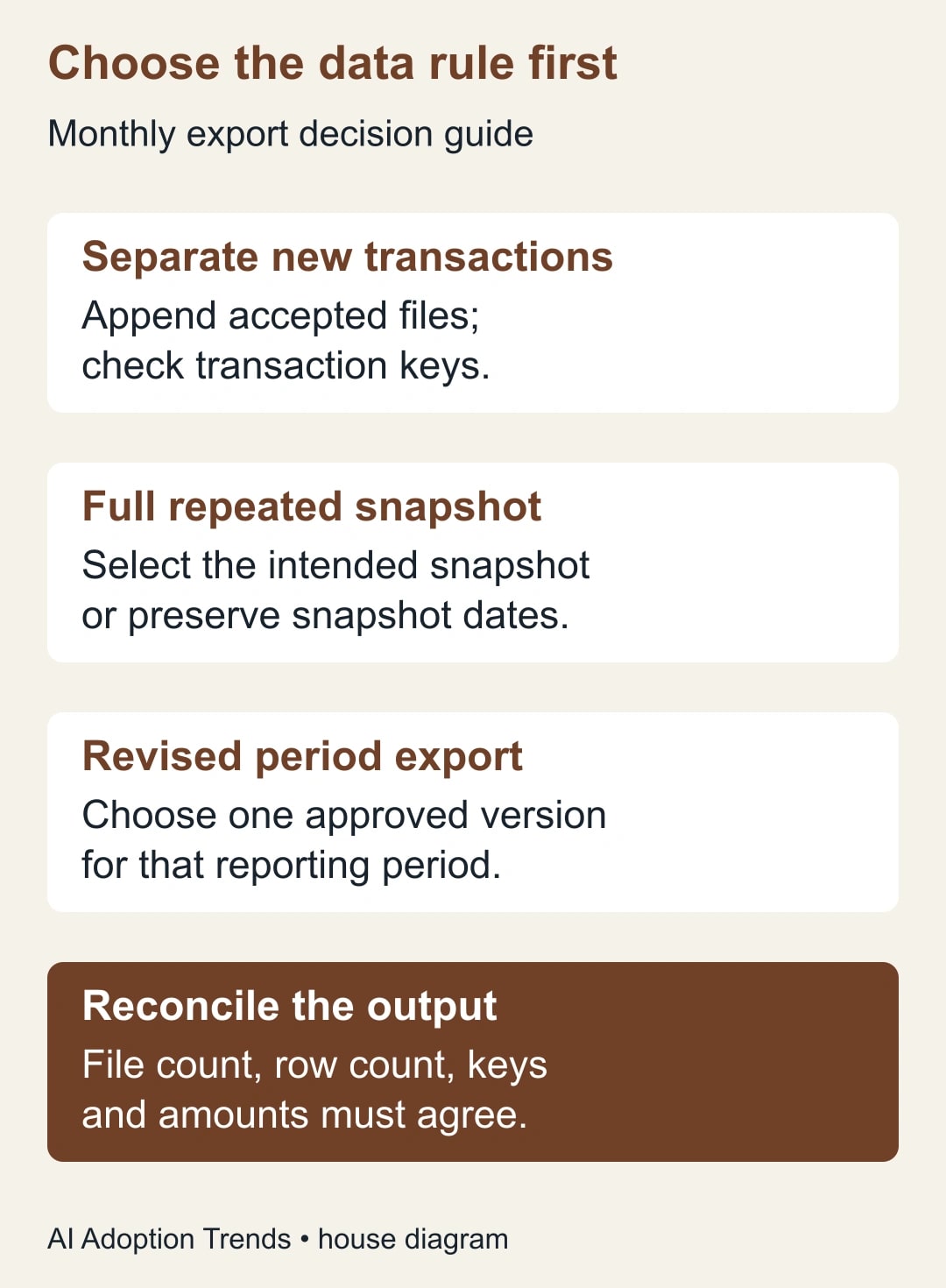
Before combining monthly CSV files in Power Query, decide whether each file contains new transactions, a replacement for an earlier month, or a full snapshot that repeats existing records. That decision determines which rows belong in your report. The folder import cannot make it for you.
For a finance or operations analyst maintaining an Excel report, the reliable workflow is to select approved files, preserve their source identity, combine compatible columns and reconcile the result. Do those checks before asking Copilot or another AI assistant to explain the numbers. A persuasive analysis of duplicated sales is still wrong.
CSV means comma-separated values: a plain-text table whose fields are separated by a delimiter, often a comma. Power Query is Excel's tool for importing and transforming data through repeatable steps. This guide assumes you have an Excel version with the relevant folder connector and permission to use the source exports.
First decide what one row represents
Write a sentence defining the row: “One row is one invoice line,” “one row is one order,” or “one row is one customer balance at month-end.” This is the unit you will count and reconcile. A file containing invoice lines cannot be checked using invoice count alone without allowing for multiple lines per invoice.
Then identify a stable business key, meaning the field or combination of fields that identifies one intended record. For invoice lines, that might be company identifier, invoice number and line number. For monthly customer balances, it might be customer identifier and snapshot date. Confirm the key with the system owner rather than assuming a convenient column is unique.
Keep identifiers as text when their formatting matters. A leading zero can be part of an account or invoice identifier. The goal is to preserve the exported meaning, not to make every column look numeric. Decide the expected treatment of dates, decimal separators, blank values and currency before loading a year's files.
If the export has no reliable key, do not invent certainty by removing rows that happen to look similar. Two legitimate transactions can have the same date and amount. Ask the source owner for an identifier or establish a documented reconciliation method appropriate to the report before using the combined data for a decision.
Choose one of three file rules
For separate monthly transactions, append the accepted files: January rows followed by February rows and so on. Confirm that date ranges do not unintentionally overlap and that each transaction belongs once in the intended reporting period. Late postings may require an explicit rule rather than a simple filename filter.
For a complete snapshot, decide whether the report needs only the latest state or a history of states. If every export repeats all open orders, appending them and summing amounts will count the same order repeatedly. Select the intended snapshot for a current-state report. For historical analysis, retain the snapshot date and interpret the result as repeated observations over time, not additional sales.
For a revised monthly export, select one approved version for that month. Keep the superseded file outside the import set while preserving it under your normal retention policy. Do not leave both versions in the folder and hope that removing identical rows will resolve the correction: changed rows are precisely the ones that will not be identical.
Mixed file types or changing definitions deserve a separate preparation step. If one export represents invoices and another represents payments, they are different business records even if several column names match. Combining them into a single amount column can create a total with no useful meaning.
Create a manifest before importing
A manifest is a simple list of the files accepted for a reporting run. Put it in a small worksheet or the team's approved reporting log. Record filename, period, version, export time, source system, expected row count, expected amount total and acceptance status.
The manifest gives the reviewer something independent to compare with the import. If it is generated only from whatever happens to be in the folder, it cannot tell you that an expected month is missing. Start from the reporting scope and confirm each required file with the source owner.
Use a dedicated import folder. Keep rejected, superseded and unrelated files outside that import path, including its subfolders unless explicitly excluded. Retain those files according to existing rules rather than deleting historical evidence just to tidy the folder.
Budget a short initial setup and a recurring review, even if the connector is already included in your Excel environment. The principal cost is analyst time to define the records and resolve exceptions. Check your actual Excel entitlement and platform support before promising the same steps to another team; this guide does not assume a new license purchase is necessary.
Import the selected files, then inspect the transformation
Microsoft's folder-import instructions, checked October 17, 2026, describe Data, Get Data, From File, From Folder. Choose Transform Data to inspect the file list before combining. Filter the Extension and Folder Path fields to the intended files, then combine their Content. Select a representative sample file and check delimiter and type settings.
Microsoft requires compatible schemas: consistent column names, types and column counts, although column order can differ. Its documentation explains that helper queries apply the sample-file transformation to the other files. A change made for one sample can therefore affect the whole set. Inspect the output after any such change rather than assuming it only repaired that one month.
Preserve a source filename column in the combined result. Also preserve the business period and version information needed for the report, whether they come from the data or a controlled mapping. These fields let you trace a suspicious row back to the accepted export.
Check the preview before loading. Look for repeated header rows, blank records, shifted columns, date conversion errors and unexpected nulls. Select the necessary fields deliberately. A column disappearing from a later export should become a visible exception, not a silent change to the report's meaning.
Avoid using the optional skip-files-with-errors behavior as a substitute for resolving missing data. If an approved file is excluded, record it as an exception and keep the report incomplete until the owner decides how it will be handled. A successful refresh can still produce an incomplete reporting period.
Reconcile four things before using the report
First compare the accepted file list with the manifest. Every expected file should appear once, and every imported file should have an accepted reason to be there. Check full paths when similar names exist in different folders.
Next compare row counts by file and period. Explain any transformation that removes rows, such as excluding an exported subtotal row that is not a transaction. Do not simply adjust the expected count to whatever the query produces. Record the business reason and the before-and-after count.
Then check the business keys. Group or otherwise inspect repeated keys and determine whether they represent an error, a valid repeated observation, or multiple lines requiring a more specific key. Keep a separate exception output so the main report cannot hide the unresolved cases.
Finally compare amount totals by period and currency with the approved source control totals. Do not add different currencies into one financial total without an explicit conversion method. If a report includes credits, cancellations or tax, state whether the control total includes them in the same way.
These checks answer different questions. Matching row counts do not establish matching amounts, and matching totals can conceal offsetting errors. A useful acceptance record shows that file selection, record counts, key behavior and amounts all agree with the intended business definition.
Worked example: the March correction
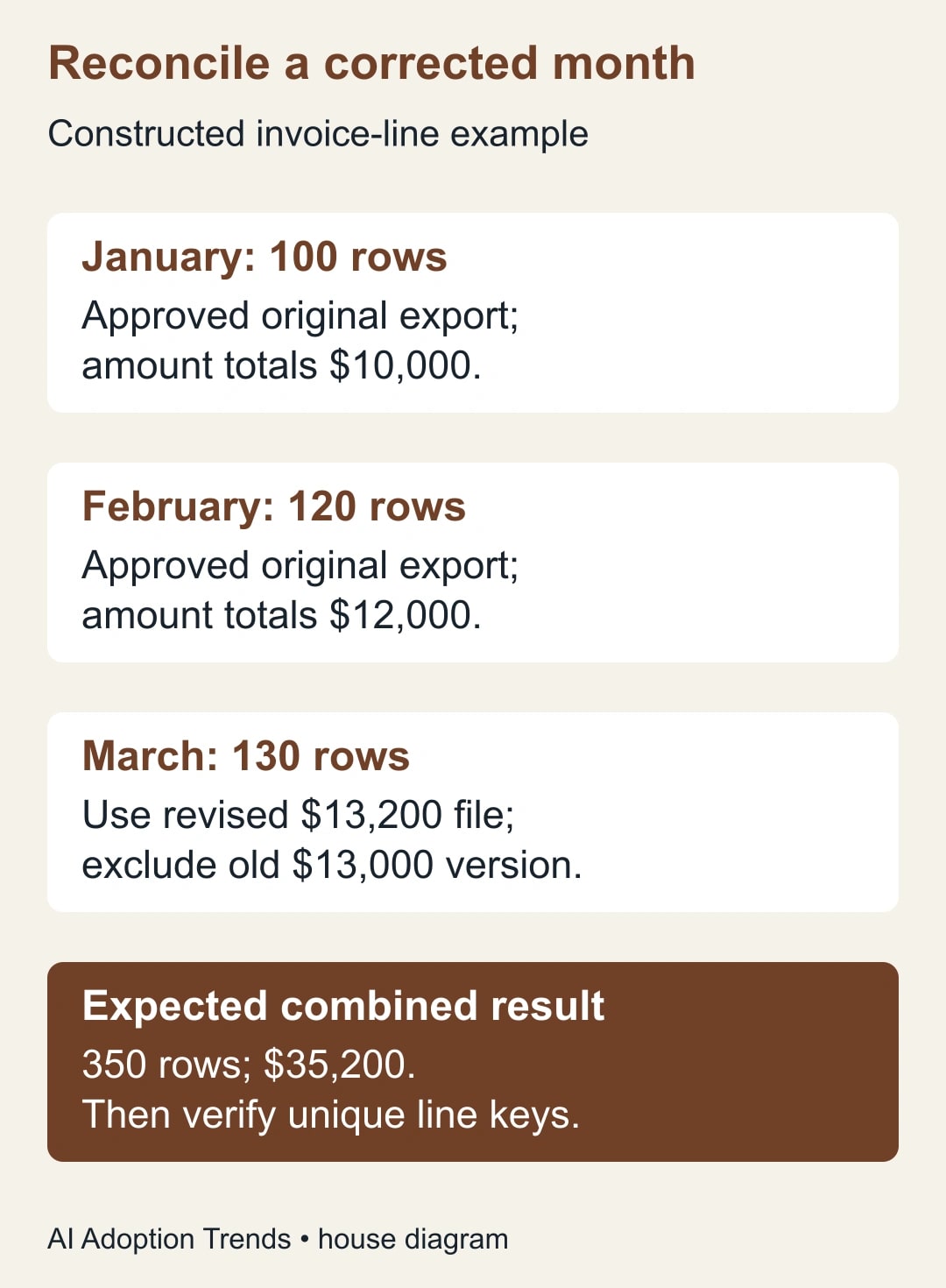
Consider a constructed set of invoice-line exports. January contains 100 rows totaling $10,000. February contains 120 rows totaling $12,000. March originally contains 130 rows totaling $13,000, but an approved correction replaces it with 130 rows totaling $13,200. The files use the same currency and include the same kinds of amounts.
The manifest accepts January, February and the revised March file. Expected output is 100 + 120 + 130 = 350 rows and $10,000 + $12,000 + $13,200 = $35,200. It records the original March file as superseded and excludes it from the import set.
If both March files are combined, the result becomes 480 rows and $48,200. The excess is 130 rows and $13,000. Removing exact duplicate rows is not a dependable repair because corrected records differ between the two versions. Selecting the approved file version is the right business rule.
After the three accepted files are combined, the analyst checks invoice-line keys. Suppose two rows share an invoice number but have different line numbers. They are not duplicates under the agreed key. Removing one merely because the invoice number repeats would understate the report.
The reviewer signs off only when the file list matches the manifest, the 350 rows reconcile, the keys are understood and the $35,200 total agrees. These are constructed figures for explaining the method, not a measured result from a customer system.
Use this refresh checklist every month
The following checklist is a proposed reusable control. Assign an owner to each step and keep the acceptance result with the reporting run. It is short enough to use without turning a small workbook into a large administration project.
- Source owner: Confirm the export's meaning, period, version and control totals before handing it over.
- Analyst: Update the manifest and include only accepted files in the import set.
- Analyst: Refresh the query and review errors, excluded files and changed columns.
- Reviewer: Compare files, row counts, repeated keys and amounts with the manifest and source controls.
- Report owner: Approve the completed period or mark it incomplete with a named exception owner.
- Next operator: Confirm they can locate the source folder and repeat the refresh with their authorized access.
Keep the last accepted report available while investigating a failed refresh. Label its reporting period clearly so it is not mistaken for current data. Publishing a stale but clearly dated report may be a conscious business choice; presenting it as freshly complete is not.
If an AI assistant helps write a transformation or explain an error, review the proposed change against the row definition and reconcile the result again. A generated expression can be syntactically valid while selecting the wrong files or treating a snapshot as new transactions. The acceptance checks remain the same regardless of who wrote the step.
Repair errors at the layer that caused them
If the file count is wrong, repair selection before changing transformations. Check folders, extensions, versions and whether the expected export arrived. A missing month is not fixed by making the remaining months load faster.
If rows fail to parse, inspect the delimiter, column names and types in the affected source. Compare that file with the agreed schema. When the source legitimately changes, update the transformation deliberately and recheck earlier periods that use it. Keep a sample of the rejected pattern for the next refresh test.
If keys repeat, inspect the business meaning before removing anything. A repeated key can indicate overlapping exports, an inadequate key, or an intended history of snapshots. The remedy depends on which explanation is true. Do not resolve the warning by deleting the evidence needed to distinguish them.
If totals differ, compare by source file and period to narrow the discrepancy. Look for omitted credits, subtotal rows, currency mixing and version changes. Ask the source owner about business corrections rather than inventing an adjustment that makes the final number match.
For a privacy-boundary error specifically labeled Formula.Firewall, use our Power Query privacy-error diagnostic. That failure is separate from duplicate rows. Changing privacy settings will not make two March exports become one approved version.
Measure a repeatable report, not a fast import
Time the whole monthly process: obtaining exports, selecting versions, refreshing, reconciling and resolving exceptions. Compare that with the previous method over representative periods. Include at least one corrected export and one schema change in the test before calling the routine dependable.
In a constructed comparison, manual preparation takes 90 minutes. The query refresh takes five minutes, but manifest checks take 15, reconciliation takes 20 and exception handling takes 25. Total work is 65 minutes, releasing 25 minutes rather than 85. That is staff capacity; it becomes cash savings only if actual spending falls.
Stop publication when a required file is missing, a material repeated key is unexplained, or control totals do not reconcile. Keep the exception and its owner visible. The value of the automation is that it repeats a known rule, not that it makes an unexplained number arrive sooner.
Begin with three representative months and a written row definition. Once the report reconciles and another authorized operator can repeat it, decide whether the workbook is sufficient or the wider reporting job needs a different tool. Our Coupler alternatives guide organized by reporting job can help with that later choice. First establish that the records you are combining belong together.
Weekly Newsletter
AI Adoption Weekly
New research, field guides, training studies, and tool decisions for operators.
No spam. Unsubscribe anytime.
Related Comparisons
Calculator
AI seat cost calculator
List price × headcount. You enter the hours and the operating assumptions.