
Airtable Automation Not Triggering? Separate Old Records From New Changes
Diagnose missing Airtable automation runs, process an existing backlog safely, and prevent repeated work with a clear readiness signal and output checks.
Published October 19, 2026

An Airtable automation can pass its test and still ignore every approved project already in your base. If those records matched the conditions before you switched the automation on, the missing runs may be expected behavior. Start by separating records that need a new state change from runs that started and then failed. Replaying everything mixes those two problems and can create duplicate work.
This guide is for an operations manager who wants an approved project to produce a task, handoff or internal notification. It proposes a controlled recovery process, not a claim that we tested your base. If the automation sends customer messages, starts billing or changes a consequential business record, keep those actions paused while you diagnose the trigger and reconcile existing outputs.
The immediate answer is to inspect one affected record, check whether a run exists, and compare the record’s changes with the automation’s activation time. Then give old records a separate, approved recovery path. A readiness checkbox can make future handoffs clearer, but it is not an exactly-once guarantee: somebody can clear and check it again.
A matching record is different from a matching change
Airtable’s When record matches conditions documentation says existing matching records do not automatically trigger a newly enabled automation. The record must move into the matching state. It can trigger again if it leaves that state and returns. These are product rules checked October 19, 2026, not an estimate of your failure rate.
Consider an approved project created on Friday. You enable an automation on Monday that watches for approved projects. Nothing about the Friday record changed on Monday. A successful test using that record establishes that the configured steps can use the selected test data; it does not establish that a live transition occurred or that the whole backlog was processed.
That distinction changes the first question. Instead of asking why Airtable lost twenty projects, ask which projects were already approved at activation, which changed afterward, and which have a corresponding output. You can usually build that comparison from the source records, the automation’s run history and the destination table. Avoid treating an empty history as evidence that the action failed.
Establish the smallest safe investigation
Before editing anything, name a recovery owner and tell the team which workflow is under review. Preserve an export of the affected record IDs and the fields the automation reads. Save the current trigger conditions and action mapping in an internal note. Record the time you start, the base, the source table, the destination and the automation name. Keep personal data out of a broadly shared incident note.
You need access sufficient to inspect history and configure the automation, a harmless place to test outputs, and enough remaining run allowance for a small pilot. Airtable lists automation availability and limits in its automation setup guide. Check your actual workspace usage before running a backlog. Do not assume that a successful configuration test means a paid upgrade is necessary or that failed attempts are free.
The operating cost is also staff attention. Budget a short session for the builder and a separate acceptance check by the person receiving the work. If you cannot identify that recipient, the workflow is not ready for automatic handoff. A task appearing in a table is useful only when somebody recognizes what they now own.
Choose three sample records: one approved before activation, one changed into approval afterward, and one that should remain excluded. Record the intended result for each before testing. This prevents the team from changing its definition of success to match whatever happens in the interface.
Diagnose one record from start to finish
Open the source record and note its unique record ID. Inspect the actual values used by the trigger, not the values somebody expected to enter. A label that looks similar to the configured option, a blank owner, or a changed linked record can explain why the conditions did not match. Preserve the evidence before correcting it.
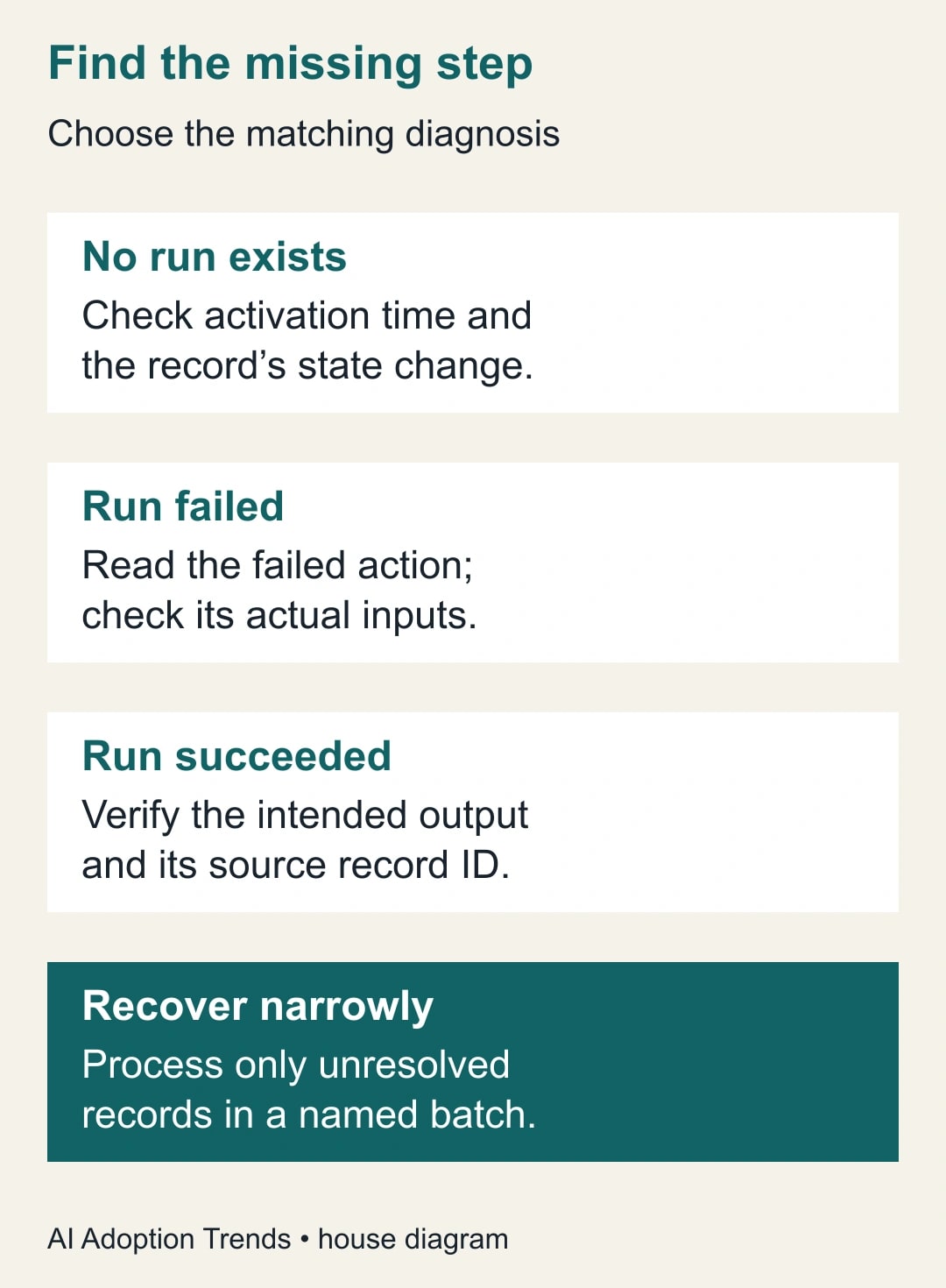
Next, look for a live run around the relevant change. If no run exists, review whether the automation was on, whether the record crossed into the matching state, and whether the change happened before activation. If a run exists, inspect the input captured for that run and identify the first failing action. Current record values may differ from the values present when the automation ran.
If the run reports success, inspect the destination. Search using the source record ID or another stable business identifier carried into the output. A project title alone is weak evidence because different projects can share a name. Verify that the task points to the right project, has the expected owner and contains the required brief. A misplaced output is still a failure of the handoff.
Keep these three outcomes separate in your recovery sheet: no live run, failed run, and successful run with an unacceptable output. Airtable’s troubleshooting guide also warns that simultaneous automations are not guaranteed to finish in trigger order. If one automation relies on another completing first, the diagnosis must include that dependency.
Make readiness explicit for future work
A useful operating pattern is a dedicated Ready field that a person changes only after completing the brief. The receiving task should carry the source record ID, the requested outcome and the person accountable for acceptance. Add a separate record of successful processing, such as the destination task link and completion time. These are proposed workflow fields, not special Airtable features that appear automatically.
Define Ready in ordinary business language. For a campaign request, it might mean that the owner, due date, approved audience and deliverable are filled in and reviewed. Do not make Ready mean that someone merely started typing a title. Put the definition next to the intake process so a new colleague can apply it consistently.
Before any consequential action, check whether the intended output already exists. If it does, route the source record for review instead of creating another output. This check reduces repeated work but does not eliminate all timing risks. Two concurrent runs can both check before either creates an output. Work that requires a strict uniqueness guarantee needs a destination and design that can enforce that guarantee, or a supervised single processing path.
Treat amendments separately. If a project has already produced a task and the owner later changes the deadline, decide whether to update that task, create a change request or ask a person to review it. Reusing the original creation trigger without an amendment policy can turn a routine edit into a second project.
Recover the existing backlog in a named batch
Do not start by clearing a production status column and undoing the edit across hundreds of rows. A field change may wake up other automations that nobody is currently watching. Instead, make a list of the exact old records requiring recovery and compare that list with outputs already present. Keep the original business approval status intact unless the process owner explicitly decides it is wrong.
Create a recovery batch identifier in your working record, such as OCT19-INTAKE-01. For every source record, capture the expected output, whether an output already exists, the proposed recovery action, the person approving it and the final destination link. You can use a controlled readiness field or another approved mechanism to move only the selected records into the intended trigger state. Test that mechanism on harmless records first.
Begin with five representative records. Include a complete brief, an incomplete brief, an existing output, a record with an unusual owner and a record that should remain excluded. Five is a proposed diagnostic size, not a statistical assurance threshold. If your workflow has more important branches, add cases before expanding the batch.
After the pilot, reconcile by source ID. Stop if an excluded record acts, an existing task is duplicated, or a task receives the wrong owner. Fix the cause and repeat the relevant test before processing more records. Preserve unresolved items visibly; do not mark the whole batch complete just because most of it worked.
Worked example: eighty approved projects
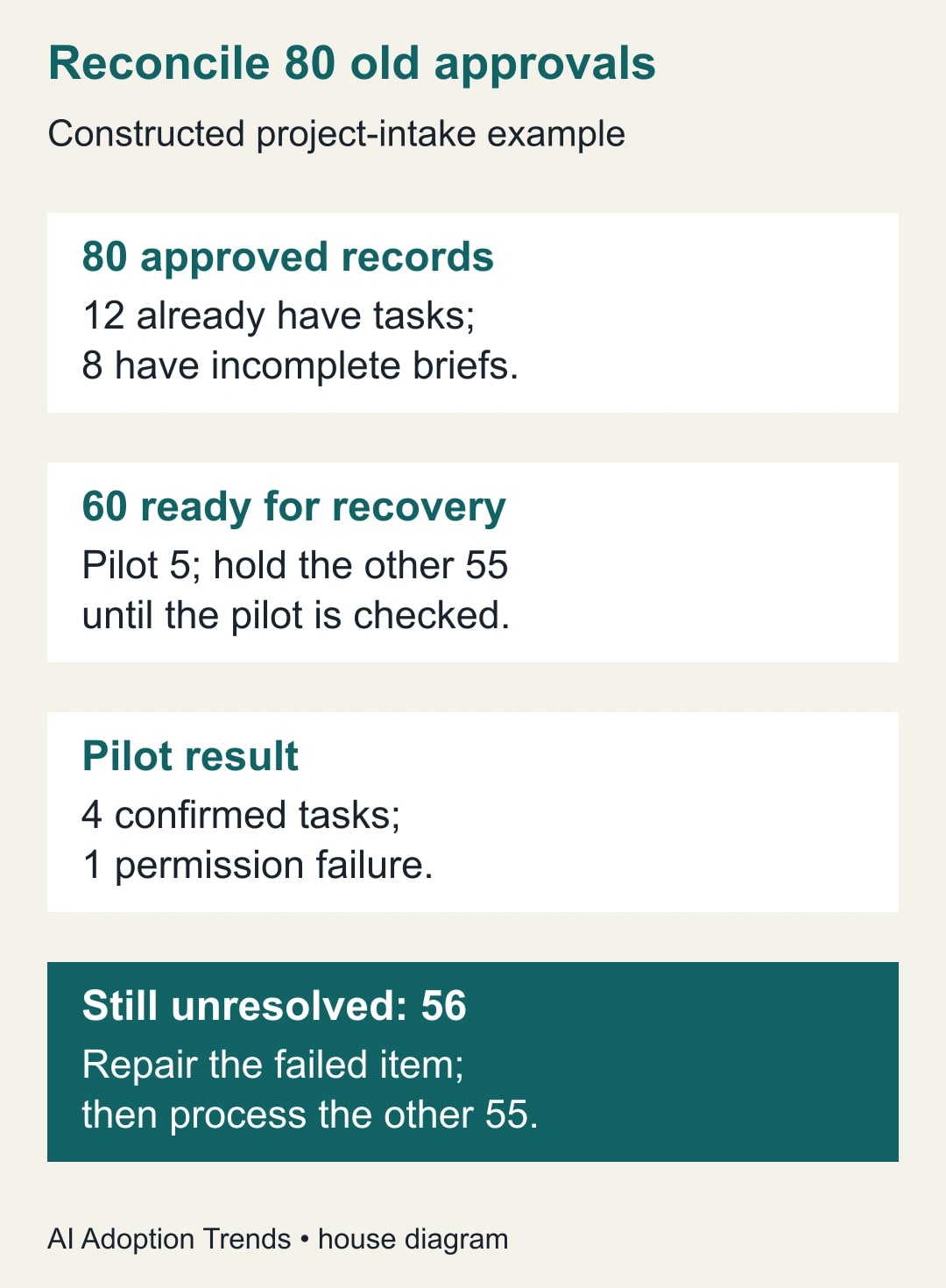
Here is a constructed example. An agency has 80 approved project records from before activation. Twelve already have valid task links because staff handled them manually. Eight lack an adequate brief. That leaves 60 ready records that need a task: 80 minus 12 minus 8 equals 60. The team does not toggle all 80 records.
The recovery owner selects five of the 60 for the pilot. Four produce correct tasks; one fails because the destination connection lacks the necessary access. The unresolved ready population is now 56, consisting of the failed pilot record and the 55 not yet attempted. The eight incomplete briefs remain in a different queue with their requesters.
After repairing access, the owner first checks whether the failed attempt left any partial output. If none exists, the owner retries that record and accepts its task. Then the remaining 55 can be processed in controlled batches. Final reconciliation should show 72 approved records with accepted tasks and eight held for missing information. That is 12 pre-existing tasks plus 60 recovered tasks, not 80 newly created tasks.
The team records processing attempts separately from accepted results. If the failed pilot was tried twice, that does not represent two completed projects. Likewise, a destination task that nobody can access is not an accepted result merely because its identifier exists.
Copy this recovery worksheet
- Batch and owner: identify the recovery session and the person allowed to stop it.
- Source record ID and business name: keep both so humans can recognize the item without losing uniqueness.
- Trigger evidence: activation time, relevant field change and whether a live run exists.
- Existing output: destination identifier, link and whether its content is acceptable.
- Proposed action: no action, repair data, retry a failed step, or process an old eligible record.
- Acceptance evidence: correct project, owner, deliverable and deadline confirmed by the receiving team.
- Exception and next action: record what remains unresolved, who owns it and when it will be reviewed.
Use the worksheet as a handoff artifact, not a permanent duplicate of your whole base. Preserve enough evidence to explain the recovery and follow your organization’s retention practice. Keep confidential briefs in the approved system; link them rather than copying them into a general troubleshooting document.
Watch the process after the repair
For the next operating week, compare eligible source records with accepted outputs at a regular time. Track missing outputs, duplicate outputs, corrections and unresolved exceptions. Report the number of records examined alongside any percentage. Two failures among ten records and two among a thousand represent different operating situations.
Also record manual review minutes. If the repaired process releases an hour of administration, describe it as staff capacity available for other work. It becomes cash savings only if a real budget action follows. Do not subtract the time spent resolving duplicates from sight and report only the smooth runs.
Stop expanding the automation if exceptions grow faster than the receiving team can resolve them, if the same record keeps retriggering, or if the owner cannot explain which output corresponds to which request. At that point, simplify the process and restore a supervised queue before adding more conditions.
Your next action is to trace one old approved record and one newly approved record side by side. Once you can explain their different histories, use the automation recovery guide to document the repair and the duplicate-record guide to strengthen the output check. The goal is a complete, explainable handoff for each approved request.
Weekly Newsletter
AI Adoption Weekly
New research, field guides, training studies, and tool decisions for operators.
No spam. Unsubscribe anytime.
Related Comparisons
Calculator
AI seat cost calculator
List price × headcount. You enter the hours and the operating assumptions.