
Update Existing HubSpot Contacts From a CSV Without Creating Extras
Use Record ID, a narrow field map and a small pilot to update existing HubSpot contacts. Reconcile changes and protect fields that should stay untouched.
Published October 19, 2026

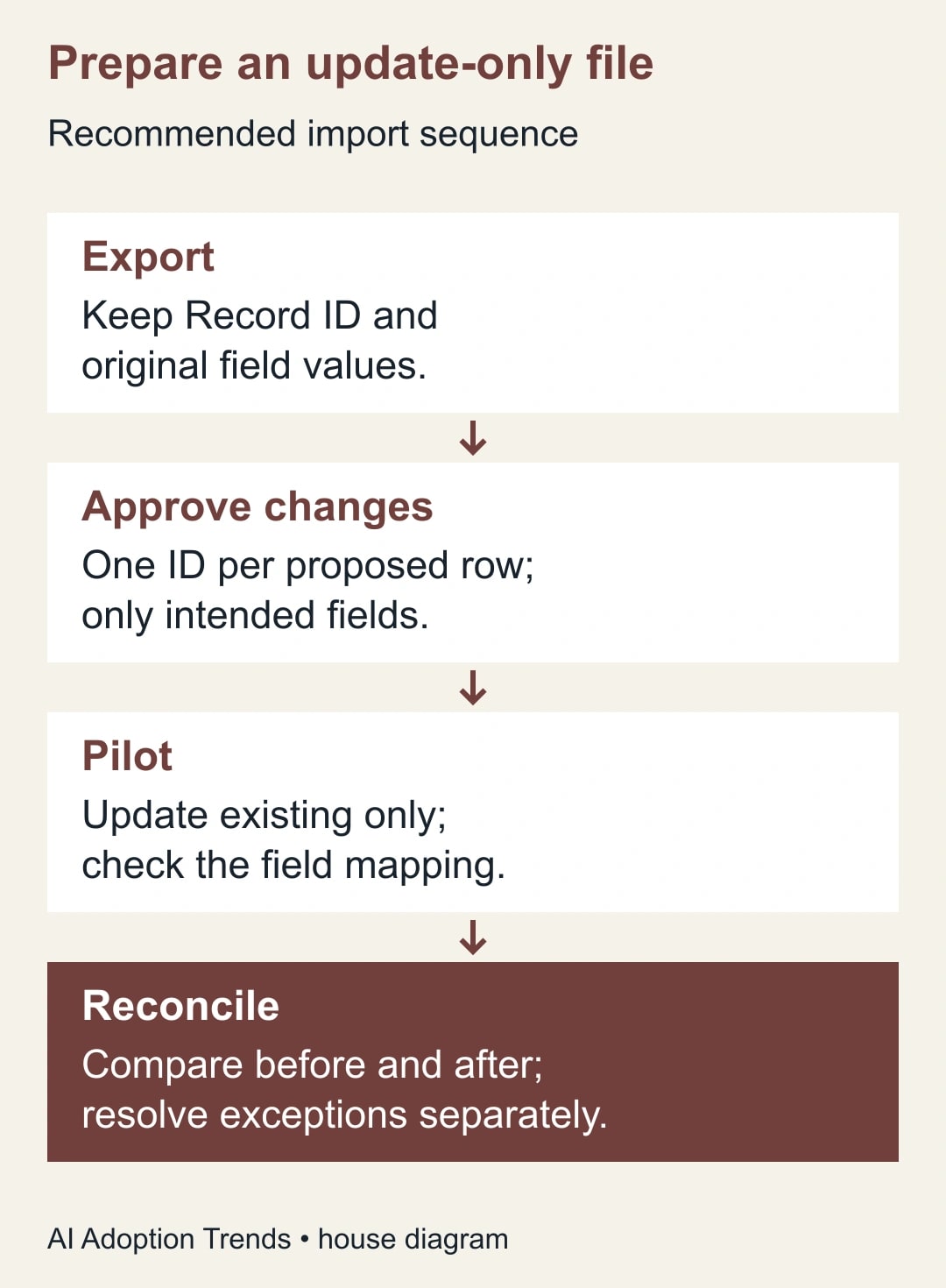
For a controlled update to existing HubSpot contacts, export the target records with their Record IDs, keep only the approved changes, choose Update existing records only, and verify a small pilot before importing the remainder. Preserve a before-state file and reconcile the changed properties afterward. A completed import does not by itself prove that the right values changed.
This guide is for a marketing operations manager correcting an existing customer relationship management database, or CRM. It is not a guide to uploading purchased lists, enrolling people in campaigns or merging different people into one record. If you cannot establish which existing person each row represents, resolve identity first. Do not ask an AI tool to invent a matching record ID.
HubSpot's import terminology guide identifies Record ID as a unique value assigned by HubSpot and says it takes precedence over other mapped identifiers. Product details were checked October 18, 2026. The file controls, pilot and reconciliation below are our recommended operating process, with constructed examples rather than claimed customer results.
Decide which fields may change
Begin with a written change request: the contact population, properties to update, source of the correction and person approving it. “Clean up the CRM” is too broad. “Correct the service region for these existing customer contacts using the approved account roster” is a task you can prepare and verify.
List fields that must remain untouched. For a service-region update, that might include email address, contact owner, subscription status, lifecycle stage and company associations. Removing those columns from the import file is often clearer than carrying them through and hoping the mapping will protect them. Keep them in the protected before-state export if they are needed for later comparison.
Separate corrections from enrichment. A correction replaces a known wrong value with an approved right value. Enrichment adds a newly established fact. A blank in a source spreadsheet is neither proof that the CRM should be blank nor permission to guess. Put uncertain rows into an exception list with a named resolver.
If AI helps classify free-text job roles or regions, retain its suggestion in a separate review column until a person approves it. A model's confidence is not an identifier. Do not include unreviewed classifications in the same file as verified corrections merely because they are adjacent in the worksheet.
Export enough information to recover the facts
Export the intended contact population from the correct HubSpot account. Include Record ID, a human-readable identity field for checking, the properties to change and any protected fields needed for reconciliation. Save the export unchanged with the date, account context and purpose. Work on a copy.
Keep Record ID unchanged. Treat it as an identifier rather than a quantity: spreadsheet transformations should not round it, reformat it into scientific notation or strip characters. If you combine records from several accounts, stop and separate them; an ID should be interpreted in the account from which it was exported.
HubSpot's file-format requirements explain the need for unique identifiers when updating records. Email can identify contacts, but Record ID is a useful choice when updating a known exported population. This does not mean names, company names or plausible-looking email patterns are interchangeable substitutes.
Use the human-readable identity field to spot mistakes, not as an unapproved secondary matching rule. For example, if a row with a valid Record ID now shows a completely different person in your working file, investigate how the spreadsheet was sorted or joined. A valid ID attached to the wrong correction is more dangerous than a row the importer rejects.
Preserving an export is not a universal undo mechanism. An import may interact with workflows, integrations or staff activity, and later legitimate edits may occur. The before-state is evidence for a reviewed repair. It should not become a reason to blindly restore old values over newer work.
Build a narrow file and review the mapping
Create the import file from the approved rows only. Include Record ID and the intended update properties. Hold missing IDs, conflicting repeated IDs and unresolved values outside the file. Use one proposed row per contact for this single-object update. If two rows propose different regions for the same contact, the business owner needs to choose before import.
For a first pilot, choose a small set that covers the real cases: an ordinary correction, a never-populated field, a previously populated field and any formatting edge case. Ten contacts can be a practical starting size, but it is a proposed test size, not a provider requirement or a guarantee. Use fewer when the changes are especially consequential.
Start the import through the account's import tool and select the contact object. Choose Update existing records only. HubSpot's import instructions say this mode ignores new records and requires a unique identifier. Review the mapping column by column; map Record ID to the correct identifier and exclude every field that is outside the change request.
Be deliberate about Don't overwrite. HubSpot's current documentation says that this option protects properties that have a value or had one in the past, even if currently empty. It is not simply a rule that fills every blank cell. If your purpose is to correct an existing wrong region, protecting that region from overwrite would prevent the intended correction.
Before submitting, check account-specific downstream effects with the administrator. Updating a property may matter to segmentation, routing or automation. Do not disable workflows broadly to make the import easier; agree a narrow test and any approved controls. Keep marketing-contact settings and subscription decisions outside a simple data-correction task unless the owner explicitly includes them.
HubSpot may present declarations about contact expectations or data use during import. The responsible operator must be able to make those declarations truthfully. Existing CRM presence does not automatically establish permission for a new marketing use. If the import requires a decision you cannot substantiate, stop and have the data owner resolve it.
Reconcile a 100-row correction request
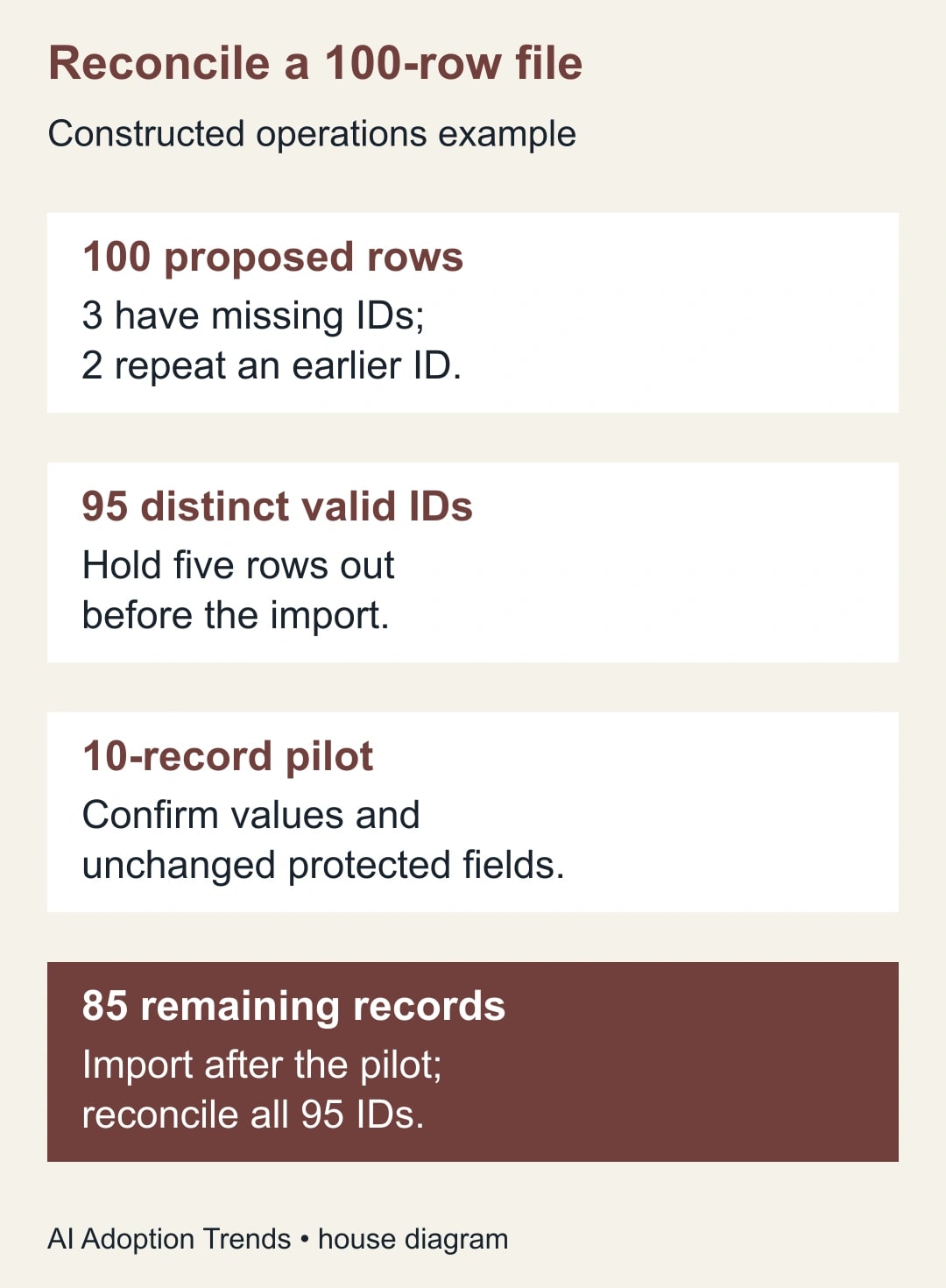
Here is a constructed example. A team receives 100 proposed service-region corrections. Three rows have no Record ID. Two rows repeat IDs already present earlier in the file. In this example, those five rows are distinct exceptions, leaving 95 distinct valid IDs for review.
The team does not fill missing IDs by guessing from names. It sends the three identity exceptions back to the data owner and checks whether the two repeated rows are redundant or conflicting. The 95 valid records form the proposed update population. The held rows remain visible in the work log.
The operator selects ten varied contacts for a pilot. Each has an approved new service region and a saved old value. After import, the operator checks all ten records against the expected values and confirms the protected fields did not change. The administrator checks the agreed downstream workflow evidence. If any result is unexplained, the remaining 85 records wait.
Suppose the pilot succeeds. The operator imports the remaining 85 and exports the same 95 IDs again for comparison. The reconciliation asks which IDs changed to the approved region, which stayed unchanged, which produced errors and whether any unexpected record appeared. The goal is 95 explained outcomes, not merely a message saying the file was processed.
If 92 records show the intended region and three remain unchanged, completion is 92 out of 95 approved records, about 97%. It is not 100% because the other rows were valid enough to reach the import. The three unchanged records need investigation; perhaps a mapping option protected them, an option value was invalid or another process changed them afterward.
The five original held rows are still a separate exception group. Mixing them into the denominator without explanation makes the work difficult to audit. A concise status would say: 100 proposed rows; 95 approved distinct records; 92 verified updates; three update exceptions; five preparation exceptions. These are illustrative numbers, not a forecast of HubSpot performance.
Repair only the failed part
Review the import result and error file, then inspect the affected records. HubSpot's import-error guide distinguishes identifier problems from property-value problems. An invalid identifier can prevent a record update, while an invalid option can leave a property unset even when other data was imported. Check the actual field outcome rather than inferring it from a row count.
Correct the exception file and run a focused repair. Do not resend the entire original population simply because five records need attention. A whole-file rerun can overwrite legitimate changes made since the first pass, especially if the file contains more properties than necessary.
If the wrong values reached the right records, compare the current values with the saved before-state and the intended correction. Have the data owner approve the repair set. If the wrong records were changed, stop further imports and reconstruct the mapping error before acting. The administrator should assess any downstream actions already triggered.
Do not assume deleting an import history entry reverses field changes or external consequences. Treat reversal as a separate, reviewed data change. A repair can restore a property while leaving a sent notification or completed integration action untouched; those consequences require their own response.
Multiple-checkbox fields deserve a separate plan. HubSpot has distinct append and replace behavior, documented in its multiple-checkbox import guide. Do not apply a single-value region correction method to interests, roles or other multi-select fields without checking that behavior. Test the exact property type before a large update.
Keep a small change-control worksheet
- Purpose and population: the business correction, target account and approved list of existing records.
- Identifier: original Record ID, with the export source and any identity exceptions recorded separately.
- Field decision: old value, proposed value, evidence for the correction and approver.
- Protected fields: properties omitted from import and any values checked after the pilot.
- Mapping: chosen object, update-only mode, mapped properties and overwrite decisions.
- Results: expected IDs, verified values, import errors, unchanged records and unexpected changes.
- Repair: affected IDs only, approved action, downstream review and final verification date.
Use the worksheet to keep ownership clear. The business data owner approves the correction. The operator prepares and imports it. The administrator handles permissions and downstream-system questions. One person may fill more than one role in a small business, but the decisions should still be explicit.
Decide whether to automate the next update
The import tool is documented across HubSpot plans, with additional subscriptions required for some features. Check the permissions and limits for your account before planning the batch. Do not assume a paid upgrade is necessary for a small correction, and do not assume a large recurring integration will fit the same limits as a one-time file.
Measure accepted corrections, exception age and total staff effort, including preparation and repair. If the same approved source changes every week, an integration may eventually reduce file handling. First establish the identity rule, property ownership and reconciliation that the integration must preserve. Automating an ambiguous match makes the ambiguity recur faster.
The proposed stop conditions are missing identity, conflicting corrections, unexplained pilot results or unintended changes to protected fields. Resume only when the responsible owner resolves the issue. Begin with one exported population and one approved property change. If duplicates are arriving through a live automation instead, use the Zapier duplicate-record diagnosis to repair that separate source of the problem.
Weekly Newsletter
AI Adoption Weekly
New research, field guides, training studies, and tool decisions for operators.
No spam. Unsubscribe anytime.
Related Comparisons
Calculator
AI seat cost calculator
List price × headcount. You enter the hours and the operating assumptions.