
Share a Google Sheets Report Without Exposing the Whole Source
IMPORTRANGE access reaches beyond the range in one formula. Build a separate approved export source, then check permissions, totals and refresh expectations.
Published October 19, 2026

If a client can edit a Google Sheets report, do not connect that report directly to an internal workbook containing information the client should never receive. Choosing six columns in an IMPORTRANGE formula is not a reliable access boundary. Create a separate source file containing only approved information, then connect the client report to that file.
The reason is specific. Google’s IMPORTRANGE documentation says that after access is granted, editors of the destination can use IMPORTRANGE to pull from any part of the source spreadsheet. The range in your first formula therefore describes what you chose to display, not the maximum information another destination editor could request. This behavior was checked October 19, 2026.
This guide is for agency, finance and operations teams sharing recurring reports with clients or business partners. It proposes a reporting design and an acceptance checklist. If the audience only needs a fixed monthly result, a reviewed static export may be simpler. If the report needs strict row-level access controls or large scheduled data loads, evaluate a reporting system designed for those requirements instead of adding more spreadsheet links.
Decide what the audience is allowed to receive
Write the reporting contract before writing the formula. Name the audience, the business decision, the approved fields, the reporting period and the freshness requirement. A client who needs monthly campaign spend may not need staff rates, internal comments, another client’s results or the raw operational history behind the total.
Assign a data owner who can approve the release. The report builder should not have to infer which columns are confidential from their names. Have the owner review sample values as well as headings: a harmless-looking Notes field can contain information that was never intended for the recipient.
Decide whether the recipient genuinely needs editing access. A viewer who only reads a report has a different job from a partner who adds commentary or adjusts scenarios. Give the smallest useful role, but still construct the report so its contents are appropriate for that audience. Do not rely on a permanently perfect list of collaborators to compensate for a source file that contains unrelated sensitive information.
Define the update expectation in business terms. For example: approved monthly totals, released after the operations review, with the period and release time visible. That is different from a live view of every operational edit. A report can be accurate for a stated period while being intentionally behind the working source.
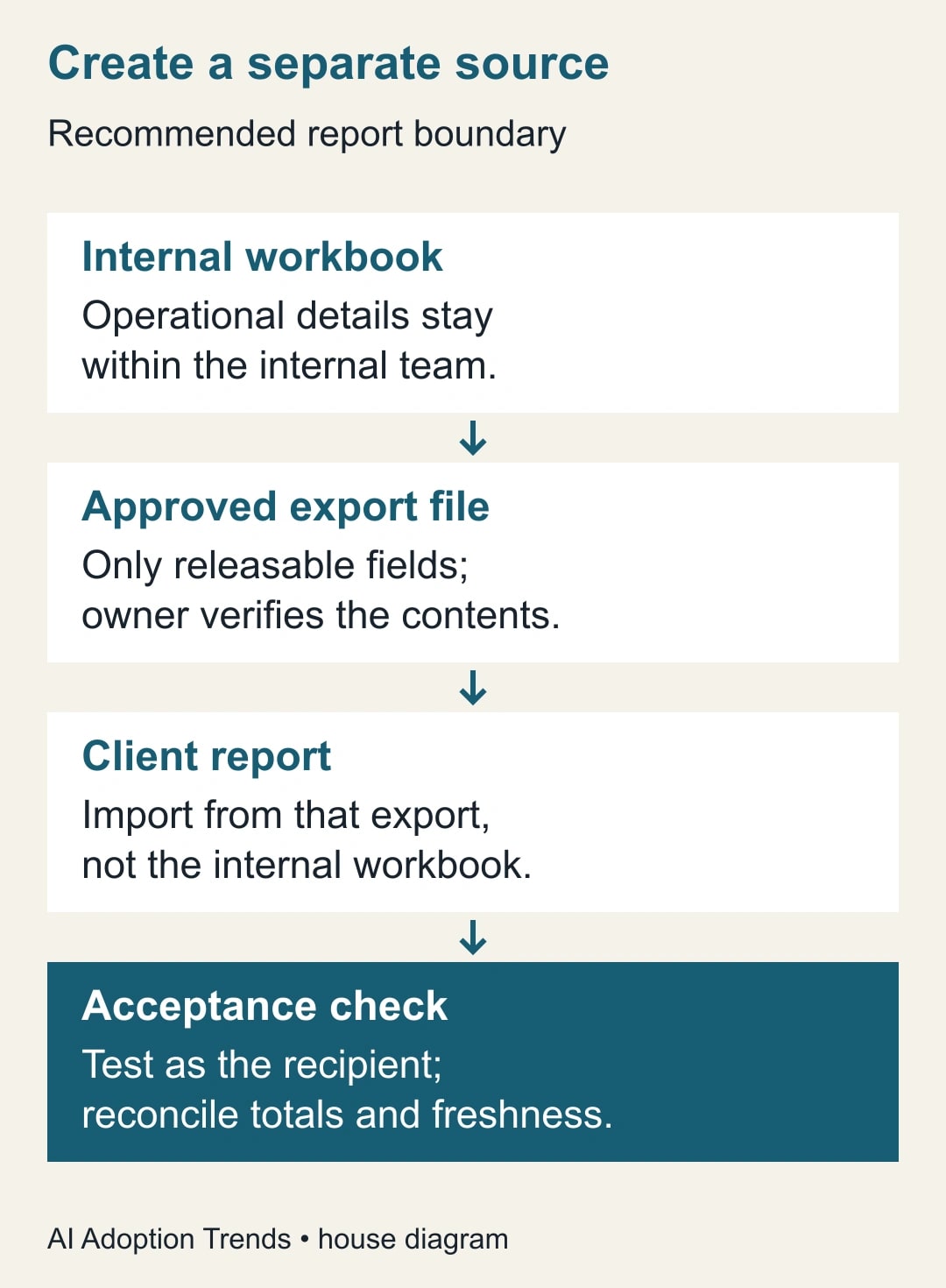
Build a separate approved export file
Keep the internal workbook under internal control. Create a different spreadsheet for the approved export, containing only releasable fields and rows. A new tab inside the original workbook does not create the required separation; it is still part of the same source spreadsheet.
Treat the export file as a small publication. Give it an owner, a clear title, an approved schema and a release procedure. The schema is simply the agreed set of columns and their meanings. Include a period field and a release timestamp so the destination can show what the figures describe. Avoid mixing internal working notes into this file later because it seems convenient.
Choose how the approved data will reach that file. For a monthly report, a person can copy reviewed values and reconcile them before release. For more frequent updates, an approved automation can write only the permitted fields. Review that automation’s account access and failure behavior separately. Do not create another broad live import from the internal workbook and assume the separation is complete without examining the resulting access path.
The export file should stand on its own: if a recipient could read every cell in it, would that be acceptable? If the answer is no, stop and narrow its contents. This question is easier to review than a complicated chain of hidden tabs, filters and formulas whose effective exposure nobody can explain.
Connect the report with a bounded range
Once the export is approved, connect the destination report to that source. A typical formula has this shape: =IMPORTRANGE("approved-export-spreadsheet-url", "Report!A1:F121"). Replace the example URL and tab name with your approved file and actual range. Some locales use different formula separators; follow the syntax accepted in your sheet.
Use a small range for the first test. Confirm the expected headers, the first and last included rows, and a total you can calculate independently. If Sheets asks to connect the files, verify the source before granting access. That permission step deserves the same attention as sharing a file because it establishes a continuing relationship between the destination and source.
Avoid an open-ended range merely because it saves you from thinking about future growth. If the report is a monthly summary, define how the range expands and who checks that new rows are included. A bounded range is easier to inspect, but it can silently omit later additions if nobody maintains it. Record both the current boundary and the expansion rule.
Use the destination for presentation and permitted calculations. Keep business definitions close to the report: whether spend includes tax, whether cancelled work is excluded, and which date determines the period. A technically successful import does not settle those definitions. The report owner should approve them before anyone uses the result to make a decision.
Make the source smaller before importing it
Google documents a 10 MB received-data limit per IMPORTRANGE request and recommends reducing imported ranges or calculating summaries in the source. It also warns that chains of linked spreadsheets can increase update delays. These are reasons to simplify the data path; they are not a promise that a particular cell count will refresh within a particular time.
For a monthly client report, aggregate the approved information to the level the reader needs. Import a campaign-by-month summary instead of every operational event when that summary answers the decision. Keep a reconciliation record that ties the summary back to its approved source period. If readers later need detail, provide a controlled way to request it rather than exposing everything by default.
Avoid building a chain where workbook A feeds B, B feeds C, and C feeds the client’s dashboard without a clear owner for every step. A broken permission or stale intermediate result becomes harder to diagnose as the chain grows. Draw the actual file path and remove unnecessary copies before changing formulas at random.
Do not describe a smaller range as measured performance improvement unless you measured it. Cell counts explain the scale of the requested data, but file contents, formulas, network conditions and refresh behavior also matter. Measure the report’s actual usable freshness against the business deadline.
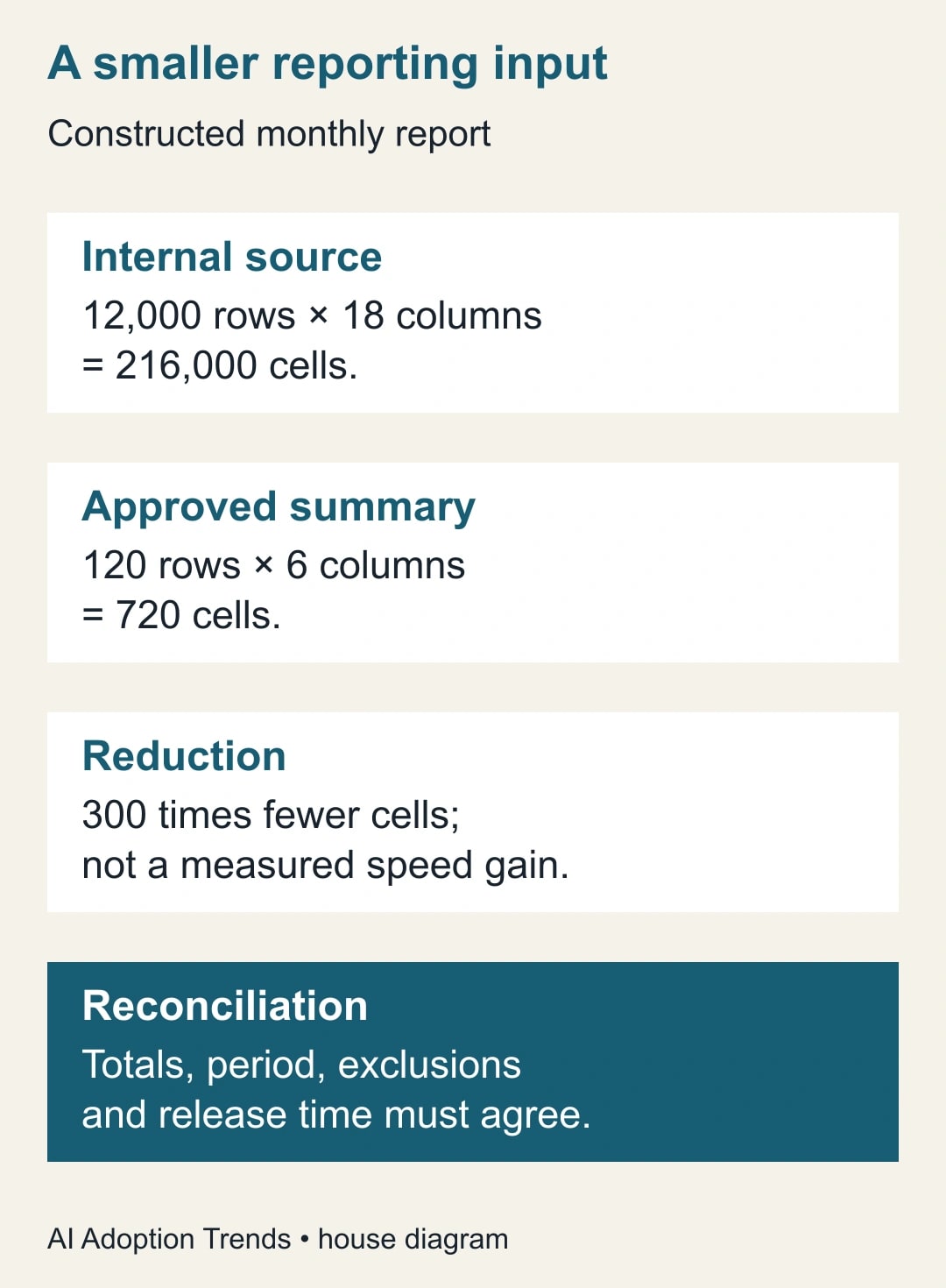
Worked example: an agency’s monthly report
Here is a constructed reporting design. An internal workbook has 12,000 rows and 18 columns, or 216,000 cells. It contains campaign events, internal notes and operational detail. The client needs 120 summary rows across six approved fields: month, campaign, channel, spend, qualified inquiries and reporting status.
The approved summary has 720 data cells: 120 multiplied by six. That is 300 times fewer cells than the internal range, excluding header differences. It is not evidence that the report will become 300 times faster. The practical benefit is a smaller, reviewable input containing only the information required for the agreed report.
Suppose the approved spend total is $24,600. The source owner confirms that $1,400 of cancelled work is excluded from a $26,000 working total. The export should show $24,600, and the destination should reconcile to the same amount for the same period. The difference is explained by an exclusion rule, not dismissed as a refresh problem.
The builder also checks the 120-row boundary. If the next month adds five campaign rows, a fixed range ending at the old last row will be incomplete even if it displays without an error. The release checklist therefore includes expected row count, last included campaign, period and total. A clean-looking report can still be wrong.
Test the recipient’s experience
Use a permitted test account with the same role as the intended recipient. Check that it can open the report and see the expected values. Confirm which files it can access and which editing actions are intentionally available. Do not use the owner’s browser session as the only test; the owner may have permissions that hide a failure for everybody else.
For a client-editable destination, assume the recipient can change formulas. Your acceptance question is whether the approved export remains safe under that ability. If a different range from the export reveals only approved information, the file boundary is doing useful work. Conduct any such test with harmless sample data and the owner’s permission, not with real confidential records.
Review the destination’s collaborators and any groups that grant access. Check the export’s collaborators too. Document who granted the connection and who is responsible for maintaining it when roles change. Google notes that the connection’s access persists until the granting user is removed from the source; the continuity plan should therefore include ownership and account changes.
Finally, have the business recipient answer one realistic question using the report. Can they identify the period, interpret the totals and understand the exclusions? A report that passes the permissions check but requires a separate phone call to explain every figure still needs work.
Diagnose errors without widening access blindly
A connection prompt, a source permission failure, an invalid range and a slow update are different problems. Read the specific cell error and compare it with the intended source file and range. Verify the source can be opened by the approved connection owner. Check the tab spelling and whether the destination has room for the returned array.
If access is missing, ask the file owner to review the intended connection. Do not make the source public to clear the error. If the range is too broad, reduce it to a tiny harmless test and expand only after confirming the structure. If the report is stale, trace the source release and any intermediate files before changing permissions.
For recurring failures, keep a last accepted report with its period clearly marked. The recipient should be able to distinguish an older approved snapshot from a current report still awaiting validation. Do not leave yesterday’s figures labeled as live merely because the formula has not displayed a warning.
Stop the automated release if the exported fields change unexpectedly, the destination includes information outside the approved scope, or the totals cannot be reconciled. Restore the last accepted output through your normal recovery process and investigate the cause before reconnecting the same broad source.
Reuse this release checklist
- Audience and purpose: name the recipient group and the decision the report supports.
- Approved export: confirm it is a separate file and that every field and row is suitable for the recipient.
- Data definitions: record period, currency, exclusions and the meaning of each important measure.
- Formula boundary: verify source, tab, first and last row, and the rule for future expansion.
- Acceptance evidence: expected row count, independently checked total and recipient-role access test.
- Continuity: name the connection owner, backup owner, freshness expectation and fallback report.
- Change review: recheck access and totals after collaborator, schema, ownership or automation changes.
Measure reporting effort over several cycles: preparation time, corrections, missed deadlines and the number of exceptions the recipient raises. A shorter preparation process releases capacity; it does not create cash savings by itself. Also count the maintenance time needed to keep the export trustworthy.
Your next action is to inspect the current source workbook as if a destination editor could request any of its ranges. If that would expose inappropriate information, redesign the source before polishing the dashboard. The reporting-tool comparison helps decide when a connector or reporting platform is warranted, while the Looker Studio ownership guide covers continuity when a report owner changes.
Weekly Newsletter
AI Adoption Weekly
New research, field guides, training studies, and tool decisions for operators.
No spam. Unsubscribe anytime.
Related Comparisons
Calculator
AI seat cost calculator
List price × headcount. You enter the hours and the operating assumptions.