
Power Automate Only Reads 256 Excel Rows? Verify the Whole Batch
Enable pagination when Excel rows stop at 256, then check table boundaries, filters and destination IDs before replaying missing work.
Published October 22, 2026

If Power Automate reads exactly 256 rows from a larger Excel table, inspect pagination on the Excel Online (Business) action before rebuilding the flow. Microsoft documents that List rows present in a table returns up to 256 rows by default. Turning on pagination lets the action retrieve beyond that first result set. Then verify the actual row IDs: a higher count alone does not prove the whole business batch was handled. Microsoft's connector reference
This guide is for an operations owner moving a queue from Excel into tasks, records or an internal report. The flow runs, but some work appears missing. The aim is to separate incomplete retrieval from filtering, processing failures and destination mistakes, then recover only the unresolved items. All numerical examples below are constructed, not measured customer results.
Know which action you are diagnosing
Confirm the connector and action name in the run. This article concerns Excel Online (Business), List rows present in a table. Dataverse and other connectors have different defaults and settings. Advice for another similarly named List rows action can be technically correct and still wrong for your flow.
Pagination means asking for more result pages rather than stopping at the initial set. It does not enlarge the Excel table, remove your filters or guarantee that later actions succeed. Treat it as a retrieval setting. The business task is complete only when each intended request has an explained outcome.
This method fits a modest operational batch with stable request identifiers and a clear source table. Skip an improvised Excel queue when many systems must write to it concurrently or when the workflow needs stronger transaction controls than the team can provide. Diagnose the current incident first, then assess whether a different record store is justified by actual workload and reliability requirements.
Use an account authorized to inspect the flow, workbook and destination. Check the existing Power Automate entitlement and connected-service access before changing the design. The Excel connector is listed as Standard, but that classification does not make every flow or connected action free. Record incremental license costs, if any, plus the time to test and monitor the change. Connector classification and requirements
Preserve the evidence before rerunning
Pick one affected run and record its time, workbook location, table name, filter settings and result count. Capture a known missing request identifier and one request that completed correctly. Those two records provide a better diagnostic than repeatedly running the whole workbook and hoping the count increases.
Preserve the source as it existed for the batch where practical. If operators keep adding and changing rows, a later total can describe a different queue. Agree on a batch reference or cutoff and record the timezone. The investigation needs to compare like with like, not yesterday's run against today's expanded worksheet.
Temporarily isolate consequential actions during the test. A diagnostic that sends another customer email, creates another order or overwrites a correct task can make recovery harder. Use a test destination or a non-destructive result capture. Record which production steps were changed so they can be restored deliberately after verification.
If the original flow already completed some actions, retain their destination identifiers. A retry must be based on what remains unresolved. A successful partial run is not a blank slate, and its completed work should not be discarded simply because the retrieval setting was wrong.
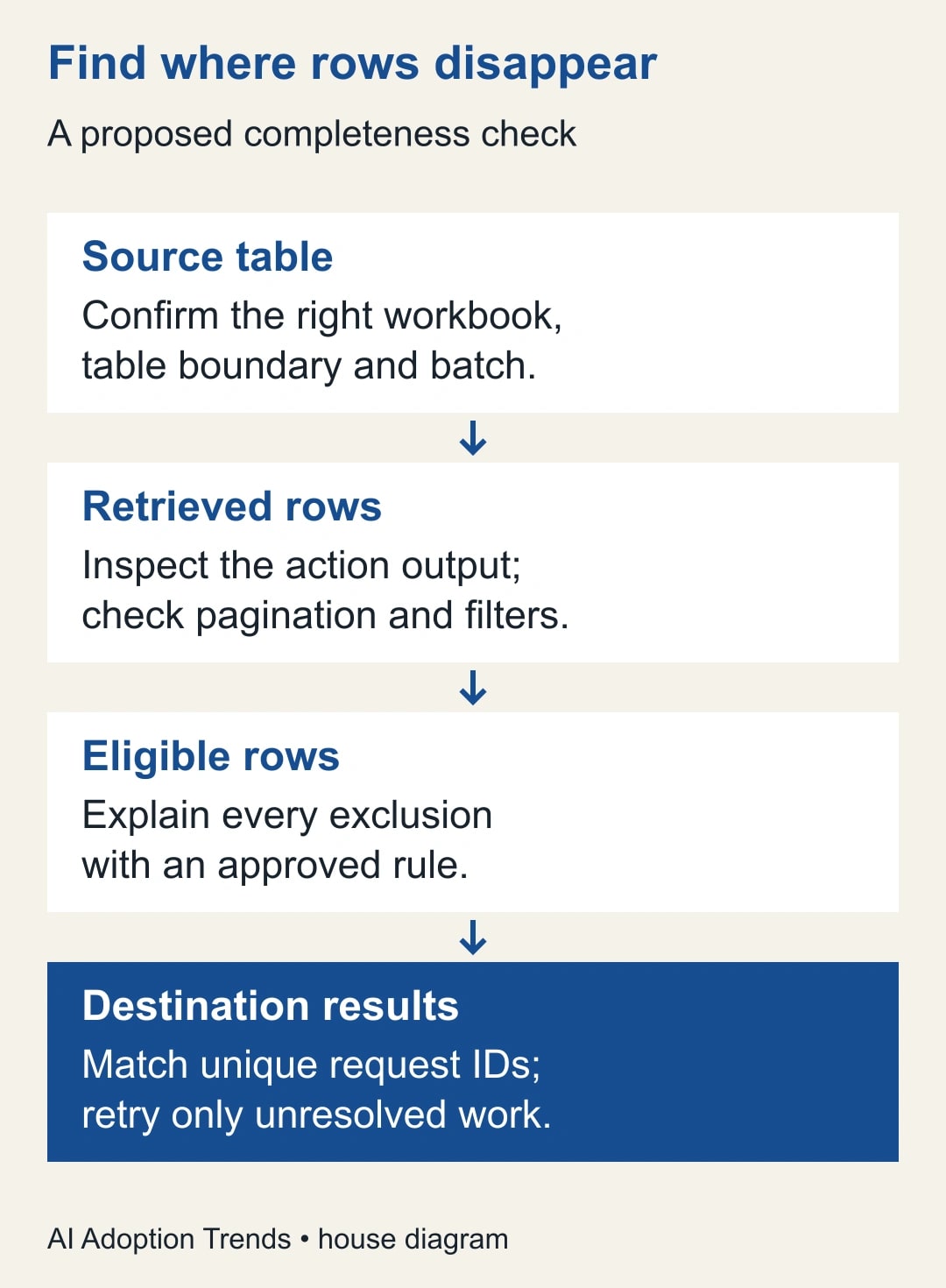
Check the table before changing pagination
Open the exact workbook and confirm the named table's boundary. A worksheet can visibly contain 720 rows while the selected table contains only 256. Rows pasted below a table are not automatically proof that the connector's chosen table includes them. Inspect the actual table range and its name.
Confirm the flow points to the intended file and location. Similar filenames in a personal drive and a team library are a common source of confusion in business processes. Compare a known request identifier and a recent source change. Do not fix the wrong workbook because it happens to have the expected row count.
Review explicit action filters and any row-limiting parameters. State the intended selection in plain language, then compare it with the configuration. If the flow is supposed to read only active requests, a count lower than the workbook total can be correct. The acceptance test must use the eligible set, not the largest number visible on screen.
Microsoft also notes that workbook filters are ignored when the action has no filter, while filtering or sorting can involve data delays. Do not use a visually filtered worksheet as proof of what the flow reads. Inspect the action's actual output and allow a stable test source when diagnosing freshness. Documented filtering behavior
Turn on pagination in a controlled copy
Open the List rows present in a table action's settings in the designer and enable Pagination. Set its threshold to cover the intended batch within the limits shown for the action and your environment. Save the flow and run the controlled test. Designer layouts can differ; the important check is the saved action setting and the returned output, not matching a screenshot from another version.
Choose a threshold from the workload you actually need. For a 720-row test, a threshold comfortably above 720 gives room to verify retrieval without making an unlimited-growth promise. Document what should happen when the source approaches that threshold. A fixed setting that solves today's queue can become tomorrow's silent boundary.
Inspect the returned value list in run history and compare its unique request identifiers with the source set. If the count remains 256, confirm that you saved the intended flow version and changed the correct action. If it increases but still falls short, revisit the table range, filters and limits before changing downstream logic.
Only after the retrieval is complete should you test the later actions. Microsoft's example of using expressions in conditions illustrates inspecting row data and applying a condition within a flow. Adapt that pattern to your explicit eligibility rule; do not copy a condition whose business meaning differs from your queue. Conditions using Excel row data
Reconcile a 720-request queue
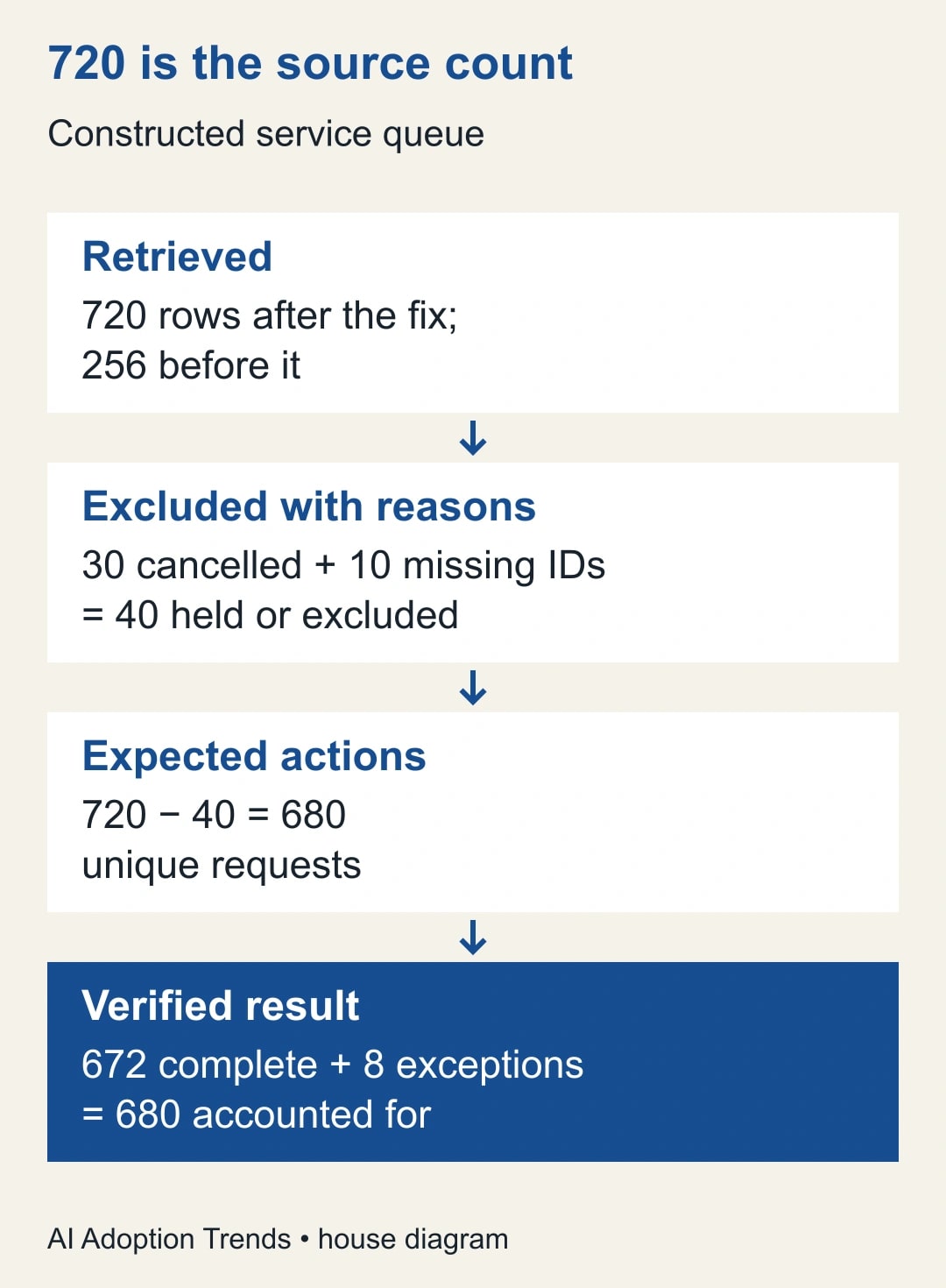
Consider a constructed service queue with 720 rows. The initial action returns 256. Under the assumption that every source row belongs in the retrieval, 464 rows have not yet been read. That arithmetic identifies a retrieval gap; it does not establish that all 464 should trigger a customer-facing action.
After the pagination fix, suppose the action returns all 720 rows. Thirty requests are cancelled, and ten lack the unique request identifier required for safe processing. The owner intentionally excludes the 30 cancelled rows and holds the ten incomplete rows for repair. That leaves 680 eligible requests, calculated as 720 minus 30 minus ten.
Suppose 672 eligible requests have verified destination records and eight have unresolved exceptions. The processing reconciliation is 672 plus eight equals 680. The whole source is accounted for as 672 complete, eight exceptions, 30 cancelled and ten held. “The flow processed 720 requests successfully” would be false even though it retrieved 720 rows.
Now ask whether the original 256 rows already created destination records. If they did, the recovery must recognize those existing completions. Do not send all 680 eligible requests through an unconditional create action. Match each request ID to its destination evidence and process only the set whose intended outcome remains unverified.
Make request identity part of the recovery
Choose a stable business identifier before replaying work. A row number is a weak identifier if people can insert, delete or reorder rows. A request code that remains attached to the same business event is more useful. Confirm that it is unique in the intended batch and preserved as text where necessary.
Store the identifier in the destination or in an explicit processing record, together with the batch reference and outcome. The record should distinguish attempted, verified complete, failed and unknown. An attempted action is not the same as a destination record the operator has checked.
For an unknown outcome, inspect the destination before retrying. A timeout can occur after a remote system accepted a request. Blindly creating it again can produce duplicates. If the destination supports a reliable duplicate-prevention mechanism, use and test it; otherwise route ambiguous cases to a person who can resolve them.
If the identifiers themselves changed during Excel import, repair that earlier problem before matching results. The guide to keep leading zeros and long identifiers intact explains why equal counts and totals do not prove that the right records survived.
Test the boundary and the failure path
Use controlled datasets with 255, 256 and 257 eligible rows. The 257-row case deliberately crosses the default boundary. Also test the normal expected volume and a dataset near your configured threshold. Confirm actual unique IDs, not only output length, for each test.
Include one cancelled request, one missing identifier and one duplicate identifier in a separate test. Decide in advance whether each should be excluded, held or treated as an error. The expected result should be written before the run; otherwise the team may rationalize whatever the flow produces.
Force a harmless destination failure for one known item, then recover it. Verify that completed items are not created again and that the exception remains visible until resolved. A workflow that retrieves every row but loses failed actions is still incomplete.
Finally, test a fresh row added outside the original table boundary. This exposes a source-maintenance problem that pagination cannot solve. The source owner needs a reliable way to keep the intended records inside the named table or to reject a batch whose boundaries no longer match the queue.
Keep the controls small enough to use
Use this proposed release checklist:
- The workbook, library and named table are the intended source.
- The batch reference, cutoff and expected request IDs are recorded.
- Pagination and any other row limits cover the intended test volume.
- Every explicit filter has an approved business meaning.
- Retrieved, eligible, completed and exception counts reconcile separately.
- Duplicate and missing identifiers are handled deliberately.
- Unknown destination outcomes are inspected before replay.
- One operator owns exceptions, and a second person can reproduce the check.
Publish a short result to the operational owner: “720 retrieved; 680 eligible; 672 verified complete; eight exceptions; 30 cancelled; ten held for missing IDs.” That sentence tells the team what to do next. A green status icon alone does not.
Keep the detailed record IDs in a controlled location rather than filling a broad email with customer data. Give recipients the minimum information they need to resolve the work. The reconciliation can be concise while its evidence remains available to the responsible operator.
When to pause and redesign
Pause the release if the source count changes during diagnosis, if the flow cannot distinguish existing completions, or if a failed item can trigger an uncontrolled repeat. Resolve those conditions before increasing volume. Pagination can make an incorrectly scoped flow affect more records faster.
If the actual error is a locked workbook or conflicting writers, changing retrieval limits addresses the wrong problem. Use the separate Excel file-lock recovery guide and return to completeness checks after the source is stable. Keep the two incidents distinct in the work log.
Measure the time to a reconciled result, including exception repair. For an illustrative comparison, manually checking 720 items at 20 seconds each takes 240 minutes. A flow requiring 30 minutes of batch review plus eight exceptions at five minutes each uses 70 staff minutes. The modeled difference is 170 minutes of available capacity; it is not measured performance or an automatic cash saving.
Your next action is to inspect one affected run and one missing request ID. If the action stops at 256, enable and test pagination. Then close the incident only when the source set, eligibility decisions and destination outcomes reconcile. The number you want is not simply more rows; it is fewer unexplained requests.
Weekly Newsletter
AI Adoption Weekly
New research, field guides, training studies, and tool decisions for operators.
No spam. Unsubscribe anytime.
Related Comparisons
Calculator
AI seat cost calculator
List price × headcount. You enter the hours and the operating assumptions.