
Keep Leading Zeros and Long IDs When Importing CSV Files
Import codes as text before conversion damages them, compare exact values with the source, and verify what the receiving system stores.
Published October 21, 2026

If Excel removes the zeros from a product code, changing its appearance afterward may hide the damage. Import identifiers as text before Excel or Power Query treats them as numbers. Then compare the resulting strings with the untouched source before using them to match orders, customers, or inventory.
This guide is for an operations analyst receiving comma-separated value (CSV) files from a supplier or business system. It addresses identifiers that must survive exactly: product codes, shipment references, and external account IDs. It is not a method for repairing unknown digits by guesswork. If the original file already contains a damaged code, request a fresh export from its owner.
The practical deliverable is a repeatable import with an acceptance sheet: expected rows, exact identifier checks, rejected rows, and permission to release the result. You need the original export, a copy of the workbook, access to Excel's Power Query editor, and someone who understands the source system's identifier rules. Budget review time as well as setup time. Buying an AI assistant is not necessary for this repair.
Decide whether the value is an identifier or a quantity
A product code consisting entirely of digits is still a name. Adding two product codes does not produce a useful third product. Treat that column as text. By contrast, ordered quantity and unit price are measures that need appropriate numeric types. A good import can contain both; making the entire file text merely moves the interpretation problem downstream.
Microsoft documents Excel's automatic removal of leading zeros and its 15-digit numeric precision. It recommends importing affected columns as text. A number format can change how a cell looks without providing a dependable interchange value. These behaviors were checked on October 21, 2026, against Microsoft's guide to preserving leading zeros and large numbers.
Before editing the workbook, write a small rule for each key column. For example: “SupplierProductCode is a six-character string; preserve leading zeros; letters are allowed; blank is invalid; case must match the supplier catalog.” That rule is an illustrative business requirement, not an Excel default. Another supplier may use variable-length codes, so a six-character repair would be wrong there.
Ask the source owner whether spaces are meaningful and whether a code can be reassigned. Do not automatically trim, uppercase, remove punctuation, or pad everything to a fixed width. Those changes can help when explicitly required, but they can also merge two distinct records. The owner decides what counts as the same identity; the spreadsheet implements that decision.
Preserve the evidence before opening the import
Save the original export in an approved location with its filename, export time, and reporting scope. Keep it unchanged. Work from a separate copy rather than opening the only CSV, editing cells, and saving over it. A CSV does not carry the same column-type instructions as a workbook, so an innocent-looking open-and-save sequence can change interpretation.
Inspect a small sample in a text viewer or another approved tool that shows the stored characters. Include at least one leading-zero code, one long numeric-looking identifier, one letter-and-number code, and one ordinary code. If personal information is present, use a restricted workspace and synthetic examples for screenshots or external support requests. The task is to protect identifiers, not distribute the source file more widely.
Record the row count excluding the header. Record counts for blanks and distinct identifiers if the business expects uniqueness. Distinct product count and transaction count are different: a product may legitimately appear on many order lines. Preserve the transaction's own unique line key when available. A repeated product code is not automatically a duplicate order.
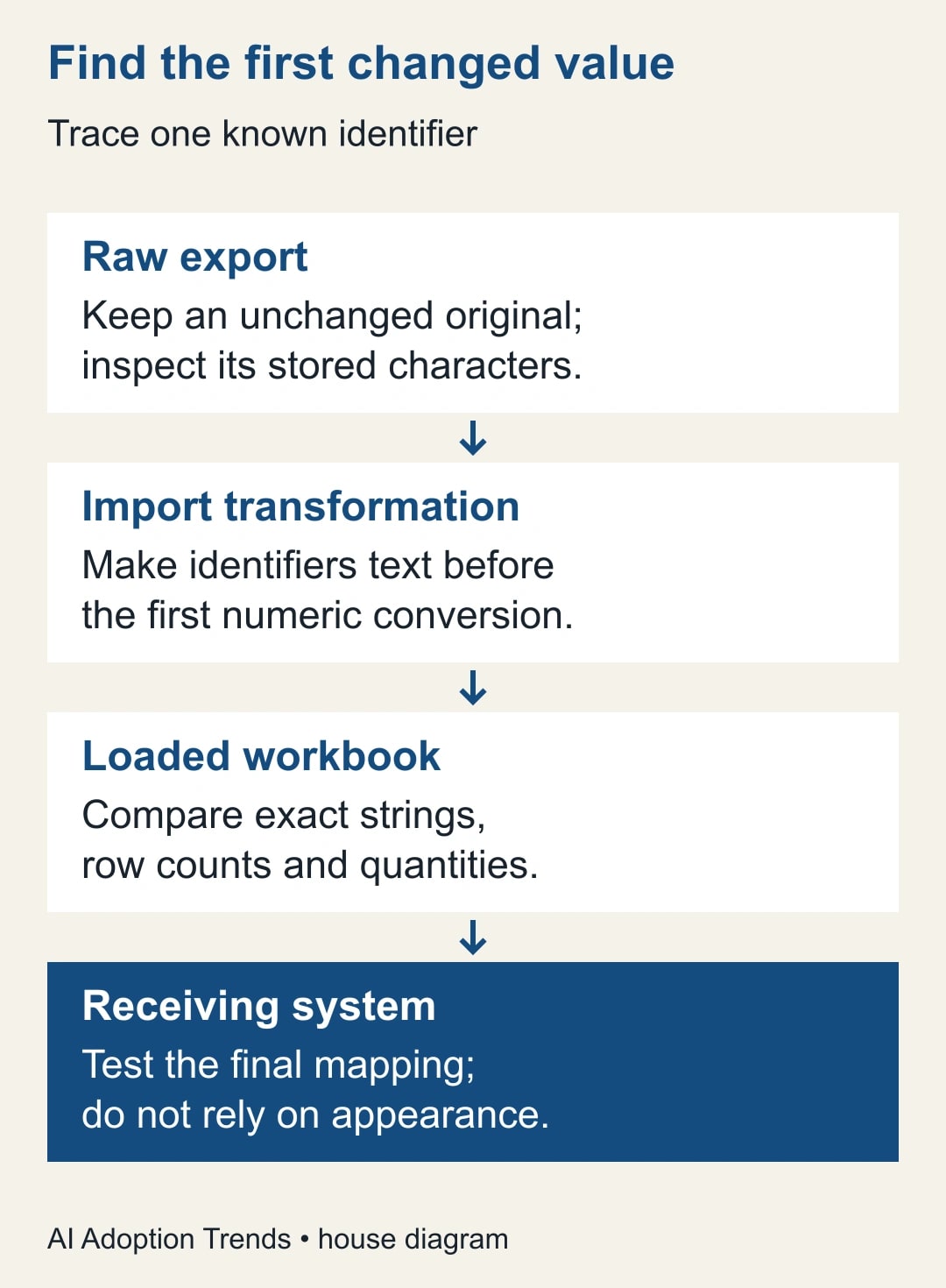
Correct the earliest conversion, not the final display
In Excel, use Data, From Text/CSV, and open the transformation editor rather than immediately loading the preview. Labels differ by Excel version; Microsoft's instructions describe Edit or the Power Query editor. Select the identifier column and set its data type to Text. Keep monetary amounts and quantities separate so calculations remain meaningful.
Inspect Applied Steps. Power Query can automatically detect column types for unstructured sources and add a Changed Type step. If that step already converted an identifier, changing a later step to text cannot recreate lost source characters. Return to the earliest step containing the intact strings and replace or revise the conversion there. Microsoft explains automatic detection and explicit types in Power Query data types.
For a simple supplier file, inspect Source, promoted headers if present, and Changed Type in sequence. At each stage, find the same known code. The first stage where it changes identifies the transformation to repair. If Source is already wrong, stop working forward and investigate the export. Do not remove unrelated steps wholesale; another column may rely on their date or amount conversion.
After changing the type, refresh the preview and check the exact characters. An identifier column should show text, and the sample's leading zeros should still be present. Then Close & Load into the working workbook. This is the first checkpoint, not permission to overwrite the operational destination. The loaded sheet and the next export both need verification.
Avoid using a guessed padding formula as the first fix. Turning 123 into 000123 is valid only if the source owner confirms a six-character rule and confirms that 123 has no other legitimate representation. It cannot recover missing digits from a long identifier. When a numeric conversion has discarded precision, return to the original string or source system.
Work through a four-line supplier example
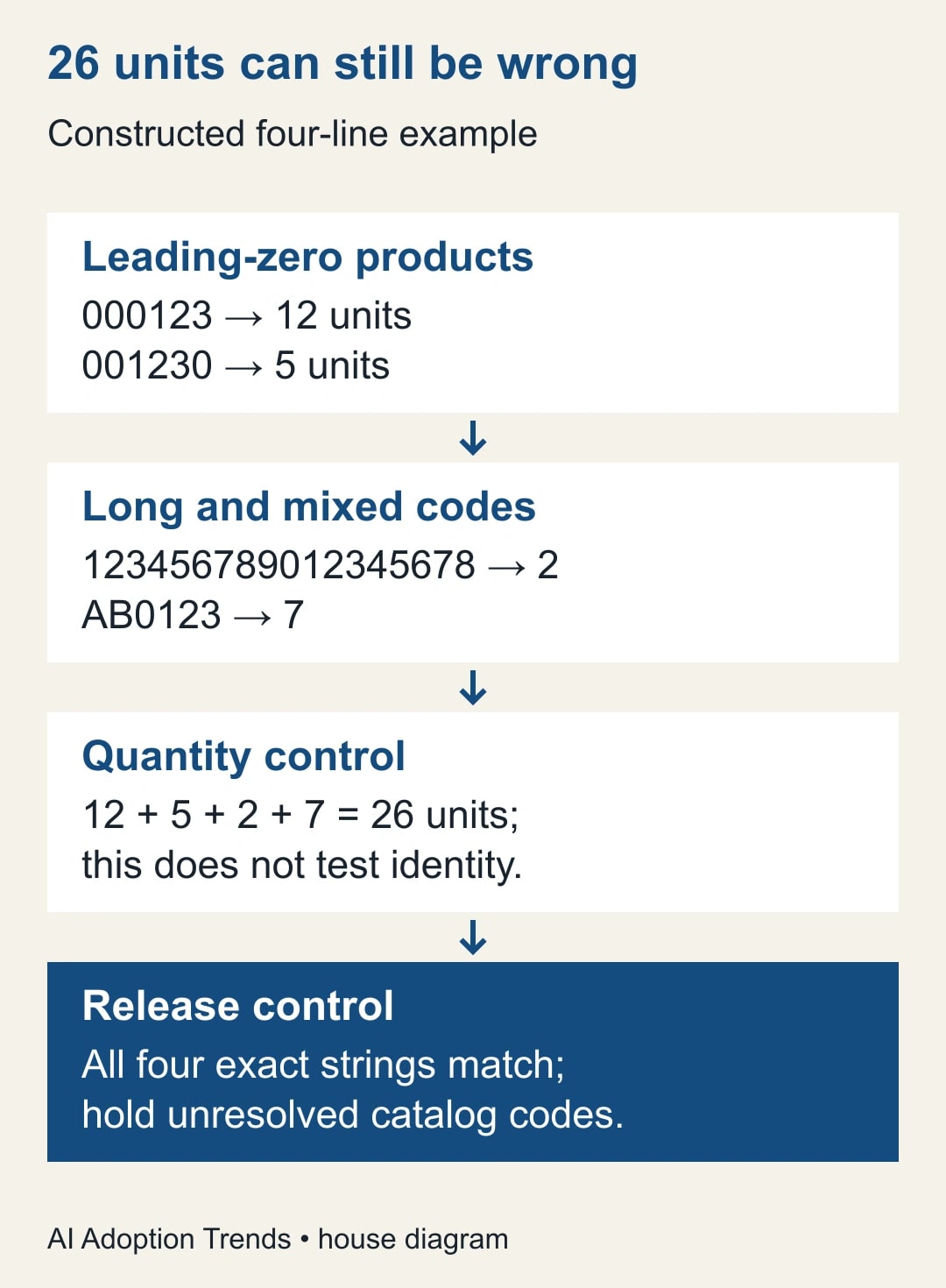
Consider this constructed example, with invented product codes and quantities. The source has four order lines: 000123 for 12 units, 001230 for 5 units, 123456789012345678 for 2 units, and AB0123 for 7 units. The expected quantity total is 26. There are four distinct product identifiers and four order lines.
An import can still total 26 while corrupting identities. The first two codes may lose zeros, and the long code may lose precision when represented as an Excel number. The quantity check therefore answers only one question: whether the amount of work stayed the same. It does not prove the right items will be picked, billed, or updated.
Reimport the untouched source with ProductCode as text. Compare each loaded code to the corresponding source string using the source line key, not its current row position after sorting. All four exact-string comparisons must match. Confirm the quantity total is still 26 and the number of order lines remains four. A workflow that passes only three of those four identity checks fails this example.
Suppose an existing catalog contains 000123 and AB0123 but lacks the other two codes. The correct outcome is two matched lines and two unresolved lines. It is not four successful matches produced by fuzzy similarity. Send the unresolved codes to the supplier-data owner. An AI-generated suggestion may help explain a mismatch, but it should not silently choose a replacement product.
If each unresolved line needs three minutes of review, this illustrative batch creates six minutes of exception work. That estimate belongs in the operating plan. It is not a measured result or a claim that automation saved money. The point is to make the remaining work visible before the import is judged successful.
Verify the file that the next system actually receives
Many repairs fail after the workbook looks correct. A colleague saves a CSV, opens it again by double-clicking, and sees the zeros disappear. Distinguish stored file contents from the application's new interpretation. Inspect the export as text first. If the characters are intact there, the next import needs an explicit text mapping rather than another attempt to repair the export.
Use a destination test environment or its preview mode when available. Send the four synthetic examples through the same mapping that production will use. Confirm the receiving system stores each identifier exactly and relates it to the expected record. A screenshot of Excel is insufficient evidence when the operational destination is an inventory platform or customer system.
Do not assume quotation marks around CSV fields guarantee that every receiving application will retain a text type. Treat the destination's mapping as a separate contract. Record the selected identifier field, its type, and whether the importer creates new records or updates existing ones. That last setting changes the consequences of a bad match substantially.
For a recurring report with no external write, the acceptance bar is simpler but still real: the right categories, counts, and totals must appear after refresh. For a file that updates live records, require a reviewed change preview and a recovery plan. Keep a list of the destination records affected so a failed import can be investigated without reconstructing the entire workbook history.
Use this acceptance worksheet for every new supplier
- Source: filename, export timestamp, owner, scope, and location of the unchanged original.
- Identifier rule: text column name, allowed lengths, meaningful punctuation, case treatment, and blank policy.
- Baseline: row count, expected unique line count, quantity or amount total, and selected edge cases.
- Transformation: earliest type conversion corrected, other column types preserved, and query owner.
- Identity check: exact source-to-output matches, unresolved codes, and who approved any mapping.
- Destination check: imported field type, create-versus-update setting, and four-row test outcome.
- Release: approver, release time, affected-record list, and reason to stop or reverse the batch.
Keep this worksheet beside the query instructions. It is deliberately short enough to complete, but it captures what a successor needs to distinguish a routine refresh from a new data format. If the supplier changes a column name, identifier length, or export format, repeat the acceptance test before the next operational load.
Recognize the failures that need a different repair
If a long identifier is already rounded in every available copy, a display format will not recover it. Request an authoritative export. If zeros are missing but a documented fixed-width rule exists, obtain approval for that specific normalization and retain the original value beside the corrected one. If the width varies, there is no safe universal padding instruction.
If two originally different codes become equal after cleaning, stop the match. A convenient count of “duplicates removed” can hide a damaged identity rule. Keep the conflicting rows and investigate the transformation that collapsed them. If the code survives import but fails a lookup, examine both sides' types and characters before substituting a different record.
If only a handful of rows fail, isolate those rows without silently dropping their quantities. Report accepted and held totals separately. For example, a 100-line file with three unresolved lines should be described as 97 accepted and three held, not as a completed 97-line import. The business owner decides whether partial processing is acceptable for that workflow.
Measure a stable import, then hand it over
Measure exact identifier matches, unresolved lines, and time spent reviewing exceptions over several normal runs. For a batch that updates live records, use zero unexplained identity changes as the release condition. A small sample is useful for diagnosis, but it does not excuse known failures elsewhere in the file. Automate the full comparison where the source provides reliable keys.
Keep the first good output, the acceptance worksheet, and a short explanation of why the key is text. That explanation prevents a future “cleanup” from reintroducing the numeric conversion. Name a backup owner who can refresh the workbook and identify the rejection report. A query that only its creator can operate is unfinished operational work.
Start with four synthetic identifiers today and trace them from the raw CSV to the receiving system. Once they survive intact, use the monthly CSV import guide for file selection and the Power Query merge diagnostic for checking the joins that follow.
Weekly Newsletter
AI Adoption Weekly
New research, field guides, training studies, and tool decisions for operators.
No spam. Unsubscribe anytime.
Related Comparisons
Calculator
AI seat cost calculator
List price × headcount. You enter the hours and the operating assumptions.