
Power Query Merge Duplicating Rows? Check the Match Before the Total
Find why a Power Query merge multiplies invoice rows. Check lookup keys, choose the right join, and reconcile amounts before trusting the refreshed report.
Published October 19, 2026

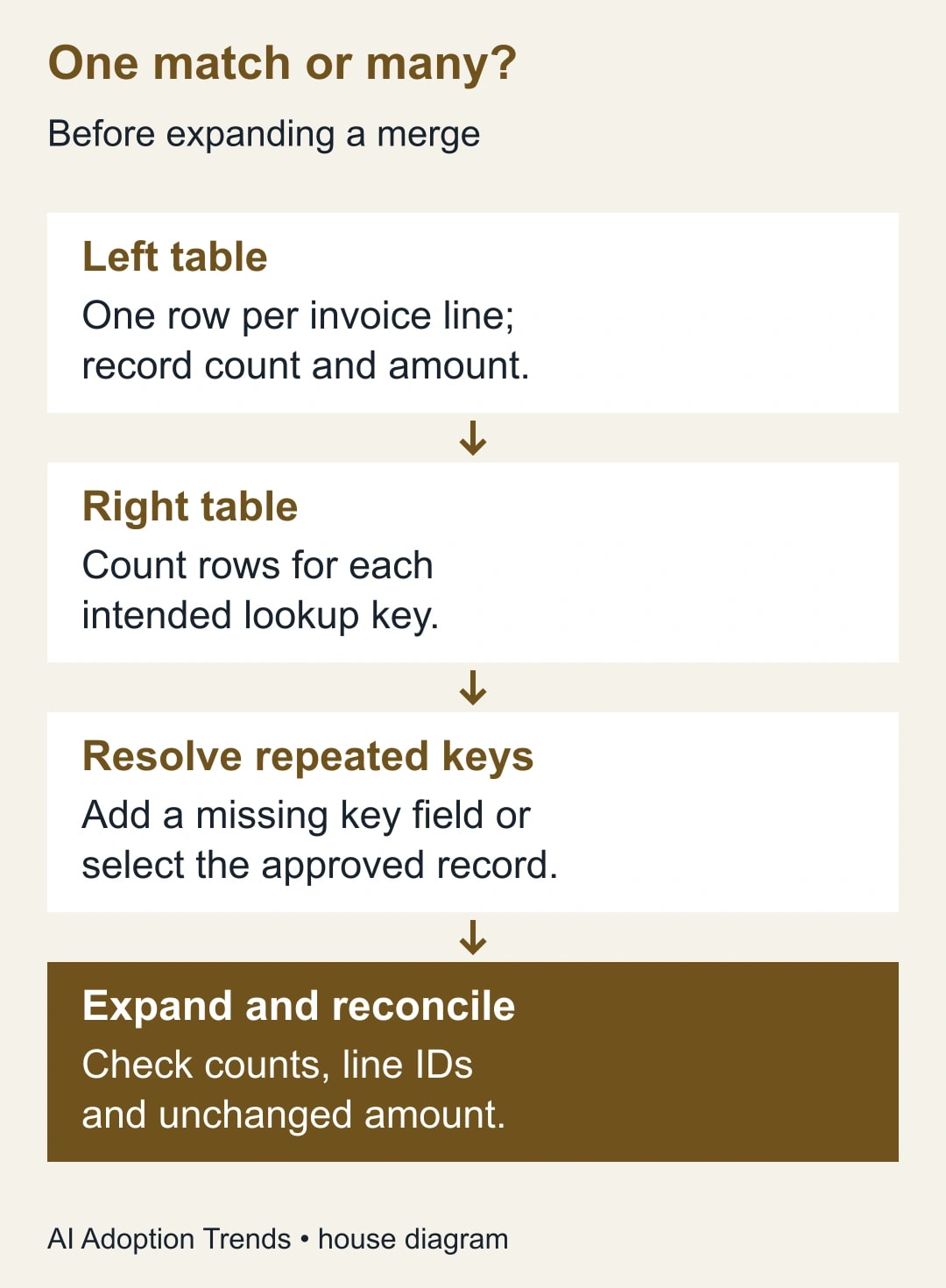
If a Power Query merge increases your row count or invoice total, check how many rows in the lookup table match each source row before removing anything. A merge can correctly return several matches for one key. Expanding those matches then repeats the source amount. The fix is usually to correct the relationship or reporting rule, not delete rows from the finished report.
This guide is for an analyst adding customer categories, product attributes or account ownership to an Excel report. It assumes the report should keep one row per original invoice line. If you intentionally need several rows per invoice, such as an allocation across departments, use an explicit allocation method instead. A one-to-many result is not automatically an error; it is an error when it contradicts the intended report.
Microsoft's merge documentation describes joins based on one or more matching columns and the later expansion of the related table. Product instructions were checked October 18, 2026. The diagnostic sequence and numerical examples below are editorial methods and constructed data, not results from a production workbook.
State what one output row represents
Write the sentence before touching the query: “One output row represents one invoice line.” Include the identifier that establishes it, such as invoice number plus line number. An invoice number alone may repeat legitimately when an invoice has several products. A customer name is even less likely to identify one transaction.
Next, state what the lookup adds. For example: “Each invoice line receives the customer's current reporting region.” That sentence implies one applicable reporting region for each customer. If the lookup contains both current and historical regions, the data does not yet satisfy the rule. You must decide which record belongs in this report before expanding the merge.
The distinction matters when the business question changes. A current sales-ownership report might use today's account owner. A historical commission report may need the owner in effect on the sale date. The same customer can legitimately have several historical owners, but the applicable date must become part of the matching logic. Ask the reporting owner to decide; do not choose the newest row just because it makes the total balance.
Keep the question small for the first repair. Use a copy of the workbook, the source query before the merge and the lookup query. Preserve the original query steps and the last accepted report. Do not overwrite the production export while diagnosing a number that nobody can explain.
Record the numbers before the merge
Capture three baseline measures: row count, distinct invoice-line identifier count and total amount. Also record the reporting period, currency and any filters already applied. A difference in totals is meaningless if the before and after measures use different periods or exclude different transaction types.
For an enrichment-only merge, the row count and total should usually remain unchanged. That is a proposed acceptance rule for this particular task, not a rule for every join. Write down any intended exception, such as excluding transactions whose customer is outside the reporting population. The report owner should approve that exception before the analyst uses it to explain a discrepancy.
Watch credits, zero-value lines and reversals. A total can remain unchanged even when rows multiply if positive and negative amounts happen to cancel. Conversely, a row count can stay unchanged while the wrong attribute is attached. You need the combination of counts, amounts and record-level checks.
If the report is still combining monthly files, finish that reconciliation first. A merge should not be used to disguise an earlier file-selection problem. Our reporting-tool alternatives guide helps separate the job of getting data into a workbook from the job of making its business relationships correct.
Count the lookup matches before expansion
Open the lookup query and group by the columns you intend to match, using Count rows. Investigate any key with more than one row when the intended relationship is one-to-one. Keep a separate exception query or worksheet so the business owner can see the repeated keys and their differing attributes.
Repeated keys can mean several different things. The file may contain an exact duplicate. It may contain two offices for the same customer. It may contain an old and a new account owner. Or your key may be incomplete because customer IDs are only unique within a company or country. These causes require different corrections.
For an exact duplicate, establish why it appeared and whether removing the redundant lookup row is legitimate. For different records sharing an incomplete key, add the missing key field. For historical records, define the applicable period or effective-date rule. For several valid categories, ask whether the output should contain a list, an allocation or a separate relationship table rather than one supposedly unique category.
Never use a blanket “keep first” operation on conflicting lookup records without a business rule. File order is not authority. Today's first row may become tomorrow's second row after a refresh, creating a report that changes its answer without any underlying business event.
An optional diagnostic in a copied query is to add a custom column after the merge but before expansion that counts the rows in the nested lookup table. If the merged column is called CustomerLookup, the expression is Table.RowCount([CustomerLookup]), using Microsoft's row-count function. Label it MatchCount. Values of zero, one and more than one expose unmatched, single-match and multiple-match cases. Adapt the column name to your actual query and validate the result on known records.
Make the join choices explicit
In Power Query Editor, use Merge Queries as New when you want to preserve the earlier query and inspect a separate result. Select the invoice table and the lookup table, then the corresponding key columns. For multiple keys, select them in the same order on both sides and confirm compatible data types. Microsoft documents these details in its Excel merge instructions.
Choose Left outer explicitly for this enrichment example: retain every invoice line and bring in its matching lookup values. Do not rely on a default selection. An Inner join can drop unmatched invoice lines and make a broken lookup appear cleaner by removing the evidence. Use an unmatched-record check separately so missing categories remain visible.
Expand only the attributes you need. Then compare the output with the baseline. If you added a reporting region, inspect the region on a few known invoice lines as well as the totals. A correct total with the wrong region is still a failed report.
Do not use approximate, or fuzzy, matching for transaction identifiers in this repair. Exact business IDs should match exactly after legitimate formatting corrections. If the source has inconsistent customer names rather than stable IDs, treat that as a separate matching exercise with reviewed exceptions. A similar spelling is not enough evidence that two transactions belong to the same customer.
Keep privacy settings appropriate to the sources. If a privacy error blocks the merge, resolve the source classification and query structure rather than weakening controls to get a result. The Formula.Firewall troubleshooting guide covers that separate failure path.
Reproduce the error with three invoice lines
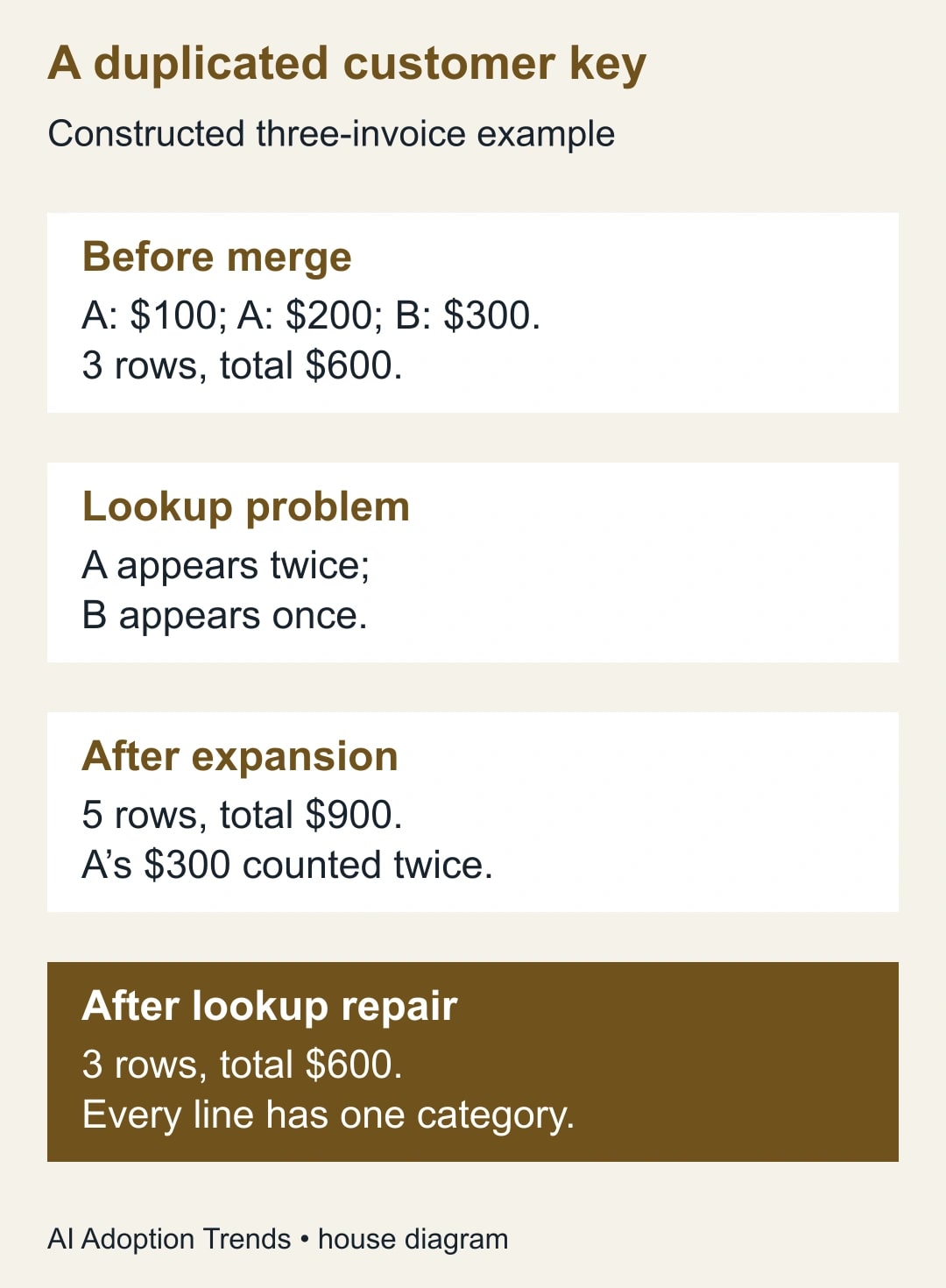
Use this constructed example to check the logic. The invoice table has line I-101 for customer A, amount $100; line I-102 for customer A, amount $200; and line I-103 for customer B, amount $300. There are three lines, three distinct line identifiers and a total of $600.
The customer lookup has two rows for A: one says North and one says West. B appears once and says South. When each invoice line is matched on customer ID and the related rows are expanded, I-101 appears twice, I-102 appears twice and I-103 appears once. The result contains five rows.
The amount total is now $100 + $100 + $200 + $200 + $300 = $900. The extra $300 is customer A's original $300 counted a second time. No additional sale happened. The query simply represented each A invoice under both matching lookup records.
Suppose the reporting owner confirms that this report uses the current region and North is A's obsolete region. The analyst creates an approved current-customer lookup with one row for A, West, and one for B, South. After remerging, the result has three rows and totals $600. The report's purpose and the lookup-selection rule are documented together.
Now change the example: suppose North and West are both valid cost-allocation destinations. Removing North would be wrong. The owner must define an allocation, perhaps 60% to North and 40% to West. Only then could A's $300 become $180 and $120 across two destinations while preserving the combined $300. That is a different reporting model, not a duplicate-removal trick.
Handle zero matches as carefully as multiple matches
An unmatched line needs an explanation. Check whether its key is missing, has leading or trailing spaces, lost leading zeros, uses a different data type or belongs to a different reporting entity. Fix formatting only when the business identifier remains the same. Converting “0012” to “12” can be harmless in one system and destructive in another.
Do not substitute a guessed category to remove blank cells. Keep an explicit Unassigned category or exception flag according to the report owner's policy. The output can then show both the total business activity and the portion awaiting classification. If the missing attribute changes a consequential decision, hold the report until the owner resolves it.
A left anti join is useful for reviewing source rows without a match. Microsoft lists it among the supported join kinds. Save the resulting exception count alongside the final report. A zero-exception result today does not guarantee the next refresh will have none, especially when new customers arrive before the lookup is maintained.
If refreshing introduces a new repeated key, restore the last accepted output or mark the new output provisional. Investigate the upstream change rather than manually editing the final table. Manual fixes in the output often disappear on the next refresh and leave the root cause intact.
Keep a reusable merge acceptance sheet
- Purpose: what one row represents and which attribute the merge adds.
- Sources: file or connection names, refresh time, period, currency and reporting filters.
- Keys: selected columns, their types and why they identify the intended relationship.
- Lookup exceptions: repeated keys, missing keys and the approved treatment for each category.
- Before and after: row count, distinct line-ID count, amount total and known-record checks.
- Join choice: why Left outer, Inner or another join matches the stated reporting purpose.
- Release decision: named report owner, unresolved exceptions and whether the output may be used.
Budget time for the first reconciliation and a shorter check on each later refresh. This method uses existing Power Query capabilities; a new connector subscription does not repair a faulty key. A data platform may become worthwhile for larger or shared reporting workflows, but first establish the relationship the platform would need to enforce.
The proposed release rule for this enrichment task is that counts and amounts agree with the baseline, every changed attribute has an explainable rule, and all exceptions have an owner. Stop if a total changes without an approved reason. Start with one customer that appears more than once in the lookup and trace its invoice lines through expansion. That small example usually reveals more than another round of deleting rows from the final report.
Weekly Newsletter
AI Adoption Weekly
New research, field guides, training studies, and tool decisions for operators.
No spam. Unsubscribe anytime.
Related Comparisons
Calculator
AI seat cost calculator
List price × headcount. You enter the hours and the operating assumptions.