
Looker Studio Extract Not Updating? Trace the Missing Records
Trace stale report data from source availability through extract updates and chart refreshes, then reconcile completeness before distribution.
Published October 21, 2026

If a Looker Studio report still shows yesterday's numbers, first find out whether its chart reads a live connection or an extracted snapshot. Refreshing the browser cannot make an old snapshot contain new rows. For an extract, check its source, selected date range, last successful update, and update schedule before changing the report.
This guide is for marketing and operations teams responsible for recurring client reports. It focuses on missing recent data, particularly when an extract has been introduced to improve performance. It does not diagnose differences in metric definitions between analytics products. If both reports contain the same period but disagree on what a user or session means, start with the separate GA4 and Looker Studio reconciliation guide.
You need access to the report, its data sources, the underlying source records, and the person who owns the extract. Make a working copy before changing connections or fields. Allow time for one controlled refresh and reconciliation. Database-backed sources can incur query costs, and third-party connectors can have their own allowances; a faster refresh schedule is an operating choice, not a free universal fix.
Establish which layer is old
There are at least three different clocks in this problem: when the business event occurred, when the source system made it available, and when the reporting copy last captured it. A chart can be freshly drawn from an old copy. Record those times separately, using one time zone or an explicit conversion, before deciding that the dashboard is broken.
Google's current documentation uses the name Data Studio on the pages linked here; many teams and searches still use Looker Studio. The distinction in this guide is between a source connection and an Extract Data source. Google's extract documentation, checked October 21, 2026, describes an extract as static information that must be updated on a schedule or extracted again.
Choose one known recent transaction that should appear. Record its identifier, event date, amount, and time it became visible in the source. Avoid using a changing headline total as the only test. A stable record makes it easier to identify where the path stops. Use an approved synthetic record in a test source if real records contain information the reporting team should not access.
Select the affected chart in the editable report and identify its actual data source. Do not assume every chart uses the source listed first in the report. Some may use an extract, another a live connection, and a third a blend. Capture the source names and owners in a short dependency list. The symptom belongs to a specific path through those sources.
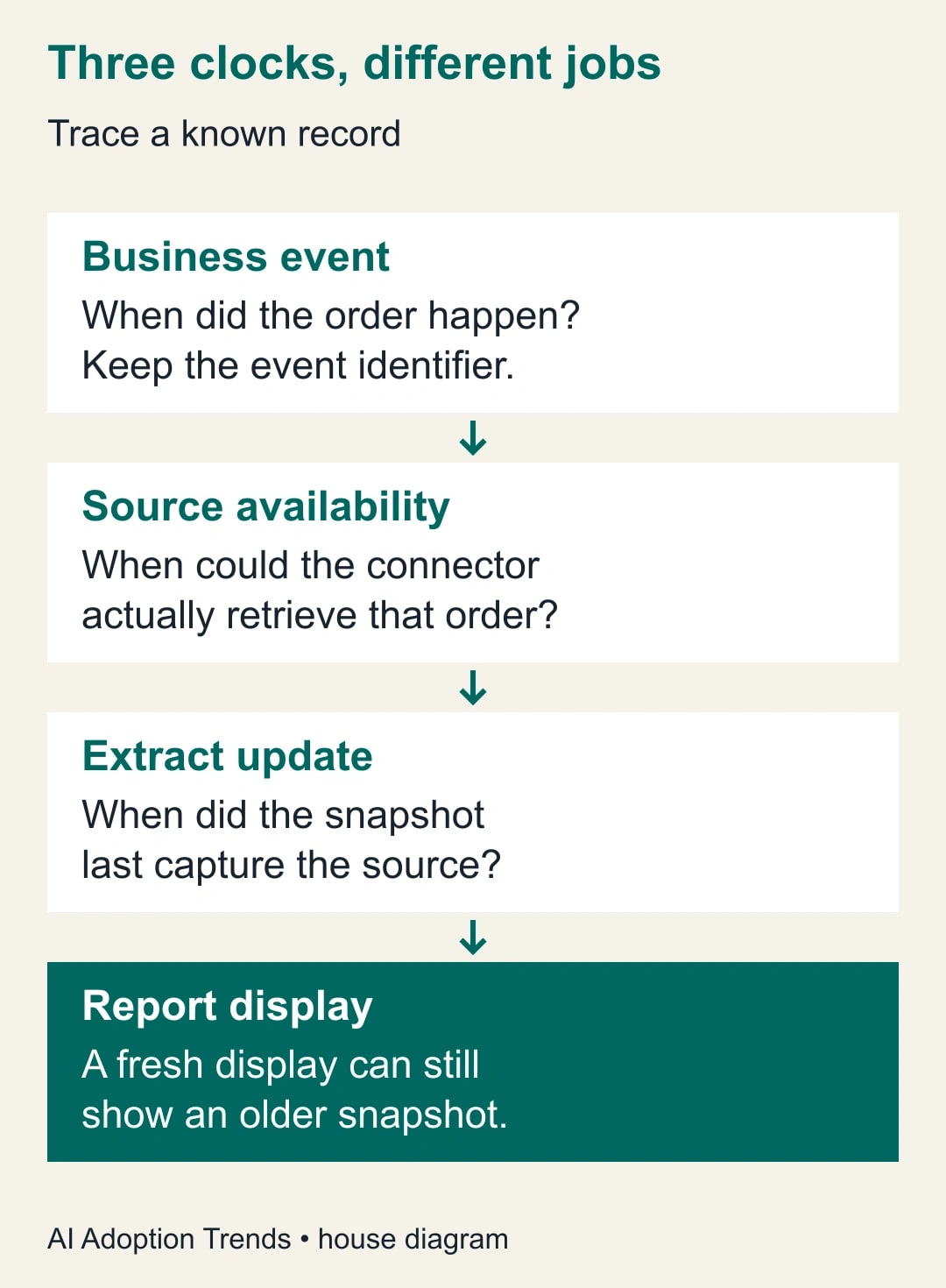
An extract update and a report refresh do different jobs
For an extracted source, open the data source and inspect its connection. Google documents an Edit Connection step available to its owner, followed by Save and Extract. Auto update provides a schedule for rebuilding the snapshot. Before doing either, inspect the selected fields, filters, and date range. Rebuilding a snapshot configured to stop last month will still omit this week's records.
For an ordinary source connection, investigate the data freshness setting and the source's own availability. Google describes freshness as reuse of stored query results until another fetch is required. Its freshness guide also distinguishes report auto refresh from data-source freshness. Redrawing a report more often does not necessarily cause a new source query each time.
Keep the scope of a manual refresh narrow. Record the original values, request one refresh, and compare the same record and period. Repeated clicks without a new observation create activity but little diagnostic evidence. If the record is absent in the underlying source, hand the issue to the source owner. The reporting layer cannot retrieve a record that the source has not made available.
There is a third command that often confuses this investigation: Refresh Fields. It updates the known field structure after columns are added, removed, or renamed. It is not the remedy for new rows. Google warns that refreshing data-source fields can make significant changes to reports. Do that only for a confirmed structure change, with an impact review.
Trace an agency's missing morning orders
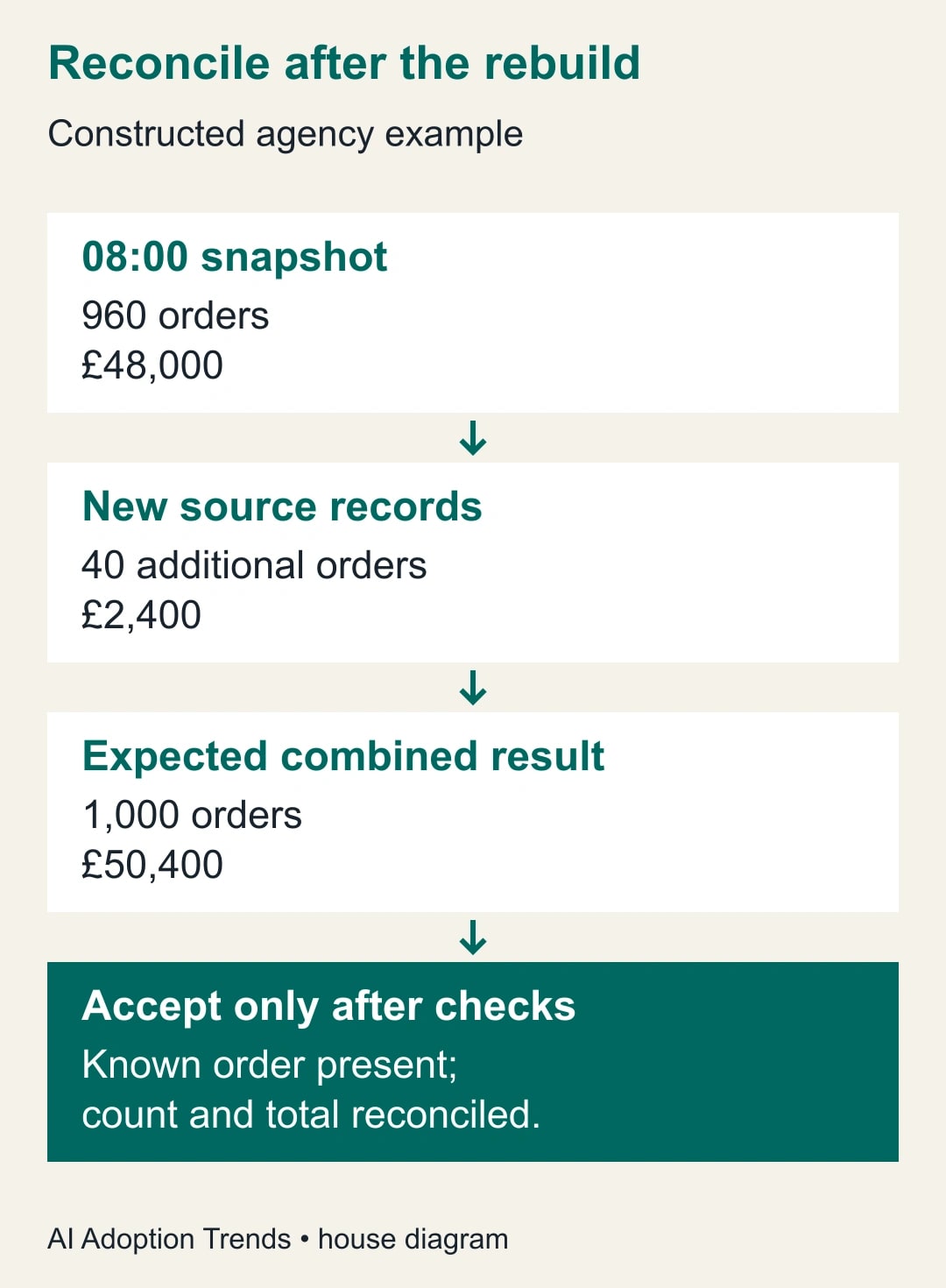
Consider a constructed agency example. At 08:00, a snapshot contains 960 orders worth £48,000 for the reporting period. By 09:00, the source has 40 more orders worth £2,400. At 09:10, the client dashboard still shows 960 and £48,000. The expected current values are 1,000 orders and £50,400, provided the same period and filters apply.
The analyst checks a known 08:42 order in the source and confirms it is included in the 40 new records. The chart uses an extract last successfully built at 08:00. That explains the missing order without requiring a new connector or a change to the calculation. The report's own refresh time can be 09:10 while the data inside the extract remains older.
The source owner checks the extract date range and filters, then rebuilds it after the source is ready. The analyst verifies 1,000 orders, £50,400, and the known order identifier. Checking the identifier matters because two wrong subsets can coincidentally have the same total. The change is accepted only after all three observations agree.
Now change the example: the refresh returns 980 orders and £49,200. Do not conclude that it “mostly worked.” Twenty orders and £1,200 are still unexplained. Compare the extract scope with the source scope, including time zone, status exclusions, and any row limits. Keep the client report marked as incomplete until the difference is explained or an explicitly narrower scope is agreed.
If the dashboard must be ready by 09:00 but the source routinely finishes processing at 09:15, the schedule is impossible as written. Moving the extract to 08:55 does not fix that. Either move the reporting deadline, use a clearly labeled earlier cutoff, or change the upstream data process. The analyst should take that decision to the report owner rather than conceal it behind a freshness setting.
Choose a freshness promise the workflow can keep
Start with the business decision. A daily campaign review may work with completed prior-day data; an order-dispatch queue may need a much shorter delay. Write the acceptable cutoff in plain language: “Contains orders available in the source by 08:30; checked by 09:00.” A precise label can be more useful than calling a report live when parts of it are scheduled snapshots.
Map a schedule backward from that promise. The source owner confirms availability, the extract owner schedules the update afterward, and the report owner checks the result before distribution. Leave a realistic margin for failures and investigation. Do not schedule every layer for exactly the same minute and assume all upstream work has already completed.
Use observed update durations from normal runs to set that margin. If the team has no history, run a small pilot and record start, finish, and reconciliation times. Label initial timing assumptions as assumptions. A provider's nominal freshness interval is not a measured end-to-end delivery time for your particular source, connector, and report.
If only one chart needs current data, consider whether that chart should use a different source path while historical views retain extracts. This is an editorial design option, not a product guarantee. Test access, cost, filters, and matching definitions before adopting it. A faster tile that disagrees with the rest of the report can create more confusion than a plainly dated dashboard.
Check completeness as well as freshness
An extract can be recent and incomplete. Google's October 13 documentation lists a 100 MB extract limit and a 750,000-row limit; it says an oversized row result is truncated. Those are provider limits checked for this article, not a recommendation to operate close to them. Record rows expected and rows captured, especially when a growing source approaches a limit.
For the agency example, suppose a historical extract is expected to contain 780,000 rows. A 750,000-row result is 30,000 rows short, or about 3.8% of the expected count. The newest timestamp alone does not establish coverage. Reducing columns may help size, but it does not establish that every expected row fits the row limit. Review the appropriate aggregation or narrower reporting period with the data owner.
Be careful when changing aggregation to reduce volume. An order-line dataset and an order-level dataset support different questions. Summing sales by date may be enough for a daily trend, but it removes the individual identifiers needed for an order exception list. Write the report's job before changing its grain, which means what one row represents.
When a blended chart combines several sources, verify each input independently. A recent order extract joined to an old campaign mapping can still misclassify results. Keep the freshness ledger per source, not just per dashboard. If one source cannot meet the deadline, show the narrower reliable view or hold the affected section instead of implying that all inputs share one cutoff.
Copy this incident worksheet
- Report and chart: link, business owner, decision deadline, and expected reporting period.
- Data path: source system, connector, extract if present, blend if present, and chart.
- Known record: identifier, event time, source-available time, expected amount, and relevant filter values.
- Source check: expected row count and total for the identical scope, plus who verified them.
- Extract check: owner, filters, date range, last successful update, row count, and size if available.
- One controlled action: refresh requested, settings changed, completion time, and result.
- Acceptance: known record present, counts and totals reconciled, cutoff label correct, and approver.
- Recovery: last trusted snapshot, distribution hold, next check time, and person responsible.
This worksheet gives a colleague enough evidence to continue the investigation without repeating every click. Keep technical logs where the team normally stores operational evidence; put the business impact and next update time in the client-facing note. Avoid sending credentials or raw customer records as part of an ordinary status update.
Recover without destroying the useful report
If credentials fail, route the issue to the authorized source owner. Do not switch a report to a more privileged account simply to make an error disappear. Access changes can affect what every viewer sees. Our report ownership and data-access handoff guide covers that separate problem.
If a rebuild fails, retain the last trusted data and label its cutoff. If the available snapshot is unsuitable for the decision, suspend that use rather than disguise its age. A daily email can say that one section is delayed and give the next check time. It should not use an old total under today's date without explanation.
If someone refreshed fields while investigating, compare the field list and affected charts with the working copy. Restore or repair the intended mappings before resuming distribution. A freshness incident should not quietly become a new metric definition. Document any intentional scope change so the next month-to-month comparison does not mistake a configuration change for a business trend.
Make the next refresh uneventful
Track the number of reports delivered by their agreed cutoff, the number of unexplained differences, and the time spent investigating stale sections. Add query or connector costs if the refresh schedule changes them. Time released from troubleshooting is staff capacity; cash savings require a corresponding change to spending, overtime, or contracted work.
Start with the next report due, one known record, and the three clocks: event, source availability, and snapshot update. Establish the first point where the record disappears. Once that is clear, the right action is usually a specific repair to that layer—not another round of refreshing everything in sight.
Weekly Newsletter
AI Adoption Weekly
New research, field guides, training studies, and tool decisions for operators.
No spam. Unsubscribe anytime.
Related Comparisons
Calculator
AI seat cost calculator
List price × headcount. You enter the hours and the operating assumptions.