
Airtable Find Records Missing Rows? Check Each Limit Separately
Trace missing Airtable records from conditions through action limits, repeating groups and email summaries. Reconcile the work before running it again.
Published October 22, 2026

When an Airtable automation appears to miss records, compare four counts: expected, found, processed and reported. A short test preview does not prove the search is incomplete, and a short email does not prove the updates failed. Find the first stage where the intended record IDs disappear before running the batch again.
This guide is for an operations manager whose automation starts successfully but seems to act on only part of a queue. It does not cover an automation that never starts; use the separate Airtable trigger diagnostic for that problem. Here the business question is whether every intended item received the right action exactly once.
Separate the limits that look similar
As checked October 22, Airtable documents a default of up to 1,000 records for Find records, with a configurable maximum. It also says older actions created before that setting may default to 100. The test preview displays only ten found records, while an automated email list or grid has a separate 100-record limit. Those are different stages, not interchangeable evidence. Airtable Find records documentation
A repeating group applies actions to items in an input list. It does not enlarge the list supplied by Find records. Airtable also distinguishes a single-record update from an action inside a repeating group. If the search returns many records but the next action updates one, the selection can be correct while the processing is incomplete. Repeating groups documentation
Do not respond to every short result by raising a limit. A deliberately narrow search may be protecting a workflow from acting on the wrong customers. An older step may need a configuration update, but only after the owner confirms what should be included. Increasing reach without checking intent can turn a small omission into a much larger incorrect batch.
Establish what belongs in this run
Write a sentence that defines the batch. For example: “Review all active equipment records assigned to the north service team and due before this Friday, excluding records already processed for this review cycle.” The sentence should be specific enough that another person can reproduce the intended set without seeing the automation.
Give the cycle a stable reference, such as a review date or batch identifier. A live view can change while the automation runs. Without a fixed reference, a later count may include newly added records or exclude records whose status changed during processing. That makes a correct batch look wrong, or hides work that was never selected.
Use a controlled pilot copy or a small non-destructive action first. Preserve the current automation configuration and the record IDs that define the intended batch. If the next step sends customer messages, creates orders or overwrites important fields, disconnect that consequence during the diagnosis and collect a test result instead.
You need permission to inspect run history and an owner or creator who can change the configuration. Use your existing Airtable plan, checking its current automation allowance and any action-specific requirements in the workspace. Budget review time and exception handling as well as runs. A successful step test is not a budget or capacity forecast.
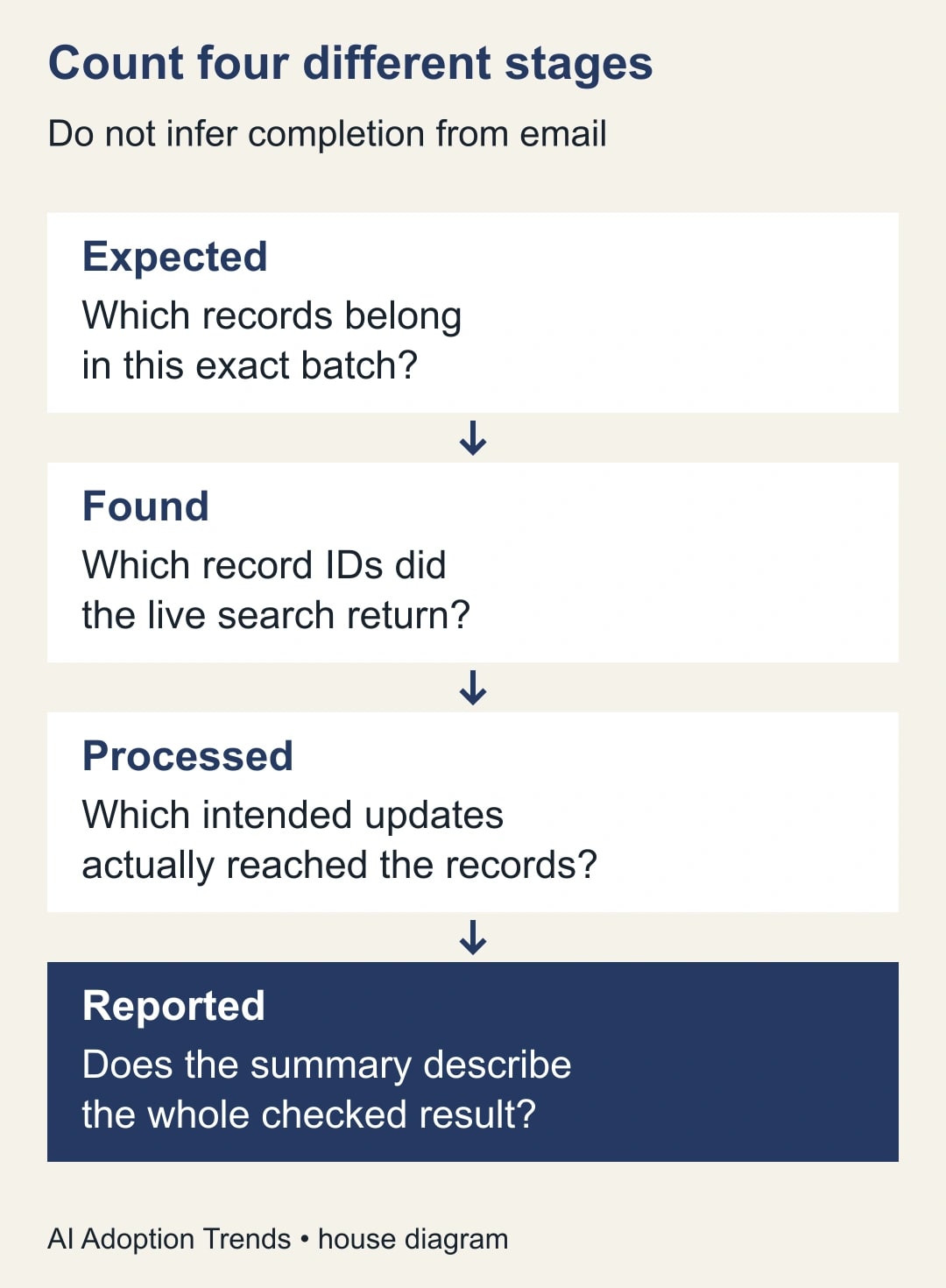
Inspect the actual selection, not the visible preview
Open one recent live run and inspect the Find records result. Record the table, view or conditions, the configured maximum and the returned record IDs or count available in that run. Compare them with the intended batch at the same cutoff. Use a known missing record as a probe: why should it have matched, and where is the evidence that it did not?
If the action uses a view, check that view's current conditions and whether someone changed them. Airtable notes that changing a referenced view can change the automation's results. For a critical process, either use controlled view changes or keep the conditions explicitly in the automation. The purpose is to make selection changes deliberate and reviewable. View dependencies in repeating groups
If the action uses a value from an earlier step, inspect the value that this run actually supplied. A correct rule with an empty or wrong customer reference can return the wrong set. Compare the live input with your intended record, not with a sample value left in the editor from an earlier test.
Check the boundary conditions too. A due-before-Friday rule can mean a date cutoff or an exact timestamp. Write the intended business cutoff with its timezone and test records just before and after it. Do not change time rules merely to make the count match; explain why the selected records belong in the run.
Follow one record through the processing step
Choose a record that the search definitely found. Inspect the action that should update it and confirm that the target is that record's identifier. A hard-coded identifier, or one copied from the original trigger, can repeatedly update the same record even when the input list contains many different items.
For a repeating group, map the update to the current item's Airtable record ID. Test with two visibly different records and harmless output values before expanding. The test should prove both records reach their own destinations. One successful update proves only that one mapping worked.
Keep the result check outside the assumption that a green run equals a completed business task. Inspect the actual field values after the run. If the task is to set a review status, verify the status and the cycle reference. If it is to create a downstream task, capture the destination task identifier as evidence rather than marking success simply because the request was attempted.
Do not build a shared total by having every iteration overwrite the same field. Airtable warns that repeating-group updates do not reliably append previous values, and iteration order is not guaranteed. Use per-record results and a separately checked summary instead. Repeating-group limitations
Work through a 240-record discrepancy
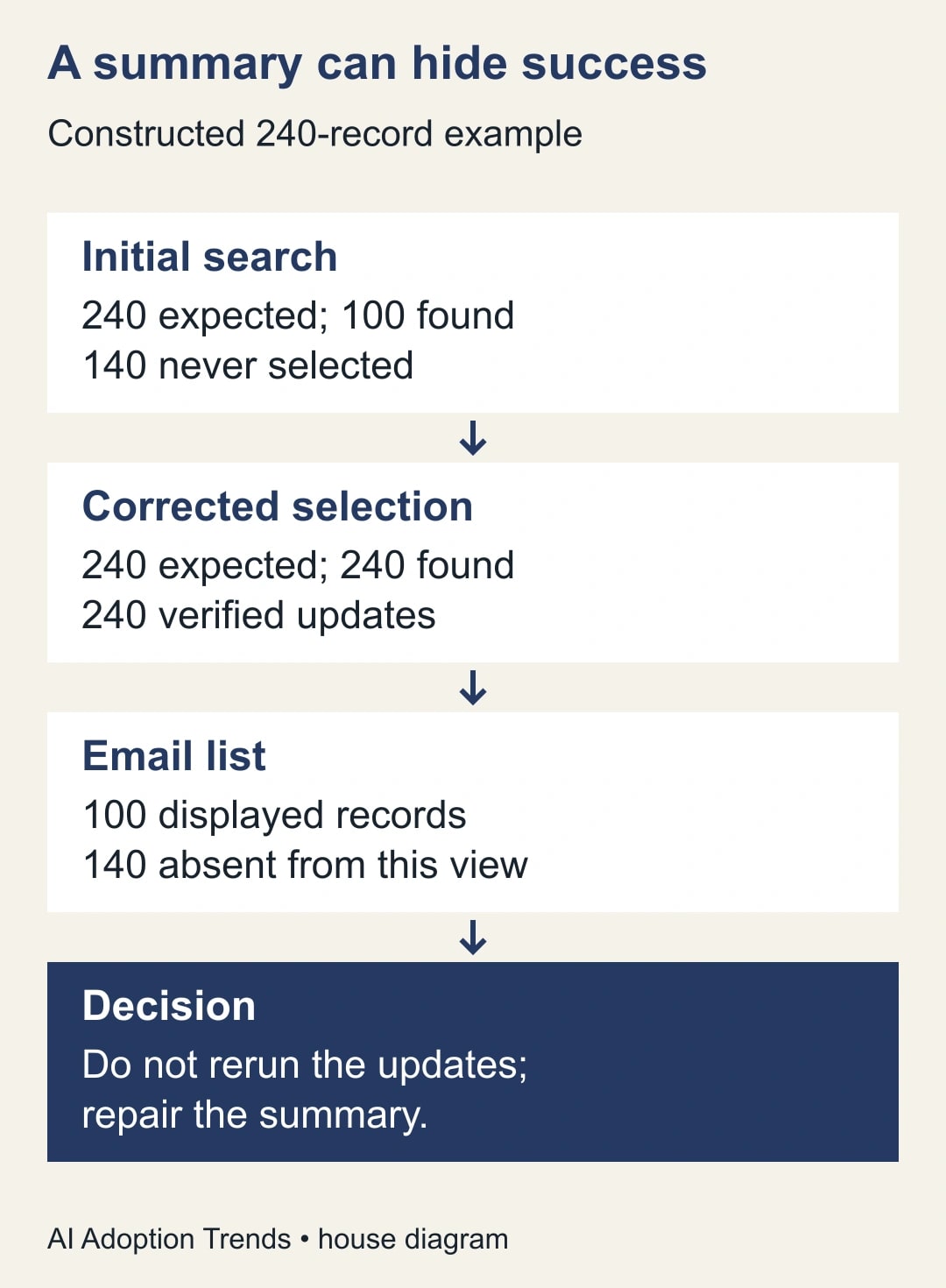
Consider this constructed example. A manager expects 240 equipment records in a review cycle. An older Find records step returns 100. Each of those 100 receives the intended status update. The email summary lists 100 records. The initial reconciliation is expected 240, found 100, processed 100 and reported 100.
The first discrepancy is between expected and found. One hundred forty records were never selected. The operator should inspect the maximum and conditions before changing the repeating group. A bigger group cannot process records it did not receive. The existing 100 completed records must remain identifiable so recovery does not repeat their work.
After the operator corrects the selection in a controlled test, suppose the search returns all 240 intended IDs and all 240 updates are verified. The email still lists 100. Now the counts are expected 240, found 240, processed 240 and reported 100. The processing is complete; the summary is incomplete. Rerunning the updates would address the wrong stage.
The proposed recovery is to provide a checked summary count and a controlled link or report containing the full intended result. If separate email lists are truly necessary, design their scope and recipients explicitly rather than sending several arbitrary fragments. Include the batch reference so a recipient can tell which review cycle the list describes.
Recover only the unresolved work
Create a recovery set from the intended record IDs minus the IDs with verified completion for this cycle. In the first version of the example, that is 240 minus 100, or 140 unresolved records. The comparison must use identifiers, not just counts: two different sets of 100 records would have the same count but require different recovery.
Before replaying, distinguish failed from unknown. A failed update may have no effect, while an interrupted response can leave the destination changed even though the operator did not receive confirmation. Inspect the destination for unknown outcomes. Do not send another customer message merely because the automation history is ambiguous.
Add a completion marker only after the intended result is verified. Include the cycle or batch reference; a single permanent Processed checkbox may prevent a record from participating in next month's legitimate review. The business owner decides whether completion applies forever, to one event or to one reporting cycle.
Run a small recovery subset and compare before-and-after results. If it passes, process the remaining unresolved set using the same controls. Record exceptions separately with an owner and next action. “140 retried” is not a completion record; “138 verified, two awaiting inspection” is useful operational evidence.
Design larger batches with explicit boundaries
For work beyond the Find records limit, Airtable recommends distinct views or conditions, or a scripting approach where appropriate. Choose batches that neither overlap nor leave gaps. A region or stable batch field can be easier to review than a moving “first thousand” set. The exact design depends on the record definitions and the consequences of a repeated action. Find records limits and workarounds
For an illustrative 1,200-record queue, two verified non-overlapping batches of 600 can account for the full set. Their counts alone are insufficient: check that the union contains 1,200 unique IDs and that no ID appears in both. Keep the membership fixed while processing if status changes would otherwise move records between batches.
Avoid making a single all-done decision from an unverified step after a repeating group. A safer operating pattern is to store individual outcomes, reconcile the complete batch and release the summary only when every expected item is accounted for. If you automate that release, test partial failure and duplicate-trigger cases as deliberately as the happy path.
Use a four-stage incident worksheet
Copy these fields into the batch record:
- Business scope: the rule, cycle reference, cutoff and owner.
- Expected set: source of the intended IDs and the time it was captured.
- Found set: live run reference, conditions, maximum and returned IDs.
- Processed set: intended action, verified outcome and destination evidence for each ID.
- Reported set: what the recipient sees and whether the summary is complete.
- Exceptions: missing, failed, unknown and intentionally excluded records with reasons.
- Recovery: the exact unresolved set, operator and verification result.
- Release: who accepted the reconciliation and where the complete result can be inspected.
The worksheet should let another operator answer “What is left?” without rereading the entire automation. Preserve the distinction between a missing record and a record intentionally excluded by the rule. Both may be absent from the output, but only one necessarily requires repair.
Decide whether the automation is still economical
Measure successful business outcomes, not merely runs. Track expected records, verified completions, exception age and time spent reconciling the batch. A process that silently leaves 140 items behind can look efficient if the dashboard counts only the 100 it touched.
For a constructed timing comparison, manual review might take 240 records times one minute, or four hours. An automated update followed by 45 minutes of reconciliation and 30 minutes of exception work uses 75 staff minutes, leaving a modeled 165 minutes of capacity. That calculation assumes the update is appropriate and the verification actually covers the work. It is not evidence of cash saved or a measured Airtable result.
Stop expansion if the operator cannot identify the intended set, if unknown outcomes cannot be resolved, or if recovery can create duplicate commitments. Repair the record model or simplify the action first. Your next step is one live-run reconciliation with the four counts above. It will tell you whether to change the selection, the processing, or merely the way completion is reported.
Weekly Newsletter
AI Adoption Weekly
New research, field guides, training studies, and tool decisions for operators.
No spam. Unsubscribe anytime.
Related Comparisons
Calculator
AI seat cost calculator
List price × headcount. You enter the hours and the operating assumptions.