
Power Query Swapped Day and Month? Fix the Import, Then the Report
Fix swapped day and month values in Power Query by preserving raw dates, applying the source locale, and reconciling monthly totals before release.
Published October 20, 2026

If Power Query has swapped day and month, changing how Excel displays the date will not reliably repair it. Return to the original date text, apply the correct locale for that source, and reconcile the affected monthly totals before refreshing the report people use.
The dangerous cases often look valid. The text “03/04/2026” can mean March 4 or April 3. Both are real dates, so a successful refresh does not prove the transaction landed in the right month.
This guide is for an analyst importing operational exports into Excel with Power Query, the tool that imports and transforms data before loading it into a worksheet or model. It covers a specific problem: the source provides text dates and the import interprets their order incorrectly. It does not resolve ambiguous source records by guessing what the business intended.
Confirm that the problem happened during import
Keep the original export unchanged. Open a copy in a text viewer or another method that preserves the literal field values. Compare a few source strings with Power Query’s output and with an authoritative record, such as the transaction detail in the source system.
Choose at least one date whose day is greater than 12 and one whose day is 12 or lower. The first can expose a parsing error; the second tests a silent swap. Checking only “25/04/2026” misses the more deceptive “03/04/2026.”
Also check whether the source field is truly text. A database date, an Excel serial number, a timestamp with a time zone, and a text string are different inputs. Do not apply a text-locale repair to every date problem just because the final report looks wrong.
Microsoft documents that Power Query can automatically detect types in unstructured sources such as text files, using the first 200 rows, and can add a Changed Type step. It also explains how locale affects text-to-date interpretation and how to use Change Type with a specified locale. See Microsoft’s data-type documentation.
The practical implication is that an early automatic step may have made a decision you never explicitly approved. Inspect the sequence of applied steps before changing anything in the final worksheet.
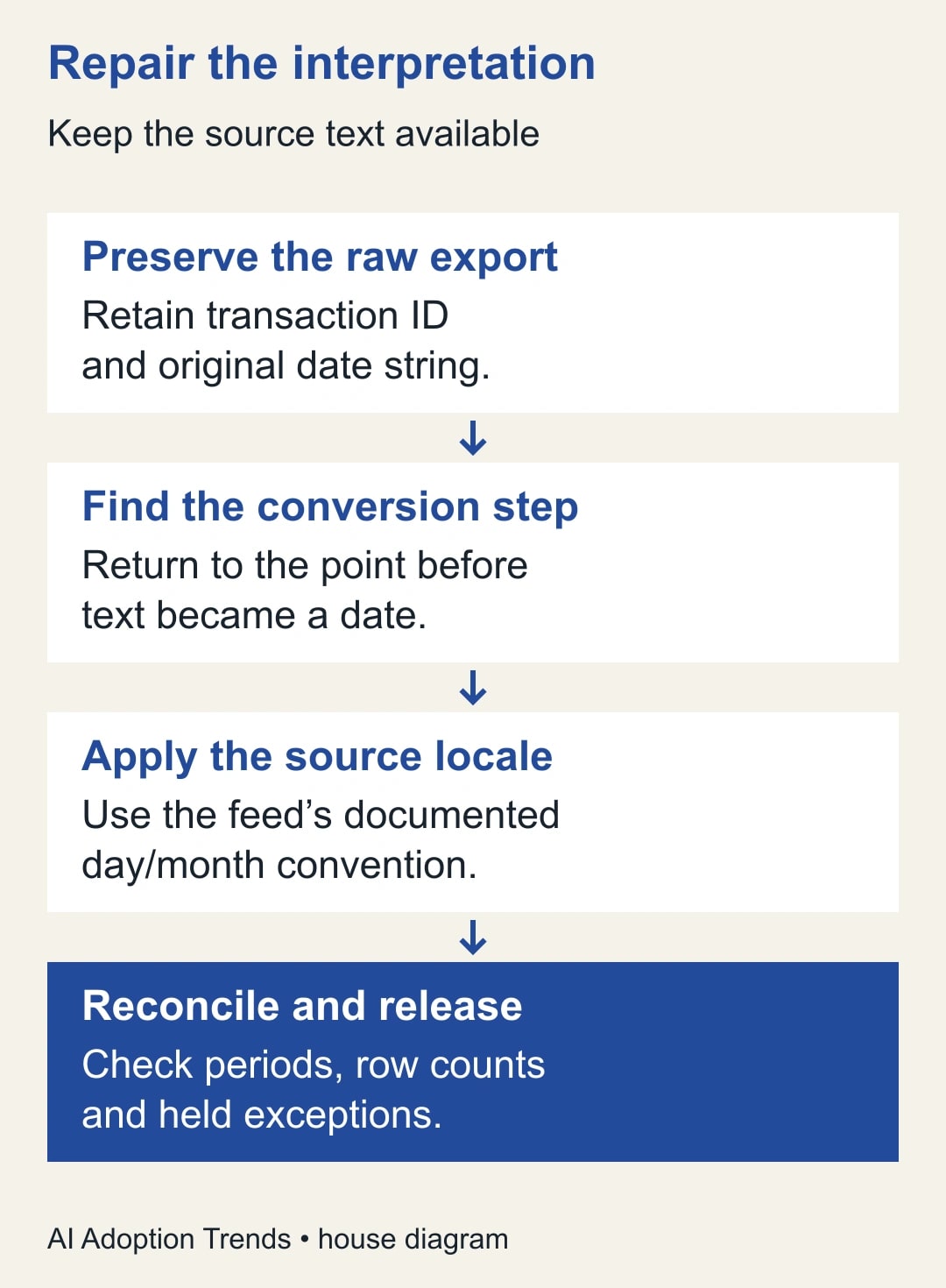
Preserve the evidence before fixing the query
Save the current workbook under a repair copy or use your established version history. Record the source file, import time, current row count, current amount total, and the report periods that appear wrong.
Give the work an owner. The analyst can repair the transformation; the report owner must decide which previously distributed figures need correction. A silently repaired dashboard does not tell yesterday’s meeting participants that their April total was wrong.
In the query editor, step through the import until the date field still contains the original text. Look immediately before the step that converts it to Date. If an earlier transformation has already replaced or reinterpreted the source value, return further or reimport from the untouched export.
Keep a raw-date column and a parsed-date column in the repair process. Names such as “OrderDateRaw” and “OrderDateChecked” make their roles clear. Preserve an order or transaction identifier as well. Without it, a suspicious date can be difficult to trace back to the source.
If the workbook already contains incorrectly parsed date values and the original strings are gone, converting those values back to text does not reconstruct the original evidence. Obtain the source export again. Otherwise, you risk treating the first mistaken interpretation as the new truth.
Set locale by source, not by the analyst’s laptop
Determine the date convention from the exporting system’s documented setting or the person who owns the feed. A customer’s country, a colleague’s language, or the appearance of a few rows is not enough.
For a feed documented as day/month/year, apply the corresponding locale to its original text field. In Power Query, use the column’s Change Type option, choose Using Locale, select Date, and select the appropriate locale. The exact surrounding interface can vary by host and version; the important choice is the locale used while interpreting the original text.
For the constructed example below, the source owner confirms English (United Kingdom) and day/month/year. An English (United States) interpretation would reverse the ambiguous day and month values.
After conversion, extract day, month, and year into temporary check columns if that makes review easier. Compare the components with the source records. This is more dependable than looking at a formatted date and assuming that its appearance proves the underlying value.
Do not change a machine-wide regional setting as the first repair. A single workbook may consume several feeds with different conventions. Make the source assumption visible in the transformation that depends on it.
Reconcile a small example before the full refresh
Consider four constructed order rows from the confirmed day/month/year feed. The amounts are teaching values, not reported customer data.
- Order A: 03/04/2026, amount 1,200. The intended date is April 3.
- Order B: 04/03/2026, amount 800. The intended date is March 4.
- Order C: 13/04/2026, amount 500. The intended date is April 13.
- Order D: 25/03/2026, amount 300. The intended date is March 25.
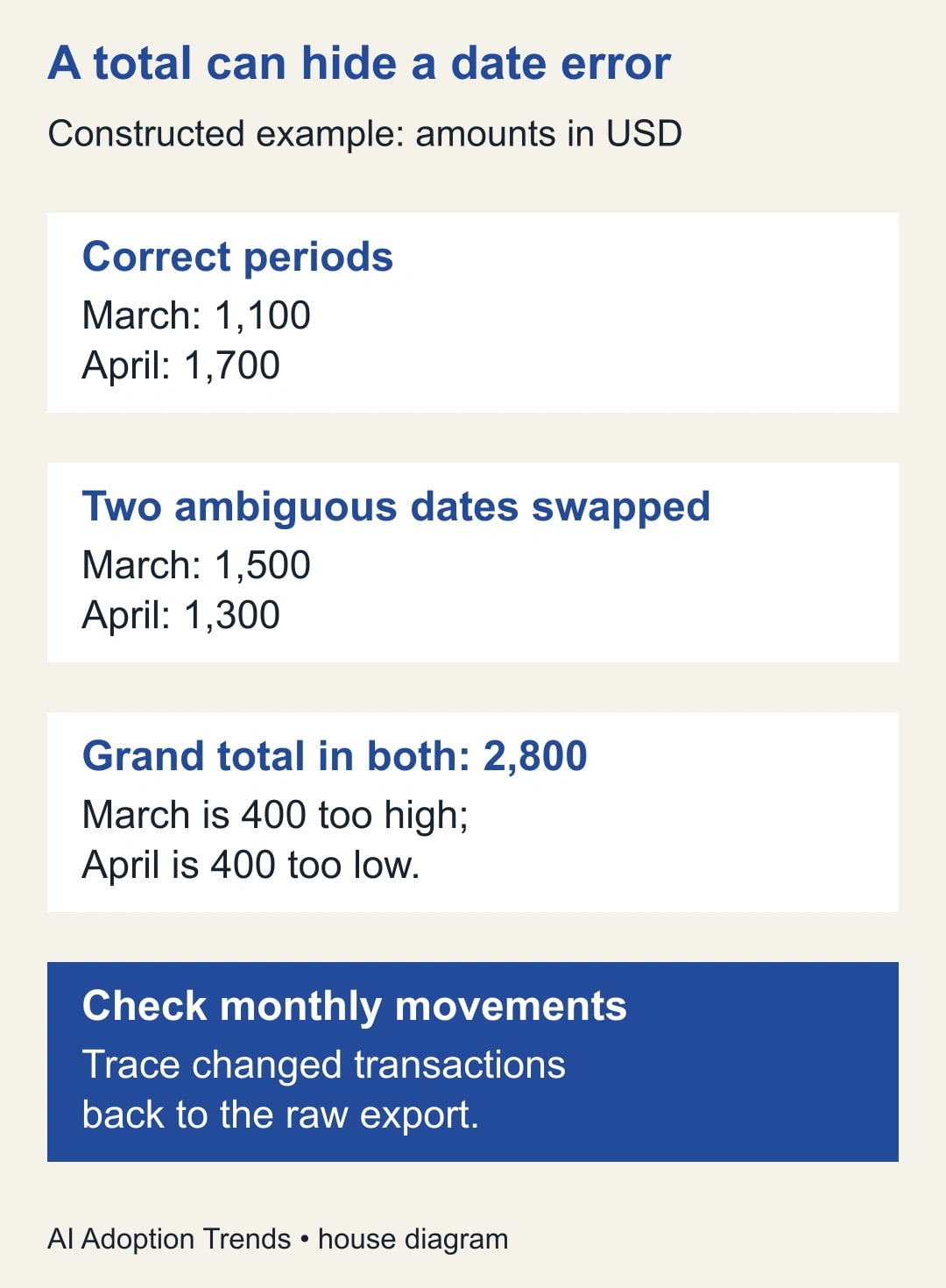
The correct March amount is 800 + 300 = 1,100. The correct April amount is 1,200 + 500 = 1,700. The four-row grand total is 2,800.
If only the two ambiguous dates are swapped while the other dates are interpreted correctly through some other part of the process, March becomes 1,200 + 300 = 1,500 and April becomes 800 + 500 = 1,300. The grand total remains 2,800. March is overstated by 400 and April understated by 400.
This scenario shows why a grand-total check can pass while the report is wrong. It is not a claim that one particular import engine will automatically mix those behaviors. A uniformly wrong locale may instead produce errors on the dates with days above 12.
Check both possibilities in your workbook: rows that fail conversion and rows that convert successfully into the wrong period. Do not delete error rows to make the refresh green. That can remove legitimate transactions and turn an interpretation problem into missing revenue or orders.
For the real repair, create a comparison by month before and after the corrected parsing. Investigate every moved transaction in the affected window. The expected output is an explained movement between periods, with no unexplained loss or duplication of rows.
Keep mixed feeds separate until their dates are normalized
Suppose a folder contains a United Kingdom export and a United States export with the same column headings. Combining them first and applying one locale to the merged date column can misinterpret one feed.
Instead, identify each feed, parse its date under its documented convention, and only then combine the typed results. Keep a source-file or source-system field so the final rows remain traceable.
If a single file contains mixed conventions without a reliable indicator, the problem is upstream. A value such as “03/04/2026” cannot reveal its intended convention on its own. Ask the source owner to provide a consistent format, an explicit date field, or a trustworthy convention indicator.
An AI assistant may help explain a query or propose diagnostic checks. It cannot recover missing meaning from an inherently ambiguous string. Do not accept a generated rule that “usually” guesses correctly for the historical sample when future transactions will use the same pipeline.
Where the source allows it, request an unambiguous export format and document it. Still validate the actual incoming files. A supplier changing an export setting can reintroduce the problem even after the workbook has been repaired.
Build an exception queue instead of erasing errors
Separate records that cannot be interpreted under the agreed rule. Keep their transaction ID, raw date, source file, amount, and the reason they need review.
Distinguish a blank date from an invalid date. A blank might be an allowed state for an undelivered order, while an impossible date may indicate a corrupt export. The business owner should decide the treatment for each category.
Use a small reconciliation sheet:
- Source rows received: count every input record in the batch.
- Rows accepted: records with a verified date or an explicitly allowed blank.
- Rows held: records awaiting source correction or a business decision.
- Amount reconciliation: accepted amount plus held amount equals the source amount, where the source uses the same measure.
- Period movement: record which transactions changed month and why.
- Release decision: name the analyst, report owner, and approved refresh time.
Suppose a batch has 240 rows and three are held. The accepted output should have 237 rows, and the exception queue should contain the other three. Calling the refresh complete with only 237 rows and no explanation conceals the shortfall.
If the downstream report must exclude unresolved records temporarily, disclose the count and affected amount to the report owner. Do not replace an unknown date with today’s date merely to keep every row in the chart.
Check the downstream report, not just the query preview
Load the repaired result into a review copy and refresh dependent pivots, charts, and calculations. Confirm that the date field used for grouping is the repaired field and that filters have not retained an obsolete range.
Inspect one affected period and one unaffected period. The affected period should reflect the explained movement. The unaffected period should remain stable unless another documented change accounts for a difference.
Compare row counts and amounts at the relevant grain, meaning what one row represents. If a later merge turns one order into several rows, a correct date repair will not prevent inflated totals. That is a separate problem covered in our Power Query merge reconciliation guide.
Check the labels presented to readers as well. A report grouped by invoice date should not be titled “orders booked” unless that is the intended business definition. Fixing date parsing does not settle which business event the report should measure.
The report owner should then decide how to communicate corrections. A short note naming the affected months, the reason, and the corrected figures is more useful than saying a “technical issue” was resolved.
Use a repeatable refresh acceptance check
Keep a few known-answer rows in a separate test fixture or documented review procedure. Include an ambiguous day/month pair, a day above 12, a blank, and an invalid value. Do not insert fake transactions into the production dataset.
On the next real export, verify that the source convention has not changed. Confirm that the transformation still preserves the raw field, converts with the intended locale, and routes exceptions visibly.
Track three measures: unexplained period movements, held rows, and time spent reconciling the refresh. A perfect-looking date column with a growing exception queue is not a finished process.
There is usually no need to buy another tool to diagnose this particular problem if the workbook already uses Power Query. The work is primarily identifying the source convention, correcting the transformation, and checking the business output. Availability of particular editing features depends on the Excel environment you use; perform the repair where the existing query can be edited and tested.
If the same feed repeatedly arrives in inconsistent formats, stop patching individual months. Agree on an export contract with its owner: field name, meaning, convention, allowed blanks, and a notification process for changes.
Release the correction with a clear record
Your repair is ready when the original source is preserved, the interpretation is documented, known-answer checks pass, and the report owner understands every material movement between periods.
Keep the repair workbook or version reference, the exception list, and the before-and-after monthly comparison. They allow the next analyst to distinguish an intentional correction from an accidental change.
For recurring folder imports, pair this date check with the monthly CSV combination guide. Dates and duplicate files can both distort monthly reporting, but they require different controls.
Start with two ambiguous transactions and their source-system records. If you cannot establish what those dates mean, pause the report correction and get the source owner involved. Once you can, repair the parsing step and prove the period totals before refreshing the shared report.
Weekly Newsletter
AI Adoption Weekly
New research, field guides, training studies, and tool decisions for operators.
No spam. Unsubscribe anytime.
Related Comparisons
Calculator
AI seat cost calculator
List price × headcount. You enter the hours and the operating assumptions.