
Reclaim Duplicate Calendar Events: Fix the View Before Deleting
Separate normal Calendar Sync copies from real duplicate bookings. Preserve availability, edit the original event, and test what colleagues can see.
Published October 19, 2026

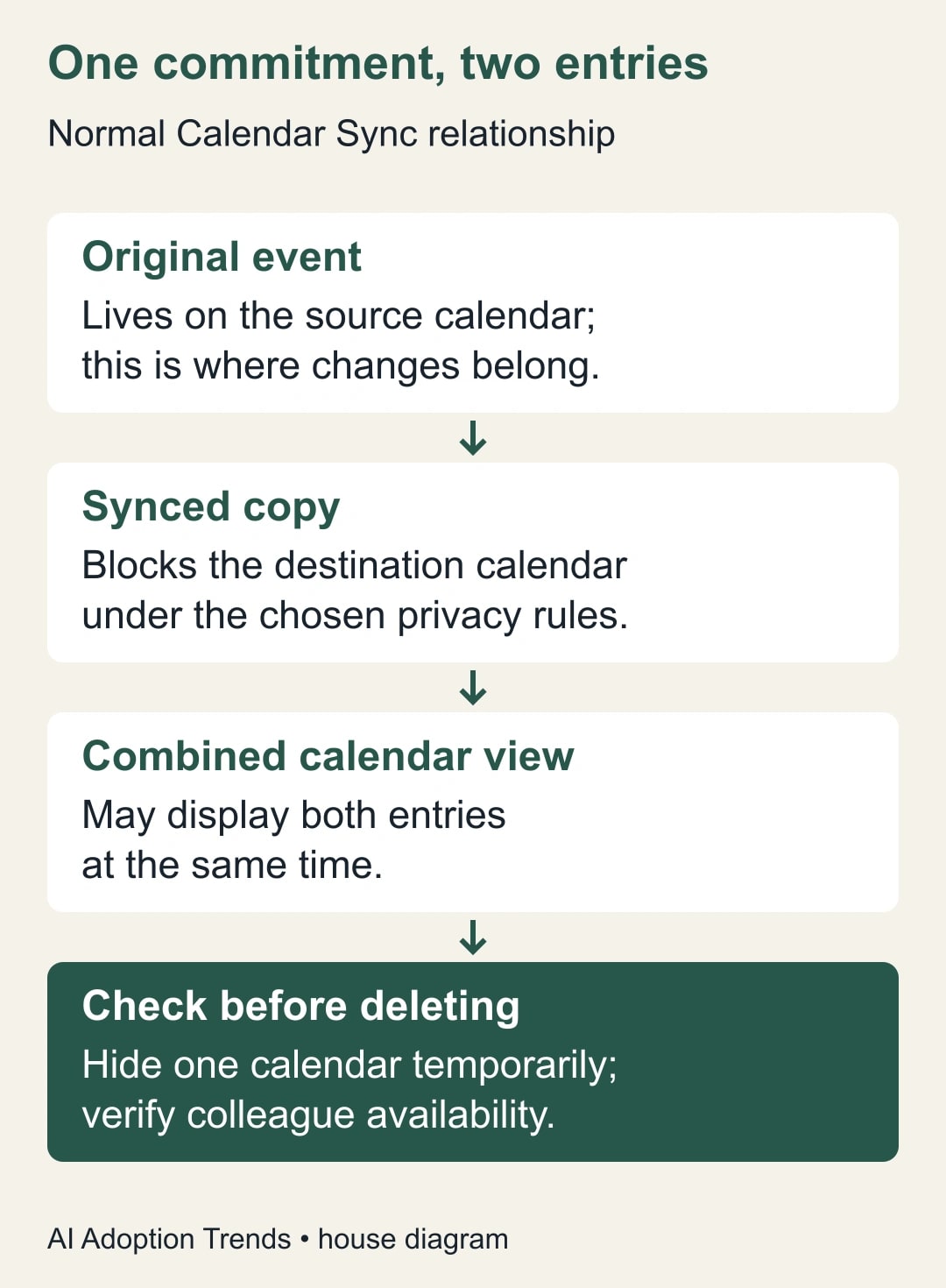
When Reclaim shows two calendar entries for one appointment, check which calendar owns each entry before deleting anything. Calendar Sync deliberately creates a copy on the destination calendar so that other people can see you are unavailable. Displaying both calendars can make that normal relationship look like an error.
For a manager or assistant coordinating work and personal commitments, the first fix may be a cleaner view. The harder cases are genuinely repeated invitations, two automation routes creating separate bookings, or an unexplained event that does not match its supposed original. Those need investigation before cleanup.
This guide provides a proposed diagnostic and a small acceptance test. It uses Reclaim's documented behavior, checked October 17, 2026, rather than claiming we reproduced every calendar combination. The goal is to remove confusion while preserving the availability and privacy the synchronization was meant to provide.
Understand what Reclaim is copying
Reclaim's duplicate-event guidance explains that source and synced events live on different calendars. When both are visible, both entries appear. Its recommended simple view fix is to hide the source calendar; when you need its details, you can show it again. Changes belong on the original event, while Reclaim manages the copy.
The same guidance warns that copying full details to a work calendar can expose them to workplace administrators even when an event is marked private. Do not change privacy settings merely to make two tiles easier to read. A neutral busy-time copy may be doing exactly the job you wanted.
The Calendar Sync overview describes synchronization between connected Google Calendar and Microsoft Outlook accounts, with choices about source, destination and privacy. It applies to both Reclaim 1.0 and 2.0; check your version if the controls differ. The original-to-copy relationship is the useful starting point regardless of the screen layout.
These product facts establish why a duplicate-looking pair can be normal. They do not prove that every pair in your account is normal. The rest of the process is an evidence check for your own calendar, including other tools that may also be creating events.
Decide whether you need a view fix or a booking fix
A view fix changes what you see while leaving the appointment and intended availability intact. It fits when one original and one expected copy appear on separate calendars at the same time. Hide one calendar temporarily and see whether the apparent duplication disappears.
A booking fix changes underlying work. It may be needed when there are two separately created meetings, two invitation chains, or a second copy on the same destination that cannot be explained. Those entries may have different organizers, attendees or update histories even if their titles match.
Do not use matching titles as your only test. Two real meetings can share a title, and a privacy-preserving copy can intentionally have a different title from its original. Time, calendar ownership and the creation route are more useful evidence.
If your actual problem is a Reclaim task that never gets scheduled, start with our checks for tasks missing from the calendar. That is a different decision from identifying an original and its synchronized copy. Mixing the two can lead you to change a scheduling rule that was working.
Collect one pair before changing the whole account
Choose one ordinary pair that demonstrates the problem. Record the date, time zone, start and end times, calendar name for each entry, organizer and any visible source relationship. Use non-sensitive shorthand in your investigation notes if the underlying personal event contains private details.
Open each event from its own calendar rather than relying on a combined list. Compare the organizer and attendee information. A work-calendar busy block may be intended to protect time without inviting colleagues to the underlying personal appointment. Do not add attendees to “make the entries match.”
Then inspect the relevant sync policy. Name the source account and calendar, destination account and calendar, and intended privacy behavior. If another scheduling product or manual process is also involved, add it to the map. You are looking for who creates which entry, not simply which app last displayed it.
Use a short written description: “Personal calendar creates the original; Reclaim creates a neutral busy copy on work; my calendar app displays both.” If you cannot write that relationship confidently, keep the pair unresolved. A clear explanation is the checkpoint before cleanup.
No additional purchase is needed to perform this inspection if you already have the relevant access and synchronization configured. Budget the calendar owner's time and, where appropriate, the assistant's or administrator's help. Don't buy a different calendar viewer before determining whether this is a display preference or a real booking error.
Try the reversible display change first
For a normal source-and-copy pair, temporarily hide the source calendar from the combined view. Confirm that one entry remains and that its time still matches the original. This changes your view; it is not a decision to remove the source appointment or stop protecting time on the destination.
If the remaining neutral copy lacks details you need, show the source calendar when you need to inspect them. That small inconvenience may be preferable to transferring personal details into the work account. Decide the privacy tradeoff deliberately rather than treating a more informative title as an automatic improvement.
Check the result in the app you actually use during the day. A neat desktop view does not establish that the mobile view is equally clear. Record which calendars should normally be visible on each device so a future toggle does not look like the problem returning.
Do not declare success until the availability purpose still works. Have an appropriate colleague check your availability for a harmless test slot using the normal scheduling process. They need not see the personal event's details. They need to see that the intended time is unavailable.
This acceptance check protects against an attractive but harmful fix: a calendar that looks tidy to you because the busy copy has been removed, while everyone else can now book over the appointment. The view and the shared availability are separate outcomes.
Test changes on the original, using harmless data
Create or choose an approved, non-sensitive test commitment on the source calendar. Use a clearly recognizable test title and avoid inviting real participants unnecessarily. Record its original time and the expected destination behavior before changing it.
Move the source event to another harmless test time. Then inspect the destination using the normal refresh behavior of your calendar tools. Confirm that the intended copy follows and the old slot is no longer incorrectly blocked. Do not invent a universal synchronization deadline; record the actual delay in your setup and investigate a persistent mismatch with support.
If your workflow depends on recurring commitments, include a separate test for the kind of change you normally make: one occurrence or the whole series. Record which scope you selected. A series-wide change made while investigating one Tuesday appointment can create a much larger problem than the original duplicate-looking tile.
Reclaim's documented instruction is to edit the original. If you have already edited a copy, record exactly what changed and compare it with the source before taking another action. Avoid alternating edits between the two calendars until they happen to look right; that makes the creation path harder to understand.
After the test, restore or remove only the disposable test event through your normal calendar process. Verify the expected destination result. Do not include real appointments in a bulk cleanup just because they resemble the test event.
Worked example: six pairs do not mean six errors
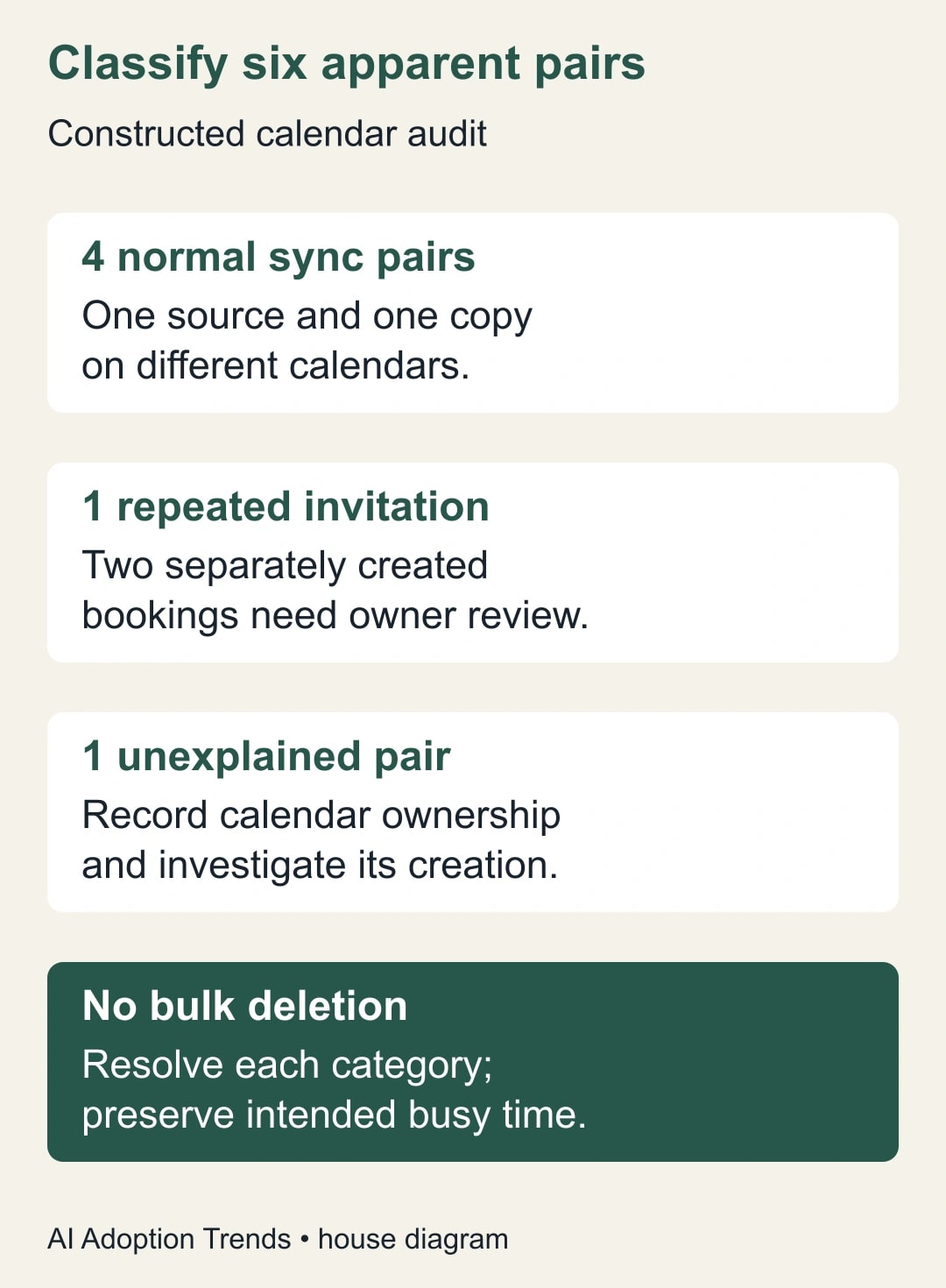
Consider a constructed audit of six apparent duplicate pairs in an executive's week. Four pairs are ordinary source-and-copy relationships between personal and work calendars. Hiding the personal calendar from the daily combined view removes the visual repetition while preserving the work-calendar busy blocks.
The fifth pair consists of two separately created invitations for the same supplier call. They have different organizers. The assistant asks the organizers which invitation governs before anyone cancels an event. The correction must preserve the intended participants and meeting link, not merely reduce the tile count.
The sixth pair is unexplained. Both entries appear on the work calendar, and the visible information does not establish the creation route. The assistant records the times, calendars and relevant settings, then investigates other scheduling tools or contacts support. No deletion is justified yet.
The audit therefore yields four display cases, one invitation case and one unresolved case. Reporting “six duplicate events fixed” would be false. Four views were clarified, one coordination problem needs an organizer's decision, and one technical question remains open.
Keep an exception log that explains the next action
Use one row per apparent pair. The following worksheet is an editorial recommendation, not a built-in Reclaim report. It prevents a team from repeatedly rediscovering the same uncertainty or treating every extra tile as clutter.
- Commitment: Date, time zone and a non-sensitive description sufficient to identify the case.
- Entries: Calendar and organizer for each event, with links where appropriate.
- Expected relationship: Original and copy, separately created bookings, or not yet established.
- Evidence: Relevant sync policy, observed change behavior, and who checked it.
- Action owner: Calendar owner, assistant, meeting organizer, administrator or support contact.
- Acceptance: One understood commitment, correct availability, intended details visible, and no missing invitation.
For normal pairs, record the chosen display setting and close the exception. For repeated invitations, record which organizer will coordinate the correction. For unresolved cases, set a review time so they do not disappear behind a screenshot in a chat thread.
Keep investigation notes free of unnecessary personal appointment details. “Private appointment, 2–3 p.m.” may be enough to test availability. An assistant should not have to copy a medical reason or other private context into a technical support ticket to explain a duplicated block.
Know when to stop changing settings
Stop the cleanup if a colleague can now book over protected time, if private details become visible to an unintended audience, or if a real meeting invitation disappears. Restore the last understood configuration where possible and resolve the consequence before continuing with another calendar pair.
If the original and copy disagree, investigate that specific relationship. Check account connection, policy selection and the visible error state, and give support a concise record of what changed. Do not delete the source as an experiment. It may be the only authoritative appointment with the correct organizer and participants.
If two automation routes appear to create the same booking, identify the intended owner of creation before changing either route. Record the expected outcome and test a harmless event after the change. A smaller number of integrations is useful only when it still covers the required calendars and people.
Measure the result using practical outcomes: unexplained pairs remaining, missed or overlapping bookings, time spent clarifying calendars, and privacy exceptions. Raw event count is a poor success measure because normal synchronization intentionally adds entries.
For a constructed time example, an assistant spends 30 minutes on the initial audit and avoids five minutes of daily confusion for five working days. That is 25 minutes released during the first week against 30 minutes spent, so the first week has a five-minute net cost. Future savings depend on whether the fix persists. Do not call the setup effort an immediate cash saving.
Leave a calendar another person can understand
The useful final artifact is a simple map of which calendar owns appointments, where busy copies appear and how the owner prefers to view them. That map helps the next assistant or the same manager on a new device distinguish normal synchronization from a genuine error.
Start with one apparent pair today. Explain its creation route, make the smallest necessary change, and verify availability from the recipient's perspective. For a wider scheduling workflow, use our guide to AI calendar tasks and safeguards. A tidy calendar is valuable when it still represents the commitments people actually have.
Weekly Newsletter
AI Adoption Weekly
New research, field guides, training studies, and tool decisions for operators.
No spam. Unsubscribe anytime.
Related Comparisons
Calculator
AI seat cost calculator
List price × headcount. You enter the hours and the operating assumptions.