
How to Use AI for Calendar Tasks: Prompts from Simple to Complex
Copy practical prompts for planning, scheduling, and rescheduling. See where AI can act on its own, where a person should approve, and what changes across Google Calendar, Outlook, and Apple Calendar.
Published September 28, 2026
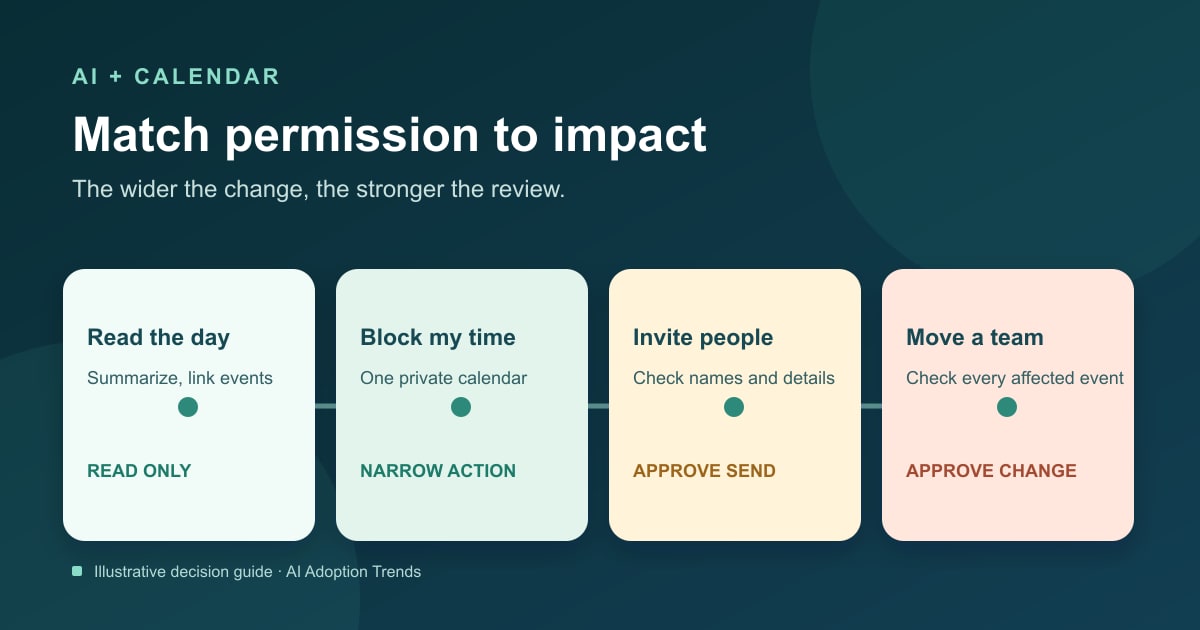
Calendar work is a good place to try AI because the jobs are familiar: find a free hour, turn a thread into an agenda, or protect time to finish a proposal. The risk changes when the assistant moves from suggesting a time to changing someone else’s day. A useful prompt tells the assistant which calendar to use, what it may change, and what must wait for your approval.
The examples below are fictional and increase in difficulty. They work as instructions for a connected calendar assistant where the named action is supported. In a chat tool without calendar access, use the same words to get a plan or draft, then make the change in the calendar yourself. “I did it” in a chat response is not proof: open the event and check.
Start with a prompt that names the boundary
For any calendar task, give the goal, date and time zone, calendar name, people affected, source of truth, allowed action, and check. Write the date in full; “next Thursday” depends on the tool’s current date and time zone. Distinguish a private appointment from a meeting invitation. In Outlook, an appointment is for your own calendar; adding attendees makes it a meeting request that is sent to them. Microsoft’s scheduling guide explains that difference.
Goal: [what should happen]
Calendar: [exact account and calendar name]
When: [full date, start/end, time zone]
People: [me only, or named attendees]
Use: [approved email, brief, or calendar events]
May do: [summarize / draft / create a private block]
Ask me before: [inviting, moving, deleting, or sharing]
Check: [show the proposed change and the saved event link]
A connected assistant still needs access to the right account and permission to take the action. A prompt saying “do not edit” is a behavioral instruction, not a technical access limit: if the connection can edit, an error may still change an event. Grant only the access the job needs: a free/busy check needs less than permission to read event titles, and reading needs less than editing. Google lists separate calendar access levels, and Microsoft separates calendar read from read/write permissions. Google Calendar sharing and Microsoft Graph permissions show why this matters.
Level 1 — Turn your day into a brief
The easiest job is read-only. Ask for a short plan, then check the linked events. A tool with no calendar connection can do this from a list you paste, provided the list is allowed in that workspace.
Using my work calendar for Tuesday, October 6, 2026,
list my meetings in Eastern Time. Flag overlaps,
any event without a location or meeting link, and
my longest free block. Do not change any event.
Link each event you used and say if you cannot see
one of my calendars.
Let it run as a read-only task when the account and data are approved. A person only needs to check a surprising result, such as a “free” block that omits a second calendar or travel time. Google warns that Gemini Apps can give outdated or incorrect answers and tells users to check its linked sources; that is a sensible habit in every product. Google’s calendar guidance states the limit plainly.
Level 2 — Protect time on your own calendar
A private focus block affects one person and is easy to inspect. State the exact calendar and whether the block should show as busy. Have the assistant stop if it finds a conflict rather than moving an existing commitment.
On my primary work calendar, create a private
“Proposal review” block on Tuesday, October 6, 2026,
from 2:00 to 2:45 p.m. Eastern Time. Show me as busy.
Invite nobody. If that time is occupied, show me two
alternatives and do not create anything. After saving,
show me the event link and its calendar name.
This is a reasonable place to let an approved assistant act after a small trial, especially if it only creates or adjusts your own focus blocks inside set hours. Check the first few saved events and keep a way to reverse changes. In Google Calendar, Gemini Apps can create events on a secondary or shared calendar when you name it; otherwise Google says it uses the default calendar. Google’s product instructions make the calendar name worth spelling out.
Level 3 — Draft an agenda from an approved thread
The assistant can extract decisions and open questions, but it should not turn a guess into a commitment. Limit its source to the thread and ask it to mark unresolved items.
From the approved project email thread dated
September 28–October 2, draft a 25-minute agenda
for our launch check-in. Use only decisions stated in
the thread. Put unresolved dates under “Questions,”
not “Decisions.” Show the draft; do not invite anyone
or attach the thread.
A person reviews the agenda before it goes to attendees. In new Outlook, “Schedule with Copilot” can draft a meeting invitation from an email thread and includes that thread as an attachment; Microsoft says you review and send the result. Check the attachment before sending, since the thread may contain material the invitees should not receive. The feature requires a Microsoft Copilot work license. Microsoft’s Outlook instructions describe the flow.
Level 4 — Find a time for two or three people
Availability is a suggestion, not consent. State duration, working hours, time zones, and whether the assistant may see free/busy blocks only. Ask for candidate slots before it sends an invitation.
Find three 30-minute options for Maya, Luis, and me
between October 7 and 9, 2026. Use our work hours:
9 a.m.–5 p.m. in each person’s local time. Prefer
10 a.m.–3 p.m. Eastern for me. Use free/busy only;
do not summarize event titles. Show each option in
every attendee’s time zone. Do not send an invite.
The organizer checks the slot, the correct people, room or video link, and any travel buffer, then sends. Outlook’s Scheduling Assistant shows attendee free/busy time for eligible work or school accounts. Google Calendar offers Gemini suggested times in its desktop Calendar for eligible Workspace plans; Google lists cases where suggestions are unavailable, including mobile use and events longer than eight hours. Microsoft scheduling and Google suggested times explain the product paths.
Level 5 — Build a recurring series across time zones
A recurring event multiplies one mistake. Ask for a preview of the first three dates and any daylight-saving change before creating the series. Name holidays or blackout dates rather than assuming the assistant knows your company calendar.
Plan a 30-minute operations review every other
Wednesday from October 14 through December 9, 2026.
The organizer is in New York and one attendee is in
London. Keep the New York start at 10:00 a.m. local
time. Show the first three dates with both local times,
flag time changes and company holidays, and list
exceptions. Draft the series; wait for my approval
before sending it.
A person should approve the full series and each exception. Check whether you are editing one occurrence or the whole series when a change arrives later. If a room or booking page is involved, verify its separate availability rules too. Do not use an apparent opening on a shared room calendar as proof that a reservation succeeded.
Level 6 — Move a shared meeting after a conflict
Moving a meeting can notify people, release a room, alter a video link, or disrupt a customer commitment. Let AI prepare options and a proposed message; keep the organizer as the approver.
The customer review on October 8 conflicts with
our presenter’s travel. Find two alternatives within
seven days that work for required attendees and the
reserved room. Show who would be affected, whether
the video link or room would change, and a short
reschedule note. Do not move or cancel the original
event until I approve one option.
Microsoft now offers an optional Copilot setting that can automatically move certain personal appointments and one-to-one meetings within acceptable days and times when a later conflict appears. Its documentation excludes events on secondary or shared calendars and meetings with more than one attendee. That is a narrow automation for an opted-in event, not a reason to let a general assistant rearrange a team calendar. Microsoft’s automatic rescheduling rules give the conditions.
Level 7 — Triage a whole team calendar
The complicated version is a repeatable workflow: inspect conflicts on a shared calendar, propose repairs, and record what was approved. Start in a trial that does not change live events. If you later automate, limit the account, calendar, hours, event types, and number of changes per run.
Review the Operations team calendar for the next
14 days. Report duplicate holds, meetings outside
participants’ work hours, and rooms booked twice.
Use free/busy data where possible. Propose fixes in
a table with event link, owner, affected people,
reason, and confidence. Make no live changes.
Stop if calendar access is incomplete or event owners
disagree. After the owner approves a row, change only
that row and log the before/after event links.
Here the human review is part of the workflow, not a ceremonial click. The owner decides which meeting matters more and whether the team may see the details. A later unattended version can handle a tightly defined case, such as moving the owner’s own focus block within a two-hour window, while escalating anything with guests, private details, customer commitments, or uncertain ownership.
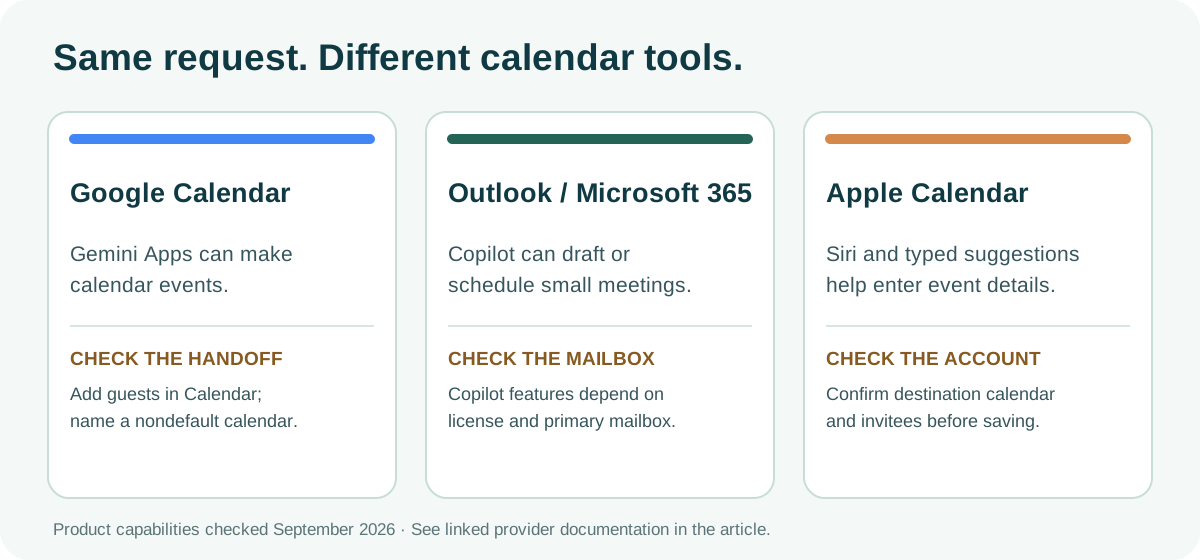
What changes between calendar products
Google Calendar: Gemini Apps can find, create, edit, and cancel events after the Google Workspace connection is enabled. As of September 2026, Google says Gemini Apps can target secondary and shared calendars if named, but cannot add or invite people or update the location or description of an existing event. Finish those fields in Calendar. Gemini’s suggested-time feature lives inside desktop Google Calendar and requires an eligible Workspace plan. Gemini Apps limits and suggested times are different features.
Outlook and Microsoft 365: Copilot chat in Outlook can schedule a meeting with up to two other people or add a personal event, according to Microsoft’s August 2026 FAQ. Outlook’s Scheduling Assistant handles broader attendee planning; “Schedule with Copilot” can draft from an email thread. Copilot scenarios are limited to the user’s primary Exchange Online mailbox, not shared or delegate mailboxes. An Outlook delegate, by contrast, can schedule and respond on another person’s behalf if the owner grants that access. Do not confuse a human delegate with Copilot access. Copilot in Outlook FAQ and Outlook delegation explain the distinction.
Apple Calendar: Siri can create a meeting from a spoken request, and Apple Intelligence can suggest event fields from a typed description on supported devices and software. Apple presents those as event-entry help; the exact account and shared-calendar behavior still deserves a check in Calendar before you rely on an invitation. Apple’s iPhone Calendar guide describes both actions and its availability notes. If you use an iPhone to view an Outlook or Google calendar, check the underlying account as well as the Apple app.
A safety rule that survives any product change
Treat a calendar as a people and data system. A title can reveal a diagnosis, deal, interview, or personnel issue; a description may carry a customer document; an invitation can disclose the attendee list. Before connecting a tool, the business owner and administrator should agree on allowed accounts, event categories, connector permissions, retention, sharing, and who can approve outbound invitations. Keep sensitive details in an approved system and use a neutral event title where a calendar is widely visible.
For regulated work, use your organization’s actual obligations. For example, the US Department of Health and Human Services says a covered entity or business associate using a cloud service to handle electronic protected health information needs a compliant business associate agreement and the other required safeguards. A consumer calendar assistant should not be assumed to meet that requirement because it can create an event. HHS cloud guidance explains the condition.
A practical rollout has three gates. First, run ten real but low-stakes requests in read-only or draft mode and count wrong dates, missing calendars, and invented availability. Second, allow the assistant to create only private blocks on one approved calendar; review the event log and any reversals. Third, consider a narrow automatic rule only when the wrong-action rate and recovery process are acceptable to the owner. Pause the automation after an unexplained invitation, a wrong recipient, or a change outside the agreed hours.
The best first test is tomorrow’s agenda. Ask for a read-only brief with event links, then compare it with every calendar you actually use. If the assistant misses one, fix access or narrow the job before you give it permission to move anyone’s time.
Related next step
For a team rollout, use our AI workflow evaluation training to define a test set, review owner, and stop rule before widening calendar access.
Weekly Newsletter
AI Adoption Weekly
New research, field guides, training studies, and tool decisions for operators.
No spam. Unsubscribe anytime.
Related Comparisons
Calculator
AI seat cost calculator
List price × headcount. You enter the hours and the operating assumptions.