
Power Query Replace Values Changes Too Much: Match the Whole Cell
Use whole-cell matching for exact code replacements, then check changed records, target collisions and category totals.
Published November 17, 2026

If Power Query changes a code inside longer codes when you use Replace Values, the operation is probably matching text fragments rather than the whole cell. For an exact code replacement, use the text column's Match entire cell contents option, or have the query owner use an exact-value replacement. Preserve the original column and compare changed identifiers before refreshing the business report. A correct grand total will not reveal every damaged code.
This guide is for finance and operations analysts cleaning department, product or supplier classifications in Excel or Power BI. It fits a defined change such as replacing the retired code AB with XY while leaving AB-01 and CAB unchanged. Skip a one-off replacement when the real task is a growing reference-data mapping with exceptions, effective dates or approval rules. That deserves a maintained mapping table and a named business owner.
Why the same command can behave differently
Microsoft's Replace values documentation distinguishes two modes. Text columns normally replace occurrences of a text string within a cell. Nontext columns normally replace the whole value. For text columns, Advanced options includes Match entire cell contents. The column's data type and the selected mode therefore affect what the command means.
That behavior is useful when the task is to remove a known label prefix from descriptive text. It is dangerous when the task is to retire one exact identifier. “Replace AB with XY” is ambiguous to a person and a program: it can mean an entire value or every occurrence of those two letters. Write the business rule in full before choosing the menu option.
Power Query stores transformation steps, which are the instructions applied when data refreshes. A broad replacement can therefore damage the next export as well as today's visible rows. Fix the rule in the query rather than manually correcting a few cells in the loaded worksheet. Manual edits to the result do not establish a reliable next refresh.
A small example shows why totals can look right
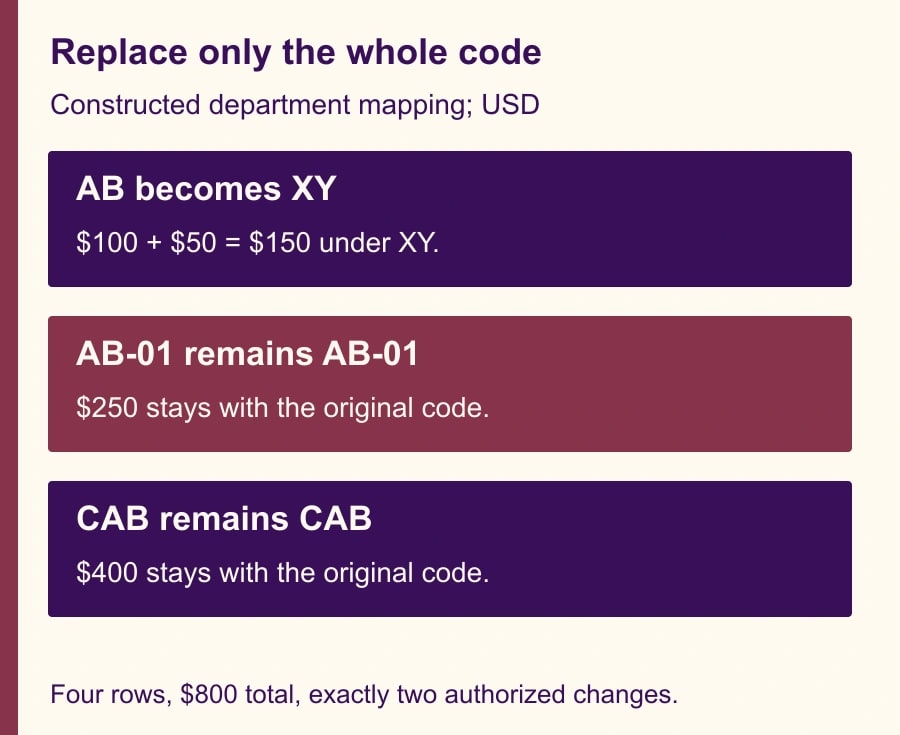
Use this constructed four-row example. Invoice R1 has DepartmentCode AB and an amount of $100. R2 has AB-01 and $250. R3 has CAB and $400. R4 has AB and $50. The approved business rule is to replace the entire code AB with XY. No other code should change. The total amount is $800 before and after the replacement.
A substring replacement changes R1 and R4 to XY, but also changes R2 to XY-01 and R3 to CXY. All four rows still exist and the grand total remains $800. Only two of the four changes were authorized. If the report groups by department, the $250 and $400 now sit under codes the business may not recognize. A grand-total check alone gives a false sense of completeness.
The correct result changes only R1 and R4. XY should carry $150; AB-01 should retain $250; CAB should retain $400. Four source rows remain four output rows, and the total remains $800. The acceptance test includes both the overall total and the mapping of amounts to codes. This example is a calculation from sample rows, not a reported customer failure.
Preserve the source and identify the damaging step
Before editing the production query, save a recoverable copy of the workbook or report through the team's normal versioning process. Preserve an unchanged source export. Record the query name, refresh date and the last known good output. If the bad result was already distributed, tell the report owner which classifications may be affected so decisions can be held while you investigate.
Open the query in Power Query Editor and inspect Applied Steps. Select the step immediately before the replacement and find a known affected row by a stable identifier such as InvoiceID. Then select the replacement step and compare the code. Continue to the next steps to see whether later transformations also change it. This identifies where the damage begins instead of guessing from the final output.
Keep a raw-code column alongside the working code during the repair. Duplicate the original code column before the replacement and give it a clear name such as OriginalDepartmentCode. Apply the transformation only to the intended working column. If earlier steps already altered the source code, create the comparison column at an earlier point or return to the preserved export. A “raw” column created after the damaging step is not raw evidence.
Check the data type. Business identifiers generally need text semantics, including any meaningful leading zeros. Do not convert a code to a number merely to obtain whole-value replacement behavior. That would trade one problem for another. The matching mode should follow the identifier's business meaning, rather than forcing the data into a convenient type.
Repair one exact replacement
For a text column, select the intended working column and open Replace Values. Enter the complete old code and complete new code. Expand Advanced options and select Match entire cell contents before confirming. If your editor's layout differs, use the named option in the current documentation and verify the resulting behavior on the fixture. Do not assume a previous replacement step already used the same mode.
If the existing step is easy to edit, change it and inspect the result. If it is clearer to remove and recreate the step, first note what later steps depend on. Work in the repair copy so the production report remains recoverable. Give the revised step a descriptive name, such as “Replace exact retired department code,” rather than leaving the business intent hidden in a series of numbered replacements.
For a query maintainer reviewing the formula, Microsoft's Table.ReplaceValue reference distinguishes Replacer.ReplaceValue from Replacer.ReplaceText. The former can replace the complete value; the latter can replace a matching part of text. A short illustrative expression is Table.ReplaceValue(Source, "AB", "XY", Replacer.ReplaceValue, {"DepartmentCode"}). Source must refer to the appropriate preceding step, and the column name must match the actual query.
The formula is a reference for a maintainer, not a reason for every report owner to edit code. Ask the maintainer to show that AB changes while AB-01 and CAB do not. That visible behavior is the business acceptance test. A formula that looks plausible but is attached to the wrong step or column is not a repair.
Test the edges before refreshing all data
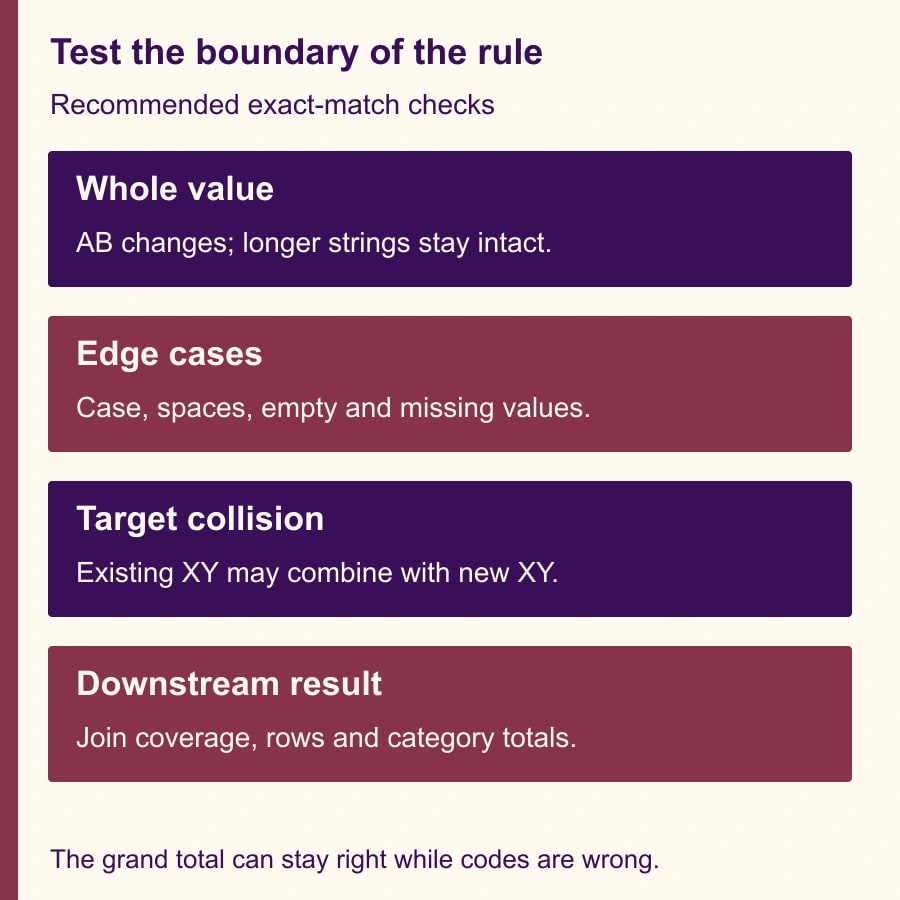
Add examples that expose the limits of the intended rule. Include the old code by itself, the new code already present, the old code at the beginning and middle of longer strings, an empty string, a missing value and a differently cased version. Decide explicitly whether each should change. Keep those decisions with the query rather than relying on the builder's memory.
For a case-sensitive rule, ab and AB are different values. Microsoft's Text.Replace documentation explicitly describes case-sensitive matching for that text function. Do not assume that changing to exact matching also creates case-insensitive normalization. If the business wants case variants merged, define and test that separate rule. The same caution applies to trailing spaces: “AB ” may need investigation rather than automatic treatment as AB.
Avoid adding blanket trimming, uppercasing or error replacement simply because an edge-case row fails. Those operations can be appropriate, but they change the scope of the repair. Ask whether spaces and case are meaningful in the source system. A code that is invalid should be listed for review, not silently converted into the nearest familiar value.
Check a second refresh on the same test input. The corrected output should remain stable. Then test the next expected source format or a representative larger sample. A rule that works on four rows but misses a different column name in another export still needs work. Keep the expected changed IDs and the reason for each change so the test can be repeated after maintenance.
Check for collisions, not just partial matches
An exact replacement can still merge two previously separate groups. If XY already exists, replacing AB with XY combines their amounts under one code. That may be the desired departmental consolidation, or it may be a mistake. The transformation cannot decide. Ask the business owner whether the target code is intended to absorb the old one and from which reporting date.
Extend the sample with an existing XY record of $200. After the authorized consolidation, XY would total $350: the existing $200 plus $150 from the two AB rows. AB-01 and CAB still retain $250 and $400. The new overall total is $1,000. If the owner expected XY to remain $200, the proposed replacement conflicts with the reporting rule even though every technical match is exact.
Identifiers used to join another table need an additional check. A changed code may fail to match a lookup, or multiple mapping rows may multiply records. Verify unmatched codes and row counts after the join. Do not interpret a correct replacement in isolation as proof that the whole report is still correct. Follow the changed value into the next operation where it affects a business result.
When several code changes accumulate, prefer a reviewed mapping table with one approved target per old code for the relevant period. Check for duplicate mapping keys, unmapped source values and unintended target collisions before joining. Keep the old code in the audit output. A mapping table makes business decisions visible, but it still requires controls; replacing a chain of steps with a bad lookup does not improve the result.
Reconcile and release the corrected report
For the four-row fixture, record input rows 4, output rows 4, amount total $800, expected changed rows 2 and actual changed rows 2. Then record each expected code total: XY $150, AB-01 $250 and CAB $400. Inspect the changed-row list to confirm the correct records moved. For the larger repair, use the same checks at a scale appropriate to the source.
Compare the corrected output with the last distributed report. Identify which department or product totals changed and whether any decisions or downstream imports relied on them. Issue a replacement with a clear date and explanation if needed. Do not merely save a new workbook under the same filename and assume recipients will know the earlier figures were wrong.
Keep the query revision, test fixture, expected results and approver together. The business owner approves the mapping; the query maintainer confirms the implementation; the report owner decides when to distribute the corrected result. Small teams may combine those roles, but each responsibility should still be explicit.
A compact replacement worksheet
- Intended rule: exact old value, exact new value, affected column, business reason and effective period.
- Preservation: source export, recoverable query version and original-code column before transformation.
- Match tests: exact value, longer strings, existing target, case variants, spaces, empty and missing values.
- Reconciliation: changed IDs, row counts, amount totals, category totals and downstream join checks.
- Release: business approver, maintainer, corrected report link, recipients affected and next-refresh observation.
This repair generally uses the existing Power Query workflow; it does not by itself call for buying another tool. Its cost is analyst time, review and any downstream correction. Measure success by authorized changes applied, unauthorized changes avoided and stable results on refresh. Do not claim cash savings from a shorter cleanup task unless an actual budget cost changes.
Stop the release if nobody owns the code definition, the source cannot be recovered, changed rows cannot be explained, or target collisions remain unresolved. The next useful action is to put AB, AB-01 and CAB in a small test query and demonstrate the difference between text-fragment and whole-cell matching. If the damage appears after a join, use the merge-duplicate diagnostic. If different exports use different field names, resolve that separately with the append header-mapping workflow.
Weekly Newsletter
AI Adoption Weekly
New research, field guides, training studies, and tool decisions for operators.
No spam. Unsubscribe anytime.
Related Comparisons
Calculator
AI seat cost calculator
List price × headcount. You enter the hours and the operating assumptions.