
Google Meet File Links: Share the Right File Without Widening Access
Rehearse Google Meet file sharing with a three-file audience map. Check one-time links, persistent settings and recipient permissions separately.
Published November 21, 2026

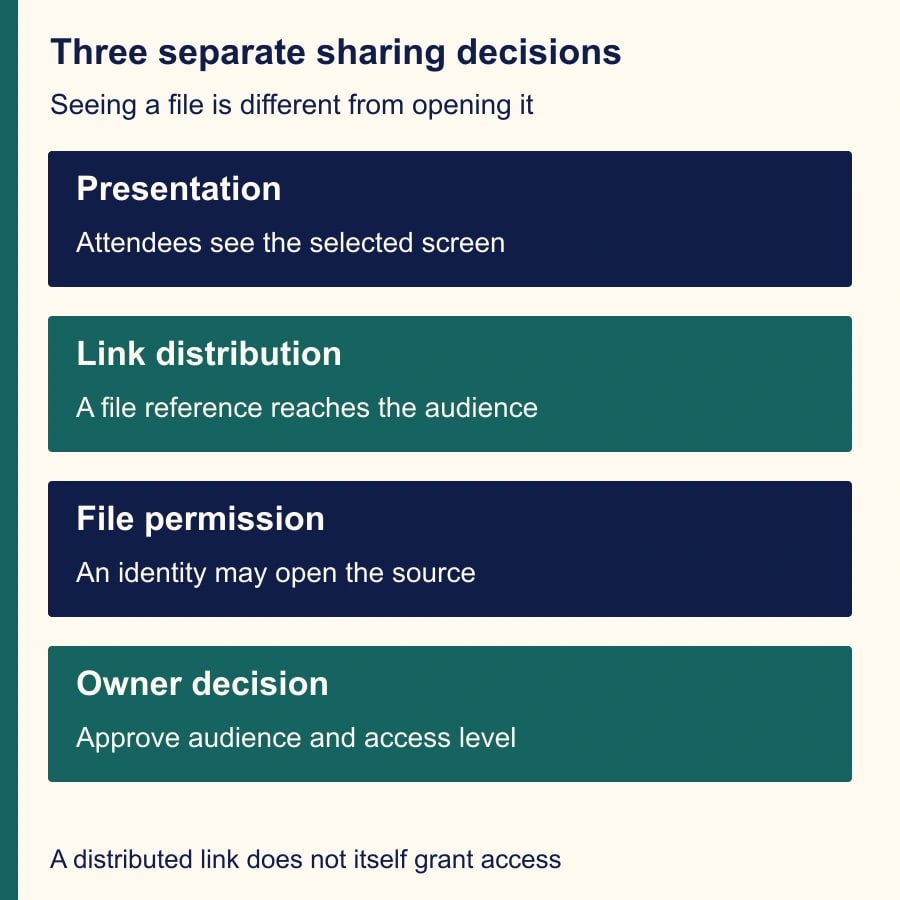
When a Google Meet attendee can see your presentation but cannot open its file, check the file's sharing permissions before changing the meeting. Showing a document, distributing its link and granting access are three separate actions. For mixed internal and client meetings, start with a one-time link to the approved client copy, then verify access with the intended recipient account. Do not solve a failed link by making an internal working document broadly accessible.
This guide is for client services leads, trainers and project managers presenting Google Docs, Sheets or Slides to different audiences. It is most useful when the presenter moves between a public deck and restricted working material. Skip automatic file-link sharing when there is no reason for attendees to open the source files; a screen presentation may be sufficient for the discussion.
Google announced presented-file links on November 19, 2026. Its release note separates a one-time link from a persistent sharing preference and says links do not themselves change file permissions. That distinction is the basis for the rehearsal below. This is a proposed operating procedure, not a report of a customer implementation. Google's presented-file sharing announcement
Know what is rolling out
As checked November 21, Google's Rapid Release rollout began November 18 and may take up to 15 days. Scheduled Release is listed for December 9, with a one-to-three-day rollout. The announcement lists Workspace, Workspace Individual and personal accounts, but that does not mean every account already shows the new controls today. Confirm the presenter account's interface before making the feature part of a live client session. Release timing and availability
You need control of the presentation file or cooperation from its owner, a known attendee list, and an approved account for testing the recipient experience. Plan a short rehearsal before a consequential meeting. Its cost is staff time and any existing account entitlement; this guide does not assume a new paid plan is necessary or quote a subscription price.
If the control has not arrived, use the organization's established Drive-sharing process and send the approved link through the normal meeting channel. The business test is unchanged: the right person can open the right file at the intended access level. A missing new interface is not a reason to weaken sharing permissions.
Build an audience map before the call
Start with the materials, not the buttons. For each file, identify its owner, intended audience, acceptable access level and whether attendees need to retain it after the meeting. Viewing a presentation during a conversation and receiving an editable working file are different business decisions.
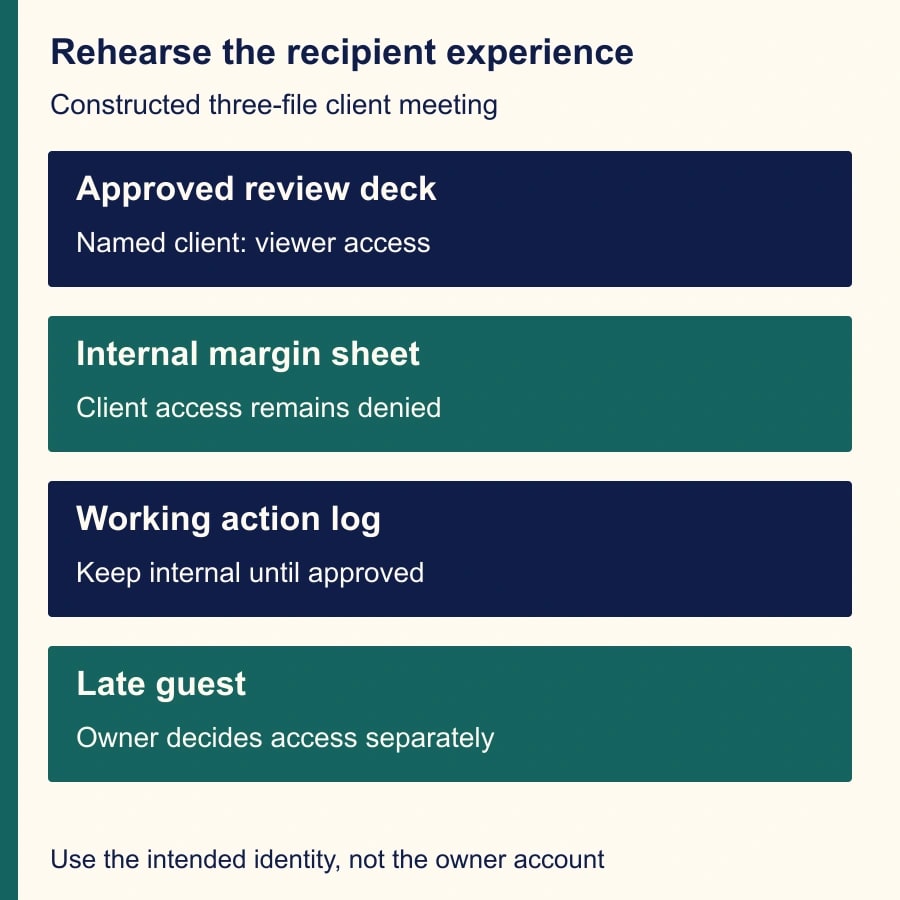
In this constructed example, an account team has three files. A client review deck contains approved results and next steps. An internal margin sheet contains pricing assumptions. A working action log contains discussion notes that need review before external circulation. Two internal colleagues and a named client contact will attend; an additional client colleague may join late.
The team approves the review deck for the named client contact as a viewer. The margin sheet remains internal and should not be presented in this meeting. The action log stays internal during drafting; afterward, its owner will create or approve a client-facing version. The late guest does not automatically inherit the original client's access decision.
Use this reusable audience worksheet before opening Meet:
- File and version: Exact title and link, including which copy is approved for this audience.
- Owner: Person who can approve sharing or coordinate with the person who controls it.
- Audience: Named people or an approved group; identify expected external attendees separately.
- Access: Viewer, commenter or editor, chosen for the task rather than convenience.
- Distribution: No file link, one-time link during the meeting, or a justified persistent sharing preference.
- After the meeting: Whether the file remains available, needs review, or should be replaced by a final copy.
This worksheet prevents a common conversational shortcut: “share the deck” can mean show slides, paste a link, grant access, or hand over an editable file. Ask the meeting owner to resolve the intended meaning before the presenter takes action.
Rehearse with the recipient's account
Open the approved deck as the presenter and confirm the version. Then use a separate authorized test account that represents the recipient's actual access. A second browser window signed into the same owner account is not a useful permission test: the owner may be able to open everything even when the client cannot.
Have the test recipient open the proposed link directly. Record whether it opens, which account is signed in, and what the recipient can do. The expected result in our example is read access to the approved deck, no access to the margin sheet, and no access to the internal action log. A denial on the restricted files is a successful boundary check.
Google's help documentation describes sharing suggestions in Chrome or Edge while presenting a tab, and notes that they are unavailable in Incognito. That is a feature-display prerequisite, separate from the permission test. Use a normal supported browser session for the presenter; do not interpret a missing suggestion in an unsupported setup as proof that the file cannot be shared. Present and share files in Google Meet
Keep the rehearsal small. Use non-sensitive test material to learn unfamiliar controls, then verify the actual approved deck's permission settings. Do not paste the internal margin-sheet link into a live external meeting just to demonstrate that access is denied. A blocked file can still reveal an unnecessary title or create confusion about what the client is supposed to receive.
If the approved recipient cannot open the deck, first confirm the signed-in identity. Next check the exact file link and the owner's sharing list. If an organizational restriction prevents the intended access, route the issue to the file owner or administrator. The presenter should not improvise an unrestricted copy of a sensitive document.
Choose one-time sharing deliberately
The new Meet flow includes a one-time file-link option and an always-share preference. Google's announcement says the always-share choice persists across meetings. For a presenter who switches audiences, the operational implication is straightforward: a preference chosen during an internal session deserves another check before a client session. One-time and persistent file-link choices
Use one-time sharing for the first controlled rollout. Announce the file's purpose before posting it: this is the approved review deck, shared for reference. Ask the intended recipient to confirm that the link opens. If the confirmation is missing, continue the presentation while a designated colleague resolves access separately. Avoid turning the entire meeting into a live permission experiment.
Persistent sharing may fit a recurring internal workshop in which every presented file is already approved for the same audience. Even there, the meeting owner should decide whether automatic link distribution is useful. The preference does not remove the need to inspect which tab is being presented or to choose appropriate file permissions.
Google also documents a separate access-update step and an option associated with attaching a file to the Calendar event. Review that choice rather than accepting it automatically; distributing a file through the event can be a different decision from posting a link in the current conversation. File access and Calendar options during presentation
Handle three interruptions without broadening access
First, the client says “access denied.” Ask which account is active and compare it with the approved recipient. If the wrong Google identity is being used, have the recipient switch to the intended account. If the intended identity is missing from the approved sharing arrangement, the owner can correct that specific omission. Do not assume every access denial is an error in Meet.
Second, an unexpected guest joins and requests the deck. The meeting owner decides whether that person belongs in the file audience. Until that decision is made, showing the approved presentation may satisfy the immediate discussion. The presenter should not add an unfamiliar address merely because it appears in the meeting.
Third, the presenter opens an internal tab by mistake. Stop presenting it and switch back to the approved material. Check whether a link was distributed and whether permissions changed. Removing or correcting a link does not undo information already seen on screen. Record the actual exposure and follow the organization's established incident process when necessary, without guessing what attendees accessed.
These responses keep three questions separate: what was visible, what link was distributed, and who could open the file. That separation makes recovery more precise. Changing a file's access cannot retroactively hide a projected slide; stopping a presentation does not necessarily change access to a link already distributed.
A worked meeting plan
For the constructed three-file meeting, the account lead owns the audience decision, the presenter owns the on-screen sequence, and an internal colleague handles access questions. Before the call, the team verifies the client deck with the client test identity and records that the two internal files remain inaccessible to it. The presenter chooses one-time sharing for the deck.
During the meeting, the presenter opens only the approved deck tab and distributes that file's link. The client confirms read access. When a question requires checking margin assumptions, the internal colleague takes it as an action rather than displaying the margin sheet. The action log captures a question for review; it is not immediately shared externally.
After the call, the account lead checks the action log and approves a client-facing summary. The owner verifies that the summary's audience matches the agreed recipients, including any late attendee who was explicitly approved. The follow-up points to the final summary and deck, with descriptive labels so recipients know which file to use.
Suppose the team previously spent six minutes per meeting resolving file access and now spends two, after a 20-minute initial setup. Across five comparable meetings, the constructed calculation is five times four minutes, or 20 minutes released. That only offsets the setup time; it does not establish a continuing saving, and it is not cash returned to the business. Measure your own meetings rather than treating this example as a result.
Measure successful access, not the number of links
Keep a lightweight record for the first few sessions: approved recipients, successful opens, wrong-account incidents, unnecessary permission changes and time spent recovering. Count a meeting as successful when intended recipients can use the approved materials and restricted materials remain restricted. More links distributed is not a useful success metric by itself.
Stop using persistent sharing if the presenter repeatedly moves between incompatible audiences or cannot reliably check the setting before meetings. Return to one-time distribution while simplifying the file set. If the approved external sharing path is blocked, pause file distribution and obtain an owner or administrator decision instead of finding an unapproved workaround.
Your next action is to list the files for the next client meeting and mark which should never receive a meeting link. Rehearse the approved deck with the intended recipient identity. For related handoffs, use our guide to Calendar guest emails and delegated agendas, then turn the meeting into owned work with Meet next steps, follow-up emails and tasks.
Weekly Newsletter
AI Adoption Weekly
New research, field guides, training studies, and tool decisions for operators.
No spam. Unsubscribe anytime.
Related Comparisons
Calculator
AI seat cost calculator
List price × headcount. You enter the hours and the operating assumptions.