
Power Query Append Creates Extra Columns: Fix the Header Mapping
Map equivalent fields before appending branch exports, then reconcile records and amounts without replacing missing values with zero.
Published November 16, 2026

If Power Query append produces Amount and Sales Amount as separate columns with gaps beneath each, moving columns into the same position will not fix it. Append matches column names. Confirm that the two fields mean the same thing, rename them to one agreed name in the source queries, and append again. Then reconcile row counts and amounts by source before replacing the report.
This repair is for an operations analyst consolidating comparable branch or channel exports. The immediate symptom may be extra columns, but the consequential defect is often a partial total: a report sums one amount column while another contains the missing branch's sales. A refresh can finish successfully while the business answer is incomplete.
Recognize an append problem before changing the data
Append stacks rows from tables. It does not match a customer row in one table to that customer's row in another. Microsoft documents that append uses column-header names rather than their positions, retains the union of source columns, and supplies null where a source lacks a column. A null is a missing value; it is not automatically a zero sale. Documentation checked November 16, 2026.
Use this guide when the intended result is more rows in one comparable table. If you need to attach a customer name to each invoice using an identifier, that is a merge problem. Use the site's merge-duplicates and inflated-totals diagnostic instead. Applying an append repair to a join can conceal a different error.
Also distinguish a renamed amount from two legitimate measures. Net sales and gross sales are not synonyms. Neither are quantity ordered and quantity shipped. Combining them under one convenient header can make the table neater while making the report wrong. The analyst needs a source owner's definition before deciding which fields should align.
Preserve a small evidence packet
Before editing, save the current workbook or reporting project according to your team's normal version process. Keep the raw exports unchanged. Record each source filename, extraction date, covered period, currency, row count and source total. If files contain sensitive data, keep the packet in the approved workspace rather than copying it into an unrelated assistant or support ticket.
In Power Query, inspect the step immediately before append in each contributing query. A header may already have changed during a rename, promoted-header operation or selection step. The original file alone will not reveal what append receives. Write down the exact headers at that point and retain a few representative rows, including one with a missing optional field.
The minimum working inputs are two comparable tables and a reliable control total for each. The owner of the consolidated report approves the mapping; branch owners resolve ambiguous field meanings. You need an Excel or Power BI environment that exposes Power Query and access to the source files. This is usually a query repair within an existing tool, with analyst and reviewer time as the main incremental cost. It does not require an AI subscription.
A five-row example shows why the total looks plausible
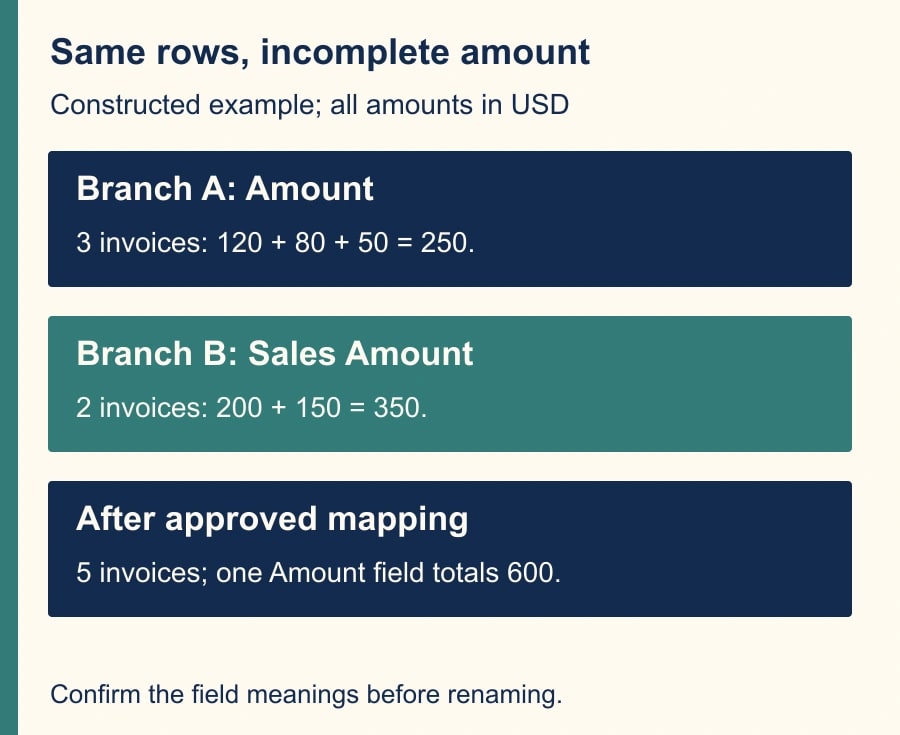
In this constructed example, Branch A exports Invoice ID, Amount and Currency. Its three invoices are A-101 for 120, A-102 for 80 and A-103 for 50, all USD. The branch total is 250. Branch B exports Invoice ID, Sales Amount and Currency. Its two invoices are B-201 for 200 and B-202 for 150, also USD, totaling 350.
Appending these tables without a mapping creates five rows and two amount columns. The three A rows have Amount values and null Sales Amount values. The two B rows have Sales Amount values and null Amount values. A downstream sum of Amount returns 250. Nothing about the five-row count warns the reader that 350 is sitting in a different field.
After the branch owners confirm that both columns are net invoice amounts in USD for the same reporting basis, rename Branch B's Sales Amount to Amount before append. The output still has five rows, but Amount now contains all five values and totals 600. The repair adds no new economic activity; it restores 350 that the report previously omitted from its chosen field.
If Branch B's field instead included tax while Branch A's excluded it, this rename would be invalid. The expected total of 600 depends on the confirmed shared definition. A numeric reconciliation proves arithmetic agreement with the inputs, not that the inputs describe comparable business activity.
Create the mapping before applying it
Use a small mapping sheet with source name, incoming header, target header, definition, unit and approval. For the example, “Branch B / Sales Amount / Amount / net invoice amount / USD / approved by branch finance” is a complete decision. “Sales Amount → Amount” alone records a technical edit while leaving its business justification unstated.
Keep a separate Source column in each normalized table, such as Branch A or Branch B. If identifiers are only unique within a branch, keep both Source and Invoice ID as the record identity for reconciliation. Do not remove repeated invoice numbers merely because two branches use the same numbering system. A combined key can distinguish legitimate records without modifying the original identifier.
Classify fields as required or optional. Amount, currency and a traceable invoice identifier may be required for this report; referral campaign may be optional. A missing optional column can legitimately produce null after append. A missing required amount should stop release or enter a visible exception process. Filling all gaps with zero makes those two situations indistinguishable.
Headers that differ only by unexpected spaces, spelling or punctuation deserve inspection, but do not apply a sweeping cleanup without checking collisions. Two distinct incoming fields might collapse to the same target name. Microsoft's column-renaming documentation explains that column names must be unique and that some operations add suffixes to resolve collisions. A field such as Amount.1 therefore needs investigation, not automatic deletion.
Normalize each source, then append as a new query
In the Power Query editor, select the Branch B source query at the intended transformation step. Rename Sales Amount to Amount using the column-header rename control. Retain the original export separately and give the transformation step a meaningful name where your workflow permits it. Verify that the displayed values did not change during a header-only edit.
Check data types after the semantic mapping. The same header does not ensure that one source's amounts are numeric and another's are not text. Currency codes should remain explicit. If an amount parse depends on regional decimal conventions, repair it in that source query and reconcile again. Do not convert account identifiers to numbers just because an amount column needs conversion.
For a reviewable repair, use Append queries as new so the consolidated result is easy to inspect alongside the normalized sources. Microsoft's append guide distinguishes this from appending into the current query. Select the intended tables once, verify their names, and create the result. A second copy of a source in the append selection can double its contribution even when every header is correct.
Inspect the resulting column list before looking at a chart. The required measures should appear once under their agreed names. Optional columns may still have source-specific nulls. Trace one row from each source through the result using its source and invoice identifier. This verifies the mapping on actual records rather than only on a grand total.
Use three checks that catch different failures
First, compare row counts: three plus two equals five in the worked example. If the output has seven, investigate repeated source inclusion or earlier expansion. If it has four, inspect filters or removed-error steps. Do not immediately use Remove Duplicates as a universal correction, because that can erase legitimate records and hide the cause.
Second, compare amounts by source and currency. Branch A should remain 250 USD and Branch B 350 USD. The combined amount is 600 USD only because both inputs use the same currency and reporting definition. A matching grand total can conceal offsetting errors between sources, so retain the source-level checks even after the total agrees.
Third, inspect required-field completeness and exceptions. Every accepted row should have an amount, currency and traceable identifier. Count missing required values separately from deliberate blanks in optional fields. If one invoice is held because its currency is unknown, show it as held and keep its source amount visible; do not quietly omit it from both the report and reconciliation.
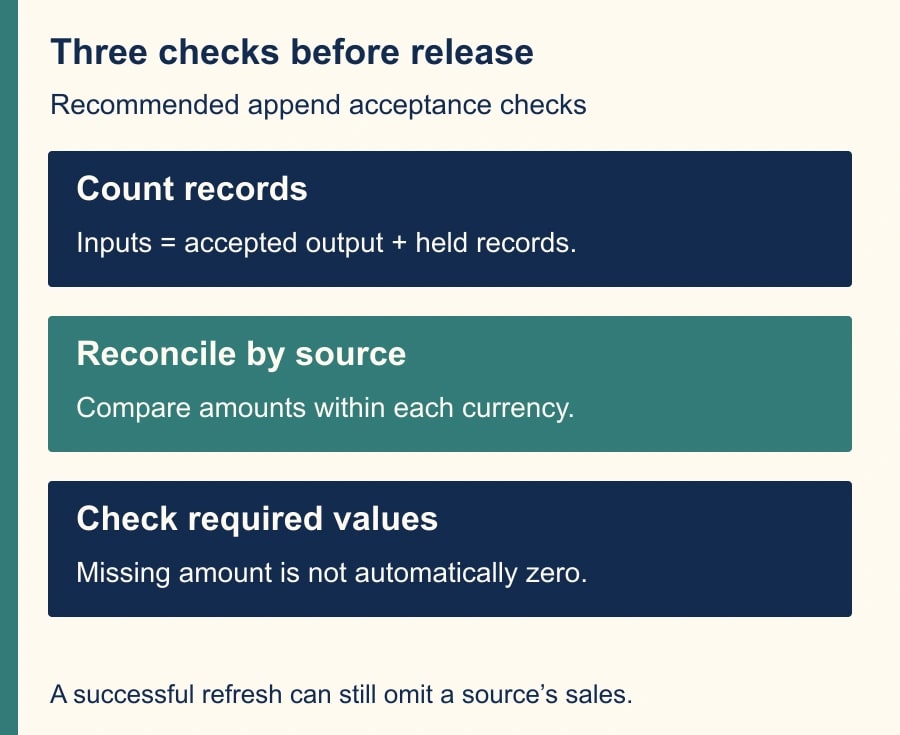
This three-part check is intentionally stronger than “refresh succeeded.” The expected output is a table with aligned meanings, preserved source identity and a complete accounting of included and held records. The report owner signs off that result before consumers switch to it. Keep the old output clearly labeled if it must remain available during review.
When two amount fields already coexist
Sometimes a source contains both Amount and Sales Amount on the same row. Renaming one to the other is not the first move. Determine whether one is a legacy field, whether both can be populated, and whether conflicting values occur. Create a visible conflict list before choosing a precedence rule. “Use whichever is nonblank” is only safe when the source owner approves that rule and conflicting populated values are handled.
For example, one row might contain Amount 100 and Sales Amount 120 because tax is included in the latter. Taking the first available value can conceal the distinction. Another row might contain an old amount in one field and a corrected amount in the other. The analyst cannot determine which is authoritative from the names alone. Escalate those records to the source owner and record the chosen rule.
Do not solve this by summing the two columns across every row. That happens to recover 600 in the simple disjoint-column example, but double counts when both fields contain the same amount. The reusable repair is an approved mapping with a conflict check, not a formula tailored to one favorable file.
Release and recovery worksheet
- Source inventory: exact input files or queries, extraction dates, periods and included branches.
- Mapping decision: incoming and target headers, definitions, units and approving owner.
- Required fields: the values needed for this report and the treatment of missing ones.
- Control totals: row count and amount for each source and currency before and after append.
- Exception list: conflicting fields, invalid types, missing currency and unresolved identifiers.
- Release record: reviewed output, person approving it, replacement date and recovery version.
Run the corrected query against a second known source extract before release, ideally one with an optional field missing and one with a changed column order. A genuine name-based mapping should survive a harmless reorder. An unexpected new required field or a changed definition should prompt review, not an automatic guess. If recurring schema changes are the real problem, continue with the site's required-versus-optional column guide.
If the new result fails a control, stop the downstream refresh or distribution you own and retain the last approved report with its date visible. Restore the prior query version if needed, then repair the mapping in a copy. Do not overwrite the raw files to make an old query appear to work. That removes evidence and shifts the defect into the next extraction.
Measure the repair by reconciled source totals and fewer manual corrections, not by the number of columns removed. If a monthly check previously took 30 minutes and now takes 15, the released capacity is 15 minutes per run before maintenance time. It becomes a cash saving only if an actual spending decision follows. The next action is to compare the headers immediately before append and have the source owner approve just one disputed field mapping.
Weekly Newsletter
AI Adoption Weekly
New research, field guides, training studies, and tool decisions for operators.
No spam. Unsubscribe anytime.
Related Comparisons
Calculator
AI seat cost calculator
List price × headcount. You enter the hours and the operating assumptions.