
Excel Allows Invalid Pasted Values: Check the Rule and the Data
Find invalid pasted Excel values and missing validation rules, then reconcile approved requests before exporting orders.
Published November 20, 2026

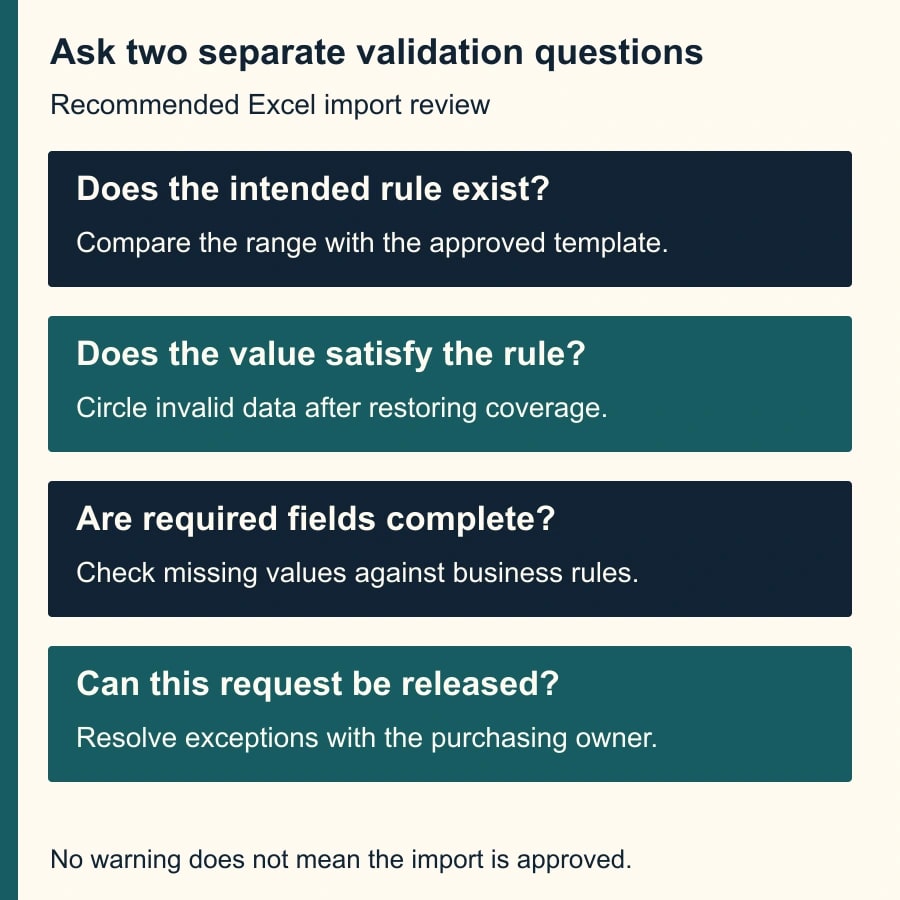
Excel data validation can reject a value you type and still allow the same value to arrive through a paste. If an imported purchase request contains an invalid department or quantity, check two things: whether the intended validation rule still exists on that cell, and whether its current value satisfies the rule. Those are separate checks, and both belong before the order export.
Microsoft explains that validation messages apply to direct entry; copying, filling, formulas and macros can introduce values without the same entry warning. Desktop Excel can circle values that violate existing rules. See Microsoft's invalid-data guidance. A worksheet with no visible warning is therefore not proof that every imported row is acceptable.
This guide is for an operations analyst who receives spreadsheets, pastes requests into a controlled workbook and exports approved rows to a purchasing or inventory system. It is also relevant when AI-generated tables become spreadsheet inputs. The source may look orderly while containing departments or quantities the business does not accept.
Use a proper intake form or a system with controlled submission when many people are editing the same operational process and spreadsheet checks are repeatedly missed. The workflow below helps maintain an existing workbook; it does not turn a drop-down list into an approval system. Keep the purchasing decision with the person authorized to make it.
Preserve the evidence before repairing the sheet
Save a working copy and retain the original import. Record the source filename, received time, number of request rows and intended export destination. If the data has already been exported, note the affected batch identifier and pause further export while the owner investigates. Avoid correcting values in place before anyone can establish which orders were affected.
Gather the approved template, the current department list, the permitted quantity range and the rule for required fields. These are business inputs. A workbook maintainer should not decide that a new department is valid just because it appears in an otherwise plausible request. Name the purchasing owner who can approve exceptions or request a source correction.
Use desktop Excel for the Circle Invalid Data workflow described here. Microsoft notes that the feature may not appear in Excel for the web. If your team works only in the browser, arrange an authorized desktop review or use a separate checked import process. Do not conclude that a missing command means the data passed validation.
The main cost is the review process: maintaining the reference lists, checking imports, resolving exceptions and preserving the export record. Use your organization's existing Excel entitlement where available and verify access before designing the process around a desktop-only command. No paid add-in is assumed in the steps below.
Diagnose the rule before relying on the value check
Select a known-good template cell and inspect Data > Data Validation. Record the allowed type, list source or numeric limits, blank handling and error alert. Compare the corresponding cells in the imported area, including the middle and final rows. A correct rule in the first row does not establish coverage down the whole column.
Microsoft's Validation.Value documentation makes an important distinction: an ordinary paste can replace the destination validation with the source validation, removing it when the source has none. Pasting values can preserve the destination rule while still introducing an unchecked value. That means two visually similar imports can require different repairs.
If the intended rule is absent, restore it from the approved template through a controlled change before using it to judge the data. Verify the target range and relative references; do not blindly copy a neighboring cell whose rule may have been damaged too. Preserve the imported values while correcting the rule, then evaluate those values separately.
Also inspect the alert style. Microsoft's validation guidance distinguishes Stop from Warning and Information. The latter two allow users to accept an invalid direct entry. If a user typed a value and clicked through a warning, that is a different explanation from a paste bypass. Choose the alert that fits the intended entry behavior, then keep the independent import check.
Reconcile six purchase requests
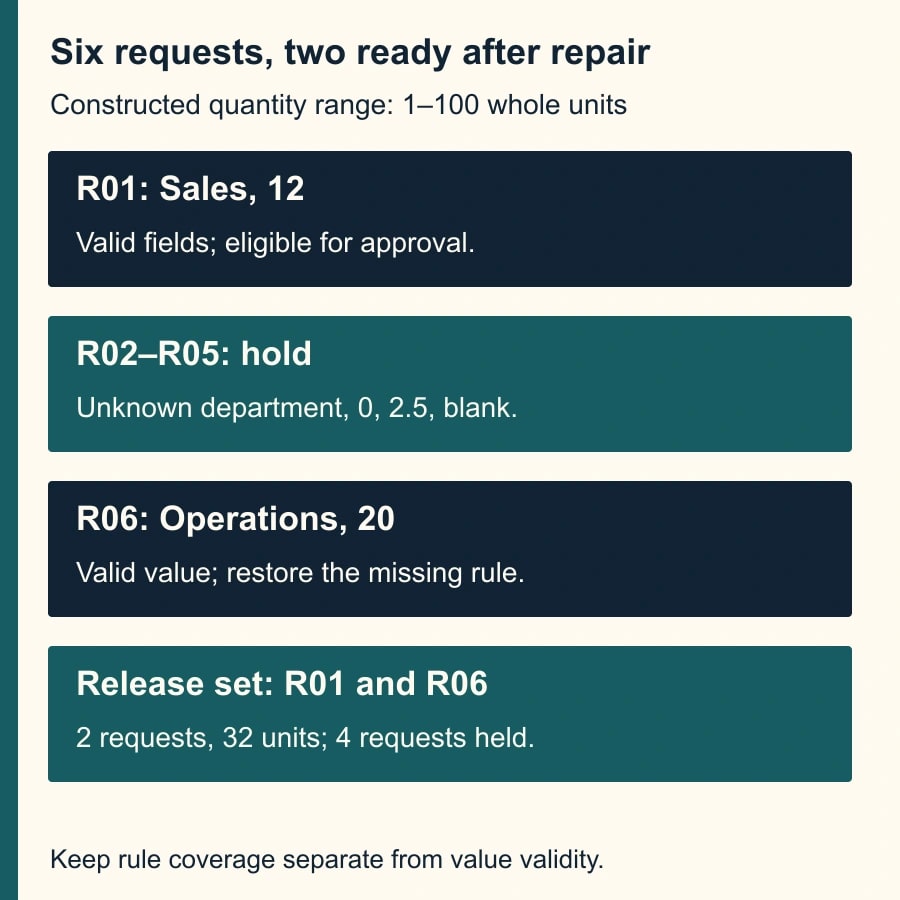
Use this constructed worksheet to test the process. It is a planning fixture, not a claim about a live workbook. The approved departments are Sales, Operations and Finance. Quantity must be a numeric whole number from 1 through 100. Request identifier, department and quantity are required. None of the six sample requests has been exported yet.
- R01: Sales, quantity 12. Expected result: release if the rest of the request is approved.
- R02: Legal, quantity 8. Expected result: hold; the department is outside the approved list.
- R03: Operations, quantity 0. Expected result: hold; zero is below the permitted range.
- R04: Finance, quantity 2.5. Expected result: hold; the quantity is not a whole number.
- R05: Sales, blank quantity. Expected result: hold; a required business field is missing.
- R06: Operations, quantity 20, but the department cell's validation rule was removed. Expected result: repair and verify the rule before release; the current department value itself is acceptable.
There are six requests. After restoring and checking R06's missing rule, two rows meet these sample field requirements: R01 and R06. Their approved quantity is 32. Four rows remain held. That count and quantity provide useful reconciliation checks, but the request identifiers are the evidence that the right rows were selected.
The fixture deliberately includes a valid value in a cell with no rule. Circle Invalid Data is a value check against existing rules; it cannot prove that every required cell has the intended rule. A clean-looking R06 should therefore remain visible in the rule-coverage review until the template requirement is restored.
R05 also deserves a separate required-field check. Do not rely on a blank-handling option alone to express the entire submission policy. Microsoft documents that the programmatic validation result depends on the rule and IgnoreBlank setting. The business requirement here is explicit: an empty quantity prevents release, regardless of whether a particular validation check treats that blank as acceptable.
Circle invalid values after restoring rule coverage
On the working copy, choose Data > Data Validation > Circle Invalid Data. Review every circled value against the approved requirements. Record the request identifier, field, observed value and proposed resolution in an exception list. That list should survive after the colored circles are cleared or the workbook is passed to another reviewer.
Use the circles to locate problems, then resolve their meaning. Legal may be a newly approved department missing from the reference list, or it may be a requester using the wrong cost center. The purchasing owner should decide. Do not expand the allowed list merely to remove a circle, and do not change Legal to Finance because Finance is the closest available option.
For R03, ask whether the requester intended to cancel the order or omitted the quantity. For R04, check whether the item is actually ordered in fractional units and the template's whole-number rule is wrong for that item. In either case, the choice changes the business record. The analyst should preserve the source value and obtain a documented correction or approved exception.
For R05, return the request for completion. Filling a blank with one may make the spreadsheet look complete while creating an order nobody requested. For R06, restore the intended rule, confirm Operations is allowed and verify that the repair did not alter neighboring values. The resolution is about rule coverage, not changing a valid department.
Keep raw input, reviewed data and exported rows distinct
Use a raw-input sheet or preserved source file that reviewers do not overwrite. Put the working values in a clearly named review area and maintain a release status for each request identifier. The export should contain only rows whose required checks and business approvals are complete. This is a recommended workbook design, not a promise that Excel creates those stages automatically.
At minimum, the exception record needs request identifier, field, original value, issue, owner, decision, corrected value and decision time. When an exception changes an allowed list or range, record the template version too. Otherwise, a later reviewer cannot tell whether the row passed the old rule, a newly approved rule or an accidental relaxation.
Reconcile the import and export by identifiers. In the fixture, the imported set is R01 through R06. The released set is R01 and R06 after repair. The held set is R02 through R05. Released and held sets should not overlap, and together they should account for all six imported requests. Check for duplicate request identifiers before making that comparison.
A sum alone cannot establish completeness. If one 20-unit request disappears and another is duplicated, the total can remain unchanged. Preserve row-level evidence even when the export contains hundreds of requests. The business owner needs a clear path from an exported line back to the reviewed source request.
Reproduce the failure on a disposable copy
Create a short acceptance worksheet from the approved template. Test a valid typed value, an invalid typed value, an invalid value pasted as values, and an ordinary paste from a cell with no validation. After each action, inspect both the current value and the validation settings. Record what happened in the Excel version your team actually uses.
Add a test that fills the final rows of the expected import range. Check whether the rules cover newly added rows and whether their list references point to the intended source. A template can work perfectly for 100 rows and fail operationally when the next import contains 120. The test should use the largest normal batch, plus a small margin chosen by the owner.
Test an AI-generated or vendor-supplied table with an unexpected department, a blank quantity and a fractional quantity. Keep those cases in the acceptance set even if the current source usually behaves well. The purpose is to prove that the review catches an exception, not to demonstrate that one clean sample imports without warnings.
If an existing macro performs the checks, have its maintainer inspect the range logic. Microsoft's Validation.Value property evaluates only the upper-left cell when called on a multiple-cell range; it also reports true for a cell without validation. A single true result is therefore not a coverage certificate. A code review should address rule presence, per-cell evaluation and the separate required-field policy.
You do not need to add a macro merely to follow this guide. A small team may prefer a documented desktop review and a clear exception list. Automate the check only when the maintainer can explain its coverage and the owner can inspect failures. A hidden script that silently discards bad rows would make reconciliation harder.
Release only when exceptions have a destination
Before exporting, verify the template rules, rerun the value check, inspect required blanks and confirm the release list. Compare exported identifiers and quantities with the approved set. Open the actual export file and check the fields the receiving system uses. A correct workbook does not guarantee that the right sheet or range was exported.
If invalid rows have already reached the destination, identify the affected batch and reconcile the saved destination records. Correct or cancel them using the normal purchasing process. Do not simply repair the workbook and resend the entire batch; that can create duplicate orders while leaving the original errors unresolved.
Measure imports reviewed, invalid values caught, missing rules found, exceptions still waiting and corrections required after export. Track the oldest held request so a strict check does not become an invisible backlog. If the same source repeatedly breaks the template, repair the intake method with the source owner rather than budgeting permanent manual cleanup as inevitable.
Stop export when rule coverage is unknown, request counts cannot be reconciled or nobody can approve a disputed field. The immediate next step is to run the six-request fixture on a copy and confirm that R06 is treated differently from R02. Then use the identifier import guide to protect request codes, and the text-number diagnostic if accepted-looking amounts fail arithmetic checks.
Weekly Newsletter
AI Adoption Weekly
New research, field guides, training studies, and tool decisions for operators.
No spam. Unsubscribe anytime.
Related Comparisons
Calculator
AI seat cost calculator
List price × headcount. You enter the hours and the operating assumptions.