
Fix Power Query Errors Without Silently Dropping Records
Keep failed Power Query rows visible, repair conversion problems and reconcile accepted records before you release the report.
Published October 26, 2026

If Power Query produces errors, keep the failed records visible before you remove or replace anything. Find the step that introduced the problem, repair what you can justify from the source, and reconcile the accepted rows with the exceptions. A refresh that finishes successfully can still leave your business report incomplete.
This guide is for a finance or operations owner who receives recurring exports and needs a defensible report. It covers ordinary conversion problems and missing records, using a constructed supplier-cost example. It does not establish accounting treatment or tell you to estimate an unknown amount. If the source is unavailable or its structure changed, restore that connection or mapping before attempting row-level repairs.
Decide what a complete report means
Before opening the editor, write down the unit you are counting. An invoice with four line items might be one invoice but four input rows. Comparing an invoice count with a line-item count creates a false alarm. For this workflow, one source row is one cost item, and each item has a stable identifier within its batch.
Keep the original export, its extraction date and the reporting period. Save the workbook before changing its query. You need permission to inspect the source and a business owner who can approve corrections. Use your existing Power Query environment; the main additional cost is investigation and review time. A more expensive connector will not decide whether an ambiguous cost is valid.
Define the release condition with the person who uses the report. A preliminary spending view may accept a clearly labeled known subtotal and an exception list. A final reconciliation may require every cost to be resolved. Decide this before seeing the result, so a convenient total does not quietly lower the standard.
Separate a failed query from a failed cell
Power Query distinguishes errors that stop a query step from errors stored in individual cells. Microsoft shows both types in its guide to dealing with errors. That distinction determines where to investigate.
If the query cannot reach a file or find an expected column, it may have no usable result to divide into accepted and rejected rows. Check the failing step and its source assumptions. A renamed Amount column, for example, calls for a verified mapping change. Removing error rows cannot recover a column that the query never found.
If the table loads but several amount cells contain Error, inspect one error's reason, message and detail. Then move backward through Applied Steps until you can see the original value. Compare the last good step with the first bad step. Record both names in your repair notes rather than reporting only that the refresh failed.
Do not correct a value merely because you recognize a pattern. The text 1,200 can mean different things under different regional conventions. Confirm the export's conventions with its owner. When dates are involved, use the separate Power Query date-locale repair guide before assuming that a successful conversion is a correct conversion.
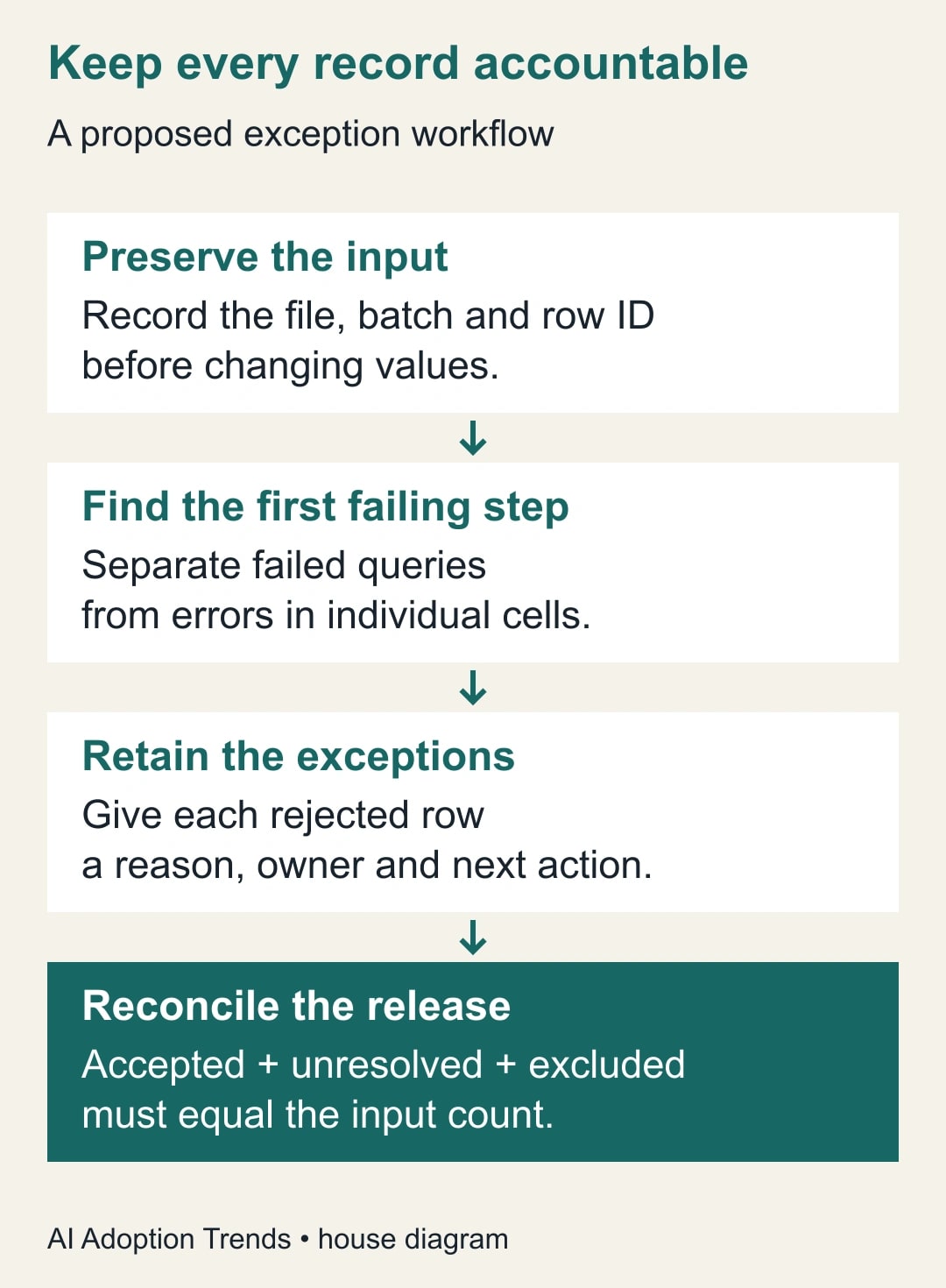
Preserve the evidence before filtering
Create a diagnostic copy of the query while you investigate. Keep the source identifier and original amount alongside the converted amount where practical. If the conversion replaces the original column, duplicate that column before the conversion in the diagnostic copy. Give the copies clear names such as Amount supplied and Amount parsed.
There are two things to preserve: the original business value and the explanation of why it failed. Replacing every Error with zero destroys the distinction between a confirmed zero cost and an unknown cost. Replacing every error with a blank can conceal the same issue when the downstream total ignores blanks.
Microsoft's editor provides Keep Errors and Remove Errors operations for selected columns. Remove Errors removes affected rows, not just the displayed error text. Use these controls only after deciding which columns determine acceptance. An error in an optional note and an error in the amount do not necessarily have the same business consequence.
For a simple amount conversion, start both diagnostic outputs from the same table immediately after that conversion. One output retains rows with amount errors; the other retains rows without amount errors. Keep the same batch and identifier fields in both. If you inspect several columns separately, combine exception reasons by identifier before counting exceptions. Otherwise, a row with two defective fields can appear twice in your exception count.
Document any additional rule separately. A blank amount may not be an Error cell, but it can still make a record unusable for a spending report. A negative amount might be a valid credit rather than a defect. Conversion success is one test; business validity is another.
Check beyond the preview sample
Power Query's column quality and profiling tools help you locate problems, but the default profiling scope is the first 1,000 rows. Microsoft explains how to switch the scope to the entire data set in its data profiling documentation.
For a release decision, use a complete reconciliation rather than relying on the green portion of a preview. A recurring file can have clean opening rows and a defective final section. Record the profiling scope you used, then verify the actual output counts after refresh.
An input count also needs a defined boundary. Exclude headers, explanatory footers and subtotal lines according to a documented import rule. Do not quietly expand that rule when a troublesome record appears. If a footer changes, fix the boundary rule and rerun the reconciliation from the preserved source.
Work through a 100-row cost batch
Consider a constructed single-currency example. The input contains 100 distinct cost items for one period. Ninety-seven amounts convert successfully and total £9,700. Three amounts fail. There are no duplicate identifiers, credits or mixed currencies in this deliberately small example.
The first defensible result is therefore 97 accepted records, three exceptions and a £9,700 known subtotal. It is not a complete £9,700 cost total. The missing amounts are unknown, so you cannot quantify the understatement yet.
Investigation finds that two exception records have confirmed source amounts of £120 and £80. The source owner approves those corrections and supplies evidence. The third item has no confirmed amount and remains held. Apply the two corrections in the agreed source or maintained correction table, then rerun the whole batch.
The revised result is 99 accepted records totaling £9,900 and one unresolved record. The arithmetic is £9,700 + £120 + £80 = £9,900, and 99 + 1 = 100. The row count reconciles, but the cost total remains incomplete. Those two statements must travel together to the report reader.
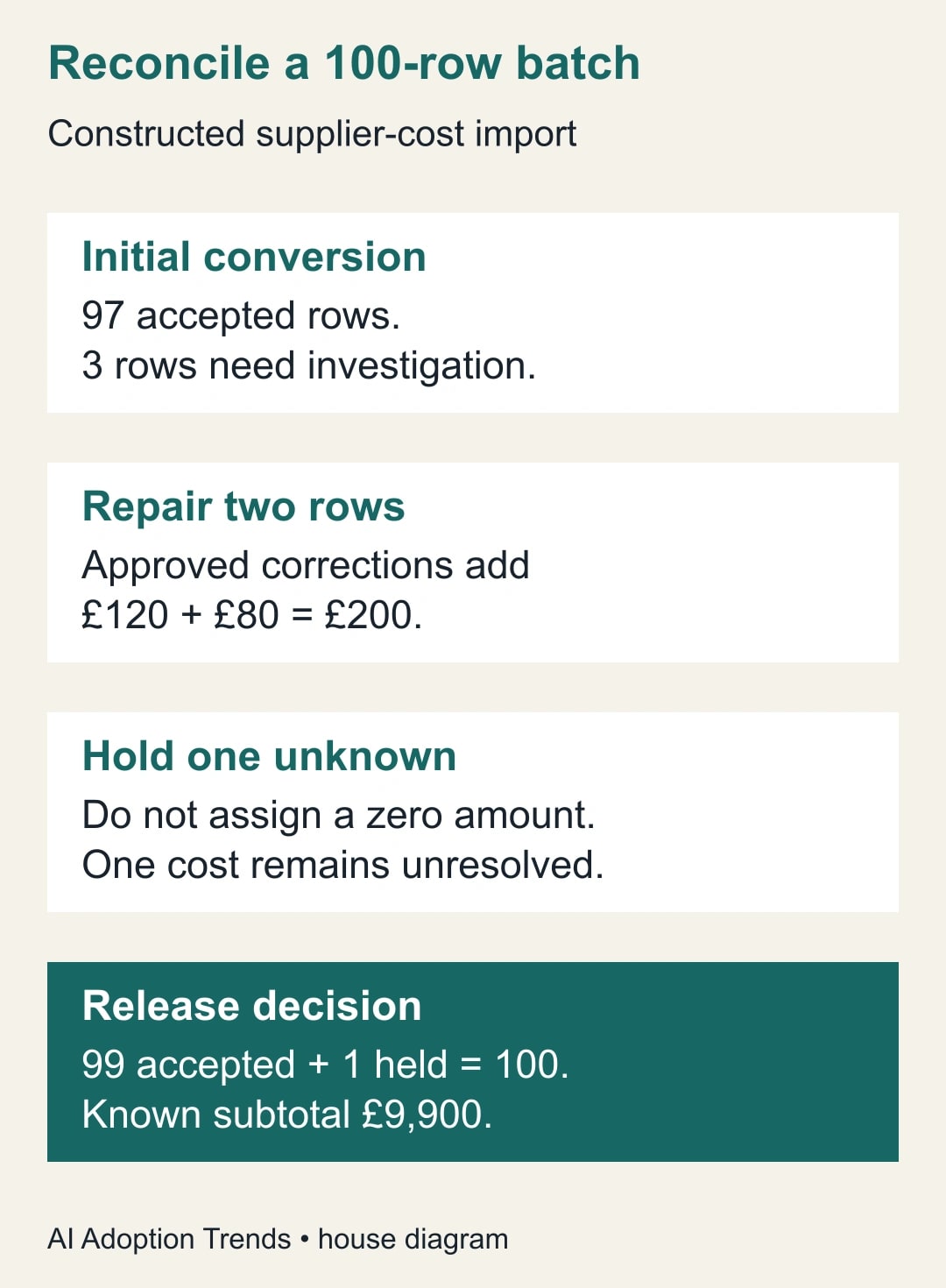
Do not append the two repaired records to a refreshed accepted output if that refresh already includes them. That would count the repairs twice. The correction changes the classification of existing identifiers; it does not create new cost items. Compare the accepted identifier set before and after the repair to confirm that precisely those two records moved out of the exception list.
If the user of the report approves a preliminary release, label it with the period, known subtotal, unresolved count and exception-list location. If the required output is final, hold it. A deadline can justify escalation; it cannot establish the missing amount.
Use error handling to explain a failure
For a maintained query, a technical colleague can use Power Query's try expression to retain information about a risky operation. Microsoft's error-handling guide explains the resulting record, including HasError and the available value or error information.
The useful business outcome is a table with an original value, a parsed value where valid, and a reason when parsing failed. It is not a table where every failure has been turned into an apparently valid number. Ask the maintainer to demonstrate both a good record and a deliberately bad record in a test copy.
An alternative value is appropriate only when a documented rule supports it. For example, a separately verified backup field may supply the same amount. That rule needs an owner and a test showing which field wins when both are present. An arbitrary zero is not a backup source.
Keep null checks explicit. A missing value may pass through without raising an error, so a try expression alone does not prove completeness. Ask what happens to a blank amount, a currency symbol without a number and an unexpected date in the amount field. These are separate test cases, even if the eventual outcome is manual review for all three.
Keep a repair register that someone can use
The exception register should make the next action obvious. A long dump of technical messages without ownership simply moves the work elsewhere. Use the following fields for each unresolved identifier, adapting the names to your reporting process.
- Batch and reporting period: identify the exact input version.
- Record identifier: include the line identifier if one invoice has several lines.
- Original value: preserve what arrived without overwriting it.
- First failing step and field: locate the transformation that needs review.
- Business consequence: state which measure or decision is incomplete.
- Proposed correction and evidence: link to the source owner's confirmation.
- Owner and due date: identify who can resolve the uncertainty.
- Disposition: accepted after repair, still held, or explicitly excluded with a reason.
Avoid including unnecessary personal or commercially sensitive fields in a widely shared repair sheet. The reviewer needs enough context to locate the record and justify the correction, not the entire source export. Keep the detailed evidence in the access-controlled location already used for the report.
At each refresh, distinguish new exceptions from old ones by identifier and batch. A falling error count may mean successful repair, but it may also mean the upstream system stopped sending a file. Check the expected input inventory before celebrating a cleaner result.
Test recovery before the next reporting deadline
Rehearse with a copy containing one valid amount, one confirmed zero, one blank and one nonnumeric amount. Add a record whose identifier has a leading zero to check that the repair does not alter identity fields. The desired outcomes should be written down before running the query.
Then make a controlled source change that corrects one exception. Refresh both the report and the exception output. Confirm that the record appears once in the accepted output, disappears from the active exception list and remains traceable in the repair history. Do not treat a manually edited output cell as a permanent correction; a refresh can overwrite it.
If totals change unexpectedly, return to the preserved input and the last understood query version. Compare transformations one at a time. Check duplicate imports, join expansion and filters before assuming the conversion itself is wrong. For recurring files, the monthly CSV combination workflow addresses a different cause of inflated or missing totals.
Release with counts, ownership and an honest subtotal
Use a final control equation: accepted records plus unresolved records plus explicitly excluded records equals the defined input population. Make those categories mutually exclusive. Also compare identifiers, because an omitted record and a duplicated record can cancel in a simple count.
Track unresolved records, time to resolve them and the number of releases held for incomplete data. Set targets from the business deadline and consequences, rather than adopting a universal acceptable error percentage. One unresolved high-value item can matter more than many harmless formatting defects.
The report owner signs off the release condition; source owners approve factual corrections; the query maintainer implements and tests the transformation. Keep those responsibilities visible even when one person fills several roles. Automation can route the exception, but it cannot provide missing evidence.
Start with the next failed batch. Preserve its original values, identify the first failing step and build the accepted-versus-exception reconciliation. Release the report only when its label accurately describes what is known and what is still missing.
Weekly Newsletter
AI Adoption Weekly
New research, field guides, training studies, and tool decisions for operators.
No spam. Unsubscribe anytime.
Related Comparisons
Calculator
AI seat cost calculator
List price × headcount. You enter the hours and the operating assumptions.