
Keep an Interpreter Visible in Google Meet on Mobile
Prepare Google Meet tile pairing on mobile, rehearse interpreter visibility and agree on a fallback before the meeting starts.
Published October 26, 2026

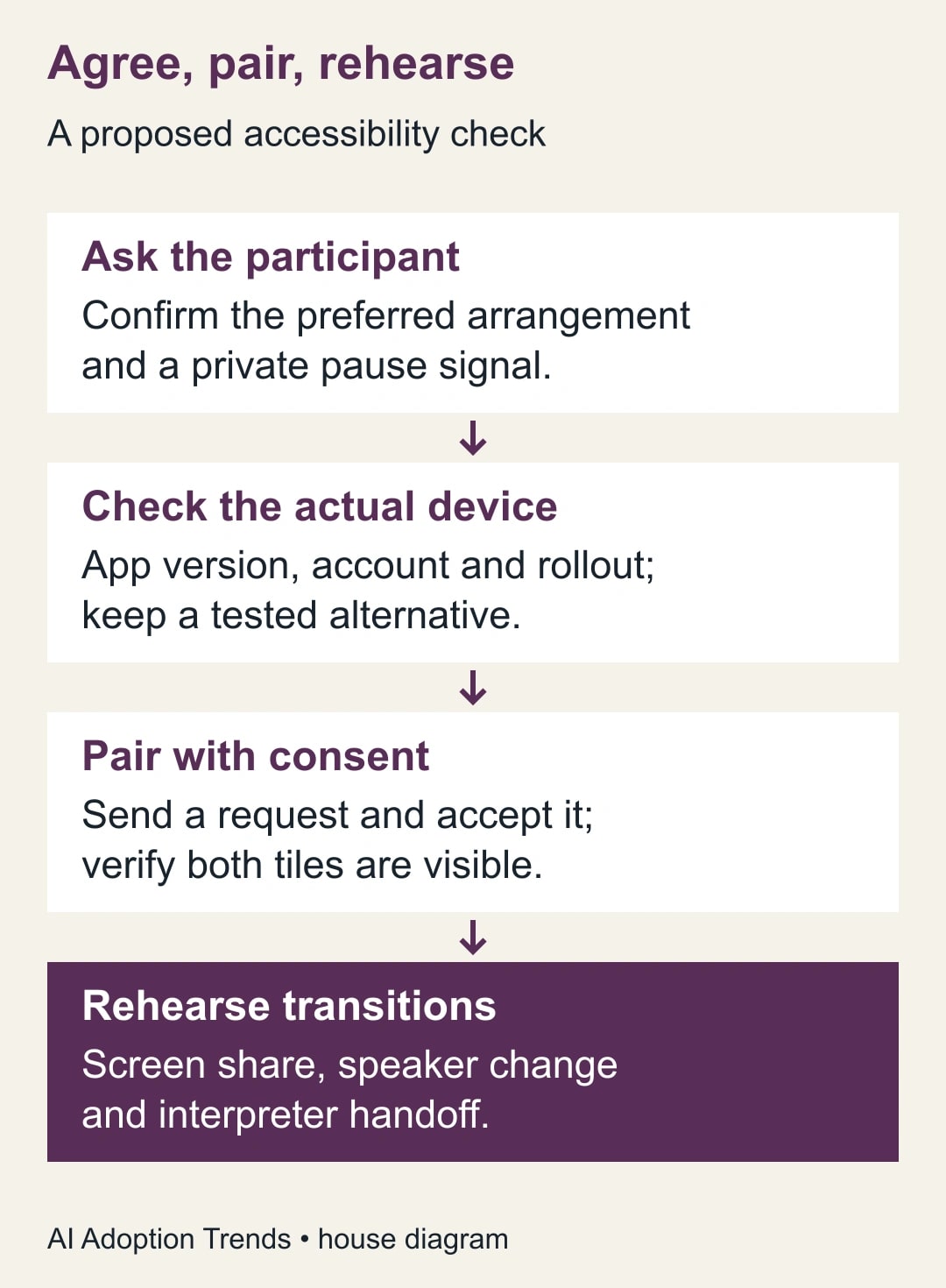
To keep a participant and their interpreter together in Google Meet, use tile pairing and verify the resulting view with the participant before the meeting. On Android, the pairing request is available through the participant controls. The other person must accept. Treat successful pairing as the start of a rehearsal: the arrangement still needs to work during discussion, screen sharing and any interpreter handoff.
This guide is for meeting organizers supporting people who use sign-language interpreters, including colleagues joining from a phone or tablet. It provides a practical preparation and recovery plan. It is not a claim that one layout meets every person's needs. The participant should choose the arrangement that lets them take part, with the interpreter and organizer helping make it work.
Check the rollout for the device in the invitation
Google announced mobile tile pairing on October 21, 2026. Its schedule lists Android rollout starting October 12, taking up to 15 days, and iOS rollout starting November 2, also gradual. As of October 26, do not promise that an iPhone has the new control. Google lists Workspace customers, Workspace Individual and personal accounts. Mobile tile-pairing announcement
Start preparation with the actual account, device and app version that will be used. A successful desktop test does not establish a usable phone layout. An organizer's access does not establish a guest's access. Ask the participant to join the rehearsal through the planned route, then check the controls together without sharing passwords or changing unrelated account permissions.
If the control is missing, check availability and organizational settings with the appropriate administrator. Do not pressure the participant to install an unofficial tool or use a personal account to bypass a work restriction. A tested desktop arrangement or another agreed meeting method may be the better temporary choice. Keep the decision practical: which available setup lets this person participate in this meeting?
Tile pairing does not supply an interpreter. Arrange the required professional service through the organization's normal process. Budget the interpreter's time, preparation, technical rehearsal and any equipment needed for the chosen setup. No separate AI translation purchase is required for the layout workflow described here. Do not present a free interface control as eliminating the cost of accessible communication.
Ask about the experience before arranging the screen
Contact the participant privately with a concrete preparation question: “We will share a diagram and discuss three decisions. What view and materials will help you take part, and how should we pause if the view stops working?” This gives them control over the relevant arrangement without asking them to disclose medical information or explain a diagnosis.
Share the agenda, names and essential terminology with the interpreter in advance through the agreed channel. Provide the same decision documents to the participant. If an acronym, product name or number will matter, put it in readable written form. Preparation should reduce the burden of guessing during the call, rather than rely on the visual layout to solve every communication problem.
Agree on a pause signal that works even if the participant cannot follow the current speaker. It might be a chat message, an agreed gesture or a message to the organizer. Test the signal during rehearsal. The organizer must know who watches for it and who stops the discussion; an unmonitored chat channel is not a reliable fallback.
Keep the accessibility arrangement separate from meeting authority. The participant owns their preference about a usable view. The interpreter supplies the agreed interpreting service. The organizer owns pacing, turn-taking and interruption when access fails. The person responsible for the business decision still confirms the decision. Naming those roles prevents everyone from assuming someone else noticed a problem.
Pair the tiles and confirm both sides
Google's Android instructions give two routes: use More controls, Tools and People to find the participant, or touch and hold their video. Choose the request to pair tiles and have the other person accept. The pairing icon should appear for the paired participants. Verify the names and visible arrangement instead of relying only on a notification. Android pairing instructions
Google documents one paired partner at a time and only one pending outgoing request. Accepting another pairing ends the previous one. Pairing is not available for recordings or breakout rooms. Those limits matter when planning a session with rotating interpreters or small-group work; include an alternative in the agenda rather than discovering the gap during a decision. Pairing behavior and limits
After the request is accepted, ask the participant whether both people are visible at a useful size on their own device. Ask the interpreter to confirm the view they need as well. Another attendee can check how the pair appears to the wider group, but their desktop view cannot substitute for the participant's phone view.
Try the actual device orientation and position the participant intends to use. Avoid making the person repeatedly reposition the phone while also following the conversation. If a stand, larger screen or different joining arrangement is needed, settle that before the session. A technically connected video can still be too small, unstable or tiring to use.
Rehearse the transitions, not just the opening
A useful rehearsal is short and specific. Have the presenter speak, another attendee take a turn, the presenter share the real type of material, and the interpreter hand over if a change is planned. At each transition, pause and ask whether the participant can still follow. Record an observed result, not a prediction based on how the interface usually looks.
Consider a constructed product-planning meeting with four checks. The opening discussion works. A change of speaker works. During a shared diagram, the interpreter becomes too small on the participant's phone. The planned interpreter handoff works after a new pairing is accepted. Three of four checks pass, but the session is not ready: the failed transition occurs during the main decision.
The organizer can try an alternative agreed with the participant, such as providing the diagram separately and changing how the presentation is shown. Repeat the failed transition using the actual alternative. Do not simply record a 75% success rate and proceed. A percentage hides the fact that one essential part of the meeting remains inaccessible in this example.
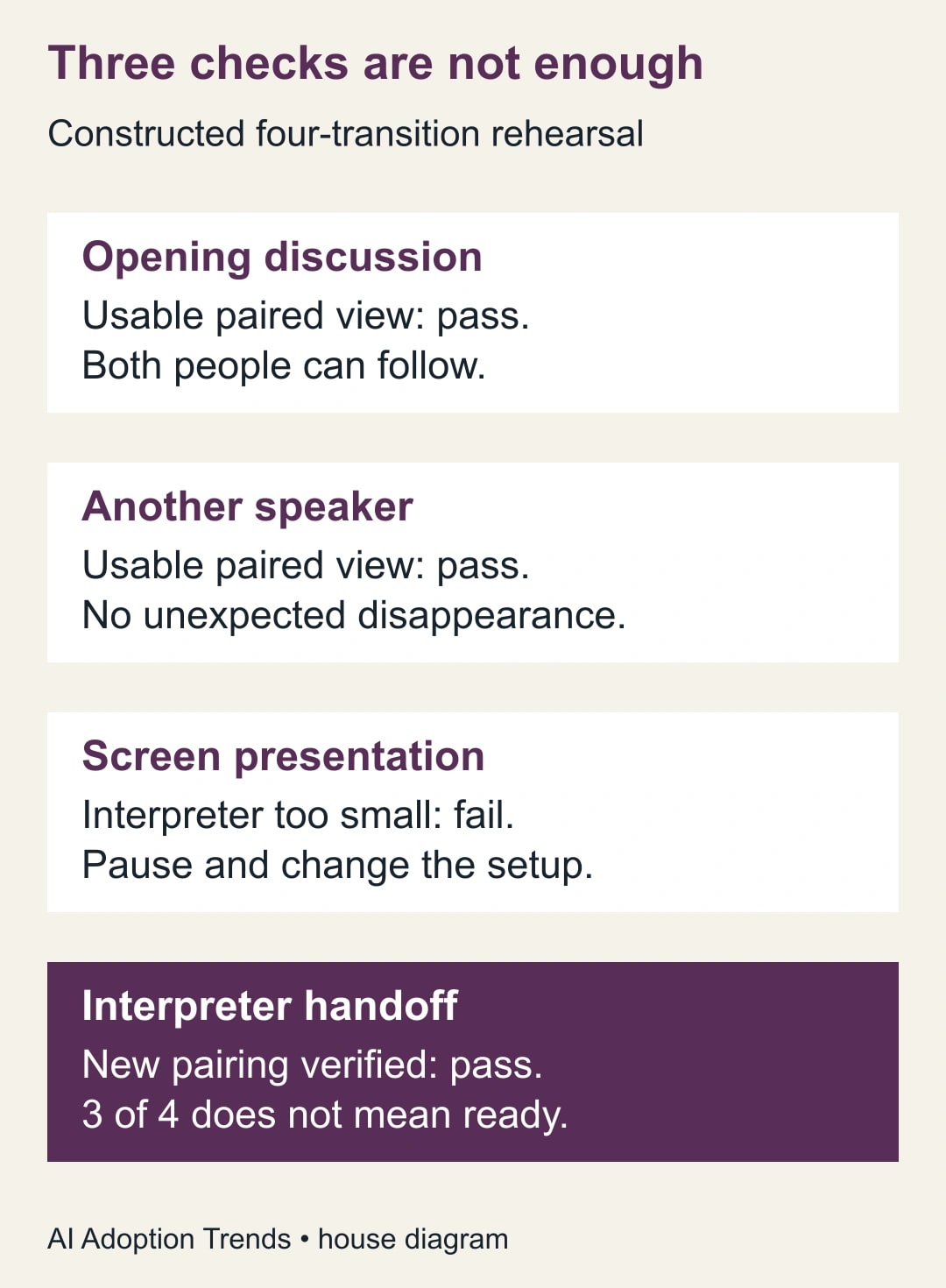
Use a simple rehearsal record: transition, device, observed problem, adjustment, person confirming usability and retest result. For the example, the screen-presentation row remains open until the participant confirms the revised arrangement. Keep the note about the setup, not a description of the person's health or ability. Store it only where the meeting support team needs it.
A rehearsal should also test recovery from a brief connection interruption. Agree on how the organizer will notice that the participant or interpreter has left, what the group will pause and how the missing passage will be repeated. Do not simulate a disruptive failure without agreement. A verbal walkthrough can establish responsibilities before a harmless technical test.
Plan an interpreter handoff explicitly
If the service involves more than one interpreter, make the handoff part of the run sheet. Name who signals the change, who sends or accepts the new pairing request and who confirms the new view. Allow a pause for that confirmation. Continuing a dense explanation while people rearrange the screen can lose information even when the technical change succeeds.
The business presenter should wait for the organizer's confirmation before restarting. Begin with the last agreed point or a short restatement of the question under discussion. Do not assume that a new pairing carries the full conversational context. Keep the relevant written material available so the incoming interpreter and participant can orient themselves without a rushed recap.
For a breakout exercise, decide in advance how the participant will access the discussion, given the documented pairing limitation. Ask whether the proposed alternative is acceptable. If it is not, change the session design. A plenary discussion or another agreed arrangement may serve the business goal better than preserving a breakout format that excludes someone.
A recording needs its own plan. A working live layout does not establish what a saved recording contains or whether that recording is usable afterward. If a recording is part of the deliverable, follow the agreed consent process and inspect the actual result. Provide the necessary accessible alternative rather than treating the live rehearsal as approval of an unreviewed recording.
Give the organizer a compact run sheet
Use the following checklist as a proposed meeting procedure. Complete it with the participant and service provider rather than sending it as a list of demands. It should fit beside the agenda and be understandable to a backup organizer.
- Purpose: list the decisions and materials that need to be accessible during the session.
- Preference: record the agreed view and communication method without unnecessary personal details.
- Access: confirm the actual account, device, app and rollout availability.
- Pairing: identify the two people, the request route and how acceptance will be verified.
- Transitions: rehearse speaker changes, shared material and any interpreter handoff.
- Pause: name the signal, the person monitoring it and the action the presenter takes.
- Alternative: state the tested arrangement if the chosen view or connection fails.
- Close: confirm decisions in an accessible written record and note unresolved questions.
For the constructed product meeting, the run sheet might say: “Organizer pauses before the shared diagram; participant opens the supplied diagram in the agreed view; interpreter visibility is confirmed before the pricing question begins.” That is an operational instruction. “Accessibility checked” is too vague for a replacement organizer to use when the presentation changes.
Send materials early enough for the preparation you have agreed. A last-minute slide replacement may introduce unfamiliar names or diagrams that were not rehearsed. Mark the change and tell the interpreter and participant where it matters. If the replacement cannot be made usable in time, hold that part of the decision rather than pushing ahead because the meeting slot is nearly over.
Measure participation, then improve the next meeting
After the meeting, ask privately whether any passage was lost, rushed or difficult to follow. Record practical improvements with permission. The useful measures are unresolved access problems, decisions requiring repetition because access failed and whether the participant could contribute when needed. Do not score the participant or infer comprehension from camera behavior, silence or an absence of complaints.
Keep technical faults separate from preparation faults. A missing control needs an availability or configuration check. An unreadable shared document needs a presentation repair. A discussion that continues through an interpreter change needs an organizer behavior change. Classifying the problem makes the next action specific and avoids blaming the layout for every difficulty.
Stop or postpone a consequential discussion if the agreed communication method fails and no acceptable alternative is ready. Confirm what was and was not decided before people leave. The site's meeting follow-up workflow can help organize later actions, but any automated summary still needs the participants' confirmation.
Tile pairing and speech translation solve different problems. Do not substitute automated translation for the interpreting arrangement a participant needs. For the next meeting, the most useful action is a short rehearsal on the actual device, covering the moment where the screen changes. Release the agenda only when that transition and its fallback are workable.
Weekly Newsletter
AI Adoption Weekly
New research, field guides, training studies, and tool decisions for operators.
No spam. Unsubscribe anytime.
Related Comparisons
Calculator
AI seat cost calculator
List price × headcount. You enter the hours and the operating assumptions.