
Fix Google Sheets QUERY Values That Disappear as Blanks
Diagnose blank QUERY results in Google Sheets, normalize amounts without changing identifiers and reconcile every source row.
Published October 26, 2026

When Google Sheets QUERY shows blanks where the source contains amounts, check the stored value types before rewriting the report. QUERY assigns one type to a column; values of a minority type can become null in the query result. A number that looks like 400 may actually be text, while the neighboring amounts are numeric.
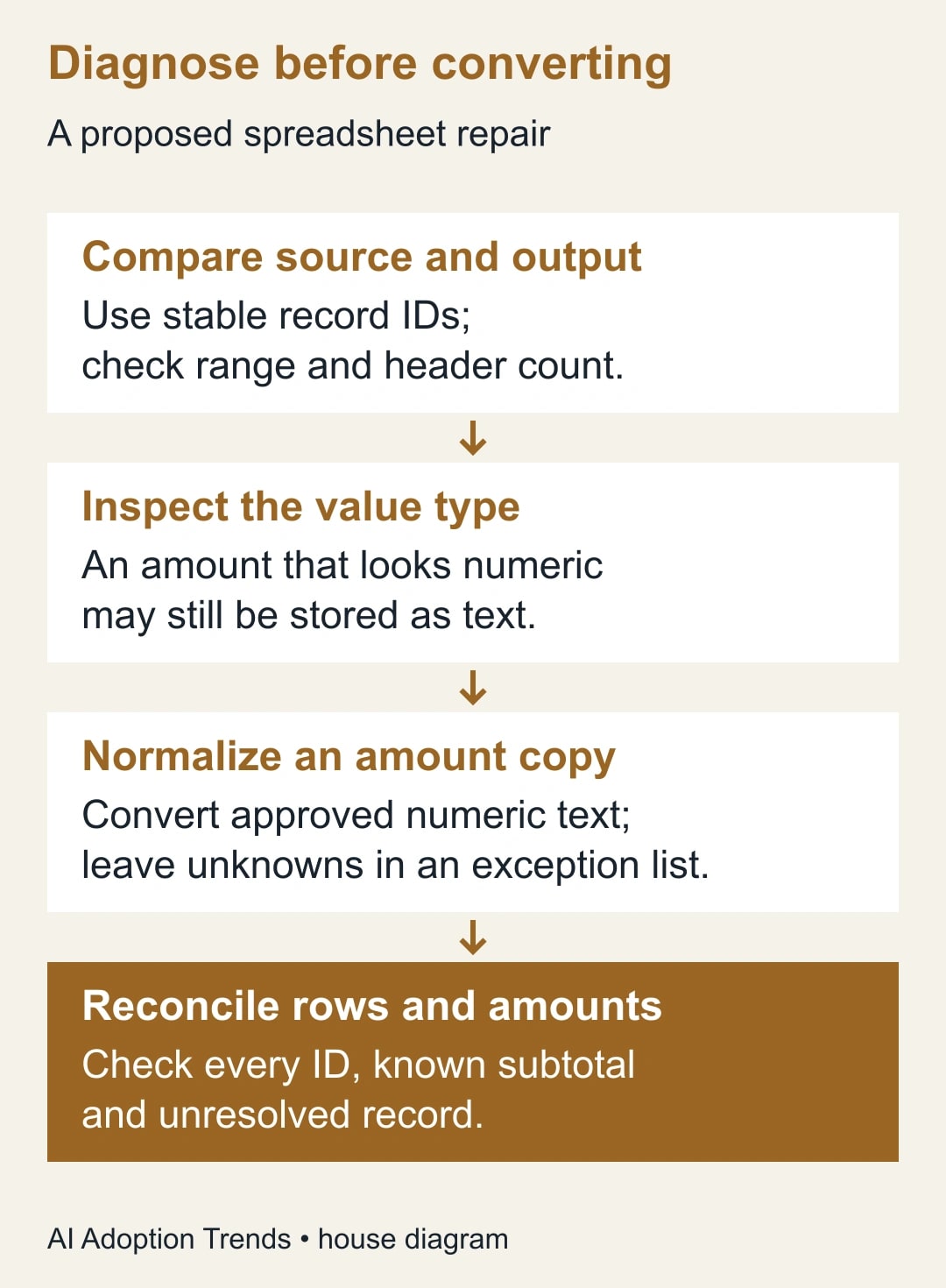
The repair is to preserve the source, identify the mismatched records, convert only values whose meaning is confirmed, and reconcile every identifier. Do not wrap the whole process in a formula that replaces failures with zero. That makes an incomplete report look finished.
This guide is for business reporting owners combining spreadsheet exports or maintaining a small operational dashboard. It uses a five-order example you can reproduce in a scratch sheet. It is not a reason to convert every digit-containing field to a number: account codes, product identifiers and postal codes often need to remain text.
Confirm that QUERY is the point of failure
Pick one affected record and follow its identifier from the original export to the input range and then to the report. If the value is already missing from the input range, investigate the import or permission problem first. Changing QUERY's type handling cannot restore data that never arrived.
If the value exists in the range, make a copy of the spreadsheet before editing formulas. Record the source tab, range, formula and last refresh date. Check whether the report deliberately excludes the record through a date, status or other condition. An intentional filter and an accidental null can produce similar-looking results.
Google's QUERY documentation states that the majority data type determines the column type and that minority types are treated as null. It also documents the optional header-count argument. Specify that argument in a controlled example so an inferred header boundary does not confuse the diagnosis.
Use the existing spreadsheet account and a small copy of the relevant records. The main cost is review time and the risk of changing a shared report while others use it. Give one report owner responsibility for the repair, and have the source owner confirm ambiguous amounts or conventions.
Build a five-order reproduction
In a blank sheet, put Order ID in A1 and Amount in B1. Use five unique text identifiers in A2:A6, such as ORD-01 through ORD-05. The amounts all refer to the same reporting period and currency; there are no taxes, refunds or exchange-rate conversions in this constructed example.
Enter 100 in B2, 200 in B3 and 300 in B4 as ordinary numbers. In B5, type an apostrophe followed by 400 to deliberately store a numeric-looking text value. In B6, type pending. The apostrophe is an entry device; the cell should display 400. Keep this experiment separate from the production source.
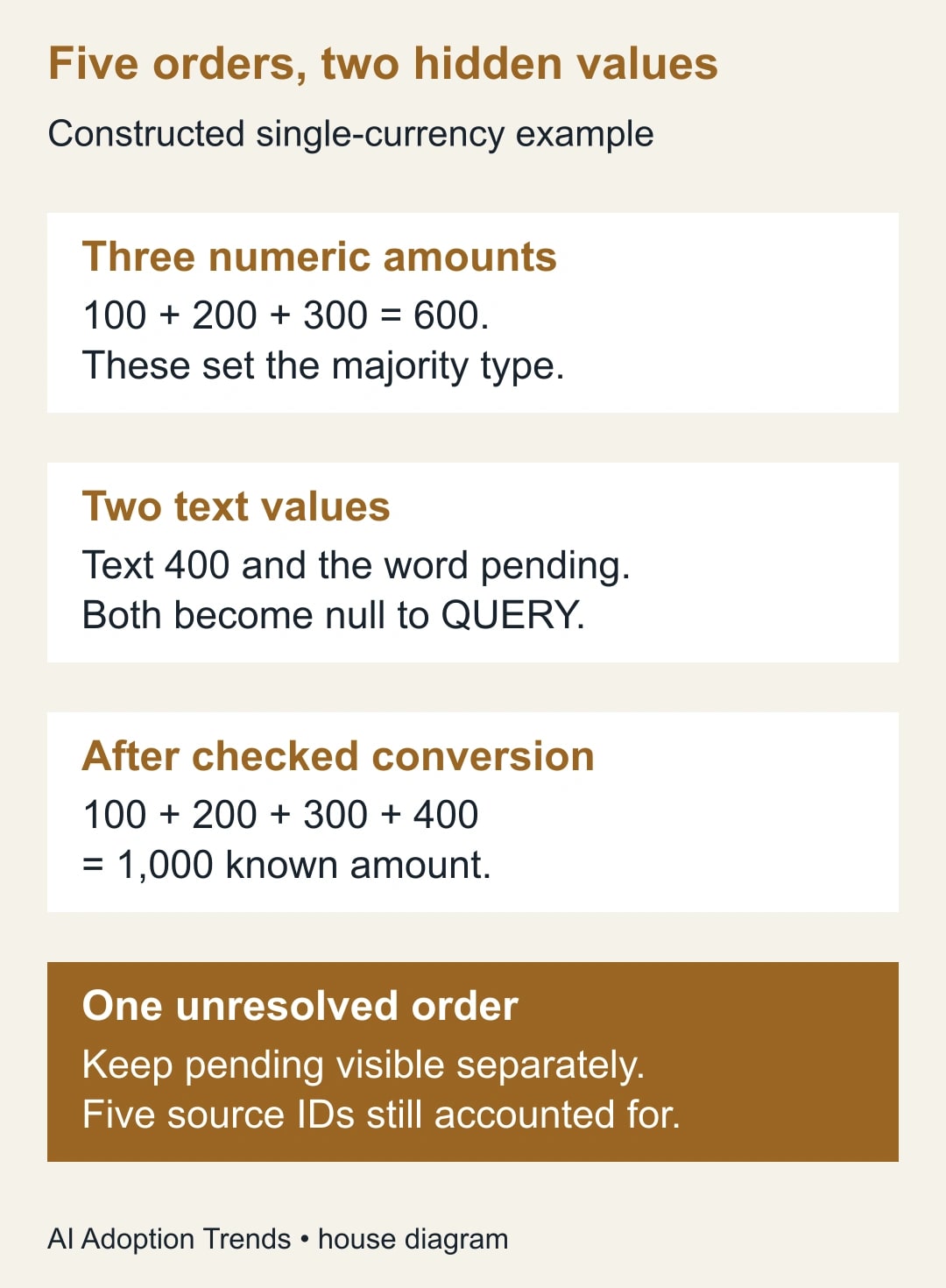
In D1, enter =QUERY(A1:B6,"select A,B",1). This formula explicitly includes one header row. Its amount column has three numeric values and two text values. Under QUERY's documented rule, the two text values are treated as null. The associated identifiers can remain visible while their amounts appear blank.
In another clear output area, compare =QUERY(A1:B6,"select A,B where B is not null",1). That condition excludes the records whose queried amount is null. Now the symptom is missing rows as well as missing values. The source has not been deleted; the report has excluded records under its interpreted column type.
These examples use comma-separated function arguments. If your spreadsheet locale uses a different formula separator, adapt the function arguments to that locale. Do not change the intended query condition while resolving a formula-entry error. Start with the simple selection before adding production filters, grouping or calculations.
Test the type rather than the appearance
Add a helper column in the scratch sheet and enter =ISNUMBER(B2), then copy it down through the five records. Google documents that ISNUMBER returns false for a number stored as text. The helper should distinguish the first three numeric entries from the deliberately stored text 400 and the word pending.
Cell alignment and currency formatting can be useful clues, but they are not the acceptance test. A cell that displays a currency symbol may still require investigation. Likewise, a source value that looks unusual may be a valid number with a different display format. Test the value and compare it with the original export.
For the real report, record each affected identifier and its original value before converting anything. Check whether the source is consistent: perhaps one export writes amounts as numbers while another supplies strings containing currency labels. A one-cell repair will recur unless the import process handles those differences deliberately.
Also inspect range boundaries. A fixed A1:B100 input will not include row 101. That defect is separate from mixed types. Verify the header count, the complete input range and the stored type independently, so fixing one cause does not hide another.
Convert amounts only after confirming their meaning
For the constructed B5 value, a separate helper cell containing =VALUE(B5) should convert the recognized numeric text to 400. Google's VALUE documentation explains that the function converts recognized number, date and time strings and returns an error when conversion is not possible.
That breadth is a reason to review the source meaning. A successful conversion does not prove the value represents money. A date-like string can produce a numeric date value, which would be inappropriate in an amount column. Regional decimal and thousands conventions also need confirmation before a bulk repair.
Do not apply VALUE indiscriminately to identifier columns. Turning 00127 into 127 changes a code even though arithmetic sees the same quantity. Our guide to preserving identifiers in CSV imports explains the broader problem. The business distinction is simple: an amount can be added; an identifier names a record.
In the working report, maintain a normalized amount column alongside the raw value or in a controlled staging tab. For each entry, retain an existing valid numeric amount, convert approved numeric text, or leave the amount unresolved with a separate status. Keep the status in its own column rather than mixing words such as pending into the normalized numeric column.
Avoid a blanket IFERROR expression that substitutes zero for any conversion failure. A confirmed zero should have source evidence. An unknown amount should remain an exception. The formulas may be short, but the distinction changes the meaning of the report.
Reconcile the example before rebuilding the report
The original three numeric amounts total £600: £100 + £200 + £300. After the confirmed text amount is converted, the known subtotal becomes £1,000. The fifth order remains pending. No evidence supports assigning it a zero amount or assuming the £1,000 subtotal is complete.
The row reconciliation is four resolved amounts plus one unresolved amount, accounting for five source identifiers. Keep those counts next to the subtotal during review. If the business requires a complete total, the report remains on hold until the fifth amount is resolved.
Now build the query against the normalized amounts and separate status field. Start with an unfiltered selection so you can inspect every identifier. Then add the intended production conditions one at a time. After each addition, compare the output identifiers with the expected population.
If you deliberately publish only resolved orders, label that scope and provide the unresolved count separately. A report of four resolved orders can be useful; a report labeled all five orders with one silently excluded cannot support the same decision. Do not rely on a footnote that users will not see when the report is copied elsewhere.
Check the subtotal independently from the query output, using the reviewed normalized entries. A matching total alone is not enough: duplicate and missing records can offset each other. Compare the identifier set as well as the count and amount.
Give the repair a reusable acceptance sheet
Create a short record for the report owner. The goal is to make the next refresh understandable without requiring the person who wrote the formula to remember every decision.
- Source and refresh: name the export, reporting period and input range.
- Missing example: record one affected identifier and its supplied value.
- Type evidence: record the result of the numeric check and the query symptom.
- Conversion rule: state which values may be converted and who approved their meaning.
- Exceptions: list unresolved identifiers with an owner and next action.
- Population check: compare source identifiers, resolved records and unresolved records.
- Amount check: record the known subtotal and whether a complete total is available.
- Release decision: name the report owner, acceptance condition and rollback copy.
Make the conversion rule specific enough to test. “Clean up amounts” is not a rule. “Convert the supplier's confirmed numeric-text amounts in the Amount field under the agreed locale; hold date-like or unrecognized values” is a rule someone can challenge and maintain.
If the spreadsheet is shared externally, expose only the exception details that the recipient needs. A customer may need to know that one order's amount is unresolved without receiving the full internal repair log. Keep the report's scope honest while preserving ordinary access boundaries.
Rehearse the changes that can break the next refresh
Use a test copy with a genuine zero, a blank, a numeric-text amount and a value that should not convert. Include an identifier with leading zeros. For each case, write the expected status and output before running the formula. This makes it harder to accept whatever the formula happens to produce.
Then add enough text values to change the composition of the source column. QUERY's majority-type behavior means a mixed column is inherently unstable as the batch changes. The durable repair is a consistent normalized amount column and explicit exceptions, not a formula that only works while numbers happen to dominate today's sample.
Add a new final row and confirm that the intended input range captures it. Change one previously unresolved amount to a confirmed number and verify that it moves from the exception list to the resolved output exactly once. Check the old and new known subtotals and retain the correction evidence.
If the input comes from another spreadsheet, test access and freshness separately. A previously working QUERY can receive stale or incomplete upstream data. The IMPORTRANGE client-report guide covers the permission boundary; this article addresses values that have already reached the queried range.
Know when to stop editing the formula
Stop and ask the source owner when a string's meaning is ambiguous, currencies are mixed or the same identifier has conflicting values. A spreadsheet function cannot decide which business record is authoritative. Keep those cases out of a final total until the owner supplies a rule or correction.
If the report becomes slower or harder to understand after several helper layers, document the working process and consider where normalization should happen upstream. That is a maintenance decision, not an automatic reason to buy a new platform. A small, clear staging sheet may be sufficient for the current volume.
Measure recurring exceptions and the time needed to resolve them over several refreshes. Treat fewer exceptions as an improvement only when the expected input population still arrives. Missing source files can produce a deceptively clean report too.
For the next repair, start with one identifier and the simple five-row reproduction. Prove whether the value is missing, filtered or interpreted as the wrong type. Then release a report whose rows, known subtotal and unresolved amounts tell the same story.
Weekly Newsletter
AI Adoption Weekly
New research, field guides, training studies, and tool decisions for operators.
No spam. Unsubscribe anytime.
Related Comparisons
Calculator
AI seat cost calculator
List price × headcount. You enter the hours and the operating assumptions.