
Change Google Vids Clip Speed Without Rushing the Training
Adjust Google Vids clip speed with a timing budget, protect critical instructions and test whether a learner can complete the demonstrated task.
Published October 26, 2026

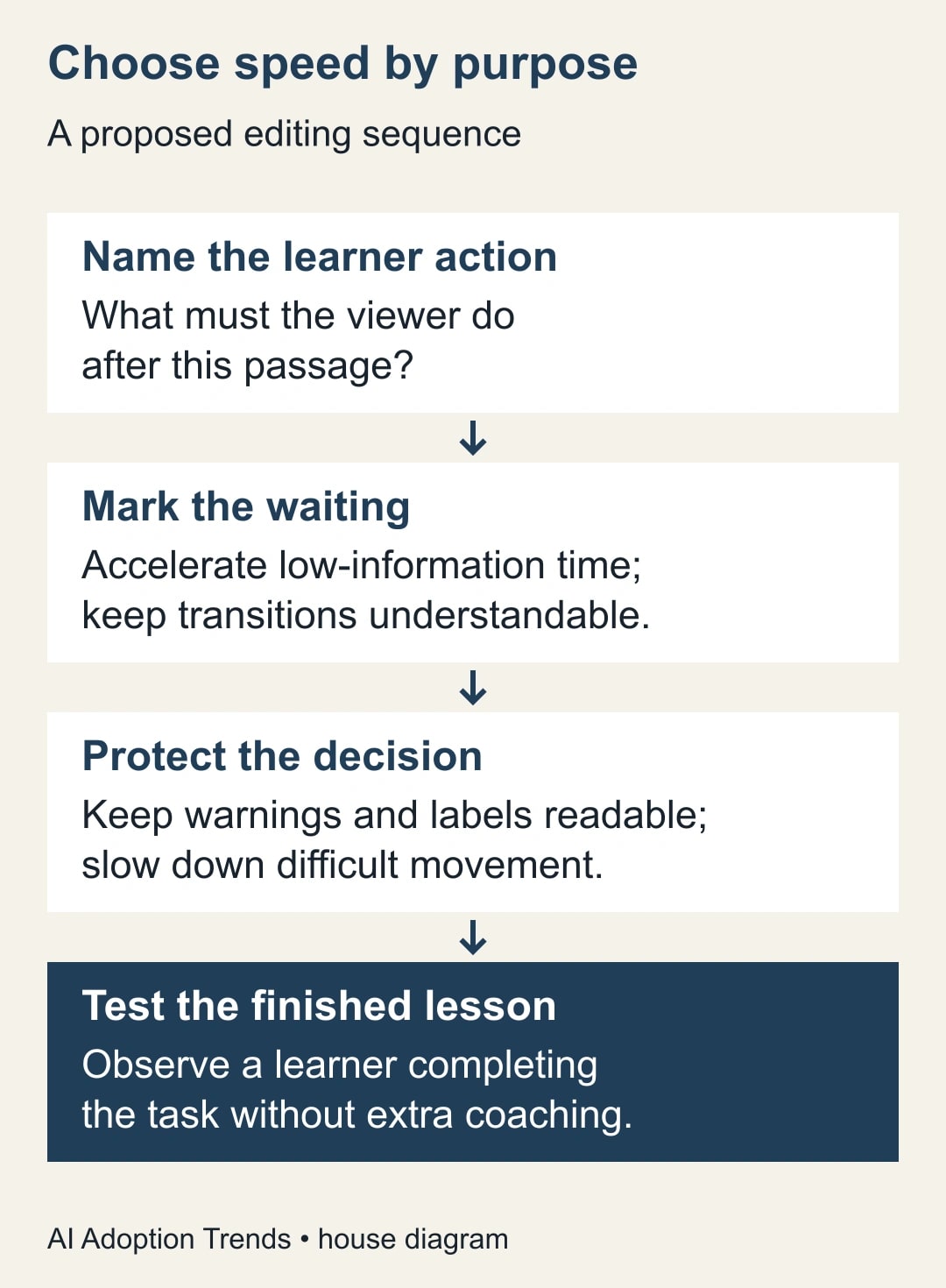
To change a Google Vids clip's speed, select the embedded clip, open Playback options and adjust its speed control. For training, first decide what the viewer must understand at that moment. Accelerate waiting, preserve time for reading and slow a difficult action only when the extra time helps someone perform it. A shorter lesson is useful only if it leaves the task intact.
This guide is for operations trainers and customer enablement leads editing a demonstration they already own. The output is a checked lesson, a small timing worksheet and a record of what changed. It suits a short software procedure with visible actions. Skip speed editing as the main repair when the procedure itself is wrong, the recording is unreadable or the learner needs an explanation that the original never supplied.
Check the feature, then choose the learning goal
Google announced individual clip speed controls on October 23, 2026, with a range from 0.25× to 2×. It lists all Workspace customers, Workspace Individual subscribers and personal Google accounts, with gradual visibility beginning October 16 and taking up to 15 days. As of October 26, check your actual editing account before promising a deadline dependent on the control. Google's clip-speed announcement
You need access to edit the project, permission to reuse the recording and a process owner who can approve the instructions. Keep the original project and source recording available. Use a sanitized demonstration account if the screen contains customer records, employee details or real financial transactions. Editing speed does not make those details less sensitive; a viewer can still pause the result.
For this workflow, budget editing and review time before buying anything. Clip-speed availability does not establish entitlement to every other Vids or AI feature. The method below requires no separate AI generation service. Any existing software subscription, recording or distribution costs remain part of the training budget. Do not attribute the whole lesson's cost to the few seconds of footage you change.
Write one acceptance sentence before opening the timeline: “After watching, the new coordinator can choose the correct request category, attach the supporting document and identify the confirmation.” This names observable behavior. “Understand the portal” is too broad to test. The process owner supplies the correct result; the editor decides how to make it visible.
Give each passage a job
Watch the source once and mark four kinds of passage: orientation, waiting, action and verification. Orientation tells the learner where they are. Waiting shows an upload or a system response. Action demonstrates a choice or movement. Verification shows how to know the work succeeded. These are editorial categories, not special Vids settings.
A waiting passage is a candidate for acceleration, but it may still teach something. If an upload normally takes time, cutting it to an instant can lead a new user to retry unnecessarily. Keep a clear transition and explain that the wait has been shortened. The right edit preserves the expectation without forcing everyone to watch a progress indicator for a minute.
An action passage needs a different judgment. A fast cursor crossing the screen may hide which menu was chosen. Slow that movement or replace the recording with a clearer demonstration. Do not slow an entire scene simply because one second is confusing. That creates a longer lesson without explaining the decision. First identify the exact frame or instruction the learner misses.
Verification deserves protection. A confirmation message, saved record or expected status is often the most valuable part of a workflow video. If the editor rushes past it, a learner may complete every click and still be unsure whether to repeat the process. Keep the result visible long enough to compare it with the written instruction.
Make a timing budget before changing the clip
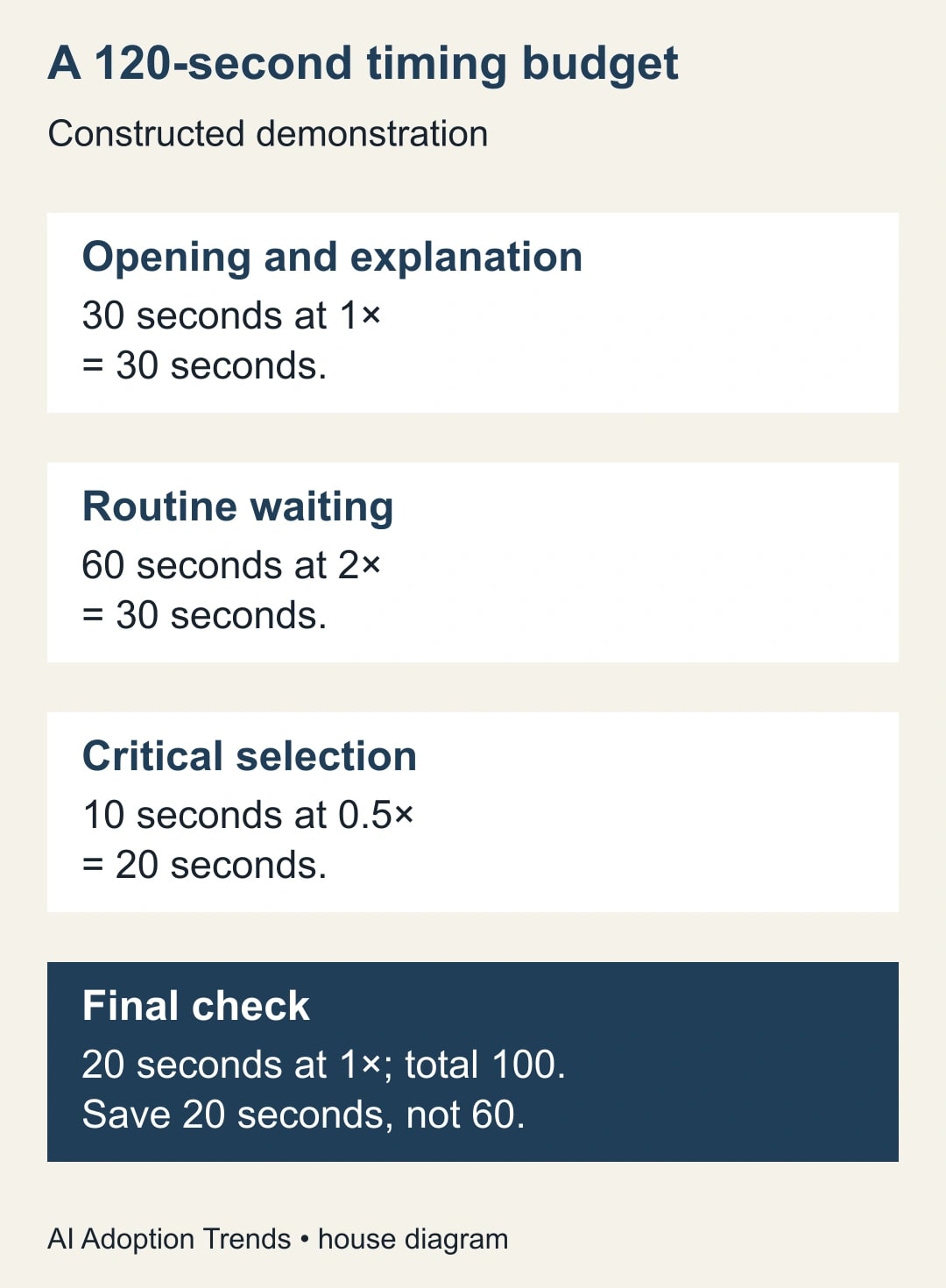
Here is a constructed 120-second demonstration of a document upload. It contains 30 seconds of opening explanation, 60 seconds of routine waiting, 10 seconds of critical category selection and 20 seconds showing the final check. These numbers describe an example, not a measured customer result or a recommendation for every lesson.
Keep the opening and final check at normal speed. Play the waiting passage at 2×, reducing its 60 seconds to 30. Play the critical selection at 0.5×, expanding its 10 seconds to 20. The revised content takes 30 + 30 + 20 + 20 = 100 seconds, before transitions or additional narration. The net reduction is 20 seconds.
The calculation is source duration divided by speed. A 10-second source at 0.5× takes 20 seconds; it does not take five. A 60-second source at 2× takes 30 seconds. This simple distinction prevents a misleading edit estimate. Record any added pause, title or transition separately, then compare the calculation with the actual exported duration.
Notice what the calculation does not prove. It says nothing about whether the category label can be read, whether the narration still matches the screen or whether the viewer can repeat the task. It also does not show a 20-second reduction in the business process. The underlying upload still takes as long as it takes. Only the instructional viewing time changed.
Adjust one passage and inspect the result
In the editing project, select or right-click the embedded video clip and open Playback options. Google's help describes a speed dial in the side panel, alongside loop and trimming controls. Set the intended speed, then preview the passage and its neighboring scenes. Use the actual controls available in your account rather than assuming every device has the same editing interface. Vids clip-editing instructions
Change one passage at a time. Start with the longest low-information wait, because that makes the timing effect easy to inspect. Record the original duration, selected speed and observed result. If the passage now ends before the explanation finishes, restore the prior setting and revise the scene plan. Do not compensate by speeding up spoken instructions until they become difficult to follow.
Treat audio behavior as something to check in the project. Listen to the edited passage with headphones and through the device learners normally use. Check whether speech remains understandable, whether a sound cue still matches the action and whether a separate narration track now describes a different moment. This guide does not assume that every embedded or detached audio arrangement behaves identically.
If narration is still accurate but needs independent timing, use the site's Vids audio-extraction repair workflow. That is a different editing task from changing playback speed. Keep the relationship clear: the audio guide repairs the correspondence between picture and explanation; this timing worksheet decides how much attention each passage needs.
Watch the boundary before and after the adjusted clip. A learner should be able to tell when the accelerated passage starts, what changed and where normal instruction resumes. If the result looks like an instantaneous system response, add a brief truthful explanation in the lesson. Do not invent a product performance claim to make the transition sound smoother.
Test the lesson with a real task
Ask a colleague unfamiliar with the procedure to perform it in a safe practice environment. Give them the video and the same written support a future learner would receive. Tell them the task outcome, but do not narrate the clicks while they work. Otherwise the editor's coaching may conceal a gap in the video.
Observe four things: whether the learner selects the right option, whether they notice the necessary warning, whether they recognize success and where they pause or replay. A replay is not automatically a defect. Rewatching a complex choice can be useful. Replaying an unreadable label several times without resolving it is a reason to repair the presentation.
Use a short observation note rather than a satisfaction score alone. “The viewer chose the wrong category because the label appeared for less than a readable interval” points to an edit. “The video felt fast” is a useful reaction, but it needs a location and consequence before it becomes a repair request. Ask which moment was difficult without leading the learner toward your preferred answer.
Repeat the test after a substantive timing change. The process owner should also verify that the example still matches the current procedure. A novice can show where the lesson is unclear; they cannot necessarily identify an outdated policy or an incorrect destination. Those are separate checks with different reviewers.
Keep a reusable edit worksheet
Copy these fields into a document or spreadsheet for each changed passage. They are a proposed editorial worksheet, not a native Vids form. Keep entries short enough that another editor can understand the decision without replaying the whole project.
- Passage and source time: identify the exact clip and original interval.
- Learner action: state what the viewer must do or recognize.
- Reason for change: name waiting, difficult movement, reading time or another specific problem.
- Original duration and speed: preserve the baseline before editing.
- Proposed speed and calculated duration: show the arithmetic and any extra pause.
- Audio and text check: record whether the words still match the picture and remain readable.
- Learner observation: capture the actual success or failure, with the relevant moment.
- Approval and recovery: name the process owner, accepted version and original to restore.
For the constructed category-selection passage, an entry might read: “Source 01:30–01:40; choose Contract amendment; slow from 1× to 0.5×; expected duration 20 seconds; warning text must remain legible; owner checks the category against the current procedure.” The learner result remains blank until someone actually performs the test. Do not fill it with an imagined success.
This worksheet also helps when a second editor takes over. They can see why a passage was deliberately left slow and avoid “fixing” it during a later shortening pass. Put the worksheet beside the approved script and source files. A useful handoff preserves the reason for an edit as well as the finished asset.
Release the version people will actually watch
Inspect the exported or shared lesson, not only the editing preview. Watch it on a typical desktop and phone. Check the smallest meaningful labels, the audio around speed changes, the written instructions and the final result. If learners receive captions or a transcript, verify those materials against the final timing and wording rather than the original cut.
Provide a written route for someone who cannot use the video effectively. A concise procedure should identify the action, important exception and expected result. Do not rely on faster playback as an accessibility improvement. Different learners need different ways to review information, and the fastest version is not necessarily the most usable one.
If the new cut causes mistakes at a critical step, hold it and keep the last approved lesson available. If the old lesson is already incorrect, withdraw or clearly flag that version while the owner provides a current written procedure. The recovery decision should reflect whether the problem is presentation or instruction, rather than blindly restoring an outdated video.
For a small pilot, record task success, clarification requests and total viewing plus rework time. In the constructed example, 20 seconds saved across 30 complete views would be ten minutes of viewing time. That is a calculation, not a forecast. Extra replays, editing effort and support may offset it; it is not cash savings without a real budget change.
Your next action is to mark one existing lesson's waiting, action and verification passages before changing any speed. Use the training-video planning guide if the learning goal or script is still unclear. Publish the shorter cut only after a learner can complete the intended task and recognize the correct result.
Weekly Newsletter
AI Adoption Weekly
New research, field guides, training studies, and tool decisions for operators.
No spam. Unsubscribe anytime.
Related Comparisons
Calculator
AI seat cost calculator
List price × headcount. You enter the hours and the operating assumptions.