
Update a Training Video in Google Vids Without Re-recording Every Scene
Use Google Vids audio extraction to revise a training clip, align narration with new scenes and check the exported result. Includes a timing worksheet.
Published October 24, 2026
If a training video's screen recording is outdated but its explanation is still accurate, separate the audio from the picture, replace the affected scene and check their timing together. Google Vids now supports extracting a clip's audio into an independently editable track. Use that flexibility to repair a specific lesson, then verify the exported video with someone who has to perform the task.
This approach fits operations trainers and customer enablement teams maintaining short demonstrations. It is useful when a button moved, a form changed or a clearer example would improve an existing lesson. Skip a small audio repair when the underlying procedure has changed: that needs a new approved script, not old narration laid over new pictures.
The deliverable is a revised lesson with a change record, checked timing and a usable written alternative. A video that sounds polished but demonstrates the wrong action is not ready to distribute.
Check availability on the actual editing account
Google announced audio extraction on October 23, 2026. The launch describes an audio clip that can be moved, trimmed or deleted separately from its video and can span scenes. Google lists broad account availability, with a gradual rollout starting October 19 that can take up to 15 days for visibility. Check the editing account before planning work around it. Audio extraction announcement
If the extraction command is not yet available, preserve the existing project and use an authorized original narration file if you have one. Otherwise wait for access or re-record the affected passage through your established process. Do not upload a confidential training video to an unknown conversion site merely to avoid a short delay.
You need editing access to the project, rights to reuse its recordings, an approved version of the procedure and a reviewer who knows the task. Have the original source files available before changing anything. The narration may contain names, customer information or old instructions that are easy to overlook when the screen is your main focus.
This workflow does not require a paid voice-generation service. Your existing software arrangements, recording equipment, storage and staff time still matter. Check current account entitlements for any additional feature you choose to use; the availability of audio extraction does not establish access to every AI voice or video feature.
Make a change map before touching the timeline
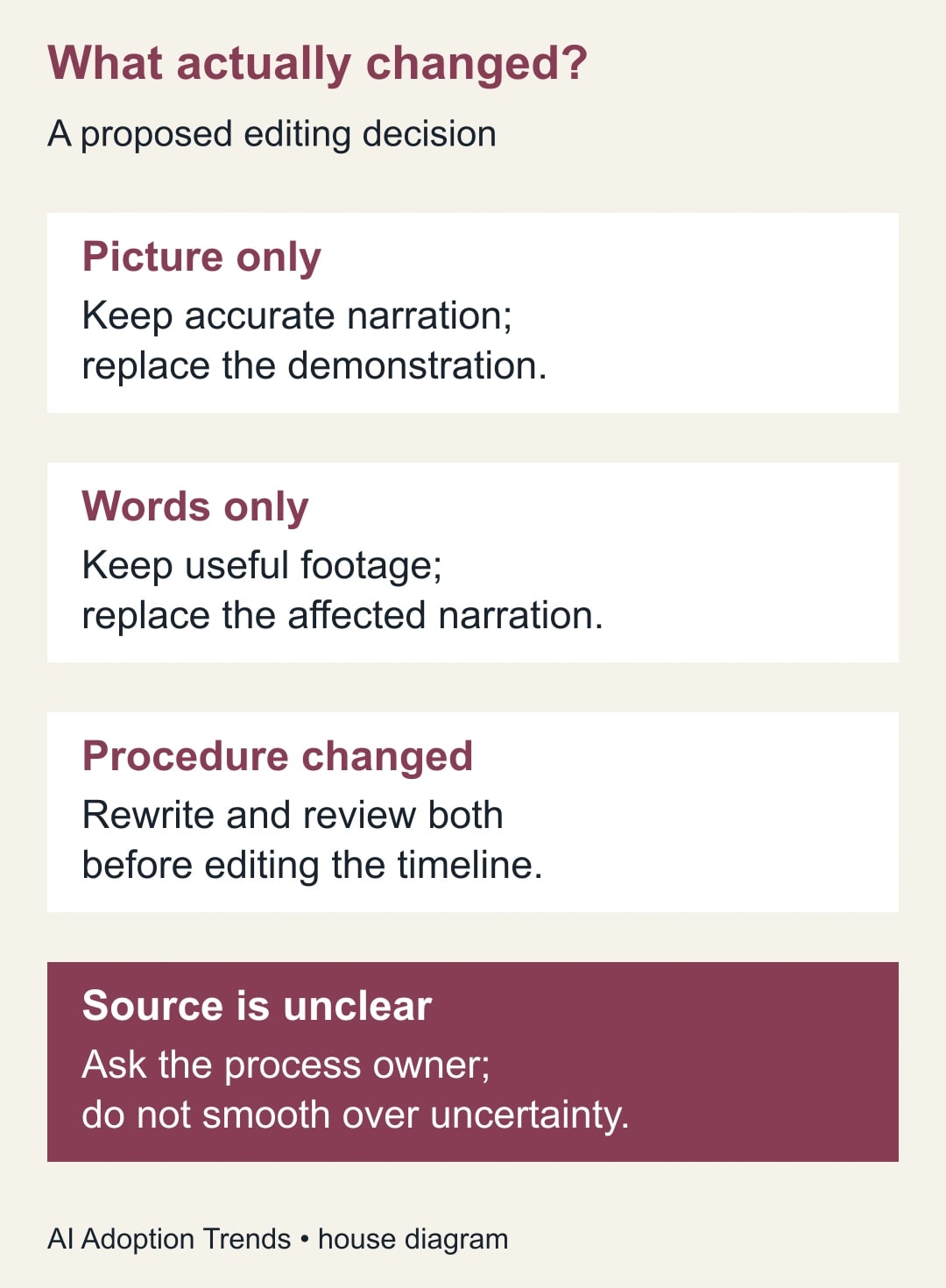
Watch the old lesson once without editing. For each passage, record what the learner should do, what the screen shows and what the narrator says. Mark each element as still correct, needs replacement or needs a decision from the process owner. This separates a visual refresh from a substantive instruction change.
For example, “Select the customer and save the request” may still be correct after a layout update. “Choose the blue button in the top-right corner” may no longer be correct even if the action itself is unchanged. The second passage needs revised words, not merely a new screenshot.
Use four decisions: keep both picture and words; replace the picture; replace the words; or rewrite the procedure. Add the reason and approving owner to each decision. This small map prevents an editor from preserving a convenient recording whose meaning has quietly expired.
If an AI assistant helps identify passages, give it only material approved for that service and ask for candidate mismatches. The process owner still decides which instruction is correct. An assistant can miss a changed prerequisite or make an outdated label sound reasonable enough to slip through review.
Separate the tracks in a working copy
Duplicate or otherwise preserve the approved project before editing, using your normal version-control practice for training materials. Name the working version with a date and the procedure revision. Keep the published link or final file unchanged until the replacement is accepted.
Select the video clip you intend to repair and use the audio-extraction control available in your Vids interface. Confirm that a separate audio track appears and that the picture's timing remains as expected. Play the passage immediately. Listen for duplicate audio, silence and the correct start point before replacing any scene.
The extraction command gives you editing independence; it does not establish that background noise, private conversation or an incorrect phrase has disappeared. Inspect what is actually in the detached track. If the narration and unwanted sound are inseparable in the source recording, replacing the recording may be the cleaner choice.
Google's audio guidance describes tracks below the timeline, dragging to adjust the played portion, trim handles for length, and sound controls for volume. Tracks can span scenes, and the right-click menu includes splitting at the playhead. Use those controls in the working copy, checking playback after each meaningful edit. Audio timing and transitions
If you need replacement narration, Vids also supports adding approved audio from Drive or your computer. Keep the original take and the replacement clearly named so a future editor knows which is current. Adding audio to Vids
Build the revision around the learner's checkpoints
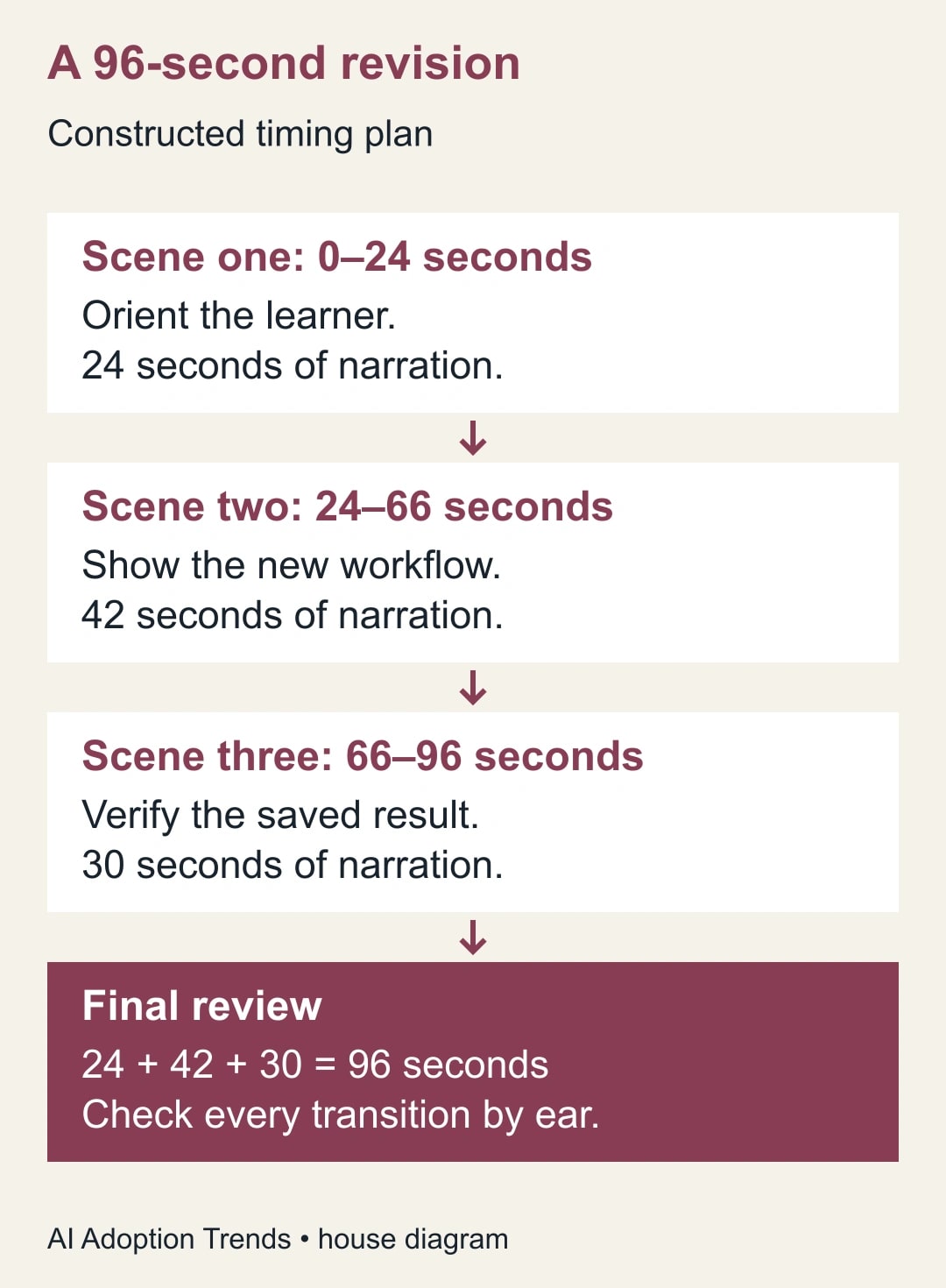
Suppose a service team has a 90-second lesson for recording a customer request. The first scene identifies the correct account, the second enters the request, and the third checks that the record was saved. A new form adds a required category and a confirmation view. The process owner approves the updated steps before editing begins.
The revised timing plan is a constructed example: scene one lasts 24 seconds, scene two lasts 42 seconds and scene three lasts 30 seconds. The total is 96 seconds. The second scene needs more time because the learner must see the category decision; the third needs enough time to read the saved result.
Do not compress the explanation merely to preserve the old 90-second runtime. Six additional seconds are acceptable if they make an essential checkpoint understandable. Conversely, a longer pause is not useful if the screen contains nothing the learner needs to inspect.
Align each spoken action with the relevant picture. The phrase “check the account number” should occur while the account number is visible. The instruction to save should not arrive after the demonstration has already moved to a different page. Play from several seconds before each transition so the edit is judged in context.
Keep visible customer information synthetic or approved for training. A cleaner narration track is not permission to expose real customer details in the replacement screen recording. The revised image and the revised sound both need the same content review.
Replace words without creating a misleading sentence
When only a phrase changes, record enough surrounding speech to make the new passage intelligible. Listen for a clipped first consonant, an abrupt breath or an unintended change in emphasis. A technically precise cut can still sound like two contradictory instructions joined together.
Be especially careful with quantities, negative instructions and conditions. “Do not submit until the manager approves” cannot be shortened to “submit when ready” without changing the process. Review the full sentence against the approved procedure, not only the waveform or the words nearest the edit.
If a recorded voice is replaced with generated speech, follow the organization's voice-use and disclosure rules. Do not imitate a colleague or imply that a named expert personally recorded an endorsement they did not give. The operational aim is a clear explanation, not an artificial impression of authority.
For the worked lesson, the process owner might replace “leave category blank” with “choose the category confirmed in the request.” That change also requires a visible example and an exception instruction for cases where the category is unknown. Updating the audio alone would leave the learner without a way to finish the task correctly.
Review sound, text and action separately
First review for factual correctness with the procedure owner. Then review the audio with headphones and ordinary laptop speakers. Finally ask a learner unfamiliar with the edit to perform the task using a safe practice record. Those checks answer different questions and should not be collapsed into “looks good.”
Check captions or transcripts against the revised narration, particularly names, field labels, numbers and negations. Do not assume they updated correctly after an audio edit. If your delivery format does not provide a reliable caption route, supply an accurate written step list alongside the video and make it easy to find.
Listen with any background music enabled, then with it reduced or removed. The useful standard is whether the instruction can be understood at a normal listening level. Music that hides an approval condition is not an aesthetic issue; it is a training defect.
Watch the final exported file, not only the editor preview. Confirm the opening, each transition and the final seconds. Check the actual destination where learners will access it, including a smaller screen. A file can be correct while the old version remains linked from the training page.
Use this timing and release worksheet:
- Procedure version, business owner and intended learner:
- Scene start, end and duration:
- Learner action and expected visible result:
- Narration passage retained, replaced or re-recorded:
- Screen content, captions and written steps checked:
- Private data and recording rights reviewed:
- Final-file playback and practice-task result:
- Published location, replacement date and review owner:
Recover from the edits that commonly go wrong
If the voice doubles, inspect whether both the original clip audio and the extracted track are playing. Correct the working project's track state and replay the full passage. Do not lower both tracks until the echo is merely less noticeable; identify which track should be heard.
If the narration ends too early, check whether trimming removed needed speech or whether the replacement scene became longer. Preserve the meaning first. Extend a useful visual pause, revise the recording or shorten unnecessary footage, then replay the scene transition with the adjacent scenes.
If the picture and words disagree, return to the change map. Ask whether the problem is an edit alignment issue or an unapproved procedure change. The editor can resolve timing; the business owner must resolve what the learner is supposed to do.
If the final file contains a defect, keep the prior approved version available where appropriate, correct the working copy and repeat final-file review. When the procedure itself has changed, label the older version clearly so it is not mistaken for current instruction while the repair is pending.
Stop the release when a required field, condition, approval or result is wrong or unreadable. Cosmetic improvements can wait; a mistaken action should not be distributed because the rest of the video is polished.
Measure maintenance effort and learner success
Track editing time, reviewer time, corrections and whether learners complete the practice task. In a constructed comparison, a full remake takes 120 minutes of production plus 30 minutes of review. A targeted repair takes 45 minutes of editing plus the same 30-minute review, releasing 75 minutes of staff capacity.
That comparison is only useful if the repaired lesson remains equally usable. If learners need repeated help because the new category decision is unclear, the faster edit has moved work to the support team. Include that follow-up effort before deciding the maintenance approach is better.
Released time is not cash savings unless actual spending falls. The first practical win may be keeping a frequently used lesson current without postponing its review. Set the next review trigger around a procedure or interface change, rather than an arbitrary promise that the video will remain accurate for a year.
Start with one short lesson and a three-scene change map. For a new lesson, use our Google Vids SOP training workflow. For a wider rollout, connect the video to a role-based AI adoption training plan so the lesson supports a real task and a checked outcome.
Weekly Newsletter
AI Adoption Weekly
New research, field guides, training studies, and tool decisions for operators.
No spam. Unsubscribe anytime.
Related Comparisons
Calculator
AI seat cost calculator
List price × headcount. You enter the hours and the operating assumptions.