
Fix Inflated Costs in a Looker Studio Blend by Matching the Reporting Level
Diagnose inflated spend in a Looker Studio blend, align campaign and lead data at the right level and verify totals before using cost-per-lead figures.
Published October 24, 2026

When a Looker Studio blend shows more spend than the source, check how many records match each join key before changing the metric formula. A campaign's daily cost can be repeated across several lead records. The repair is usually to bring both sides to the same reporting level, then verify spend, lead counts and unmatched records separately.
This guide is for a marketing operations owner maintaining a campaign dashboard. It addresses multiplication caused by a blend, not every difference between analytics systems. If the unblended source already disagrees with the source application, investigate dates, attribution, currency and refresh timing first. A join repair cannot correct a different definition of a conversion.
Google's current documentation uses the name Data Studio at the linked pages; many teams and existing reports still use Looker Studio. The guide uses the familiar report name while grounding product behavior in the current documentation checked October 24, 2026.
Define what one row represents
The reporting level, sometimes called the grain, is what one row means. “Campaign A on October 20 in account 7, in pounds” is one possible level. “Lead L1 submitted at 10:04” is another. Those rows can share a campaign and a date without representing the same amount of work.
Write the intended chart question first: “How much did each campaign spend per qualified lead in the reporting period?” Then define qualified lead, reporting date, account scope and currency. Decide whether a lead's date means creation, qualification or another event. The choice changes the denominator even when the join is technically correct.
Google explains that a blend joins tables using matching fields and a selected join operator. Its tables are grouped and aggregated according to their included dimensions before joining. Adding a lead ID can therefore change the level of a table and the result of the blend. How blends work
The operational consequence is simple: a field added “just for detail” can change your totals. Treat changes to included dimensions as changes to the calculation, not merely changes to the appearance of the report.
Save a baseline you can actually compare
Make a working copy of the report or affected page and preserve the existing configuration. You need editing access, access to both underlying sources and a source owner who can confirm the intended totals. Keep the production report available while the copy is under investigation, with a clear warning if its figures are known to be wrong.
Build one unblended table for spend and one for leads, using the same period and intended scope. Record their totals, source refresh times and filters. Take a small sample containing a campaign with several leads, one with a single lead and one with none. A sample made only of one-to-one matches will miss the failure.
There is no need to buy a new connector just to diagnose this issue. Existing connector or warehouse query charges may still apply, and repeated large tests can consume resources. Limit the investigation to a small period first. Budget analyst and reviewer time as well as software cost.
Keep the join configuration, dimensions, metrics, date fields and filters in a short worksheet. If a colleague cannot recreate the two source tables, they cannot independently verify the repaired dashboard. Screenshots help document settings, but retain the source totals in a form that can be compared numerically.
Work through a £120 campaign-day
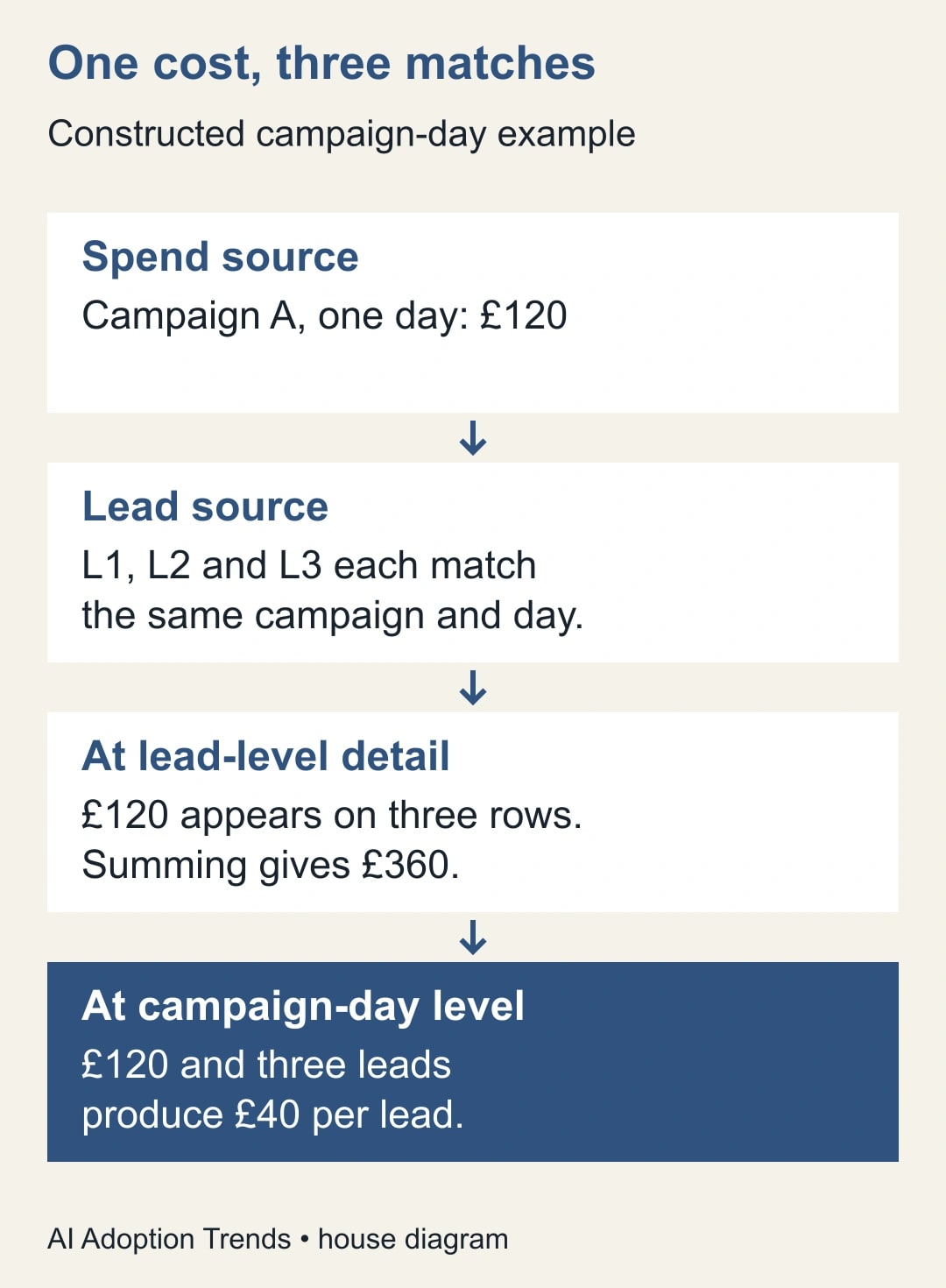
This is a constructed example. The spend table contains one row for Campaign A on October 20 with £120 cost. The lead table contains L1, L2 and L3 for the same campaign and day. If the lead table retains lead-level detail and all three rows match the spend row, the joined result can contain £120 beside each lead.
Summing those repeated costs produces £360. There are still only three distinct leads. A cost-per-lead calculation (CPL) using the inflated spend gives £120 per lead, while the intended calculation is £120 divided by three, or £40. Counting distinct leads fixes neither the repeated spend nor the resulting ratio.
Add Campaign B with £80 spend and one lead on the same day. The intended combined result is £200 spend and four leads: £50 per lead. The flawed detail blend gives £440 spend and four leads: £110 per lead. The error is not a constant multiplier across all campaigns because the number of matches differs.
Google explicitly warns that multiple matches can produce more rows in a blend than exist in the leftmost source. It also explains that table-level filters act before joining while chart-level filters can act afterward. These behaviors are why the small sample and the actual configuration both matter. Blending tips and advanced concepts
Repair the level before repairing the formula
In the working report, inspect the blend through Resource > Manage blends or the affected chart's data configuration. Identify which table contains spend and which contains leads. List every included dimension, including fields not currently displayed in the chart. Check the join fields and their data types on both sides.
For the example, prepare one row per account, campaign and reporting day on each side. The spend side has total cost; the lead side has the agreed lead count. Remove lead-level fields from this summary blend only after confirming that you no longer need them for the summary question. Keep a separate detail view for investigating individual leads.
If a lead can appear multiple times in the source, determine the correct count before joining. A distinct lead ID may be appropriate for a unique-lead measure, but not for a measure of activities or repeated purchases. Ask the metric owner to approve that definition rather than choosing whichever count makes the chart look plausible.
Use stable campaign and account identifiers when available. Campaign names can be reused across accounts or changed over time. If the sources do not share a reliable key, create a reviewed mapping or hold the unmatched rows. Similar-looking names are not a sound basis for silently combining budgets.
Choose the join behavior deliberately. For a spend-led report, a left outer join can retain campaign-day spend even when no lead matches. An inner join drops unmatched spend rows and can make acquisition look cheaper. Your worksheet should say which population the report includes and where excluded records can be inspected.
If the dashboard needs a level that neither source can provide cleanly, prepare a summary upstream in an existing spreadsheet or data model. This adds a maintained transformation, so assign an owner and refresh check. A simpler blend with a clear contract is often easier to trust than a complicated formula compensating for unknown row multiplication.
Do not hide the error with MAX or an average
Changing SUM(cost) to MAX(cost) may appear to repair the one-campaign, one-day example. It fails when the chart covers several legitimate cost rows. For Campaign A on two days with £120 and £150 spend, the correct total is £270. A maximum of £150 throws away a real day.
An average can be equally misleading. Averaging repeated spend values does not establish the desired reporting level. Nor does averaging campaign cost-per-lead values generally equal total cost divided by total leads. In the example, the campaign ratios are £40 and £80; their simple average is £60, while the combined ratio is £50.
Use a formula only after specifying what is being aggregated and why. If a proposed fix works for a single filtered chart, widen the period and include several campaigns before approving it. A correct result under one filter is a test case, not proof of a general rule.
Keep unmatched data visible
Add a diagnostic view for spend with no matched leads and for leads with no mapped campaign. A zero-lead campaign can be a real business result. An unmapped lead may be an integration problem. They require different actions, and hiding both behind a blank field loses that distinction.
For a zero-lead row, display cost and a clear “no leads in scope” outcome rather than inventing a zero cost per lead. Division by zero has no useful finite answer here. The spend still belongs in the period total if it meets the report's scope.
Reconcile totals before and after each filter. Check a single day, several days, a single campaign, all campaigns and the zero-lead case. Include an account with a repeated campaign name if your organization has one. This small test matrix is more useful than checking only the default dashboard view.
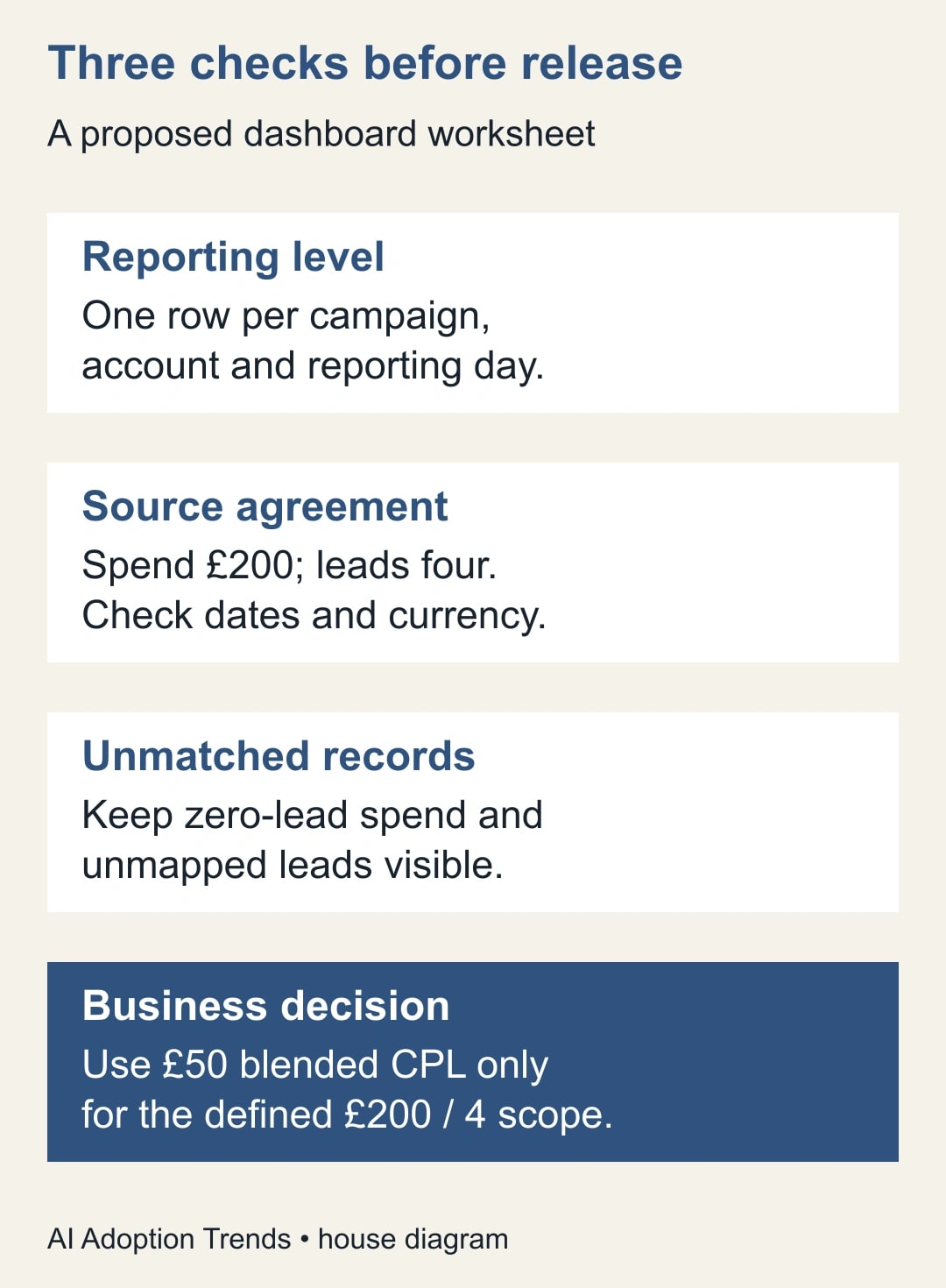
Use this proposed release worksheet:
- Business question and named metric owner:
- One-row definition for each input and the desired output:
- Account, currency, date field and reporting timezone:
- Join keys, join type and mapping owner:
- Source spend, source lead count and refresh times:
- Blended totals and explained differences:
- Unmatched spend and unmapped leads:
- Filters tested, reviewer and publication decision:
Attach the constructed example or an approved small real sample. Keep confidential customer details out of a broadly shared debugging document. The report's ordinary access controls should continue to govern the underlying data and any exported extracts used during the investigation.
What to do when the totals still disagree
If spend is still inflated, inspect another included dimension that keeps the lead side at a finer level, or another table that introduces additional matches. Reduce the working blend to two tables and the minimum required fields. Add other fields back one at a time, checking the same baseline after each change.
If spend falls after the repair, check whether unmatched rows were dropped, dates use different timezones or filters were applied on only one side. A lower figure is not automatically a more accurate figure. Follow missing campaign-day keys back to their source rather than adjusting the total manually.
If the totals change when a filter is applied, record whether it changes the underlying table population or only the finished chart. Check the relevant pre-join and post-join settings in Google's blending guidance. Avoid claiming that a filter applies to both systems simply because the report presents one control.
When a wrong dashboard has informed a budget decision, preserve the earlier view, publish the corrected period and explain which metric changed. The marketing owner should review affected decisions. Do not rewrite historical notes to imply that the repaired number was available at the time.
Make the next refresh easier to trust
Assign the data owner responsibility for keys and source definitions, the report editor responsibility for blend configuration and a business reviewer responsibility for accepting the metric. Monitor unexplained spend differences and unmatched records after refresh. A new campaign or connector-field change should trigger the same small reconciliation.
Measure whether the repair reduces repeated investigations, not just whether the chart loads. For example, two 45-minute investigations each month replaced by a 20-minute monthly check would release 70 minutes of capacity. That is a constructed planning calculation, not a promised saving or a reduction in payroll.
Start with the £120 example and one real campaign-day. If the discrepancy exists before blending, use the broader GA4 and Looker Studio diagnostic. If the report is changing hands, document ownership and data credentials alongside the repaired calculation so the next owner can reproduce it.
Weekly Newsletter
AI Adoption Weekly
New research, field guides, training studies, and tool decisions for operators.
No spam. Unsubscribe anytime.
Related Comparisons
Calculator
AI seat cost calculator
List price × headcount. You enter the hours and the operating assumptions.