
Fill Down in Power Query Without Assigning Rows to the Wrong Group
Repair grouped exports with Power Query Fill Down, preserve section boundaries and check blank, null and unknown values before loading a report.
Published October 24, 2026

Use Power Query Fill Down only when a blank label means “the same group as the preceding row.” Preserve the source order, identify section boundaries and fill within those boundaries. A blank at the beginning of a new section should remain unresolved until you have evidence for its owner. Checking the grand total will not catch a label carried into the wrong department.
This guide is for analysts turning a human-readable export into a repeatable reporting table. Think of a cost report that prints a department once, followed by several transactions with empty department cells. It is not a method for estimating missing amounts, repairing unknown customer identities or guessing which project owns an expense.
The useful output is a transaction table with defensible labels, an exception list and a short reconciliation. It should be possible for another analyst to explain every inherited value without opening last month's workbook and guessing how you handled it.
Decide what an empty cell means
Microsoft documents Fill Down as propagation into null cells until another value appears. In the editor, select the label column and use Fill > Down. A visually blank string may first need conversion to null; the documentation demonstrates that distinction. These are product behaviors, checked October 24, 2026. They do not establish whether carrying a particular business label forward is appropriate. Microsoft's fill guidance
A null is an absent value in the table. An empty string is text containing no characters. A space can look empty while containing a character. Zero is a value. The word “Unknown” is also a value, and it may represent an important unresolved decision. Do not normalize all five into the same thing merely because they look untidy.
Ask the export owner for one ordinary file and one troublesome file. Mark a continuation row, a section header, a subtotal, a blank separator and a transaction with genuinely missing classification. If the owner cannot distinguish a continuation from an unknown classification, stop the automated fill and request a more structured export.
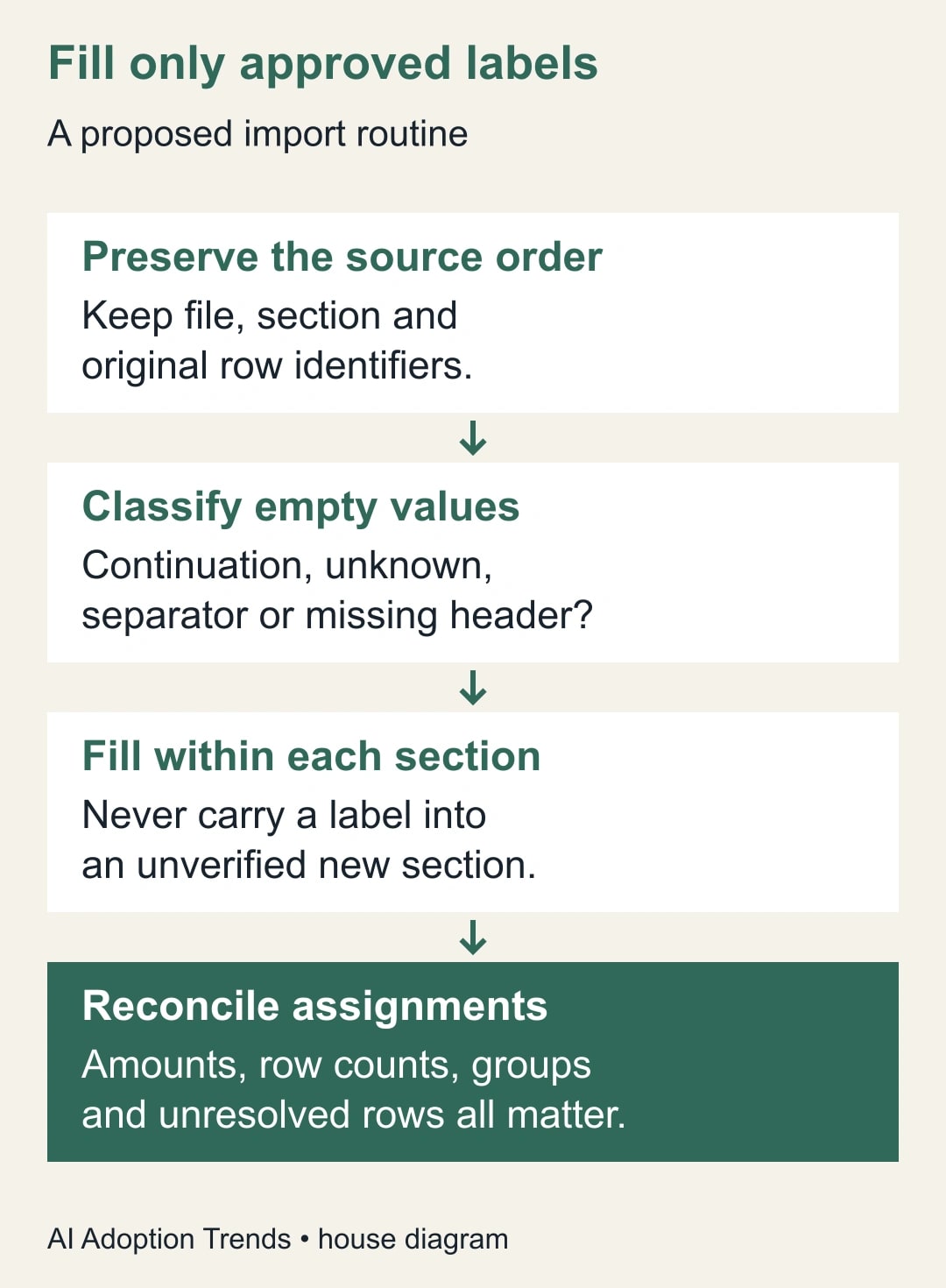
Your proposed rule might be: “Within each source file and approved section, empty department labels on transaction rows inherit the preceding department header. No amount, transaction ID or customer field is filled.” That sentence is much easier to review than a workbook with every blank removed.
Keep enough evidence to undo the transformation
Work on a saved source copy and keep the original unchanged. Record its filename, reporting period and extraction time. Add or retain a source-row identifier before sorting or filtering. When combining files, retain the filename as well: row 12 in one file is not row 12 in another.
You need access to the Power Query editor in your existing spreadsheet or reporting environment, a reviewer who understands the report and somewhere to retain exceptions. This workflow does not require buying an AI product. Budget for setup and review time, and check your organization's existing software access rather than assuming a particular subscription includes every editing surface.
Avoid alphabetic sorting before the labels have been resolved. In a grouped report, physical order carries meaning. Sorting a blank-label transaction beside another department can destroy that meaning while leaving every number intact. Keep a separate final reporting sort after the transformation has been checked.
Make a working query for the cleaned result and retain a view of the original fields. Useful added fields are source file, source row, section ID, original department, resolved department and resolution method. The last field can say “explicit,” “inherited within section” or “unresolved.” These are proposed audit fields, not automatic Power Query features.
Treat the section boundary as part of the data
The most consequential decision comes before the fill command: where is it allowed to continue? A new workbook tab, source file, report section or explicit header can mark a new boundary. A blank line by itself is not reliable evidence unless the export specification says it is.
For a small export with a few clear sections, create a separate query for each section, fill its approved label column and append the cleaned results. For recurring larger files, ask the report owner for an explicit section identifier or have a query maintainer implement grouping by file and section before filling each group. Either approach must preserve the original order inside the section.
Do not run one global Fill Down and then try to repair the section breaks afterward. By then, an inherited label may be indistinguishable from an original one unless you retained both fields. It is also easy for next month's slightly different layout to bypass a patch written for this month's row numbers.
Microsoft's Table.FillDown function accepts a table and a list of columns; it propagates previous values into null cells below. It does not accept a separate business-boundary rule. That boundary must be established in the table you pass to it. A maintainer can use Table.FillDown(SectionTable, {"Department"}) only after SectionTable has been restricted and ordered correctly. Table.FillDown reference
Normalize narrowly, then fill
Inspect the original department column. If the export uses empty strings for continuation labels, replace those exact empty values with null in a working copy. If it uses spaces, confirm that those spaces are not meaningful before trimming them. Preserve the original column so that the change can be inspected.
Use whole-value replacement when that is what the rule requires. Microsoft's replacement options distinguish replacing an entire cell from replacing text within a value. A broad replacement can damage real labels that happen to contain the text being targeted. Review several changed cells before continuing. Power Query replacement options
Now select only the approved label column and apply Fill Down within the section. The expected output is a resolved label for each legitimate continuation row. The first transaction in a section with no preceding label should still have no resolved label. That is an exception you need to see, not an ugly cell you need to hide.
Keep subtotals and decorative headings out of the final transaction table. However, do not delete a header carrying the only department label before you have used it to establish context. Identify row types first, carry the approved context into transaction rows and then exclude non-transaction rows using the documented row-type rule.
A £310 report that can pass the wrong check
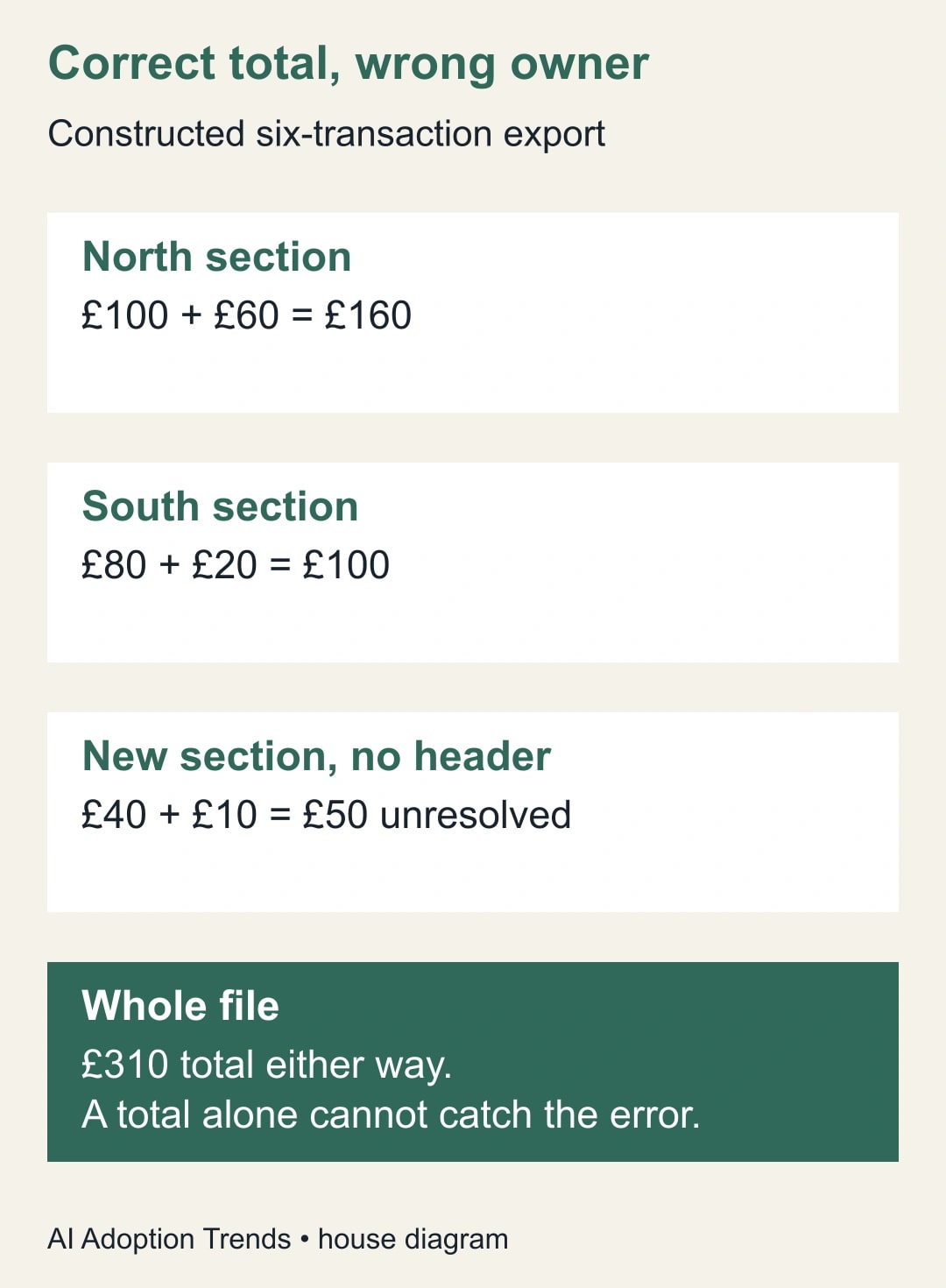
Consider this constructed six-transaction export. The North section has a £100 transaction with an explicit North label, followed by a £60 continuation. The South section has an explicit £80 transaction and a £20 continuation. A third section starts with two transactions of £40 and £10, but its department header is missing.
The correct initial result is North £160, South £100 and unresolved £50. The source contains six transactions totaling £310. You may not yet know the third department, but you know exactly which two rows need an answer.
A global fill produces North £160 and South £150. The grand total is still £310, the row count is still six and every department cell now contains text. All three superficial checks look reassuring. The transformation has nevertheless charged £50 to the wrong department.
Suppose the report owner later confirms the third section belongs to West and supplies the missing header. Update the source or an approved mapping with that evidence, refresh and expect North £160, South £100 and West £50. Record the correction's owner and date. Do not overwrite the two cells in the loaded report, because a future refresh can remove that manual repair.
Reconcile labels as well as money
Compare source and result at several levels. Start with transaction count and total amount, excluding source subtotal rows from both sides. Then compare totals by confirmed group. Finally inspect all rows whose label was inherited and all rows that remain unresolved. A financial total is a useful control, but it is only one control.
Check the first and last transaction of every section, not just a random sample from the middle. Boundary rows are where the wrong-group problem occurs. Also check a negative amount, a zero amount and a section containing only one transaction. Their labels may be valid even though a careless filter would remove them.
For a recurring report, compare the number of sections and unresolved rows with the previous period. A change is a reason to investigate, not automatic proof of an error. A newly opened department is legitimate; a missing header can look similar until someone checks the source.
Use this release worksheet for each file:
- Source file, extraction time and reporting period:
- Approved continuation-label rule and business owner:
- Fields allowed to inherit values:
- Boundary fields and ordering rule:
- Transaction count and amount before and after:
- Group totals and boundary rows checked:
- Unresolved rows, amounts and assigned reviewer:
- Refresh result, reviewer and release decision:
Keep the worksheet alongside the query definition or reporting handoff. A colleague should be able to reproduce the result from the saved source and the documented rules, without your private notes about which cells looked suspicious.
Recover from the common failures
If nothing fills, inspect whether the apparent blanks are nulls, empty strings or spaces. Confirm that the query step is acting on the intended column. Do not start replacing other fields until the first mismatch has an explanation.
If a label crosses a section, return to the step before filling and fix the boundary construction. Preserve the failed output as diagnostic evidence, but keep it out of the published report. Re-run the six-row example and the affected source section before refreshing the full dataset.
If transactions disappear, inspect the row filters. A rule such as “amount is not blank” may accidentally treat a legitimate zero or a special adjustment differently than intended. Compare source-row identifiers to locate missing rows instead of changing filters until the total happens to match.
If the source order changes between exports, the inheritance rule is not stable enough for unattended use. Ask for a repeated department value on every transaction or an explicit group ID. That upstream fix may be cheaper than maintaining a growing collection of layout exceptions.
When a wrong report has already been distributed, identify the affected groups and periods, regenerate from preserved sources and tell report users which classifications changed. Do not imply the overall amount changed if only its allocation changed. The owner of the business report should decide whether any decisions based on the earlier allocation need review.
Decide whether the automation earns its place
Measure preparation time, review time, unresolved rows and corrections discovered after release. In a constructed weekly example, manual labeling takes 45 minutes. A query takes 5 minutes to refresh and 20 minutes to review, releasing 20 minutes of staff capacity per run. A two-hour setup takes six similar runs to recover in time terms, before maintenance.
Those minutes are not cash savings unless spending actually falls. More valuable may be the ability to show exactly why a row belongs to a department. If exceptions consume the time you hoped to save, improve the export rather than adding more inference.
Start with one preserved file and the boundary rows. Once it passes, use the same controls when combining monthly exports without double counting. If the next problem is months spread across columns, move to unpivoting monthly data without losing missing values. Keep label inheritance and table reshaping as separate, reviewable decisions.
Weekly Newsletter
AI Adoption Weekly
New research, field guides, training studies, and tool decisions for operators.
No spam. Unsubscribe anytime.
Related Comparisons
Calculator
AI seat cost calculator
List price × headcount. You enter the hours and the operating assumptions.