
SharePoint Get Items Returns Only 100: Reconcile the Missing Work
Trace missing SharePoint records through retrieval and processing, reconcile IDs and recover the queue without duplicate actions.
Published November 17, 2026

When a Power Automate flow retrieves exactly 100 SharePoint items, check the Get items action's retrieval settings before blaming the loop that processes them. First establish how many records should qualify under the same filter, folder and permissions. Then inspect the action's actual output, adjust retrieval in a test copy, and reconcile item IDs before allowing emails or updates. A successful run can still have processed an incomplete queue.
This guide is for service and operations teams using a SharePoint list for requests, renewals or work orders. It concerns the SharePoint Get items action, not Excel List rows, Dataverse List rows or a document-library action. Those connectors have different settings and limits. Skip a simple limit adjustment when the real problem is a changing business definition, an inaccessible list or a large-list query that needs administrator attention.
Start with the missing work, not the setting
Suppose a service manager expects 237 open requests in a defined regional queue, but the reminder flow touches only 100. Preserve the run ID, run time, source list and connection account. Record the filter and folder settings before editing anything. Also record whether the first 100 requests already received reminders. The repair has two parts: obtain the complete eligible set and avoid doing completed work twice.
Do not rerun the production flow merely to see whether a higher threshold helps. If downstream actions send messages, change statuses or create tasks, every diagnostic run may have business effects. Use a copy with those actions disabled or replaced by a reviewed output list. A test that retrieves IDs and counts is enough to diagnose most completeness problems without contacting customers.
Take a stable snapshot or record a precise comparison time. If staff are closing requests while you compare the SharePoint view and flow result, the counts may legitimately differ. A snapshot can be an approved export of the eligible IDs and key fields. It should use the same business criteria and access as the flow, not the unfiltered total shown elsewhere in the list.
What Microsoft's documentation says about limits
Microsoft's Get items guidance describes 100 items returned with the basic default configuration. It explains Top Count and warns against setting it above 5,000. The same page identifies a large-list case where a filter returns nothing when matches are beyond the first 5,000 items, and recommends enabling Pagination in action settings.
There is a documentation distinction worth making explicit. The current SharePoint connector reference describes Top Count as the total entries to retrieve, with “default = all,” while the separate walkthrough describes the 100-item basic behavior. As checked November 17, 2026, these descriptions do not give a single universal default to rely on. Inspect your saved action and its run output. Exactly 100 results is a diagnostic clue, not proof of the cause.
Pagination means retrieving results in multiple batches. Its configured threshold limits how much the action requests; it is not a promise that every business record exists in the response. A restrictive filter, folder scope, permission boundary or source change can still exclude records. Do not transplant a maximum threshold from a Dataverse tutorial into a SharePoint repair and assume the two actions behave alike.
Follow one record through the retrieval
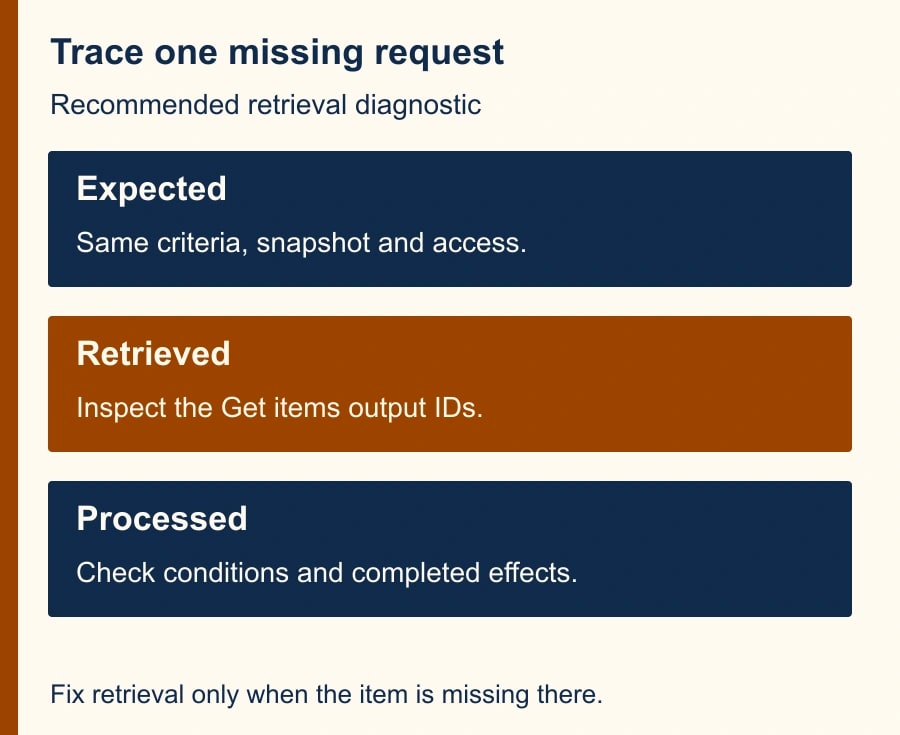
Choose an item that should qualify but is missing. Write its SharePoint ID, status, region, relevant date and folder. Confirm that it existed at the time of the run. Open it using the flow's connection context through an authorized check, or ask the connection owner to verify access. An administrator's ability to see the item does not establish that the flow account can retrieve it.
Next inspect the Get items inputs and outputs in run history. Look at the number of objects in the returned value array, which is the list of retrieved records. Check whether the missing ID is present. If it is present, retrieval is not the cause for that item: continue to the condition, loop or failed action that handled it. Changing pagination will not repair a downstream branch that intentionally skipped the record.
If the item is absent, examine the filter and folder scope before increasing limits. The connector offers Filter Query, Limit Entries to Folder and Include Nested Items. An item outside the selected folder can be correctly absent. A status value that differs from the intended filter can also explain the omission. Write down the expected inclusion rule in plain language and compare it with the actual action inputs.
The Limit Columns by View option limits returned columns. Do not assume choosing a view there reproduces every row-filtering condition displayed in that SharePoint view. Microsoft's reference describes it as selecting columns to avoid column-threshold issues. Define the row filter explicitly and verify the IDs returned. This is particularly important when a business owner says “use my open-requests view” but the builder configures only the column option.
Test the smallest retrieval change that answers the question
For a small queue, inspect Top Count and any pagination setting in the action's parameters and settings. Designer layouts vary, so use the action's named controls rather than copying a screenshot from another connector. Remove an accidental small cap or choose a supported value that covers the test set. When using pagination, choose a documented, appropriate threshold and confirm the saved configuration before running the read-only test.
For the 237-item example, a controlled test with an explicit supported retrieval target above 237 can show whether the 100-result ceiling was the problem. Keep the same source snapshot, filter and connection. If 237 eligible unique IDs now return, compare the actual ID sets before declaring success. If only 100 still return, inspect the saved settings and raw output rather than repeatedly increasing numbers.
Do not set Top Count above the walkthrough's 5,000 limit as a shortcut for a much larger list. If you encounter a threshold error or the documented empty-result case, involve the list owner to inspect the query and pagination behavior. A large total list and a large eligible result are different problems. Prefer a clearly defined region or reporting window when it matches the business task, rather than retrieving years of unrelated work.
If the action times out or is throttled after widening retrieval, keep downstream writes disabled. Record the exact error and response size, narrow the query where appropriate, and follow the environment's request limits. Increasing retrieval can reveal a second constraint. The goal is a complete, supportable queue, not the largest possible threshold.
Reconcile IDs as well as counts
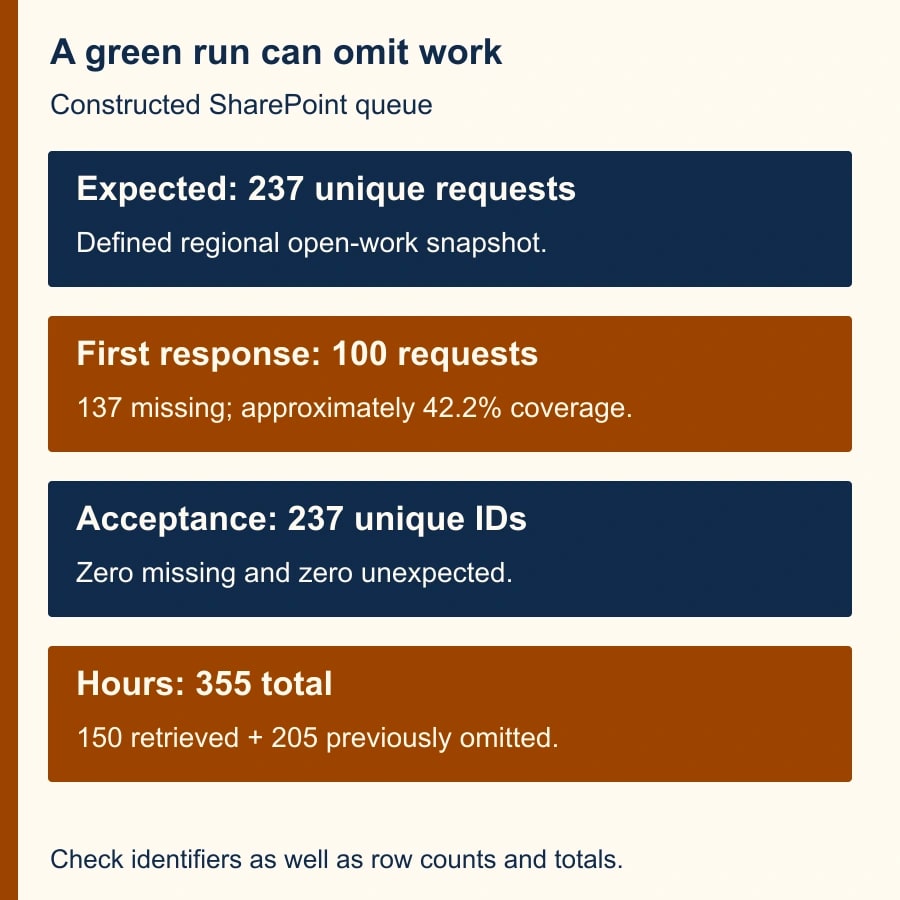
In the constructed service example, the expected snapshot contains 237 eligible unique IDs. The first response contains 100 distinct IDs, all of which belong to the expected set. The missing count is 137. The coverage calculation is 100 divided by 237, about 42.2 percent. That percentage describes this fixture only; it is not a claim about typical Power Automate reliability.
After the repair, suppose the response contains 237 records. That alone is insufficient. If one expected ID is missing and another appears twice, the count is right while the work is wrong. Check unique IDs, missing expected IDs and unexpected returned IDs. The acceptance result should be 237 unique eligible IDs, zero missing and zero unexpected, using the agreed snapshot.
For a queue with values attached, reconcile the relevant totals too. Suppose the original 100 retrieved items represent 150 estimated service hours and the remaining 137 represent 205 hours. The complete queue is 355 hours. Counting requests and totaling hours answer different questions: the first protects coverage, while the second helps detect a wrong or duplicated record that has business impact.
Keep the reconciliation output with the run record. A short file listing expected ID, returned ID and classification is easier to audit than a screenshot showing a green action. Do not include unnecessary customer details in that file. The manager needs evidence that the right work was retrieved, not a second uncontrolled copy of every request note.
Resume only the work that remains
Return to the record of downstream effects. If the original 100 reminders were successfully sent, the recovery should target the remaining 137, subject to current eligibility and the team's reminder policy. If only some of the first 100 completed, combine the effect log with the repaired eligible set to identify what still needs action. Do not infer successful delivery solely from a record having been retrieved.
Use a stable business identifier for the intended effect, such as request ID plus reminder date. The flow owner should explain how the process checks whether that effect already occurred. This is often called idempotency: repeating a request should not create a second copy of the same business action. The exact implementation depends on the workflow, but the recovery decision must be made before replay.
For each replay batch, record selected IDs, intended action, start time, completed effects and exceptions. If a run stops halfway, use that record to resume deliberately. Replaying the whole 237-item snapshot without checking prior effects may fix missing work while creating duplicate communication. Both defects matter to the service team.
After the queue is caught up, restore normal operation with the corrected settings and an explicit completeness check. A small scheduled run can compare the number and identifiers retrieved with the expected business slice, or flag a suspicious plateau such as exactly 100 on a growing queue. An alert should ask for investigation; it should not automatically increase limits or replay messages.
A diagnostic worksheet for the next owner
- Scope: list URL, connection owner, business criteria, folder and subfolder scope, snapshot time.
- Retrieval: run ID, Filter Query, Top Count, pagination state and threshold, actual returned count and unique IDs.
- Evidence: one missing item traced, expected ID set, missing and unexpected IDs, and any relevant value total.
- Recovery: already completed effects, remaining eligible work, replay identifier, batch owner and exception handling.
- Acceptance: complete test result, production observation, monitoring rule and rollback instructions.
The worksheet should distinguish a list permission issue from a retrieval cap and a downstream failure. That lets the manager send the problem to the right owner. Asking a list administrator to “fix the flow” without a missing ID and run reference wastes time; asking a flow builder to bypass access restrictions is not a completeness repair.
Costs and stop conditions
The SharePoint connector is classified as Standard in Microsoft's connector reference, but that is not a guarantee that every surrounding flow is covered by the organization's existing license. Check the actual environment and any other connectors before changing the design. The operational cost also includes larger responses, additional actions, exception review and the staff time needed to reconcile a backlog.
Measure recovery by eligible requests correctly processed, duplicate effects avoided, unresolved exceptions and time to a stable daily run. Do not translate recovered requests directly into cash savings. A more complete service queue may protect commitments or release staff capacity, but a financial claim needs its own evidence.
Stop and escalate if the expected set cannot be established, the connection lacks required access, large-list errors persist, or prior effects cannot be distinguished from pending work. The next action is to isolate one missing request and trace it through Get items. If the source is Excel instead, use the 256-row retrieval guide. If widening retrieval produces throttling, use the 429 backlog recovery workflow before resuming writes.
Weekly Newsletter
AI Adoption Weekly
New research, field guides, training studies, and tool decisions for operators.
No spam. Unsubscribe anytime.
Related Comparisons
Calculator
AI seat cost calculator
List price × headcount. You enter the hours and the operating assumptions.