
Power Automate Runs an Hour Late: Repair the Recurrence Time Zone
Separate trigger timing from processing delay, preserve the business-date window and cut over without duplicate daily reports.
Published November 16, 2026

If a Power Automate morning report shifts by an hour around a clock change, inspect the Recurrence trigger's time zone and explicit hour before moving the email action. First establish whether the flow started at the wrong local time or started correctly and finished late. Then test a corrected schedule without sending to the production audience, and switch over with one owner responsible for preventing duplicate daily reports.
The business requirement should read “the operations report is ready by 9 a.m. New York time,” not simply “run every 24 hours.” Those are different promises when local clocks change. A reliable repair also checks which business day's records the report selects; fixing the delivery hour while shifting the date filter can produce a punctual report for the wrong period.
Identify which clock is wrong
Collect three timestamps for several runs: the intended start, the actual trigger start, and the completed report or delivery time. Convert them to the same named business time zone for comparison, retaining the original timestamps. A run starting at 9:00 and sending at 9:47 has a processing or delivery delay. A run starting at 10:00 and sending at 10:02 has a different scheduling problem.
Coordinated Universal Time, or UTC, is the common reference used in many service timestamps. A local time zone adds rules about its offset from UTC, including seasonal changes where applicable. A fixed offset such as UTC minus five hours does not describe New York throughout the year. The intended business zone must be part of the requirement, not something inferred from the flow owner's computer.
Microsoft's scheduled cloud-flow guide, checked November 16, 2026, exposes Time zone, Interval and Frequency settings, plus explicit hours and minutes for daily schedules and weekdays for weekly schedules. The first useful check is the actual configuration saved in your flow. Do not assume that a natural-language request to Copilot or a convenient flow name accurately describes those settings.
Confirm that this is a Recurrence-triggered cloud flow
This guide fits an operations owner with a scheduled cloud flow that uses the built-in Recurrence trigger to prepare a routine report. It does not diagnose every connector that polls for new messages or rows, desktop scheduled tasks, or a flow delayed by an external approval. Those mechanisms have different timing constraints and may need a connector-specific investigation.
You need permission to inspect and edit the flow, access to its run history, the report's expected data window, and a safe test destination. Name both the technical owner and the business recipient who can confirm the report's timing requirement. Keep the current flow definition or normal recovery version before editing. Existing licensing and connector requirements still apply; this schedule repair alone does not justify purchasing a new plan.
Skip an automatic cutover when a delayed or duplicated report could trigger payments, orders or other consequential actions. First separate report generation from those actions and have the responsible owner approve the recovery. The examples here concern internal reports; they are constructed operating scenarios, not a claim that a particular live tenant has been tested.
Compare a fixed UTC time with a local business hour
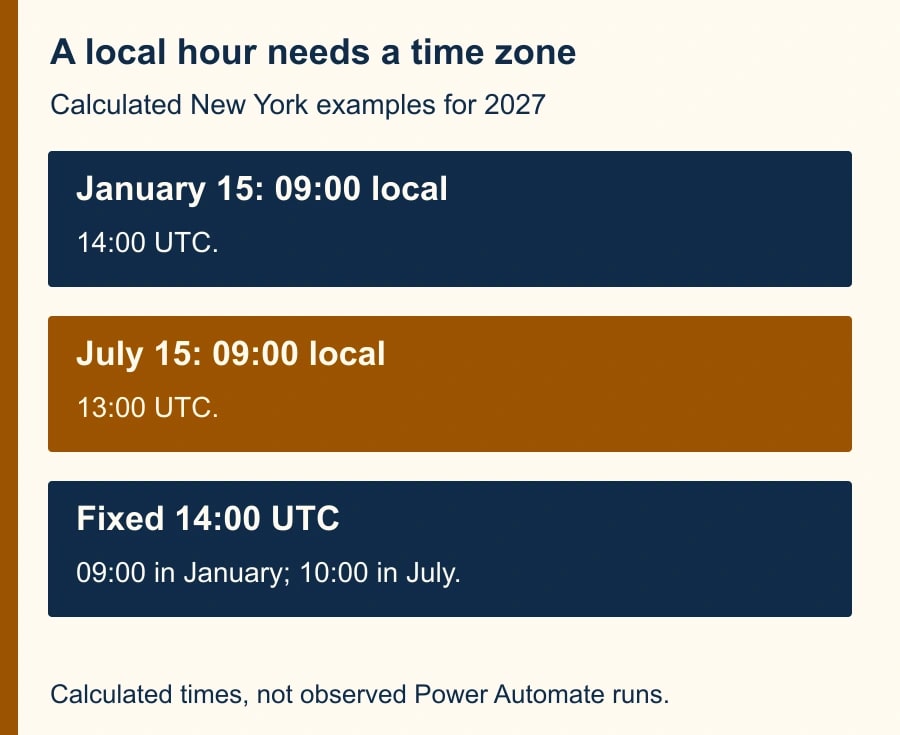
Consider a constructed New York report intended to start at 9:00 a.m. local time. On January 15, 2027, 9:00 a.m. New York corresponds to 14:00 UTC. On July 15, 2027, it corresponds to 13:00 UTC. A fixed 14:00 UTC start therefore means 9:00 in the winter example and 10:00 in the summer example. The flow can be consistent in UTC and wrong for the business.
The reverse symptom is possible after the autumn clock change: a fixed 13:00 UTC start that matched 9:00 during summer corresponds to 8:00 in winter. Diagnose the configured offset and observed dates rather than assuming every seasonal defect is “one hour late.” These calculations illustrate New York's rules for the stated dates; other regions have different rules and some do not change clocks at all.
Microsoft's separate Azure Logic Apps recurrence guidance explains why a named time zone matters for recurring schedules and distinguishes built-in recurrence from connection-based polling. It is supporting context, not a promise that every Logic Apps option exists in Power Automate. Use the Power Automate configuration and observed run history as the release evidence for this repair.
Write the schedule contract before editing
Record the report owner, business zone, required days, intended start, delivery deadline and data period. For example: “Operations daily summary; America/New_York; Monday through Friday; start at 08:45; available by 09:00; prior completed local business day; owner Dana; fallback is a manually reviewed export.” The exact times are an example, not a universal recommendation.
A start time and a delivery deadline should leave enough room for the workload. If the report normally takes 12 minutes and must arrive at 09:00, starting at 09:00 cannot meet that promise. In a constructed planning allowance, a 12-minute typical duration plus a three-minute reserve calls for an 08:45 start. Measure actual variation before treating that reserve as sufficient.
Specify weekends and holidays separately. A weekday recurrence can select weekdays, but a holiday calendar is a business rule that needs its own approved handling. “Prior business day” may mean Friday on Monday and a different date after a holiday. Do not assume that subtracting one calendar day implements the reporting policy. If the current report already handles this correctly, preserve that logic during the schedule repair.
Make the smallest schedule change in a safe copy
Open the Recurrence trigger and record the current settings. Confirm Frequency, Interval, selected time zone and explicit hour and minute fields. If the job is meant to run at a named local hour each day, configure those fields around that requirement rather than merely shifting a fixed UTC value by one hour. Select the appropriate named zone offered by the designer and verify how it maps to your business location.
Inspect Start time separately. A timestamp ending in Z denotes UTC. Do not append Z to a local wall-clock time and assume the selected zone will make it local. The Microsoft guide shows UTC-formatted start timestamps; for a future start, calculate the correct instant for the selected date, check the designer's saved value, and verify the next intended run. Leave no ambiguity between a one-time start instant and the recurring local schedule.
Use a copy or controlled test version whose output goes to an approved test location. Keep the production sender or downstream action disabled in that test. Avoid activating two production schedules while comparing them. An email action sent to a personal test address may itself be inappropriate if the report contains business data, so use the team's approved destination and sample data where possible.
Save the change and inspect the saved trigger again. A generated explanation or a successful save message does not prove the intended fields persisted. Record the next expected local and UTC times in the test note. If the tool does not display a future-run preview, retain your expected-time calculation and compare it with an actual harmless test run at the next practical opportunity.
Keep date conversion separate from scheduling
Microsoft's time-zone conversion guide describes the Convert time zone action and the convertTimeZone expression for translating timestamps. That conversion is a separate concern from the recurrence itself. Changing the trigger zone does not automatically establish that every filter, filename or subject line uses the correct business date.
Inspect the report's period boundaries. A local reporting day should be defined in the business zone, then translated appropriately for a source that stores UTC timestamps. The duration of a local day can differ from 24 hours around a seasonal transition. Avoid replacing a clear local-day policy with “the last 24 hours” unless the business actually wants a rolling window.
For the pilot, select records just before and after the intended local midnight boundary, along with ordinary daytime records. Write down which ones belong in the report before running the flow. Verify the source query, output rows, filename and email subject all describe the same period. A label reading Monday cannot compensate for data selected using Sunday's UTC boundary.
If an AI step writes the narrative summary, give it the already selected period and validated rows. Do not ask it to infer the reporting date from the current time or repair missing data by guessing. The schedule owner controls the window; the summarization step can explain the accepted data within that window.
Test timing, completeness and one-send behavior
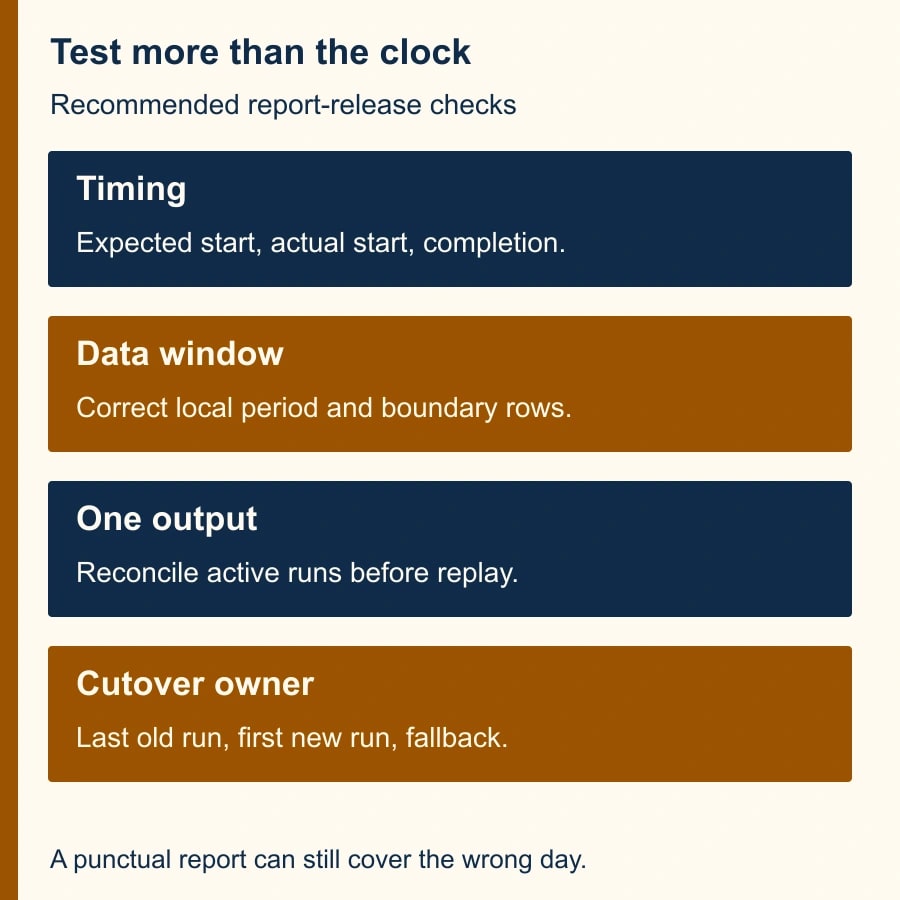
Use a test register with expected local start, expected UTC start, actual start, completion time, report period, record count and output identifier. Include an ordinary winter date and summer date in the expected-time calculations. If you cannot execute a future transition test now, label it as a calculated case and schedule a real check around the next transition. Do not report a modeled calendar check as an observed successful flow run.
A practical initial acceptance test is one harmless scheduled run with the correct saved settings, a verified data window and one resulting output. Then observe several normal runs. If processing delay remains, inspect the slow action and its dependencies instead of repeatedly moving the trigger earlier. Otherwise the schedule repair can hide a growing backlog until the report misses its deadline again.
For duplicate protection, define the identity of the work: report type, business date and audience, for example. Check whether that report has already been produced or delivered before replaying a failed run. A basic read-then-send check can still race if two runs overlap, so do not describe it as a complete concurrency guarantee. Use an existing reliable uniqueness mechanism or manual reconciliation during the cutover. The site's duplicate-action recovery guide develops that decision.
Cut over with one owner and a written fallback
Agree on the last run under the old schedule and the first under the new one. Before enabling the replacement, inspect active runs and the destination for already completed work. Stop the old production recurrence through the normal controls, then enable the corrected version at the agreed point. Retain the previous definition so recovery does not depend on reconstructing settings from memory.
If today's report is missing, reconcile its actual state before replaying. It may have been generated but not delivered, or delivered without a clear confirmation. Resend only the missing work under the business owner's direction. If today's report is duplicated, identify the two runs and correct the schedule overlap before attempting another test. Do not delete evidence needed to explain which report is authoritative.
- Requirement: named business zone, active days, start time, delivery deadline and report period.
- Configuration: saved recurrence fields and correctly interpreted start timestamp.
- Evidence: expected and actual times, period boundaries, accepted rows and output identity.
- Cutover: last old run, first new run, owner and check for active or completed work.
- Stop condition: wrong reporting period, duplicate delivery, unexplained delay or uncertain send state.
- Recovery: approved prior version or manual report, with recipients told which output to use.
Success means the right report reaches the right audience within its agreed window, once. Track late reports, duplicate outputs and owner intervention minutes over comparable days. The next action is to compare the trigger start with delivery time on one affected run. That single distinction tells you whether to repair the clock or investigate the work between trigger and output. Keep failure-alert coverage visible while you make the change.
Weekly Newsletter
AI Adoption Weekly
New research, field guides, training studies, and tool decisions for operators.
No spam. Unsubscribe anytime.
Related Comparisons
Calculator
AI seat cost calculator
List price × headcount. You enter the hours and the operating assumptions.