
Fix Wrong Percentage Totals in Looker Studio
Rebuild a dashboard percentage from its numerator and denominator, then test totals and filters with a small reconciled example.
Published October 30, 2026

If a percentage total in Looker Studio looks wrong, compare the two counts behind it before changing the display format. For a rate across all eligible records, add the numerator counts and denominator counts separately, then divide. Averaging the percentages shown for individual groups answers a different question, and adding them usually produces no useful overall rate.
Google’s current documentation uses the name Data Studio. Its calculated-field guidance illustrates the same principle with SUM(Profit) / SUM(Revenue), an explicitly aggregated calculation. The method below applies that pattern to a simple, unblended spreadsheet source with additive counts. It should not be pasted unchanged into every connector or already aggregated metric. Google’s calculated-field guidance
This guide is for a marketing or operations analyst who can inspect the source counts and edit a copy of the report. It was checked against Google’s documentation on October 30, 2026. The worked example is constructed. No campaign performance or customer result is implied by its numbers.
Name the business question behind the percentage
Suppose the dashboard answers: “What share of all eligible inquiries became qualified inquiries?” The numerator is the count that qualified. The denominator is the count of all eligible inquiries considered. Both must cover the same period and population. A label such as Conversion rate is too vague unless the team agrees what qualifies, which inquiries are eligible and when each is counted.
An alternative question is: “What is the average qualification rate across our channels, giving every channel equal weight?” That can be a valid management measure, but it does not describe the share of all inquiries that qualified. A small channel and a large channel have equal influence in that average. The report title and explanation should make the weighting clear.
Agree the intended question with the business owner before editing formulas. Otherwise, the analyst may replace one mathematically valid measure with another and call the change a bug fix. Save the original report or a working copy, record the current field definition, and note which decisions depend on the number. This makes the correction reviewable and reversible.
You need the component counts, report-editing permission and a small source file with known results. The example assumes your existing reporting access and does not require buying another connector. If you only have exported percentages without their underlying counts, ask for the counts first. You cannot reconstruct the correctly weighted overall rate from percentages alone unless you also know their weights.
Reconcile a two-channel example by hand
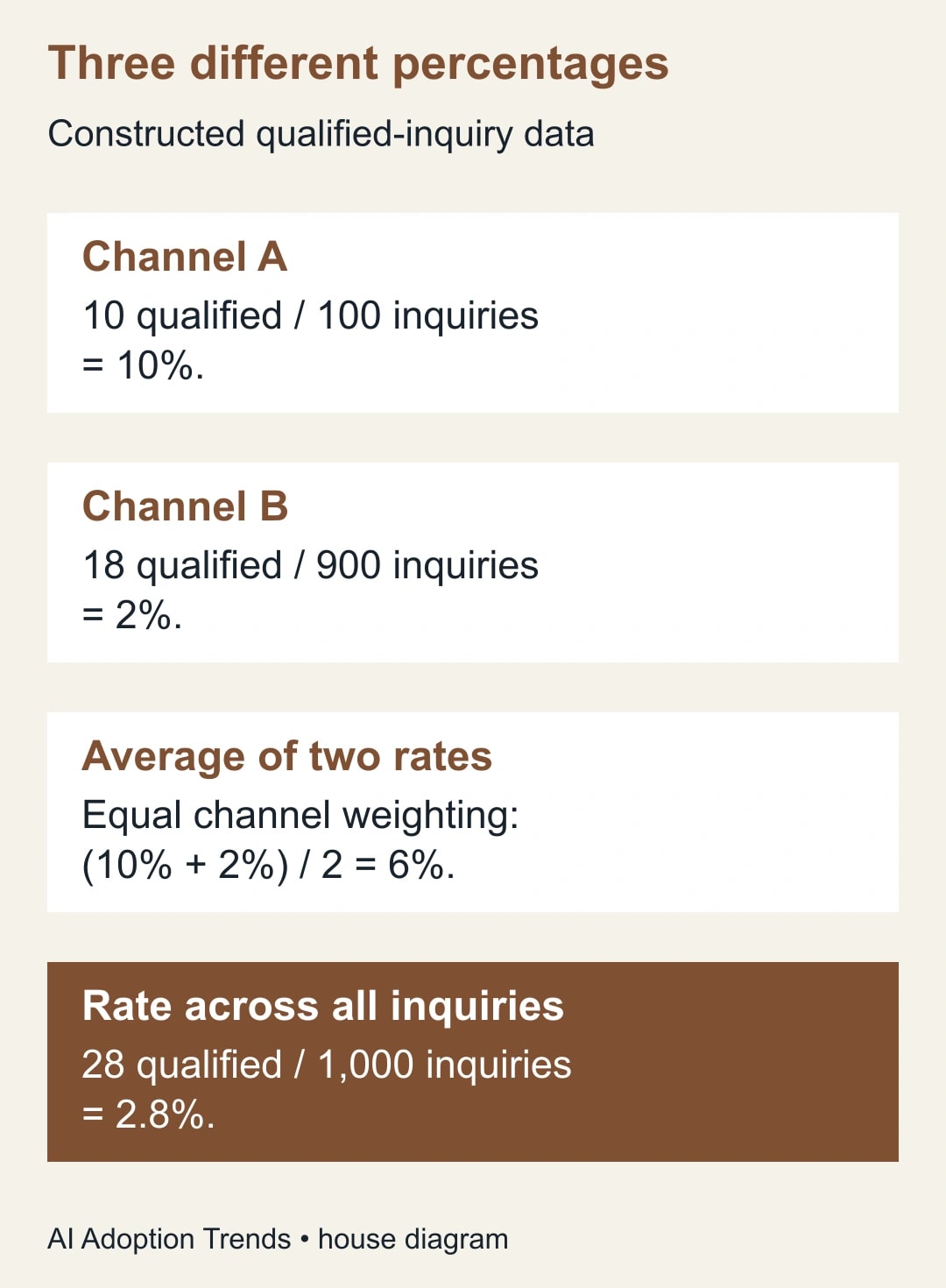
Create a small spreadsheet with three columns: Channel, Qualified and Inquiries. Use two rows. Channel A has 10 qualified inquiries out of 100 total inquiries. Channel B has 18 qualified inquiries out of 900. Each inquiry belongs to exactly one channel in this example, and the same eligibility rule applies to both rows.
Channel A’s rate is 10 / 100 = 10%. Channel B’s rate is 18 / 900 = 2%. Adding the displayed rates gives 12%, which is not the rate across the combined inquiries. Taking their simple average gives (10% + 2%) / 2 = 6%, which gives the two channels equal weight.
Across all inquiries, there are 28 qualified inquiries and 1,000 total inquiries. The combined rate is 28 / 1,000 = 0.028, displayed as 2.8%. Channel B contributes nine times as many inquiries as Channel A, so it should have nine times the influence when answering the all-inquiries question. The lower overall rate is therefore expected.
Keep this small answer sheet beside the report while testing. A realistic-looking percentage is not enough: 6% and 2.8% could both seem plausible to a reader who has not seen the counts. The example is useful precisely because it separates two reasonable questions and one unhelpful sum with numbers you can verify without the dashboard.
Build the metric from counts in the test source
Connect the small test spreadsheet through your approved reporting setup. Create a table showing Channel, Qualified and Inquiries before adding the percentage. Check that the two rows and totals match the answer sheet. This isolates the calculation from other problems such as missing rows, incorrect field types or a source that has not refreshed.
For this raw spreadsheet example, define the rate as SUM(Qualified) / SUM(Inquiries). The field names must match the source. Format the result as a percentage, without multiplying the formula by 100 as well. The numeric result 0.028 should display as 2.8%; multiplying it by 100 and then applying percentage formatting would display 280%.
Google explains that explicitly aggregated calculated fields use Auto aggregation to preserve the intended calculation. Separately, chart editors can override default aggregation for eligible fields, so inspect the actual metric used by the affected chart rather than assuming the data-source default controls every instance. Calculated-field aggregation and aggregation settings
Give the new field a descriptive name during testing, such as Qualified share of eligible inquiries. Place the two component totals beside the rate in the working report. That makes it easier for a reviewer to see whether a discrepancy begins with the counts or the division. Keep the old field visible only in the test copy, clearly labeled, until the difference is explained.
Check both a grouped table and an overall scorecard. The table should show 10% for A and 2% for B. The scorecard covering both should show 2.8%. If a summary row or another chart differs, inspect that specific component’s metric and aggregation behavior. Do not assume that identical display labels mean identical definitions.
Test filters as changes to the population
Filter to Channel A only. The component totals should become 10 and 100, with a rate of 10%. Filter to Channel B only and expect 18 and 900, with a rate of 2%. Remove the filter and expect 28, 1,000 and 2.8% again. Record the results rather than checking only the initial unfiltered screen.
Then test the real report’s date range and any eligibility controls. A rate can be mathematically correct for the wrong population. For example, the qualified count might use qualification date while the inquiry count uses arrival date. Dividing those totals may be useful for a particular throughput measure, but it does not automatically answer what share of a single cohort qualified.
For a cohort measure, define the group by an agreed entry period and allow the appropriate observation window. A recent group may contain inquiries that have not yet had time to qualify. The repair could require a clearer metric definition or source preparation rather than another dashboard formula. Ask the business owner which decision the report must support.
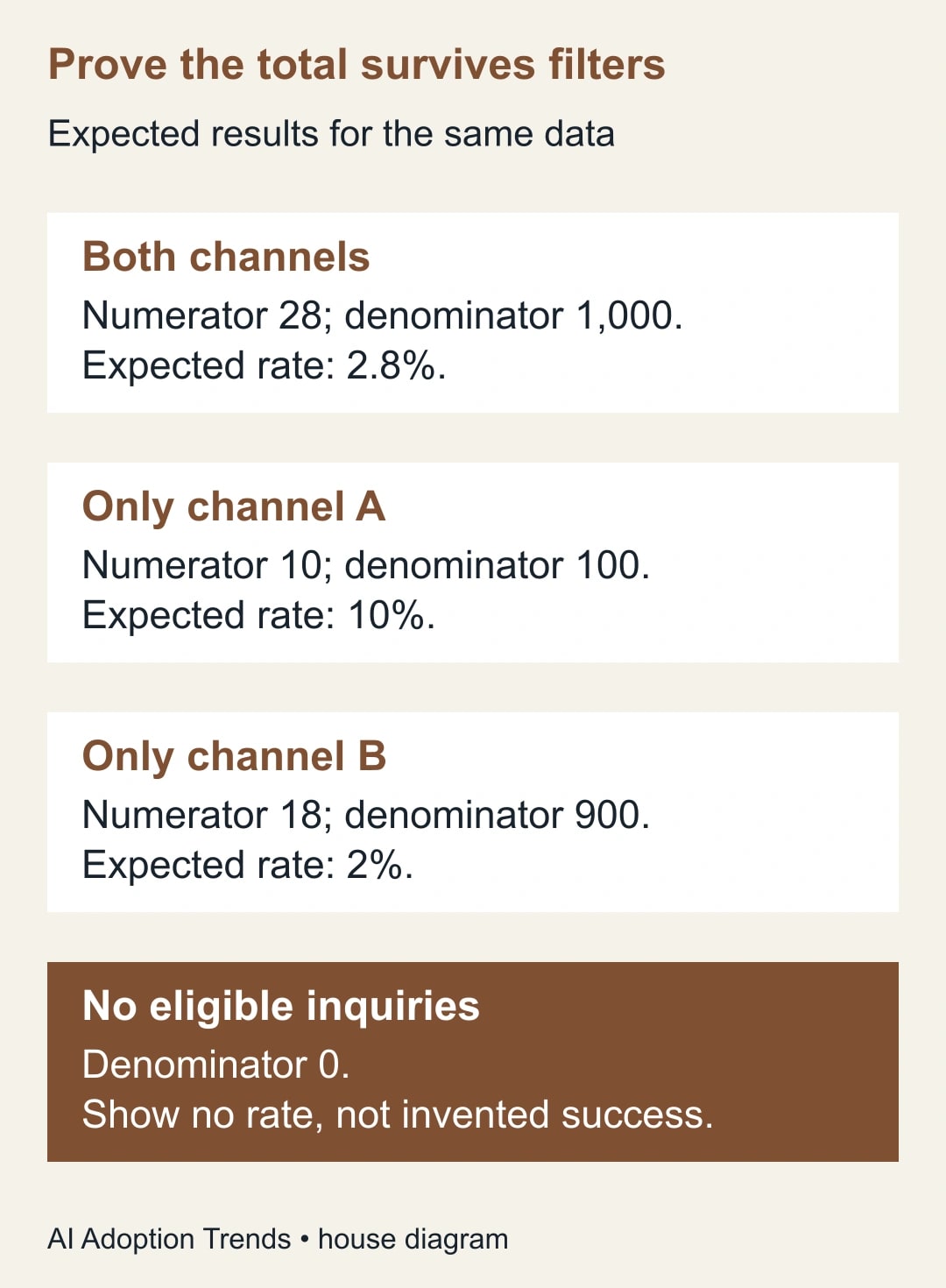
Test an empty group deliberately. With no eligible inquiries, there is no meaningful qualification rate. Choose an explicit display such as no data or a blank with an explanatory caption. A zero rate means inquiries existed and none qualified; it should not silently stand in for an absent population. Have the report editor implement and test the zero-denominator handling supported by the selected source and formula.
Missing values need a separate check. If a channel’s inquiry count is unknown, treating it as zero can inflate the combined rate by excluding its population while retaining qualified inquiries. Hold incomplete source rows or expose the missing data according to the agreed reporting rule. Do not turn unknown values into zeros merely to make a formula evaluate.
Stop if the source has already aggregated the metric
The spreadsheet example contains counts that can be summed at the intended reporting level. Some native connectors supply metrics that are already aggregated. Google documents that certain ratio metrics cannot be recalculated after particular filters, and that adding SUM around already aggregated metrics can produce a re-aggregation error. Google’s ratio-metric error explanation
If that is your situation, inspect the connector’s supported metric and filter combination. Try the relevant source dimensions and supported non-ratio component metrics in a diagnostic chart. Do not wrap SUM around everything or change Auto to another aggregation just to imitate the spreadsheet example. The repair must respect how that source supplies the data.
When the required reporting question cannot be expressed through the existing connector, consider preparing a controlled summary upstream in a tool you already maintain. That summary needs the correct counts, grouping and refresh ownership. It is a separate design decision with a maintenance cost, not an automatic reason to purchase a different connector.
If the problem only appears after a blend, check the join before accepting a formula repair. A blend combines sources, and multiple matching records can repeat counts or amounts. A ratio may even remain superficially plausible when both components are multiplied. Use the blend-grain diagnostic to establish what one row represents and whether joins preserve it.
Check what can and cannot be added
Counts are additive only when the underlying groups do not overlap for the question being asked. If one inquiry appears in both channels, summing channel counts may count it twice. The two-row example explicitly avoids that issue. In a real report, establish whether the source assigns one channel per inquiry or describes overlapping interactions.
Distinct people are a common trap. A person active on Monday and Tuesday is one person for the two-day period, even if each daily distinct count includes them. Adding daily distinct-user counts does not produce the period’s distinct users. A ratio built from those summed counts may need a different source query or a different label.
Also distinguish a count of qualified inquiries from a count of qualification events. One inquiry could trigger several status changes. If the numerator counts events while the denominator counts unique inquiries, the ratio might exceed 100% without a division error. The source definition, not percentage formatting, determines whether that result is meaningful.
Ask the data owner for one sentence defining each component and one example record that belongs in it. Then choose a record that should be excluded. This simple exercise often reveals disagreements that a formula editor cannot solve: test submissions, reopened requests, repeated contacts or inquiries outside the reporting scope.
Use this metric acceptance worksheet
- Decision: the business question, intended audience and action the rate supports.
- Population: eligibility rule, time period, observation window and whether groups overlap.
- Numerator: what qualifies, its counting unit and the source field or query.
- Denominator: what is counted, its counting unit and the source field or query.
- Calculation: ratio of summed counts or explicitly equal-weighted group average, with the reason.
- Source behavior: raw or already aggregated; current connector, filters and any blends.
- Expected tests: both channels 2.8%, A only 10%, B only 2%, plus empty and missing-data cases.
- Release record: report version, reviewer, checked charts, remaining limitations and rollback copy.
After the small sample passes, compare the real report against a source extract for one completed period. Reconcile the component totals first, then the rate. Have the business owner confirm that the corrected metric still answers the intended question. Update captions and definitions wherever the field appears so a repaired scorecard does not coexist with an unexplained old percentage elsewhere.
Monitor unexplained component differences after refresh and after changes to source fields, filters or joins. Do not promise a ranking, revenue or conversion improvement from fixing the calculation. The immediate benefit is a report whose meaning and arithmetic can be checked. Stop release if either component remains unexplained, even when the final rate looks reasonable.
Start with the two-row example and identify which of 12%, 6% or 2.8% your current total is calculating. That gives the investigation a concrete direction. If the component counts already disagree with the source application, continue with the Google Analytics and Looker Studio reconciliation guide before changing the percentage formula again.
Weekly Newsletter
AI Adoption Weekly
New research, field guides, training studies, and tool decisions for operators.
No spam. Unsubscribe anytime.
Related Comparisons
Calculator
AI seat cost calculator
List price × headcount. You enter the hours and the operating assumptions.