
Fix a Looker Studio Filter That Changes Only Some Charts
Trace filter scope and field IDs across data sources, repair compatible fields and test actual-versus-target totals before sharing the report.
Published October 27, 2026

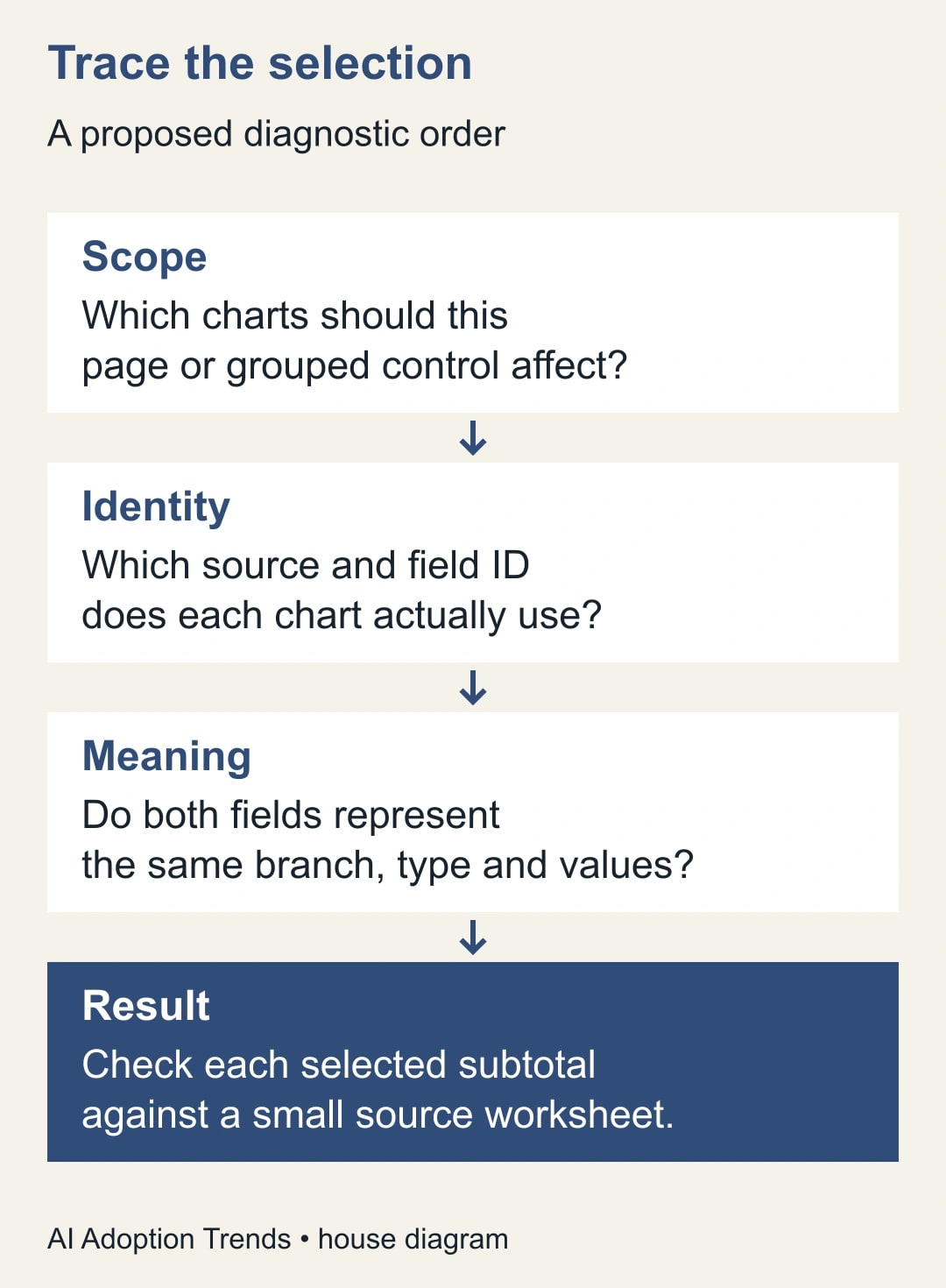
If a Looker Studio filter changes some charts but leaves others alone, check three things in order: the control’s scope, the field identities across the charts’ data sources, and whether those fields actually mean the same thing. Renaming two columns to Branch is not enough to make a shared filter work.
Google’s current documentation, now served under Data Studio, explains that controls match fields by internal field ID rather than their visible name. Different data sources can therefore contain similarly named fields that do not share filtering behavior. Read Google’s explanation of controls and field IDs. The business risk is a report that looks selected while part of the comparison still represents everyone.
The repair should finish with a reconciled result, not merely a working dropdown. This guide uses a constructed branch revenue example to show how to diagnose the problem and test a safe change. It does not claim a private test of your report or guarantee that every connector supports an identical setup.
Start with the decision the report supports
This guide is for a reporting owner combining actual results, targets or other operational measures from more than one source. You need permission to edit a copy of the report, access to the relevant source definitions and a small set of figures you can verify outside the dashboard.
Skip the field-ID repair if the selected value is already absent from the underlying source. First repair the source, refresh process or extract. Likewise, a blended chart with inflated totals may have a join problem. A control can correctly filter a chart whose calculation is still wrong.
Write the expected behavior in a sentence: “Selecting North must make both actual revenue and target revenue represent North for the same month and currency.” Then list every chart and scorecard used to make that decision. Include ratios, comparison cards and small summary figures that are easy to overlook while inspecting the main chart.
Some charts may intentionally stay unfiltered. A company-wide benchmark can be useful beside a branch result, but its label must say so. The problem is not that every chart must always change together. The problem is a reader reasonably believing that two selected numbers refer to the same scope when they do not.
Work on a copy and record the current behavior before editing field IDs. The cost is investigation and review time, plus any existing connector or data-query charges in your setup. Do not purchase another connector until you know whether the defect is scope, identity, meaning or source completeness. A new connection can reproduce the same misunderstanding.
A worked example: the target stays company-wide
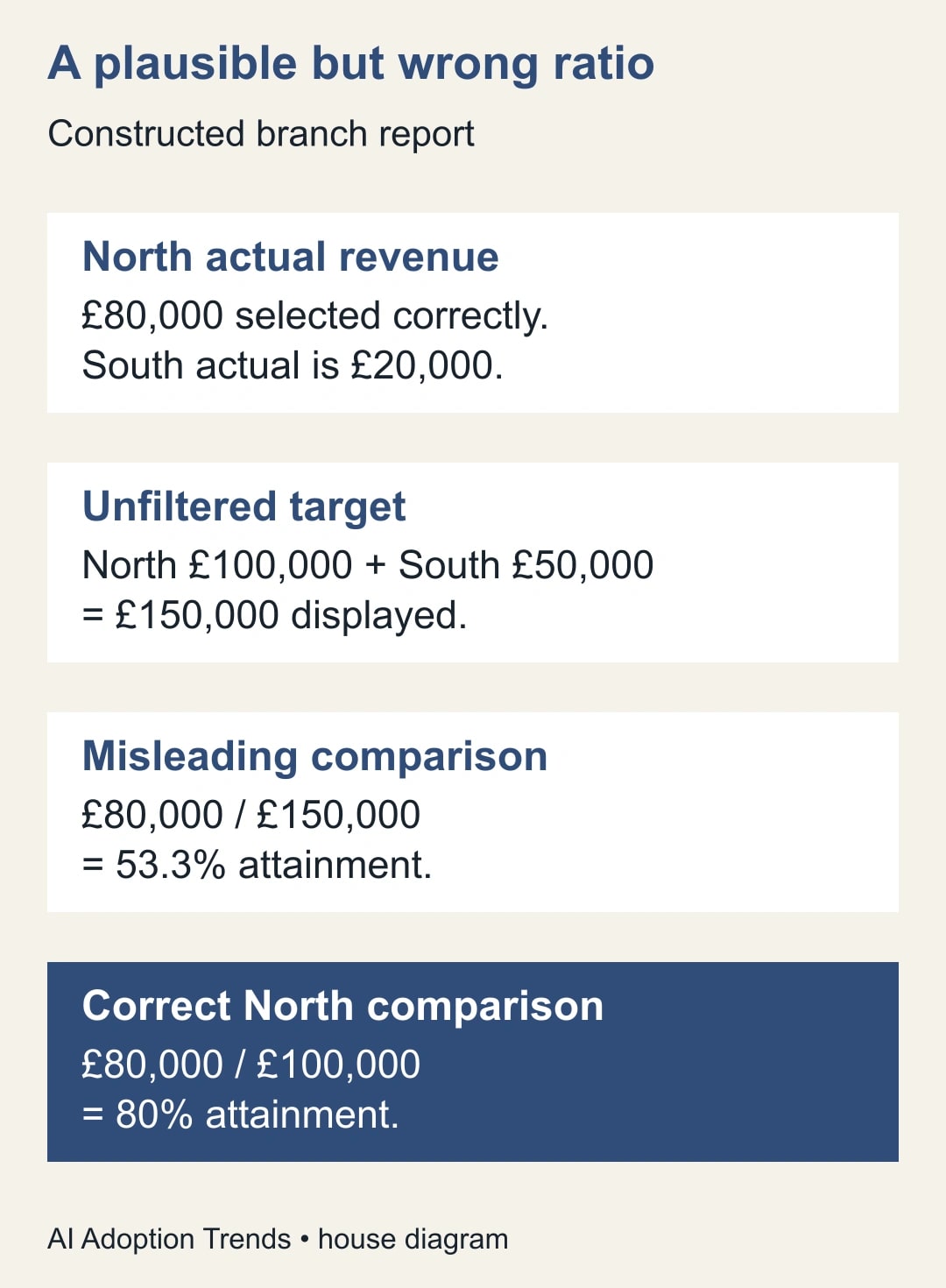
Suppose a constructed monthly report has North revenue of £80,000 and South revenue of £20,000. Its target source contains North £100,000 and South £50,000. All figures refer to the same month and currency, and the report is intended to compare revenue with the approved target.
With no branch selected, actual revenue is £100,000 and target revenue is £150,000. Company attainment is £100,000 divided by £150,000, or 66.7% rounded to one decimal place. Those figures provide the first reconciliation case.
Now select North. The actual-revenue chart correctly changes to £80,000, but the target remains £150,000. A reader calculating attainment from those cards gets 53.3%. The correct North comparison is £80,000 divided by £100,000, or 80%. The discrepancy is not a small rounding effect: the target belongs to a different population.
South provides a second useful check. Its correct attainment is £20,000 divided by £50,000, or 40%. If the report still displays the company target, the apparent result becomes 13.3%. Testing both branches helps show that the repair handles the shared definition rather than merely producing a plausible North result.
Do not assume the ratio scorecard is wrong in exactly the same way as the two visible cards. It may use another source or a separate blend. Inspect it explicitly and compare its result with the worksheet. A dashboard can contain three different versions of “attainment” even when they share a title style.
First check where the control applies
Identify the control you are actually using. A branch selector, a date control and a parameter input serve different purposes. Start with the one field-based selection that is failing, and temporarily remove other selections in the working copy so you can observe its effect clearly.
Check whether the control and intended charts are grouped. Google documents grouping a control with selected components to limit its effect. Review control scope and grouping. A chart outside the intended group may be behaving exactly as configured, so changing its field ID would address the wrong issue.
Write a simple component list: actual card, target card, attainment card, revenue trend and company benchmark. Mark each as should change or should remain fixed when Branch changes. For the benchmark, add the label the reader will see. This turns an ambiguous complaint into a testable requirement.
Perform one selection and inspect every item on that list. Note whether it changes, stays fixed, becomes empty or errors. “Does not work” hides these distinctions. An empty chart after filtering can be evidence of incompatible values; an unchanged chart can be evidence that the control never reached it.
If scope is the only defect, repair scope and retest before making a source change. Keep changes small enough that you can explain why the result improved. Editing grouping, field identities, date ranges and calculations at the same time makes it much harder to know which repair mattered.
Then map the source fields
For every affected component, record the data source and the branch field it uses. Include the visible name, data type and internal identity where the report’s controls expose it. A field called Branch in the actuals source may have a different ID from Branch in a targets spreadsheet.
Google distinguishes fixed-schema connectors, such as its Analytics and Ads examples, from flexible sources such as Sheets and BigQuery. With flexible sources, matching labels do not establish matching IDs. Check the cross-source filtering explanation. Use the actual source definitions in your report rather than guessing from a familiar connector logo.
Next inspect meaning. Does Branch mean selling branch in both sources, or does one mean customer billing branch? Does North include the same stores in both? Is a blank branch an unassigned transaction or a company-wide target? These are business definitions that a matching ID cannot repair.
Compare values as well as field names. North, NORTH and a regional code such as N01 need an agreed mapping if they represent the same unit. Do not make a report-level identity change and assume it will translate values. Keep any normalization rule in a documented place and preserve a way to inspect unmatched records.
Confirm data types. A numeric branch code and a text branch code may look similar in a table while being different fields for filtering purposes. If leading zeros matter, preserve them deliberately. A branch code of 001 should not become 1 merely because someone decided all digits must be numbers.
Use a field override only after the meanings agree
Google’s current cross-source guide describes report-level field-ID overrides. In the report menu, open Resource, then Manage field names and IDs. Add a field override, select the relevant field and enter the intended new ID. Apply a consistent ID only to the compatible fields that should share the filter. Follow Google’s field-override procedure.
The same guide warns that changing an in-use field ID breaks charts using that field until the new field is manually selected in each affected chart. It also requires matching data types for fields assigned the same ID and limits this override to the report level. Plan the repair in the working copy with that disruption in mind.
Choose an ID that reflects the agreed business field, and document the fields mapped to it. Do not reuse an ID for unrelated concepts merely to make a dropdown affect more charts. A billing-region field and a delivery-region field can both be text without being interchangeable.
After applying the override, inspect each affected component and reselect the appropriate field where required. Then check the control itself and repeat the component list. A repaired chart should return the expected business number, not simply stop displaying a configuration error.
If the available interface differs from the documented procedure or the connector behaves unexpectedly, stop the change in the copy and investigate with the report owner. A clearly labeled separate selector can be a temporary operating choice if users understand its scope. It should not be disguised as a single global filter while the underlying mismatch remains unresolved.
Reconcile five selection cases
Use a small worksheet with source figures that somebody can inspect independently. For the constructed branch example, record expected actual revenue, target revenue and attainment for each case. Keep the period, currency and target version fixed throughout the test.
- No branch selection: actual £100,000, target £150,000, attainment 66.7%.
- North only: actual £80,000, target £100,000, attainment 80%.
- South only: actual £20,000, target £50,000, attainment 40%.
- Both branches, if the control permits multiple selection: the same totals as the unfiltered two-branch example.
- Reset after selecting North: all intended components return to the unfiltered figures.
Add a missing or unassigned branch case if your real data contains one. Decide whether it belongs in a separate exception view, a clearly labeled unassigned category or the overall total. Do not remove it merely because it makes the selector less tidy. The report should account for the records that the decision depends on.
Test the visible label as well as the number. A correct North result under a title that still says Company total can mislead the reader. Conversely, a fixed company benchmark should remain clearly labeled when the other components change. Selection state is part of the meaning of a business report.
Repeat the cases on the layout people actually use. A mobile reader may see the actual card several screens away from the target card or miss a small filter label above the fold. Keep the scope understandable at the point where the number is read. Responsive layout does not fix ambiguous labeling by itself.
Separate filter repair from blend repair
If the control now reaches every intended chart but the numbers remain inflated, return to the source and calculation. A blend joins data from multiple sources; an incorrect relationship can repeat amounts. A field-ID override concerns filtering identity and does not establish that a join has the right business grain.
Grain means what one row represents, such as one branch-month target or one sales transaction. Joining a branch-month target to many transactions can create repeated target values if the model or aggregation is wrong. Verify the target at its own grain before using a blended attainment calculation.
Similarly, a stale extract can make a correct filter display old numbers. Record the source refresh time and compare it with the worksheet’s period. If only one source has updated, the report may combine current actuals with an earlier target version. That is a freshness issue even when field identity is correct.
Use the failure evidence to select the next repair. A chart unchanged by the selector points you toward scope or identity. A chart that filters but contains repeated amounts points you toward the model. A chart that matches an old source points you toward refresh. Keeping these diagnoses separate prevents a long sequence of unrelated edits.
Release the report with an explicit owner
Before replacing the shared report, have a business reader perform the selection cases without coaching. Ask what population and period each displayed number represents. If the reader’s interpretation differs from the worksheet, revise the labels or layout before release, even if the calculations pass.
Record the source-field mapping, the affected charts and the acceptance results with the report. Name who owns the branch definitions and who maintains the configuration. These may be different people. A future connector replacement or spreadsheet rebuild should trigger a rerun of the selection cases rather than an assumption that matching column names preserve behavior.
If the shared report previously showed misleading attainment, identify the affected period and decisions before issuing a correction. Do not silently change the target used in the ratio and leave users wondering why performance improved overnight. Explain the scope error and the corrected figures through the normal reporting channel.
Measure quality through reconciled selection cases, unexplained differences and recurring support questions about scope. A report with more interactive controls is not necessarily more useful. One well-tested selector with clear labels can support a better decision than several controls whose effects are difficult to see.
Your next action is to select one branch and compare both sides of one important ratio with its source figures. If filtering is correct but the amounts remain multiplied, continue with the blend-grain diagnostic. If the source is old, use the extract-refresh checklist instead.
Weekly Newsletter
AI Adoption Weekly
New research, field guides, training studies, and tool decisions for operators.
No spam. Unsubscribe anytime.
Related Comparisons
Calculator
AI seat cost calculator
List price × headcount. You enter the hours and the operating assumptions.