
Plan a Google Vids Custom Avatar Pilot While Rollout Is Paused
Prepare an approved image, reusable training script and revision checks while Google pauses the rollout of uploaded-image custom avatars in Vids.
Published November 15, 2026

A custom Google Vids avatar may suit short, frequently revised training introductions, but do not schedule a launch around the new image-upload feature yet. As of November 4, 2026, Google's release article says rollout is paused and the timing is to be determined. Prepare the approved image, script and review process now; run the production pilot only after access is confirmed.
Google's November 2, 2026 Workspace update introduces uploading an image to create a custom avatar in Vids. Its current release page replaces the earlier rollout schedule with a pause for both release tracks. The announcement lists Business Starter, Standard and Plus among eligible editions and says there is no separate admin control for this feature. Check the current custom-avatar release notice before planning access. A listed edition does not establish that the option is available today.
The durable opportunity is easier maintenance of training. A presenter can introduce an updated process without requiring another camera session. Whether that is worthwhile depends on preparation, revision and review time, as well as whether learners can follow the procedure. An attractive face does not compensate for missing steps. Keep an approved screen recording or written guide as the delivery route while rollout remains uncertain.
Put the avatar in the right part of the lesson
For a first pilot, choose an internal task that changes occasionally and has a clear owner: submitting an equipment request, finding an approved template or escalating an incomplete customer handoff. Avoid starting with an entire course. A short introduction lets the team learn the production and revision process without rebuilding its training library.
The avatar should explain what the learner will do and why. Show the actual procedure in the main section using approved demonstration material. Finish with the exception route: what to do when the expected input, button or approval is missing. This division gives each scene a purpose and makes future changes easier to locate.
Skip the avatar when the task is already clearer as a checklist, when the presenter adds no instructional value or when the only available image has unclear permission for this use. A screen recording with a concise voiceover may be easier to maintain. A live instructor may be more appropriate when learners need immediate discussion or practice feedback.
Also separate this feature from a promise to reproduce a real person's voice. Uploading an image and selecting a voice are distinct production decisions. Do not tell a manager that an image upload will automatically recreate their speaking style. Review the actual result and explain synthetic presentation to the audience in ordinary language.
Prepare a small production brief before opening Vids
The input package should contain the approved source procedure, the image and its permitted use, the spoken script, the intended audience and the date the lesson should be reviewed again. Name a training owner who can approve the whole package. Ask the process owner to approve the instructions before generation starts.
For an image of an identifiable employee, confirm that the planned synthetic presentation is within the permission the organization has obtained. A photograph approved for a staff directory is not evidence that everyone involved has approved every possible speaking use. If that scope is unclear, choose a suitable approved alternative and resolve the question before uploading.
Use a neutral background and a composition that will survive the intended crop. Keep name badges, confidential screens and unnecessary personal information out of the source image. These choices reduce later correction work. They also make the presenter easier to reuse when a department name or office setting changes.
Google's current help recommends a high-quality landscape image with a clear, well-lit face. Its creation route is AI avatar, Design a custom avatar, Upload image, followed by refinement, voice selection and saving. The avatar is saved with the project; copying that project carries it to another file. See Google's custom avatar instructions. Treat those steps as product guidance, not evidence that a particular uploaded image will produce an acceptable result.
Build a 90-second pilot with three editable scenes
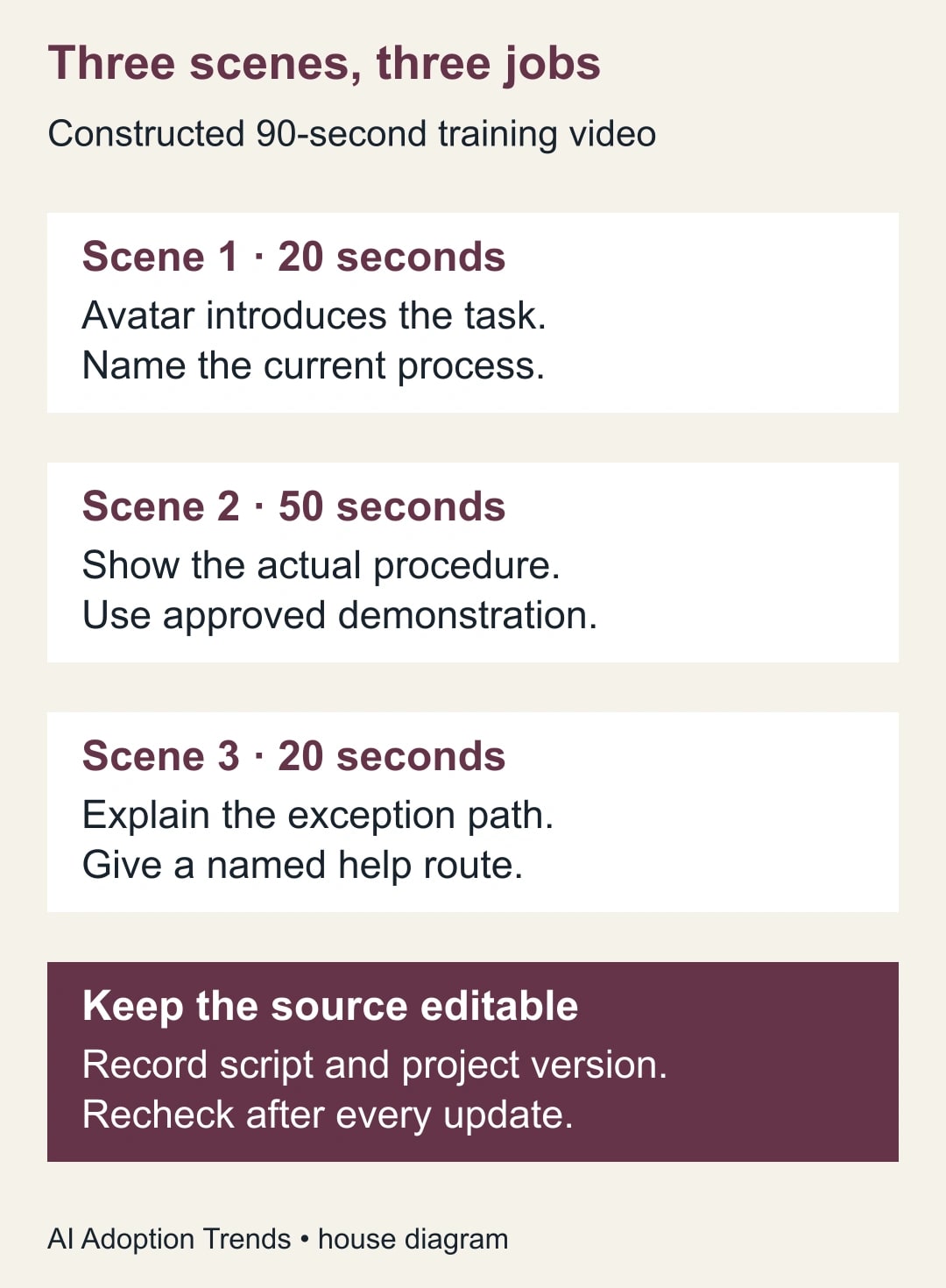
Here is a constructed example for a company changing its equipment-request process. The learner needs to submit a complete request and know where an exception goes. The training owner proposes three scenes totaling 90 seconds. These durations are planning assumptions to check against the actual narration, not a product benchmark.
Scene one lasts about 20 seconds. The avatar states the task and the effective process version: “Use the equipment request form for a new monitor, keyboard or headset. Have your team name and delivery location ready. This lesson shows the standard request route; urgent replacement needs go to the service desk.” The process owner must approve those categories and the exception route.
Scene two lasts about 50 seconds. A real demonstration or approved diagram shows where the form lives, which fields matter and what confirmation looks like. Use fictional demonstration data. The learner should see the expected output, such as a request reference, instead of watching a presenter describe clicks that are never shown.
Scene three lasts about 20 seconds. The avatar explains the exception: “If the item is missing from the form or you do not receive a reference, check the help page linked below before submitting again.” Replace that instruction with the actual approved recovery process. An inaccurate fallback can create duplicate requests even when the main demonstration is correct.
Google currently documents a maximum of up to 60 seconds for each generated avatar video and plan-dependent monthly generation allowances. Check the allowance shown for the account rather than assuming unlimited revisions. The three-scene example uses short avatar sections around a demonstration; it does not assume one 90-second avatar generation. The same avatar help page explains limits and links to current plan details.
Make the first review about instruction, then presentation
Listen to the generated speech while reading the approved script. Check product names, department names, numbers, exclusions and the final instruction. A small pronunciation error may be harmless in an introduction but consequential when it changes an item code or makes a destination unclear. Decide with the process owner whether to rewrite, regenerate or replace the scene with another format.
Next, watch without looking at the script. Can a learner identify the next action? Does the demonstration stay visible long enough? Does the avatar cover a useful part of the screen? Does the apparent confidence of the presenter make a conditional instruction sound unconditional? These questions concern teaching quality, not just visual polish.
Review captions separately if the lesson includes them. Confirm that their wording, timing and line breaks match the final audio and do not obscure a step. Do not assume text saved in a narration box guarantees captions are current. Inspect the actual version learners will receive, including its playback size and any linked help material.
Use two reviewers with different jobs: a process owner for correctness and a colleague unfamiliar with the task for comprehension. The second reviewer should try the procedure using harmless test data where possible. Record where they hesitate. A successful playback is not the same as a successful lesson.
The revision trap: new text, old spoken video
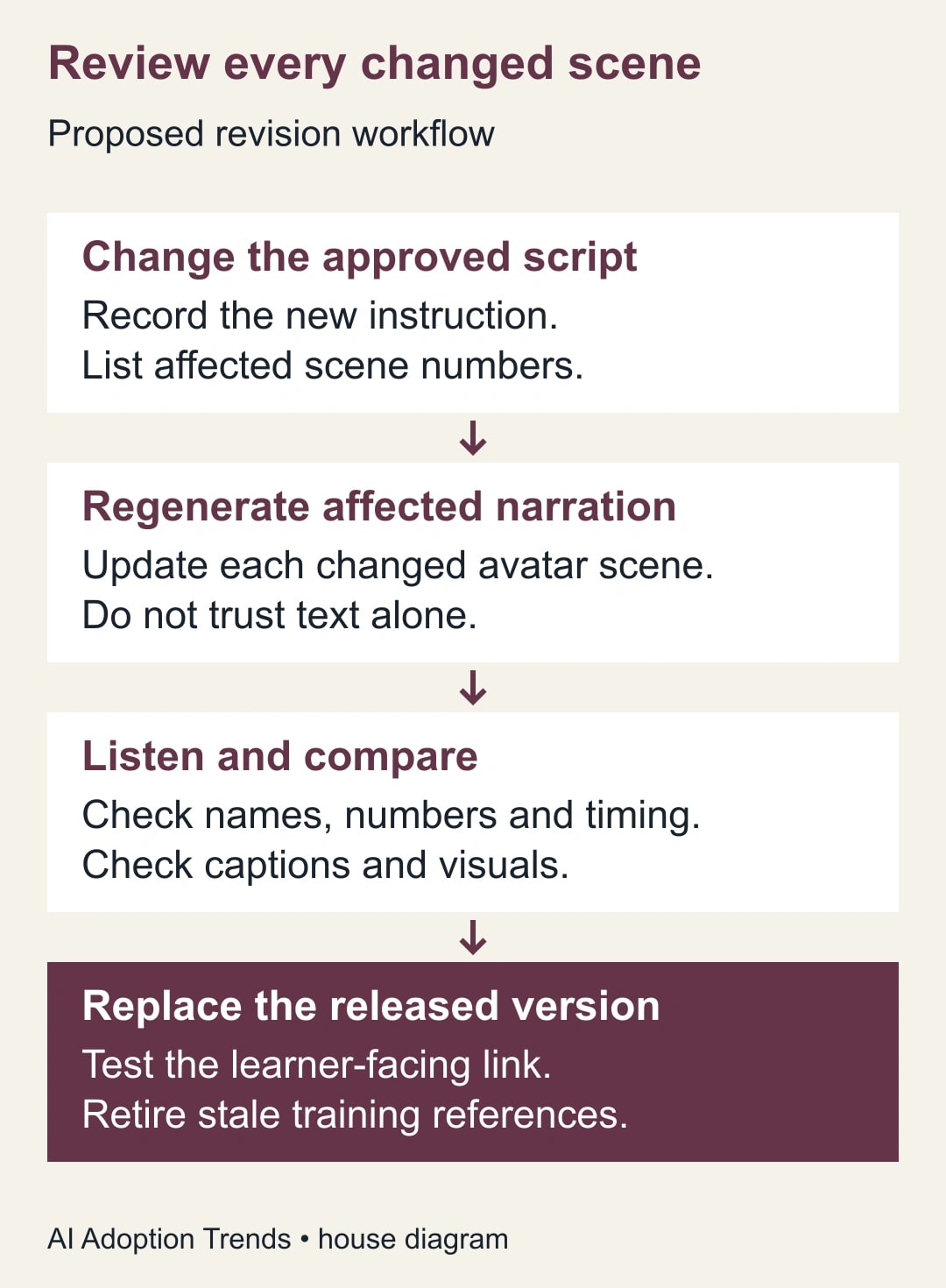
Suppose the service desk changes its instruction from “submit another request” to “contact support with the original reference.” The editor updates the script and sees the new sentence on screen. The generated avatar must also be updated. Otherwise the released lesson may still tell people to submit again.
Google documents an Avatar outdated badge when the script and avatar no longer match, and a scene-by-scene update process. Use that signal, then listen to each changed scene after updating it. The script synchronization instructions support this check. A badge is a useful cue; the acceptance evidence is the actual spoken result.
Keep a scene register with the approved script version, source procedure version, generated scene version, reviewer and release location. If scene three changes, the register should show whether the audio, captions and help link were checked together. Avoid using a generic “video updated” note that cannot identify which instructions reached learners.
Copying a project can preserve a reusable presenter, but it can also spread stale instructions. Start a new lesson from a deliberately maintained template and remove lesson-specific script, links and labels. Name the copy for its task and version. The saved avatar is the reusable component; the prior lesson's approval does not transfer automatically.
Calculate whether maintenance actually improves
Use a constructed effort comparison to decide what to measure. Assume an existing camera-based update takes 25 minutes to prepare, 30 to record and edit, and 15 to review. That totals 70 minutes. An avatar update might take 25 minutes for the same preparation, 10 for generation and editing, and 20 for review, totaling 55 minutes. Under those assumptions, it releases 15 minutes of staff capacity per update.
Now include a failed generation and a second review that add 20 minutes. The avatar route becomes 75 minutes and takes five minutes longer than the baseline. This is why counting only recording time can make a weak pilot look successful. Log all preparation, generation attempts, editing, approval and learner corrections.
The example does not estimate subscription prices or promise a saving. Use the team's actual plan and any incremental spend. If six monthly updates each release 15 minutes, the arithmetic is 90 minutes of available staff time, not an automatic payroll reduction. Cash savings require a separate spending change. Do not add that same time again as both labor savings and another benefit.
Also compare maintenance delay. If a process change waits a week because nobody can schedule a recording, a faster approved update can be useful even when hands-on effort is similar. Record the time from approved script to released lesson, and keep accuracy defects visible beside it. Faster distribution of an incorrect instruction is a worse outcome.
Keep this reusable release brief
- Learner and task: who needs to do what after watching.
- Source procedure: owner, approved version and review date.
- Presenter: image source, permission scope and selected voice.
- Scene plan: purpose, script and expected duration for each scene.
- Critical details: names, numbers, exclusions and exception route to verify.
- Generated output: version, generation attempts and any remaining defects.
- Learning check: what a new learner successfully completed or misunderstood.
- Release record: approved project, final viewing link, owner and retirement date.
The brief is deliberately about an operational lesson rather than a campaign aesthetic. If the video is for external customers, add the customer-facing promise and approval owner. If it is translated, have a competent reviewer check the instruction in the delivered language. A correct source script alone does not validate every generated language version.
Know when to stop regenerating
A practical pilot needs a stopping rule. Set a small allowance for revision attempts and a deadline tied to the training need. If the avatar repeatedly mispronounces a critical term, creates distracting movement or forces the editor to spend more time repairing than teaching, switch that scene to a simpler format. Do not keep generating merely because the first version looked promising.
Pause release if the image-use scope is uncertain, the spoken instruction differs from the approved script, the demonstrated procedure no longer exists or the help link is inaccessible to the learner. Keep the prior approved lesson available only if it remains accurate. Otherwise provide the current written instruction while the video is repaired.
Review the first small cohort for task completion and support questions. A high play count says people opened the lesson; it does not show whether they understood the new route. Ask which step they used, where they found the reference and what they would do after a failed submission. Those answers tell you what to revise.
Start with one 20-second introduction and one future revision exercise. If the team can update, verify and distribute both versions predictably, expand the format. Use the Vids procedure-video workflow for the main demonstration and the training playback and pacing guide when learners need more time to follow a step.
Weekly Newsletter
AI Adoption Weekly
New research, field guides, training studies, and tool decisions for operators.
No spam. Unsubscribe anytime.
Related Comparisons
Calculator
AI seat cost calculator
List price × headcount. You enter the hours and the operating assumptions.