
Google Sheets TRIM Not Working? Repair Invisible Spaces in IDs
Diagnose nonbreaking spaces, preserve raw IDs, and check cleaned-key collisions before accepting repaired supplier matches.
Published November 15, 2026

If Google Sheets TRIM leaves two apparently identical IDs unmatched, inspect the characters before changing the lookup. A nonbreaking space can look like an ordinary space while surviving TRIM. Keep the raw identifier, create a separate cleaned key using an explicitly approved rule, and check whether that rule makes different source IDs collapse into one value.
For the common case where a nonbreaking space is an accidental separator, a candidate helper formula is =TRIM(SUBSTITUTE(A2,CHAR(160)," ")). It replaces character 160 with an ordinary space, then removes leading, trailing and repeated ordinary spaces. Use it only when those changes preserve the identifier's meaning. It is not a universal cleanup formula for every invisible character or every business key.
The business problem is an unexplained missing match
This guide is for a finance or operations analyst comparing a supplier export with an approved reference list. It fits product codes, account references or supplier IDs whose spacing rules are documented. It does not fit names that need a fuzzy match, identifiers where internal spaces distinguish records, or a task where the source owner cannot confirm the intended format.
Google's TRIM documentation, checked November 15, 2026, explains ordinary-space handling and specifically notes that nonbreaking spaces are not trimmed. Google also documents SUBSTITUTE for replacing specified text and CHAR for constructing a character from its numeric Unicode value. The proposed helper combines those documented functions for one identified character problem.
The important decision is whether the character is unwanted. A lookup returning no match may be correctly warning you that the exported key differs from the reference. Replacing every unusual character until something matches can turn an obvious exception into a quiet wrong match. Resolve the meaning first, then choose the smallest transformation that implements it.
Preserve the original export and the intended key
Save a dated copy of the source file and record its row count and relevant amount total. Keep the imported ID in a Raw ID column. Add separate columns for Clean ID, Changed, Match status and Reviewer note. Do not overwrite the raw values or edit the reference list merely to make the reconciliation turn green.
Ask the data owner to define the key. Is it text? Are leading zeros meaningful? Is one internal space allowed? Are letter case, hyphens and slashes significant? Can two records share the same ID? These answers determine what a safe repair looks like. An accounting identifier should not become a number just because its current examples contain digits.
This work requires edit access to a working copy, a trustworthy reference list and someone who can resolve ambiguous IDs. It does not require a new paid add-on. Its main cost is review time and the risk of accepting a false match. A small spreadsheet repair is appropriate when the rule is stable; repeated source defects may justify fixing the export or import process instead.
Before applying formulas to the entire file, select a few unmatched rows, one ordinary matching row and one ID that legitimately contains a space. The ordinary row guards against breaking good data. The legitimate-space row guards against a cleanup rule that removes meaningful distinctions. Keep a written expected result for every sample.
Diagnose the character instead of guessing
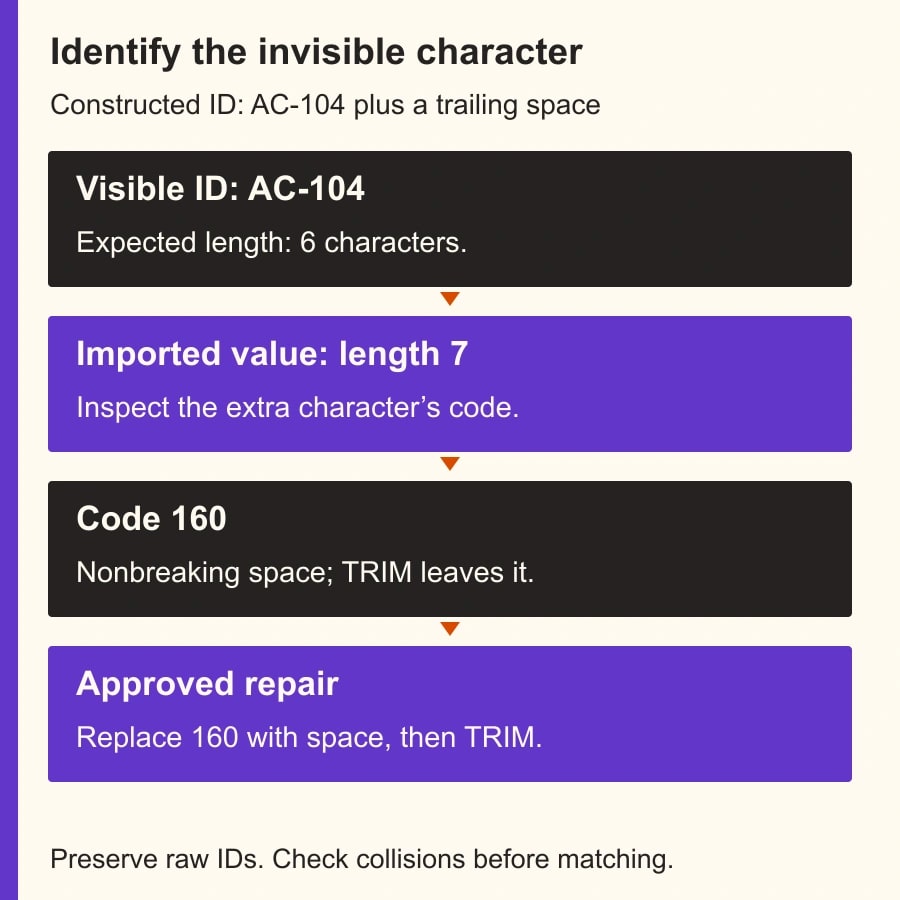
For a suspected extra trailing character, compare LEN(A2) with the length of the expected ID. If the visible reference is AC-104, it contains six characters. A value that looks the same but has length seven has an extra character somewhere. Length alone does not identify it, but it narrows the question.
For a nonempty value, =UNICODE(RIGHT(A2,1)) shows the numeric code of the final character. Ordinary space is 32 and nonbreaking space is 160. To inspect a suspected interior position, use =UNICODE(MID(A2,4,1)), changing 4 to the position you need. Google documents the UNICODE character check; do not use a trailing-character test as proof that every character in the key is clean.
You can create a harmless diagnostic fixture with ="AC-104"&CHAR(160) in A2. It deliberately appends one nonbreaking space. The expected length is seven; the final character code is 160. This is a constructed test value, not a screenshot of a supplier's data. Keep it outside the production reconciliation so it cannot become an accidental business record.
If TRIM leaves that fixture unchanged, that behavior matches the documented limitation. If the real unmatched value has a different character code, stop and diagnose that character separately. A narrow no-break space, a zero-width character and an ordinary line break are different cases. The CHAR(160) helper should not be presented as fixing them all.
Google's CLEAN function documentation describes removal of non-printable ASCII characters. It is not a general Unicode-space repair. Adding CLEAN to every formula can make the expression look more thorough while leaving the actual issue untouched. Use a function because the observed character problem requires it.
Make the cleanup rule visible
In B2, put =TRIM(SUBSTITUTE(A2,CHAR(160)," ")) for a text ID whose ordinary-space normalization is approved. Fill the helper only across the intended data rows. This changes every occurrence of the specified nonbreaking space, not just the final one, because the SUBSTITUTE formula does not restrict the occurrence number. Review an interior-space example before accepting that behavior.
The order matters: SUBSTITUTE first converts the character to an ordinary space, then TRIM can act on it. A nonbreaking space between two words becomes an ordinary separator; it does not disappear and join the words. If the ID rule requires no internal spaces at all, that is a different rule that needs explicit approval and separate testing.
In a Changed column, compare raw and clean values with =NOT(EXACT(A2,B2)). Google's EXACT function checks identical text, including spaces and case. You are checking whether the text changed, not whether a permissive lookup can find something similar. Inspect changed rows before using the helper as the new join key. A large unexpected change count is a reason to stop and inspect the source.
For a reference list, apply the same approved transformation in a separate helper column only if its owner agrees. Cleaning the export but leaving the reference with the same hidden-space defect can still leave unmatched records. Preserve both raw columns so the reviewer can see which side required repair. Keep formula separators consistent with your sheet's locale; some locales use semicolons instead of commas.
Check collisions before accepting matches
A collision occurs when two distinct raw identifiers become the same cleaned identifier. For example, AC-104 and AC-104 followed by a nonbreaking space both become AC-104 under this rule. That may represent one supplier exported inconsistently, or two source records that need investigation. The formula cannot decide which interpretation is correct.
For the first small batch, sort the working copy by Clean ID and inspect repeated keys alongside Raw ID and the source record's other identifying fields. On the reference side, require one approved reference record per cleaned key for an automatic match. If there are two, hold that key for review rather than selecting the first result.
Repeated transaction rows are not automatically duplicates. Ten invoices from the same supplier should share a supplier ID. What matters is whether the cleaned key identifies one intended supplier in the reference table and whether each transaction retains its own invoice identifier. Deleting repeated supplier IDs would remove valid invoices and create a different reconciliation error.
For larger recurring jobs, create a repeatable grouped exception report or use an import process that enforces the approved key rule. Keep the rule version with each run. Do not quietly change the rule halfway through a month and compare the new match rate with the old one as if they were the same process.
Worked example: repair eighteen matches and leave two unresolved
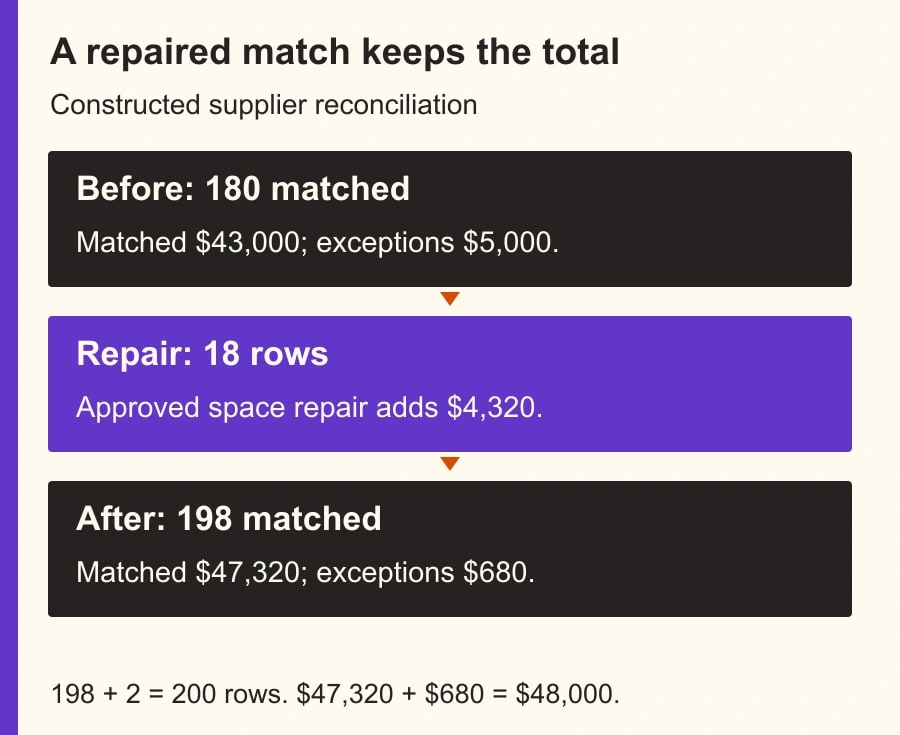
Consider a constructed supplier invoice export with 200 rows and a total amount of $48,000. Before cleanup, 180 rows match the approved supplier reference and 20 do not. Diagnostic review finds 18 unmatched rows whose IDs have an accidental trailing nonbreaking space. Two other rows contain genuinely unrecognized supplier IDs.
The 18 space-affected rows total $4,320. The two unrecognized rows total $680. Therefore the initially matched rows total $43,000: $48,000 minus $4,320 minus $680. After approved cleanup and a reference-uniqueness check, 198 rows match for $47,320, while two rows and $680 remain in the exception queue.
The repair does not change the source row count or grand total. It changes which rows have an accepted supplier match. The checks are 198 plus 2 equals 200, and $47,320 plus $680 equals $48,000. A report claiming all 200 are matched would be wrong even though the invisible-space fix worked for 18 of the 20 exceptions.
Now suppose one cleaned supplier key points to two reference records with different payment details. That key must remain unresolved regardless of how many invoices it affects. A higher match percentage is not worth routing an invoice to the wrong supplier. The source owner resolves the reference ambiguity and records the decision before any downstream payment preparation continues.
This example makes no claim about average error rates or time savings. Use your own counts to measure the repair. If manual checking previously took 40 minutes and the controlled helper reduces it to 25, the observed difference would be 15 minutes of released capacity per run. It would not become cash savings without a separate change to spending.
Keep a short acceptance checklist beside the sheet
- The raw export is preserved with its date, row count and relevant total.
- The owner has approved which spaces are insignificant and which identifier characters must remain.
- The diagnostic identifies the actual character; the formula targets that character rather than guessing.
- Changed rows are visible, and legitimate internal spaces and leading zeros survive as intended.
- Each accepted cleaned key maps to one approved reference record; ambiguous keys remain exceptions.
- Matched and unmatched row counts and amounts add back to the original totals.
- The next import follows the same documented rule and retains its own review record.
The acceptance record should name the analyst who applied the formula and the owner who approved ambiguous keys. For an automated downstream action, require that acceptance before sending records forward. An AI-generated explanation of a mismatch can help propose a diagnostic, but it should not authorize a new supplier mapping or rewrite the reference table.
Recover when the repaired sheet creates new problems
If match counts improve but totals change, return to the preserved export and identify the step that removed, duplicated or filtered rows. Text normalization should not change invoice amounts. If the wrong supplier appears, inspect the cleaned reference key and the lookup's match mode. A formula error hidden by a blanket IFERROR can conceal the reason a record failed.
If the same character returns with every export, ask the source owner to correct it at the boundary where the data is produced or imported. Keep the helper while that repair is tested, then compare a fresh export with the expected key format. Do not remove the exception checks simply because one file arrives clean.
Your next action is to create the AC-104 fixture and diagnose one real unmatched ID beside it. If the character is 160 and the spacing rule is approved, apply the helper to a copy and reconcile the result. If the problem is mixed column types rather than spaces, use the Sheets QUERY missing-values diagnostic. If an import has already damaged long IDs or leading zeros, follow the text-identifier import guide before attempting to match them.
Weekly Newsletter
AI Adoption Weekly
New research, field guides, training studies, and tool decisions for operators.
No spam. Unsubscribe anytime.
Related Comparisons
Calculator
AI seat cost calculator
List price × headcount. You enter the hours and the operating assumptions.