
Protect Google Sheets Formulas Without Hiding Data from Collaborators
Design input and formula areas, test editing restrictions with real collaborator roles, and keep confidential source data out of shared workbooks.
Published November 15, 2026

To let colleagues enter values without accidentally replacing formulas in Google Sheets, separate the input cells from the calculation cells and restrict editing on the calculation area. Then test the workbook as a collaborator, not only as its owner. Use file sharing to decide who may see the data. Protected ranges are an editing control, not a way to hide confidential information inside a shared workbook.
This approach fits shared planning sheets, capacity estimates and recurring operational templates where people need a few editable inputs and a consistent calculation. It is especially useful after an AI tool has helped generate a workbook: review the formulas first, then decide who can change them. Protection preserves a design; it does not prove that the design is correct.
Skip this setup if different collaborators must be prevented from seeing different rows or tabs in the same file. Create appropriately scoped files or use a system designed for that access requirement. Also skip a complex protection scheme when a simple form or a small number of centrally maintained inputs would make the task easier. Every extra permission exception becomes something the owner must understand and maintain.
Google's protected sheets and ranges guidance, checked November 5, 2026, makes the distinction explicit: protection should not be used as a security measure. A warning permits an edit after confirmation; a restriction controls who can edit. Owners retain their authority, and hidden sheets are not a substitute for access control. The following workflow is an editorial recommendation for applying those documented controls to a business template.
Design the workbook around the user's job
Begin with the input conversation. What does a team member know that the workbook needs? A project lead may supply estimated hours, a manager may supply an approved rate, and the workbook may calculate planned cost. Do not ask everyone to edit a mixed area containing both inputs and formulas just because it is convenient for the person who built it.
Write a short instruction above the editable area: enter hours in column B, use the agreed hourly cost in column C, and leave calculated cost in column D unchanged. Use plain labels and an example row. Color can reinforce the distinction, but it should not be the only cue. Someone printing the sheet or using a different display still needs to identify the task.
Give the template an owner and a backup maintainer. The owner approves formula changes and the meaning of the inputs. The backup should be able to repair a broken worksheet without asking every collaborator to stop work indefinitely. Maintain a clean template separately from a working copy that contains live entries.
The prerequisites are access to a Google Sheets file you can administer, a safe test copy, and a collaborator who can help verify the intended editing experience. Confirm that the file is in native Sheets format when using the documented range controls. Your organization may also restrict sharing. No paid add-on is assumed here; the main cost is template design, role testing and ongoing maintenance.
A formula can be wrong before anyone overwrites it
Review the calculation independently of protection. If the workbook came from an AI-generated draft, ask what each input means, which rows should be included, and what output should result for a small hand-calculated example. Do not accept a plausible total as evidence that all formulas reference the right cells.
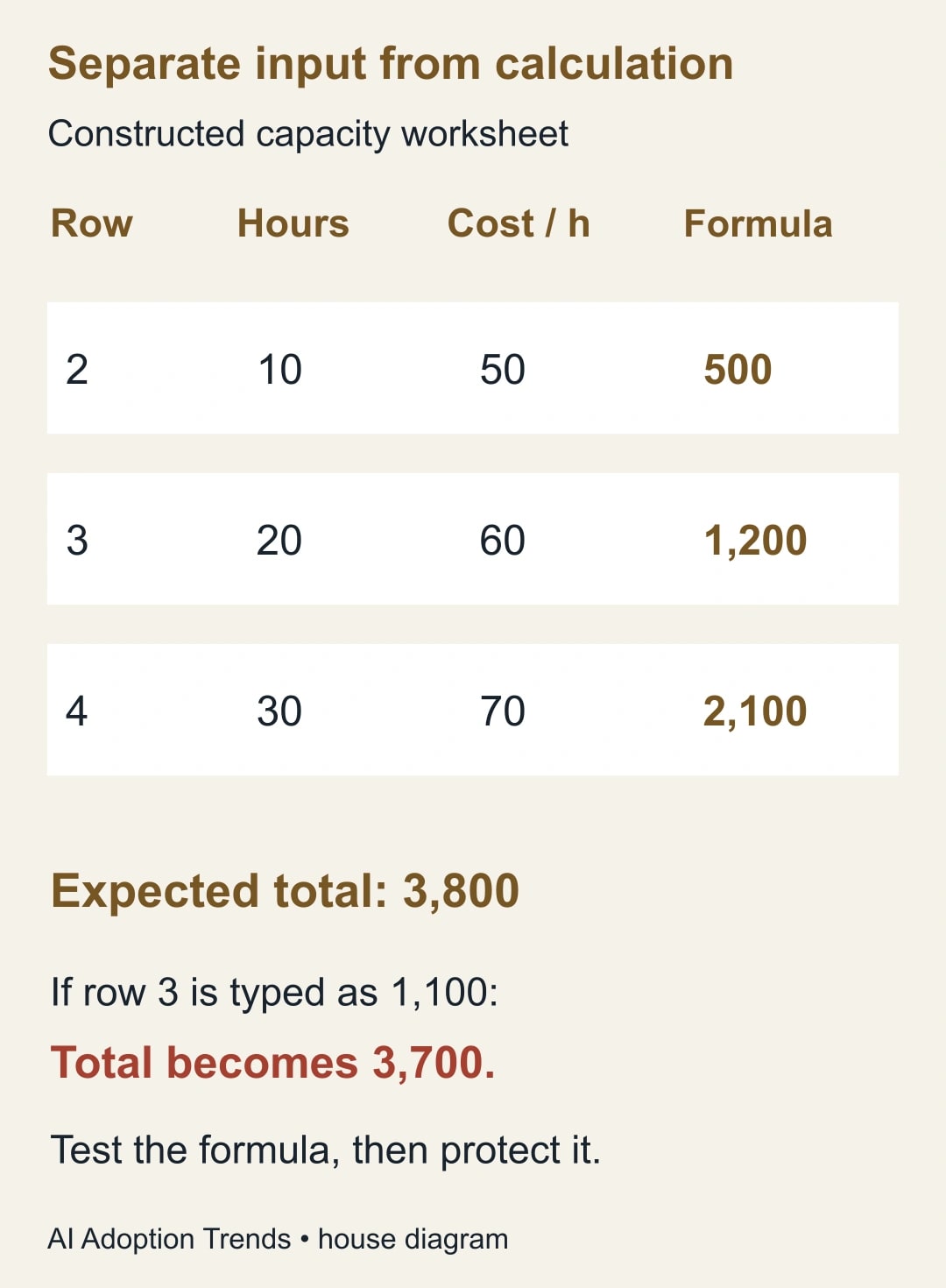
For a constructed capacity worksheet, enter 10, 20 and 30 hours in B2:B4 and hourly costs of 50, 60 and 70 in C2:C4. The intended D2:D4 formulas multiply hours by the corresponding hourly cost. The expected row results are 500, 1,200 and 2,100. A total in D5 should therefore be 3,800.
If someone replaces the middle formula with the typed value 1,100, the total becomes 3,700. The workbook still looks populated and may not show any obvious error. The problem is a lost calculation, not a blank cell. A useful acceptance check therefore confirms both the expected total and the continued presence of formulas in the calculation cells.
Now change the second input from 20 to 21 hours. The middle calculated value should become 1,260, and the total should become 3,860. If the middle cell remains at a typed value, the workbook is not behaving as intended. This simple change test is more informative than inspecting the original total once.
These numbers are illustrative planning inputs, not customer costs or savings. If the worksheet is later used for an AI business case, define the hourly-cost basis and separate time released from cash savings. A protected multiplication formula cannot establish that a budget will fall or that the hours will actually become available.
Choose a warning or a restriction deliberately
For a casual scratchpad, a warning may be enough to remind collaborators that a cell contains a calculation. For a recurring planning template, choose an editing restriction when the requirement is that ordinary contributors cannot change the formulas. Do not describe a warning as a lock in the instructions or the handoff note.
In the documented desktop workflow, open Data, then Protect sheets and ranges, select the relevant range or sheet, and set permissions. Google also provides an option to protect a sheet while excepting specified cells. See the current protection instructions. Use the simplest pattern that matches the workbook: a formula range for a small sheet, or a protected sheet with clearly identified input exceptions for a larger template.
For the example, the input area is B2:C4 and the calculation area is D2:D5. Restrict editing of D2:D5 to the maintainer while allowing the intended collaborators to enter inputs. Include labels or assumptions in the protected area if changing them would alter the meaning of the worksheet. A renamed rate column can be as damaging as an overwritten formula.
Do not give a broad group formula-editing access just to resolve one blocked task. First ask whether the person is using the correct input area or whether the template needs another explicit input. If a maintainer genuinely needs additional access, record why and test the revised role. Otherwise exceptions can gradually erase the original boundary.
Think about growth before release. If the team will add rows every week, test what happens to formulas, totals and restrictions when a row is added through the actual method users employ. Do not assume that every copy, insertion or paste carries the intended behavior. A fixed three-row example is a test of three rows, not proof of a safe expanding model.
Sharing is a separate review
Review who can open the file and how that access was granted. Google's Drive sharing guidance distinguishes viewer, commenter and editor roles and explains inherited folder permissions. A person may have access through a parent folder or group even if the owner did not add them directly to the file. Check the effective access arrangement, not just the names you remember inviting.
Before sharing a client-facing copy, review the whole workbook for data that the recipient should not receive. Include supporting tabs, notes, sample rows, pasted source extracts and formulas that refer to internal assumptions. Hiding a tab does not turn its contents into an approved disclosure. The safest template is one that does not contain unnecessary confidential material in the first place.
If a client needs only an output and a few inputs, create a deliberately scoped workbook containing those items. Keep internal source material in its appropriate restricted location. Test the client copy on its own terms; an output that depends on inaccessible source data may fail for the recipient even if it works for the owner. Diagnose that separately with the IMPORTRANGE permissions guide.
Do not use range protection as an argument that a file is safe to share widely. Editing authority, visibility and distribution are different decisions. This distinction also applies when a team uses an AI assistant to generate or revise the sheet: the assistant's output still needs a human review of the included information and the sharing destination.
Test the workbook with the people who will use it
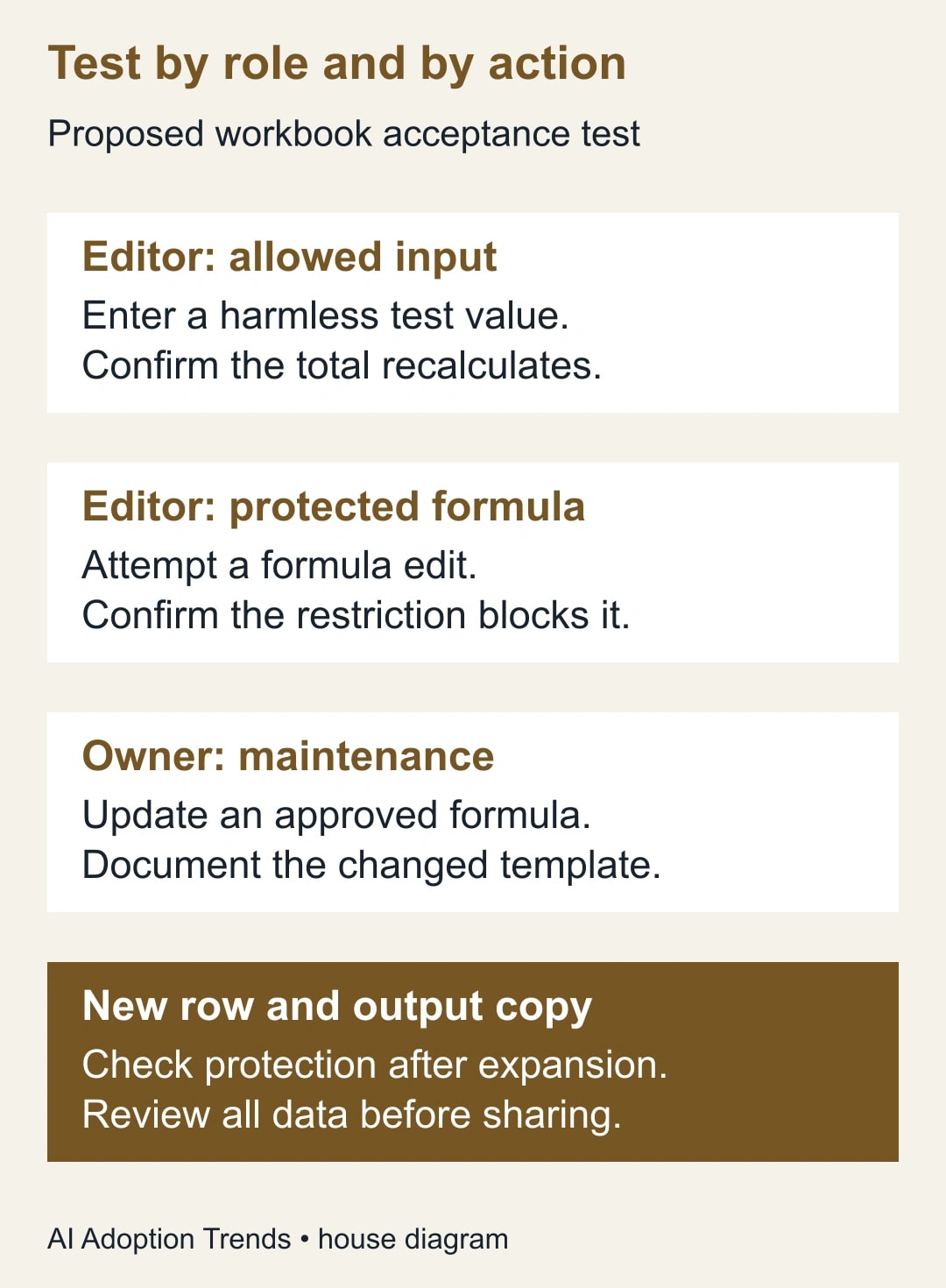
Create a harmless acceptance copy. Have an ordinary editor enter an allowed input, attempt a formula change and add a row using the expected process. Have a maintainer perform an approved formula update. If viewers or commenters are part of the workflow, verify that their experience matches the stated role. The owner alone cannot supply all of this evidence.
Record one row per test: account role, action, expected result, observed result and evidence. Avoid collecting unnecessary personal details; a role label is usually enough for the working checklist. The test needs to establish capability, not build a dossier about the person helping you.
- Input edit: the contributor changes an allowed value and the calculation updates correctly.
- Formula edit: an ordinary contributor is blocked when restriction is the requirement.
- Maintainer edit: the authorized owner can make and verify an approved change.
- Row expansion: the new row has the intended formula, total inclusion and editing rules.
- Output sharing: the recipient receives only the intended data and can complete the task.
- Recovery: the team can restore a damaged formula without discarding valid new inputs.
Do not mark a test passed merely because a warning appeared. Ask whether the user could continue and change the cell. Likewise, an editor being unable to change anything is not a successful result if the workflow requires them to enter hours. The acceptance criteria need to include both prevented mistakes and permitted work.
Repair the smallest confirmed defect
If a formula has already been replaced, preserve the current workbook before repairing it. Identify the affected cells and compare them with the approved template or another trustworthy formula reference. Verify that the formula belongs in the current row structure; copying a formula from an older version may point at the wrong inputs after a layout change.
Restore the affected formula in a controlled copy and rerun the small arithmetic example. Then check current business inputs and totals before updating the working file. Do not replace the whole workbook with an old template simply because the template has correct formulas. That can discard legitimate recent entries and create a second recovery problem.
For the constructed example, repairing D3 from a typed 1,100 back to the intended multiplication restores 1,200 when the input is 20 hours at 60. If the user has since changed the input to 21 hours, the correct result is 1,260 instead. Recovery should respect the current approved inputs, not force the output back to an old screenshot.
Record why the overwrite was possible. Perhaps the range was only warning-protected, the new row lay outside the intended area, or the collaborator had maintainer permissions. Fix that cause and repeat the relevant role test. Restoring the value without addressing the editing path leaves the next user facing the same failure.
Keep the template usable after release
Measure the number of formula repairs, blocked legitimate edits and support requests during the first few cycles. Track time spent maintaining exceptions. A template that prevents mistakes but makes ordinary input work confusing may need a simpler layout. Improving the instructions can be more effective than adding another layer of restrictions.
Review the workbook when its structure changes: new columns, new formulas, a new audience or a different sharing folder. Keep a version note that states what changed and which tests were repeated. If the owner leaves the team, hand over the clean template, input definitions and test record along with access responsibility.
Stop using the shared template for consequential decisions if formulas cannot be verified, if confidential data has been included for the wrong audience, or if the team cannot explain who may change the calculations. Move the immediate task to a controlled process while repairing the design. Do not keep accepting plausible totals from an untrusted workbook.
Start by marking one input area and one calculation area, then run the editor-versus-maintainer test. If the workbook was generated by an AI assistant, use the generated spreadsheet review checklist to verify the underlying model before applying protection.
Weekly Newsletter
AI Adoption Weekly
New research, field guides, training studies, and tool decisions for operators.
No spam. Unsubscribe anytime.
Related Comparisons
Calculator
AI seat cost calculator
List price × headcount. You enter the hours and the operating assumptions.