
Publish a Sheets Canvas Without Exposing Private Tracker Data
Separate approved publication data from private tracker fields, test the audience, and choose static or automatic canvas updates.
Published November 15, 2026

Publish a Sheets canvas from a source that contains only data its intended audience may see. Restricting the underlying spreadsheet is useful, but it does not make the data used by the canvas private. Google explicitly says that underlying canvas data is sent to the viewer's browser. A field that is absent from the visible design is therefore not a dependable confidentiality control.
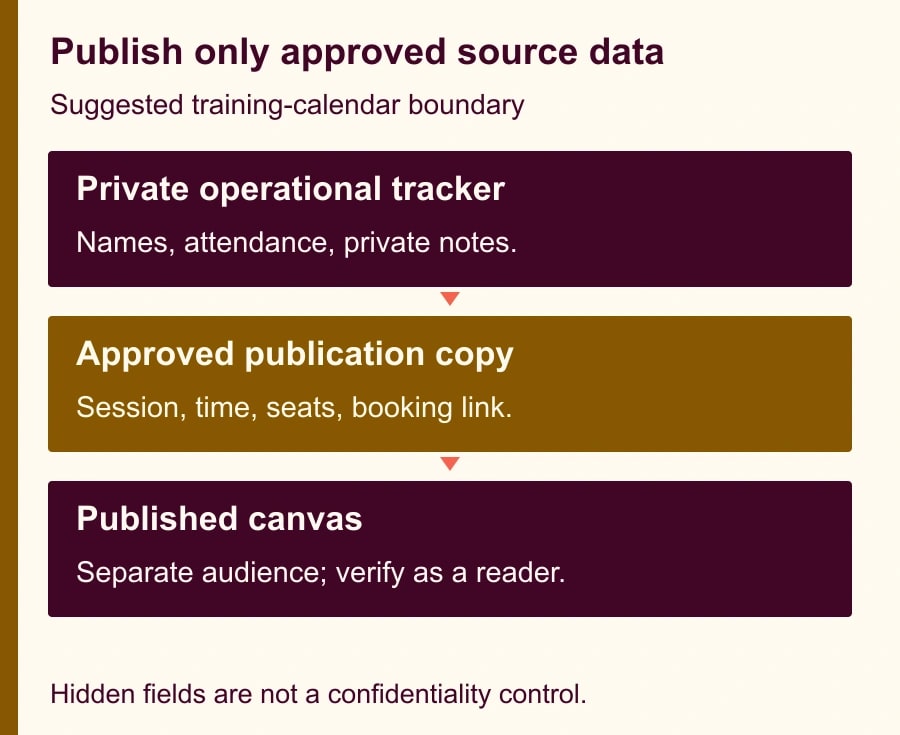
For a program manager sharing a training calendar, the safest starting point is a separate publication dataset: course title, session time, location, approved capacity and booking link. Keep employee names, attendance notes and accommodation requests in the restricted operational tracker. Build and verify the canvas from the small approved dataset, then test its separate audience setting before distributing the link.
A new link creates a new publication decision
On November 11, 2026, Google announced a standalone, read-only published canvas link with an audience setting separate from its source spreadsheet. Editors can choose automatic updates or a static view and can stop publishing. The feature is on the web; Rapid Release rollout began November 11, with Scheduled Release beginning December 2, both gradually over up to 15 days. See the canvas publishing announcement, checked November 15.
The announcement lists Business Standard and Plus, Enterprise Standard and Plus, Google AI Pro and Ultra, and specified education and AI add-ons. Creating and editing canvases has usage limits. Check the account that will own the publication rather than assuming another employee's successful demo establishes your access. The rollout may also explain a missing control; changing the audience of the original file will not add an unavailable feature.
Google's canvas help page distinguishes the ordinary canvas link, which follows spreadsheet access, from publishing with separate settings. It also says a canvas uses one source tab and warns that underlying data reaches the browser. Our recommendation to use a separate minimum-data publication source follows from that warning. It is an editorial design recommendation, not a claim that Google requires a second spreadsheet.
Decide whether a canvas is the right delivery format
This approach fits an internal schedule, program milestone view or course catalog where readers need to filter and explore approved information. It is useful when a large audience needs a clean view and a small team maintains the source. A reader should be able to answer one question, such as “Which session can my team attend next week?” without learning the tracker layout.
Skip a published canvas when different readers must see different confidential rows, when the source cannot be separated safely, or when publication updates require an approval the team cannot enforce. Use an access-controlled system designed for those permissions. Also skip it if a simple table or document answers the question more reliably. A generated interface adds review work; it should earn that work through a useful interaction.
Name a publication owner, a source-data owner and an audience approver. In a small team one person may hold two roles, but someone other than the builder should open the final link as a reader. Decide who will stop publication if an inappropriate field appears and who maintains the ordinary source when the owner is away.
Start with an eligible plan already available to the team. Do not buy an upgrade until the administrator confirms entitlement, publishing policy and the required audience option. Budget the time for source preparation, generated-view review, recipient testing and continued updates. This guide quotes no seat price because the decision here is whether the data and sharing model fit; the current account quote belongs in a purchasing decision.
Build the publication dataset before prompting Gemini
List the questions the reader may answer and the fields needed for each. For the training example, publish session ID, course title, start time with time zone, duration, location or meeting link, seats available and a booking destination. An employee's completion status does not help another employee choose a session. Neither do trainer invoices or internal comments about a participant.
Create a separate publication file with just those approved columns for the first pilot. A values-only copy is easy to inspect and gives you a clear snapshot. If you later automate the transfer, define an explicit allowed-field list and test it after source changes. Do not automatically include every new column that appears in the operational tracker.
Check values as well as headings. A harmless column called Notes can contain a private name. A booking URL can contain an access token or an identifier you did not intend to distribute. A location field may reveal a restricted meeting. The source owner should approve representative rows and all exceptions, not simply check that the column names sound public.
Record the source extraction time and intended audience in a small publication register. Keep a count of rows and a few manually checked totals. If the calendar has twelve sessions, the canvas must not quietly show eleven because one date was parsed incorrectly. Before generation, check blank dates, duplicate session IDs, cancelled sessions and inconsistent time-zone labels.
Use a brief that describes the reader's job
An adaptable prompt for the approved dataset is: “Create a read-only training calendar using this tab. Let readers filter by course and week. Show session title, start time with time zone, duration, location, available seats and the booking link. Keep cancelled sessions visibly marked or exclude them according to the approved Status field. Do not invent availability, combine sessions, infer attendance, or add personal information. Include the data-as-of timestamp supplied in the source.”
This prompt is a design brief, not an enforcement mechanism. Inspect the generated result against the source. Check an empty filter result, a full session, a cancelled session and two sessions with similar names. The builder should identify which interactions are essential; remove a decorative chart if it makes a plain schedule harder to understand.
Confirm that the booking link leads to the intended system. The canvas is a discovery view; seat reservation and confirmation need an authoritative booking process. If twenty people see one available seat, the displayed number does not guarantee each a place. Use wording that sends the reader to the booking system for current availability and confirmation.
Choose static or automatic publication deliberately
For the first review, choose a static view if that option is available in your publishing controls. It gives the reviewer a stable object to approve. Use a visible data-as-of value and a refresh owner. Static publication suits a signed-off monthly program or a meeting packet whose contents should not change halfway through review.
Automatic republishing suits an operational schedule only when the publication source is safe on every update. Google's publishing help says source changes update published canvases when automatic republishing is enabled, and updates may take a few minutes. Do not promise instantaneous inventory. Check the published view after a change before telling readers it is current.
The tradeoff is concrete. A static view can become stale; an automatic view can distribute an unreviewed source mistake. Choose the failure you can control. If every change needs approval, keep a reviewed publication copy and update it deliberately. If changes are routine and fields are constrained, automatic updates may be appropriate after a test proves the intended behavior.
Worked example: publish the schedule, not the attendance register
In this constructed example, a learning coordinator maintains twelve sessions with twenty seats each, for 240 total seats. There are 168 confirmed bookings in the restricted register. The publication dataset contains twelve rows, one per session, with approved available-seat counts totaling 72. The calculation is 240 minus 168 equals 72; it is an illustrative reconciliation, not a measured customer result.
The private register has participant names and completion comments. The public-facing dataset has neither. The coordinator reconciles seat counts before copying the twelve approved rows and records the copy time. A reviewer checks the busiest session, an empty session, a full session and a cancelled test row. They also verify that filtering by week does not mix sessions from the following month.
Now one session receives four additional confirmed bookings. Its available count drops from eight to four. Under a static process, the coordinator must prepare and approve a new publication snapshot; under automatic publication, the approved source update should propagate and must be checked. The publication register records which mode is active, so nobody mistakes a stale eight-seat display for a booking guarantee.
Suppose each weekly manual schedule email previously took 25 minutes, and preparing and checking a published update takes 15. The constructed difference is ten minutes per week before setup and exception costs. That is a possible capacity benefit to measure, not cash savings. A single wrongly exposed attendance note could erase the practical value of making the schedule easier to read.
Test the link with three reader identities
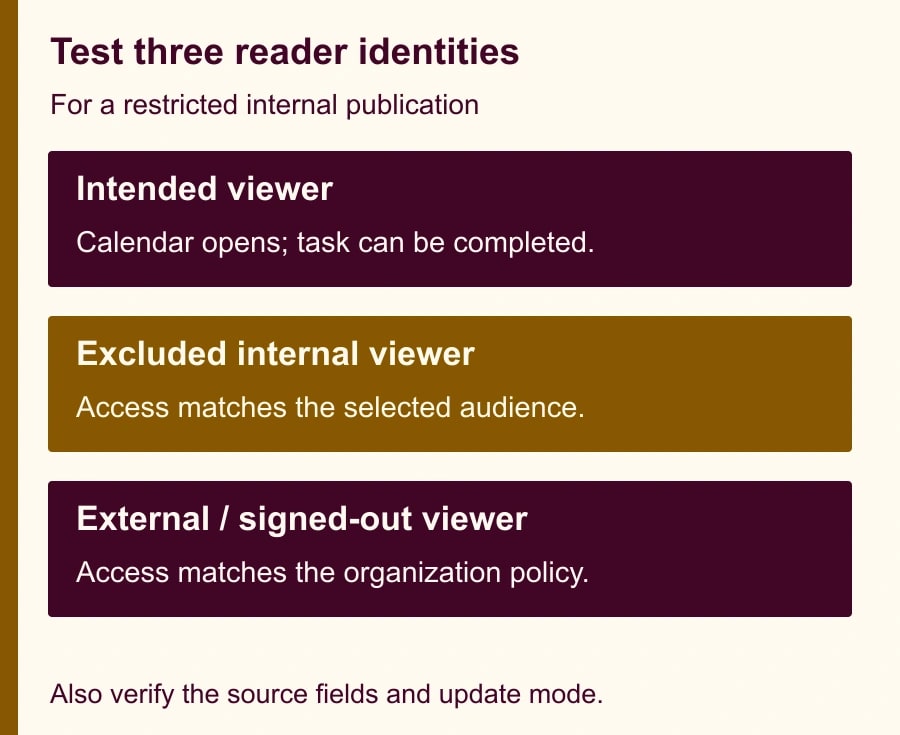
Use an intended viewer who cannot open the restricted operational tracker. They should be able to open the published calendar and complete the expected filter-and-booking task. The inability to open the tracker proves only the tracker restriction; separately verify that the publication source itself contains no restricted values.
Use an internal person outside the selected audience, if your account supports a narrower audience. They should get the intended denial. Then test an external or signed-out browser appropriate to your policy. An organization-only publication should not become accessible merely because someone forwards the link. Record the actual outcome rather than inferring it from the owner's signed-in browser.
Do not broaden the audience to the entire web simply to make a failed internal test pass. Google's help distinguishes administrator-configured enterprise audiences from consumer web publication. Your available options may differ by account and policy. If the required audience cannot be selected, stop and ask the administrator for the supported route.
Also open the link on a phone. Check the smallest useful text, horizontal scrolling, the filter controls and the booking destination. Confirm that a long course title does not cover the date. Accessibility is part of completing the task: if the calendar is difficult to operate, provide an approved plain schedule alongside it.
Keep this publication checklist with the source
- Purpose and reader: one question the canvas answers, plus the audience allowed to see its underlying data.
- Data approval: allowed columns, excluded fields, checked exceptions, source time, row count and reconciliation result.
- View approval: tested filters, full and cancelled sessions, time zones, booking links and mobile layout.
- Access approval: intended reader succeeds; excluded reader fails; external or signed-out result matches policy.
- Update ownership: static or automatic mode, refresh frequency, reviewer and backup owner.
- Recovery: named person who can stop publishing, known publication URL, and a safe alternative schedule.
Recover from an exposure or stale schedule
If the canvas exposes an inappropriate value, stop publishing from its publishing controls and verify the old link's behavior as a reader. Correct the source and review the field selection before republishing. Reducing ordinary spreadsheet sharing is not a substitute for stopping a separately published canvas. Follow your organization's incident process for information already seen or copied; stopping the link does not retrieve copies.
If the problem is stale availability, identify the active update mode and source timestamp before regenerating the interface. A new design will not fix an old publication dataset. Reconcile the source and published values, then communicate the corrected timestamp and booking rule. Keep the previous approved source snapshot so the team can explain what changed.
Pilot with one program and review missed sessions, wrong dates, access failures, stale values and time spent maintaining the view. Stop expansion after any unapproved-data exposure or repeated inability to establish which source version readers see. The next useful action is a field review of one twelve-row example before pressing Publish. For designing the view itself, see the Sheets canvas capacity-planner guide; for a separate file-to-file reporting problem, use the IMPORTRANGE permission checks.
Weekly Newsletter
AI Adoption Weekly
New research, field guides, training studies, and tool decisions for operators.
No spam. Unsubscribe anytime.
Related Comparisons
Calculator
AI seat cost calculator
List price × headcount. You enter the hours and the operating assumptions.