
Build a Team Capacity Planner With Sheets Canvas
Build a weekly capacity view from a checked sheet, test assignments against a worked example, and keep exploratory edits out of the live plan.
Published October 14, 2026

You can use Sheets canvas to make a team capacity planner, but the useful part comes before the app: agree on available hours, remaining work, and who can do it. Build the first version against a copy of your planning sheet. Let managers explore assignments there, and move approved changes into the live plan only after the totals and edits survive a few deliberate tests.
Google introduced Sheets canvas in September 2026. It creates small interactive apps from spreadsheet data, and Google says changes can flow between the app and the sheet. That makes it interesting for a weekly staffing meeting: the same interface that exposes an overloaded colleague can also alter the underlying assignment. Google's September 10 introduction describes that behavior; it does not establish that a generated planner will calculate your workload correctly.
This guide is for an operations, agency, or project lead whose team already plans work in Sheets. It gives you a small capacity model, a build brief, a worked staffing decision, and acceptance checks. The example is constructed. It is not a reported deployment or a test of a particular generated app.
Decide whether a small app solves the meeting problem
Use this approach when people repeatedly ask which person has room for the next piece of work, and the answer is already somewhere in a manageable sheet. An interactive view can reduce scrolling and make proposed changes easier to discuss. It is especially useful when the team wants one shared view of assignments rather than another planning system to maintain.
Skip it when you need contractual scheduling commitments, complex shift rules, individual compensation data, or a reliable approval history that your existing project system already provides. A colorful workload bar cannot supply those capabilities. Also skip it if your real problem is missing estimates: making incomplete data easier to view will not make it sufficient to allocate work.
As checked October 14, Google's announcement lists Workspace Business and Enterprise Standard and Plus, Google AI Pro and Ultra, and Google AI Pro for Education among eligible plans. Check for the feature in your own account before buying or promising a rollout. The described starting point is Insert, then Create a canvas. See Google's availability and starting instructions.
Budget for preparation and review as well as any subscription change. For a first trial, reserve one planning session to clean the data, another to build and test, and two weekly meetings to judge usefulness. Those are proposed work allowances, not measured implementation times. Name a sheet owner who can explain the calculations and a manager who can approve assignments.
Make the sheet answer one question
Start with: “Can we accept this work next week without overloading a required skill?” Keep longer-term hiring and performance judgments outside the first version. Use hours for the same week throughout. Do not mix estimated project totals, hours already spent, and work still remaining in one column.
Create two simple tables in your trial copy. The people table needs PersonID, display name, week beginning, scheduled hours, leave hours, recurring non-project hours, and usable project hours. The work table needs WorkID, project name, assigned PersonID, week beginning, remaining hours, required skill, due date, and status. PersonID and WorkID are stable identifiers: sorting a row or changing a display name must not change what record it represents.
Calculate usable project hours as scheduled hours minus leave and recurring non-project work. Calculate assigned load from the remaining hours on open work assigned to that person in that week. Headroom is usable project hours minus assigned load. A negative number is an overload that needs a decision. It is not a request for the colleague to work longer.
These definitions deserve a ten-minute discussion. If a manager has already reduced scheduled hours to account for meetings, subtracting meeting time again understates capacity. If project estimates already include review, adding a separate review allowance to each task overstates work. Write the chosen treatment above the tables and have the planner check it with the people who supplied the numbers.
Decide how to handle uncertainty. A blank estimate should appear in an “unestimated work” count, not become zero hours. A person with no usable project hours should display “unavailable,” not produce a division error or an apparently comfortable utilization percentage. Cancelled and completed work should be excluded by an explicit rule, with a count visible so that exclusions can be checked.
Work the decision by hand first
Consider a constructed three-person implementation team. Ana has 40 scheduled hours, eight hours of leave, and six hours of recurring meetings. Her usable project capacity is 26 hours. Ben has 40 scheduled hours and eight hours of recurring work, leaving 32. Chen has 32 scheduled hours and six hours of recurring work, also leaving 26. Total usable capacity is 84 hours.
The existing assignments require Ana for 30 hours, Ben for 20, and Chen for 12. The team's 62 assigned hours leave 22 hours of total headroom. Yet Ana is four hours over capacity. A headline showing “22 hours available” would conceal the actual constraint.
Now a client requests an 18-hour job: ten hours of specialist configuration that only Ana can perform, plus eight hours of documentation that Ben or Chen can handle. Adding the job to the team total leaves four hours unassigned, but giving Ana the specialist work raises her load to 40 against 26 available. The team cannot accept the date merely because its total fits.
Suppose Ana's current assignments contain a 14-hour testing task that Chen is qualified to take. Moving that task gives Ana 16 hours of existing work and Chen 26. Add the new specialist work to Ana and the documentation to Ben. Final loads are Ana 26, Ben 28, Chen 26: 80 hours against 84 available. This fits the arithmetic, subject to Chen's actual skill, dependencies, and agreement. If the testing task cannot move, the manager needs a different delivery date or scope.
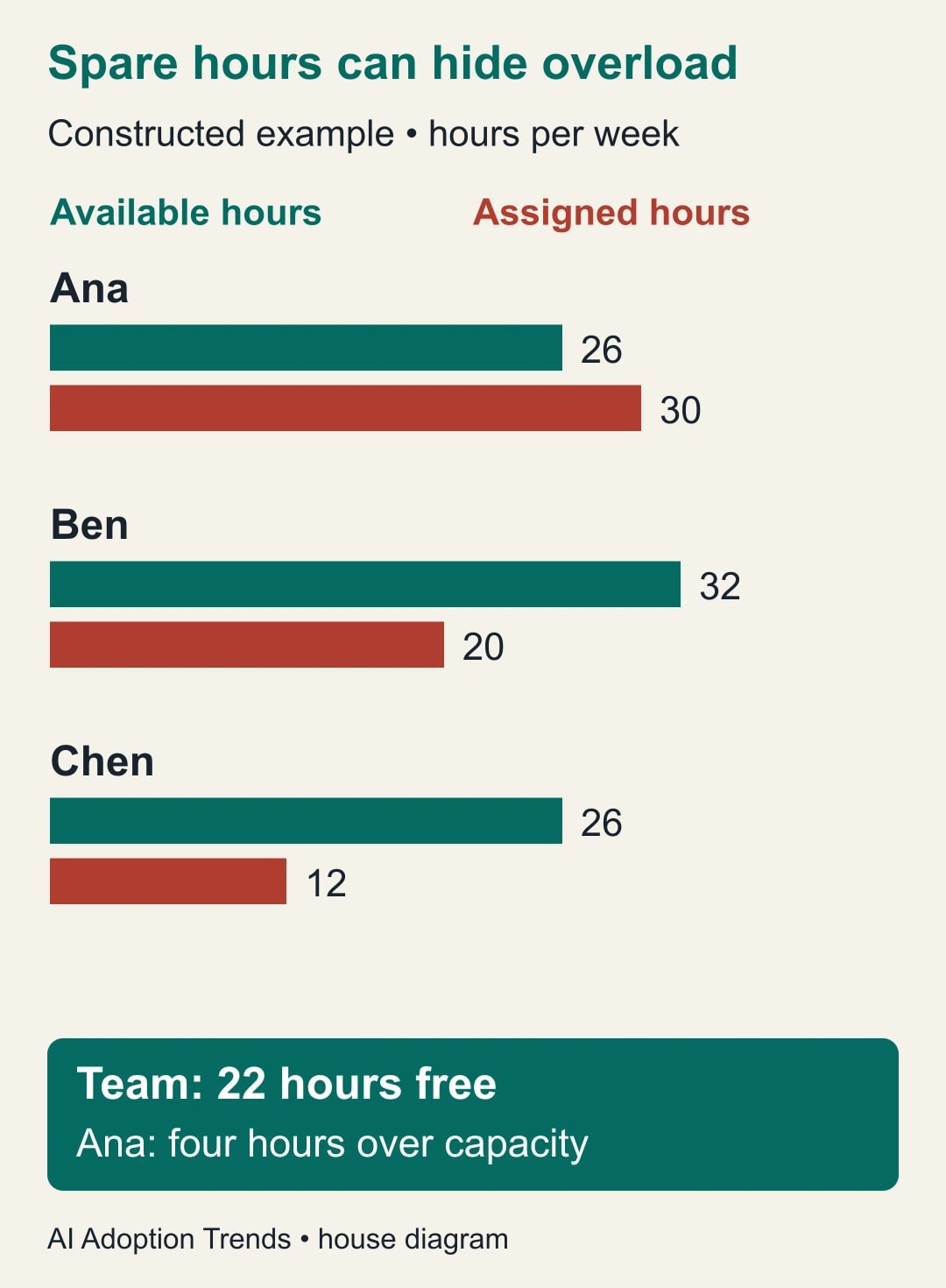
This is the reason to keep person and skill constraints visible. The app should help the manager inspect a possible reassignment. It should not silently optimize the team into a plan that assumes people are interchangeable.
Give canvas a build brief with boundaries
In the trial spreadsheet, identify the two tables and ask for a capacity view. Start with viewing and scenario calculations. Treat generated behavior as a proposal until you verify it; a prompt is not an access-control mechanism.
Use this adaptable brief: “Build a weekly capacity planner from People and Work. Show usable hours, assigned remaining hours, and headroom by PersonID and week. Highlight negative headroom with text as well as color. Show unestimated work separately. Exclude completed and cancelled work using the status field. Keep the original data visible for comparison. Do not create new people, infer missing estimates, or change formulas. First provide a view for checking the calculations. If interactive assignment changes are supported, add them only in this trial copy and identify exactly which source cells they change.”
Then ask for one task view rather than a crowded dashboard: selecting a person should show that person's included work and the rows behind the total. A manager needs to explain why Ana is overloaded, not merely see a red bar. Keep the week selection prominent, and put the sheet's last manual review date near the totals.
Avoid adding a forecast, chat assistant, budget tracker, and skill matcher in the first request. Each increases the number of assumptions to verify. If the generated result cannot show the records behind a number, return to the sheet and simplify the brief. A plain filtered table can be a successful outcome.
Test edits as carefully as the totals
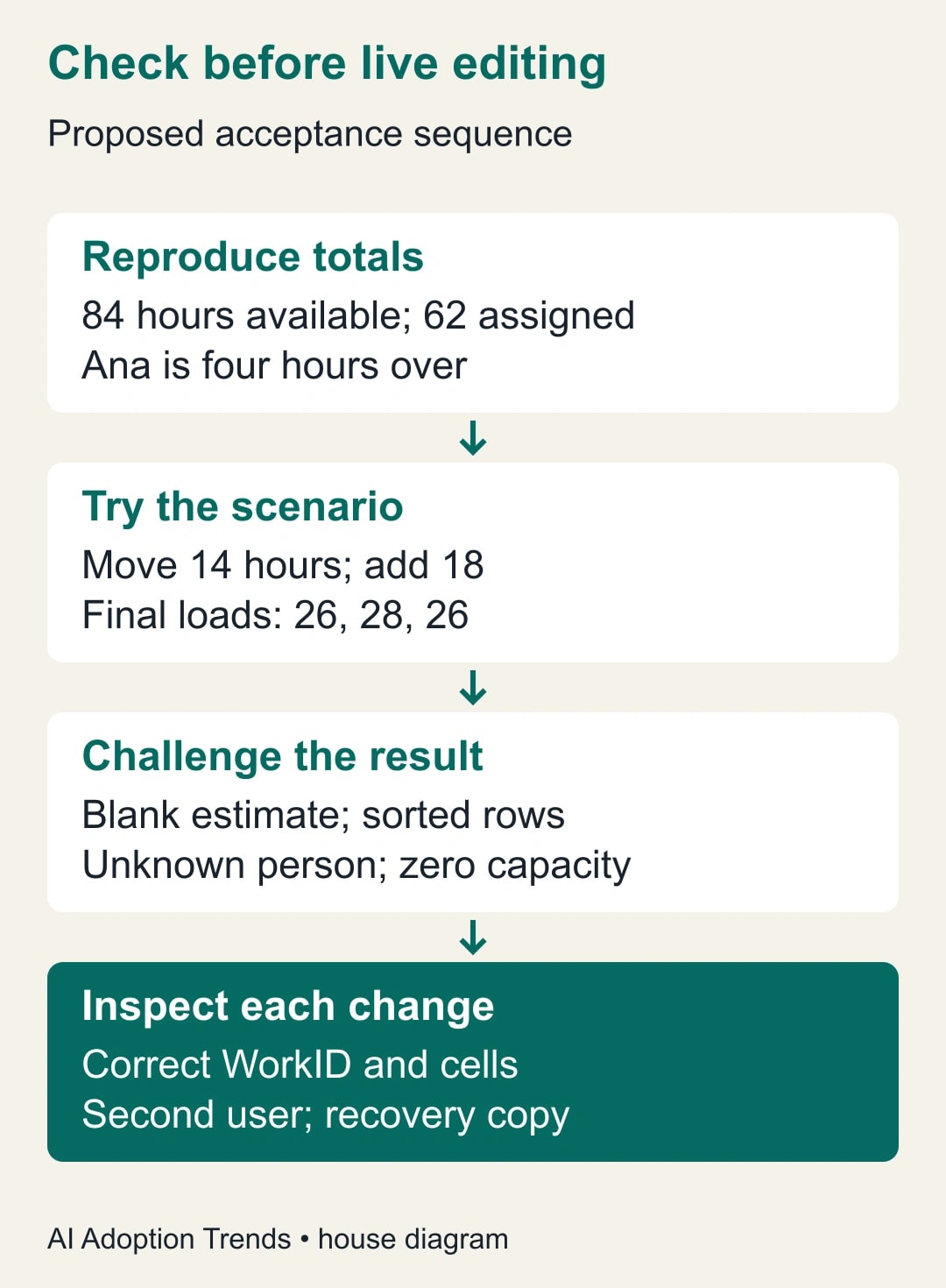
Run the hand-calculated scenario before using real client assignments. Confirm the original 84 available hours, 62 assigned hours, and Ana's four-hour overload. Then try the 14-hour reassignment and the 18-hour new job. Compare every person's final load with the expected 26, 28, and 26 hours. Check that the source rows still sum to 80.
Next test a change that should fail: give Chen another hour. The view should reveal a 27-hour load against 26 available. A warning need not prevent the change, but the manager must be able to see and understand it. If the app claims to enforce a limit, verify that behavior separately; do not infer enforcement from a red label.
Sort the work table, rename a project, and add a new task. Verify that assignments still refer to the correct WorkID. Test a blank estimate, a completed task, leave for a whole week, and an assignment to an unknown person. Each should have a deliberate outcome rather than disappear from the total.
If you allow editing in the trial, change exactly one assignment and inspect the source cells. Confirm that no unrelated task, formula, or week changed. Refresh the view and verify the same result. Have a second authorized colleague repeat the test. Google's announcement says canvas follows file sharing; that does not mean every colleague should receive edit access. Keep the normal sheet permissions appropriate to the underlying business data.
Keep approval separate from exploration
Use a named trial copy for the first two meetings. Put the live planning sheet's location and the trial's purpose in its header. The manager records the selected changes as WorkID, old assignee, new assignee, hours, week, and reason. The sheet owner applies only those approved changes to the live plan and checks the resulting totals.
This manual step is intentional during the trial. It lets the team learn whether the view improves decisions before letting exploratory clicks alter current commitments. If the approach proves useful, you can decide whether direct editing is appropriate and what approval evidence the business needs. Do not call the trial copy the system of record while assignments continue to change elsewhere.
Keep a recoverable copy of the source before each trial. If a generated edit changes the wrong row, stop editing, compare the affected rows, and restore the intended values from that copy after checking for legitimate changes made meanwhile. Do not replace an entire live sheet blindly; another colleague may have entered valid work during the session.
The weekly owner should also reconcile estimates with completed work. If a recurring task consistently takes longer than planned, revise its estimate for the next cycle. Do not make the dashboard look healthier by adjusting capacity upward to absorb the discrepancy.
Use a small acceptance worksheet
Copy these fields into the trial notes. They create a release decision that another manager can inspect without knowing how the app was generated.
- Scope: team, week, source tables, sheet owner, and approving manager.
- Definitions: treatment of leave, meetings, completed work, missing estimates, and review time.
- Calculation checks: expected and displayed totals for each constructed test.
- Edit checks: WorkID changed, cells changed, unrelated rows preserved, and second-user result.
- Recovery: saved source version, person responsible, and how valid concurrent edits will be preserved.
- Meeting result: time to reach an assignment decision, corrections afterward, and unresolved overloads.
For two weeks, compare the time spent preparing and running the capacity discussion with the previous sheet-only process. Include checking and repair time. Count assignments corrected after the meeting, and ask whether colleagues can explain their workload from the same view. A faster meeting that creates more cleanup has not passed.
Stop expanding the app if source edits remain unpredictable, staff cannot explain the totals, or two meetings produce no useful improvement. Keep the clearer data definitions and return to the ordinary sheet. If the view does help, extend it one feature at a time, with the same checks.
Any time released is capacity the team can use elsewhere. It becomes cash savings only if a separate spending decision changes. For the larger case, use the AI business-case worksheet. For this week's trial, the next action is smaller: calculate one overloaded person's week by hand and make the generated view reproduce it.
Weekly Newsletter
AI Adoption Weekly
New research, field guides, training studies, and tool decisions for operators.
No spam. Unsubscribe anytime.
Related Comparisons
Calculator
AI seat cost calculator
List price × headcount. You enter the hours and the operating assumptions.