
Google Meet 1080p by Default: Test Your Office Before Expanding
Test Meet's new 1080p default against busy-hour office demand. Use a two-direction bandwidth worksheet and a practical call-quality pilot.
Published November 24, 2026

Keep Google Meet's higher video quality where it improves the meeting, but test the office's busy hour before making it your standard. The first question is whether people can hear, respond and complete the call reliably. A sharper camera picture is useful only after that requirement is met.
On November 23, 2026, Google announced that sending 1080p video in Meet on the web is expanding to all users and is enabled by default under Auto on eligible computers. It requires a suitable camera, computing capacity and bandwidth. Google says Meet sends that resolution only when the recipient's video tile is large enough and reduces quality when resources are constrained. The extended rollout began November 11 and may take longer than 15 days. Existing administrator bandwidth limits remain applied. See the official 1080p rollout announcement.
That is a reason to review a shared office connection, not evidence that every meeting will suddenly consume the same amount of bandwidth. The plan below is for an information technology (IT) lead supporting customer calls, training sessions or remote service consultations. It includes a constructed capacity example and a small test that can justify keeping Auto, changing a group default or investigating the network.
Decide what the extra detail is for
Start with the business task. A consultant discussing a document may gain little from a sharper face tile. A trainer showing a physical component might benefit, although a dedicated document camera or a shared close-up image may be more reliable for fine detail. Ask the recipient to identify the required information, rather than asking the presenter whether their own preview looks good.
This guide fits a small office with several simultaneous calls and a manageable set of devices. It also helps an owner distinguish a network issue from one employee's slow laptop. Skip a broad rollout exercise if one isolated device is failing; diagnose that device first. For a large campus, have the network team use its existing capacity and quality monitoring rather than treating the simple worksheet here as a design specification.
Do not buy new cameras just because a setting is available. First establish whether the existing equipment, room lighting and actual call task justify the change. Include any hardware, network upgrade, support work and testing time in the decision. The new availability announcement does not tell you the price of those items or promise a better outcome on your office network.
The relevant owner is the person accountable for completed calls. IT owns the technical settings and diagnosis. A customer-service or training lead defines what users must be able to see and hear. Those owners should agree on the test before a default changes; otherwise a technically sharper image can be reported as success while conversations become harder to conduct.
Separate the setting from the picture delivered
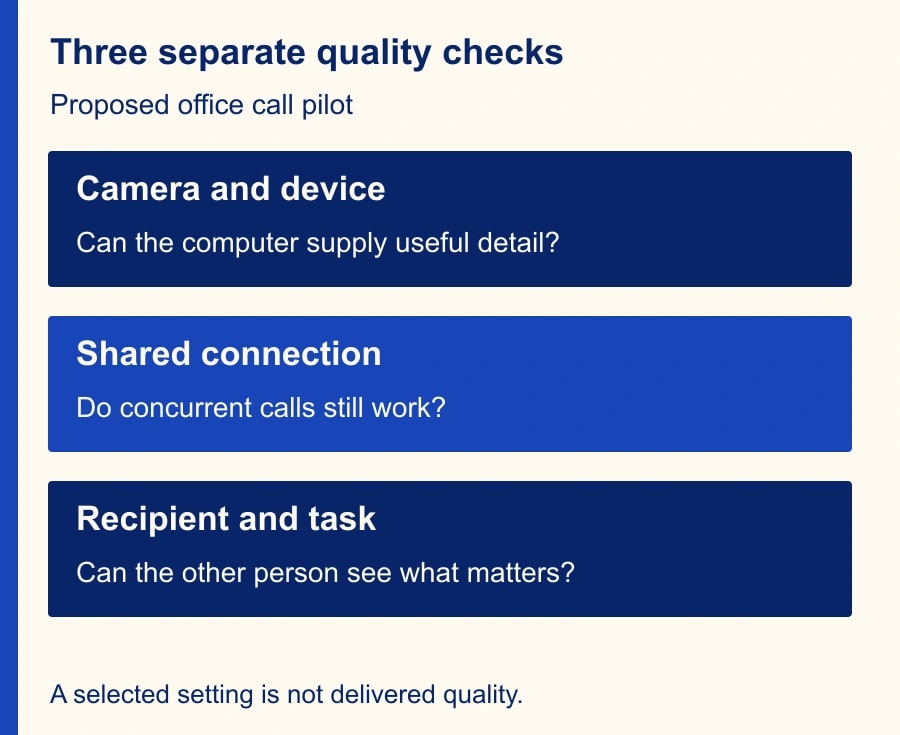
A selected quality setting is not a measurement of every frame delivered. Auto can adapt, the receiver's layout matters, and the device may be doing other work. Record the selected setting, the equipment and the conditions of the call. If telemetry is available to the administrator, retain it alongside the user's observed problem rather than inferring a cause from a screenshot of the settings menu.
Google's video and audio settings help distinguishes send resolution, which affects the image others receive from you, from receive resolution, which affects what you see. It also recommends reducing video quality when connection or performance problems occur. As checked November 24, that help page still shows an older list of editions permitted to send 1080p. Use the newer dated rollout announcement for the expanded availability claim, and verify the controls actually present in your account.
The practical implication is modest: do not interpret a missing option as proof that someone needs a more expensive subscription. Confirm rollout status, administrator restrictions and device suitability first. Equally, do not assume that the announcement means an unsuitable camera has become a full-HD camera. The feature changes access and defaults, not the physical capabilities of the device.
For the initial trial, use the team's normal supported browser and record its version. Avoid changing browser, camera, network and resolution simultaneously. If performance improves after four things change, the team will not know which repair to repeat for the next person. A useful test changes one suspected cause while keeping the call task as similar as practical.
Make a capacity worksheet with two directions
Download speed is only half the problem. Sending video uses the office's upstream connection; receiving video uses downstream capacity. Keep the two directions in separate columns and measure the available service during the hours that matter. A headline package speed is not a guarantee that every employee can use it simultaneously over the same wireless access point.
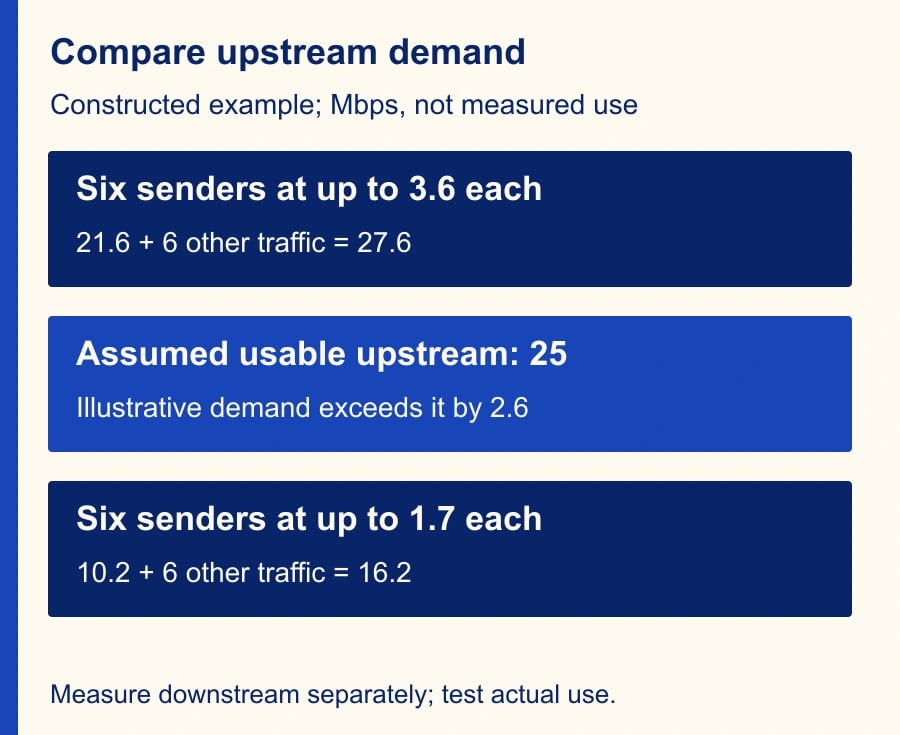
Google's network preparation guidance lists up to 3.6 megabits per second, or Mbps, in each direction for 1080p video for small organizations or individuals, and up to 1.7 Mbps for 720p. It lists group-meeting incoming traffic separately, up to 4.0 Mbps. These are planning figures from the provider, not a prediction of every call's traffic. Layouts, participants and other activity change actual use.
Consider a constructed office with six people in simultaneous calls and an assumed usable upstream capacity of 25 Mbps. Six times 3.6 is 21.6 Mbps. If other work is using 6 Mbps upstream at the same moment, the illustrative total is 27.6 Mbps, exceeding the assumed capacity by 2.6 Mbps. This is a warning scenario to test, not a claim that six Meet calls always produce that load.
Using the same simplified comparison at 1.7 Mbps, six senders account for 10.2 Mbps; add the assumed 6 Mbps of other traffic and the total is 16.2 Mbps. That arithmetic does not prove 720p is the right office default. It shows why concurrent calls and background uploads deserve attention before a purchase. A different measured connection or workload could support a different decision.
Calculate downstream separately using the actual meeting mix. Do not add upstream and downstream together and compare the sum with just one advertised speed. Include other real activity such as cloud backup, large file transfers and remote desktops in the appropriate direction. If you cannot measure background demand, label it unknown and run a supervised trial rather than hiding it inside an arbitrary safety percentage.
Run three comparable sessions
First, test a single representative call when the office is quiet. Use a fixed task: for example, explain a short procedure, identify a harmless label on an object and discuss a shared document. Ask the remote participant to repeat the key information. Note audio interruptions, visual usefulness, delays and any need to repeat the task. Do not use private client material merely to make the trial realistic.
Second, repeat the task during a normal busy period with the expected number of concurrent calls. Coordinate the trial so it does not interrupt customer work. Record who is on a wired connection, who uses wireless, and which devices have other heavy applications running. The output is a short observation sheet, not an assertion that the network has been certified.
Third, change the suspected constraint. If the busy-hour call fails, compare a lower send resolution while keeping the participants and task similar. If one device fails even in the quiet test, compare a known-good device or connection before changing everyone's setting. The sequence should let the owner distinguish shared capacity from a local equipment problem.
Use several observations rather than one lucky call. For example, agree to review three working days that include the team's normal peak period. This duration is a proposed pilot size, not a reliability guarantee. Extend the trial if the office has not yet encountered the conditions that caused the original complaint. Stop early if the trial itself disrupts live work.
A useful acceptance record has four separate answers: could the recipient understand the conversation, could they see the necessary detail, did the task finish without avoidable repetition, and did the change impose an unacceptable support burden? A high-resolution badge is not a substitute for any of those answers. Preserve a description of the setup so another office can repeat the comparison.
Copy this decision worksheet
- Call type and owner: name the business task, the team and the person who decides whether image detail matters.
- Equipment: record camera, device, browser, connection type and any resource-heavy applications used during the call.
- Settings: record send and receive choices separately, plus applicable administrator controls and whether Auto is present.
- Concurrent demand: estimate the busy-hour call count and measure upstream and downstream use where possible.
- Task check: write what the recipient must correctly hear, identify or read, and what counts as a failed attempt.
- Comparison: record the same task under the current setup and the proposed alternative; note changed conditions.
- Cost: separate hardware and service spending from internal setup and support hours.
- Release decision: retain Auto, change a limited group's default, investigate equipment, or postpone expansion, with a named review date.
The worksheet is intentionally small. If filling it out requires an inventory of the entire company before one customer-support team can act, narrow the scope. Conversely, if the team shares a connection with another critical service, involve its owner before generating additional load. A local video preference should not silently become a network-wide decision.
Recover without losing the meeting
Give hosts a simple immediate response for a poor call: acknowledge the problem, reduce the unnecessary video load where appropriate and preserve the conversation. If the task depends on visual detail, send an approved still image or move that part of the work to a suitable follow-up channel. Do not keep repeating a failed live demonstration simply because the higher setting is enabled.
After the call, record whether the problem affected one person, several office users or participants on different networks. Keep the time and the relevant setup. That allows IT to look for a shared pattern rather than guessing from the most recent product announcement. A rollout can expose limited capacity, but temporal coincidence is not proof of causation.
If a group setting change caused a problem, restore the previous documented setting for that group and investigate before expanding. Do not remove established administrator limits just to make the new option appear. The announcement explicitly preserves those controls. The business owner should approve a wider trial only after the limited group can complete its normal work reliably.
Track support incidents per completed call and the number of repeated explanations, alongside any measured network data. If clearer video reduces the time required to complete a training task, report the observed minutes and the conditions. Those minutes are staff capacity, not automatically cash savings. A cash claim requires a real reduction in spending or another defensible budget action.
The next step is a quiet-hour call and a busy-hour call using the same harmless task. If both succeed and recipients benefit from the extra detail, keep the setting and watch the normal support signals. If they do not, the worksheet tells you which constraint to investigate. For document-heavy calls, our Meet file-link access checks may improve the meeting more than a camera upgrade. For client preparation, use the green-room checklist.
Weekly Newsletter
AI Adoption Weekly
New research, field guides, training studies, and tool decisions for operators.
No spam. Unsubscribe anytime.
Related Comparisons
Calculator
AI seat cost calculator
List price × headcount. You enter the hours and the operating assumptions.