
Airtable Automation Keeps Running: Break the Watched-Field Loop
Stop repeated Airtable runs by mapping watched fields and output writes. Use six test events and an outcome-based backlog recovery plan.
Published November 24, 2026
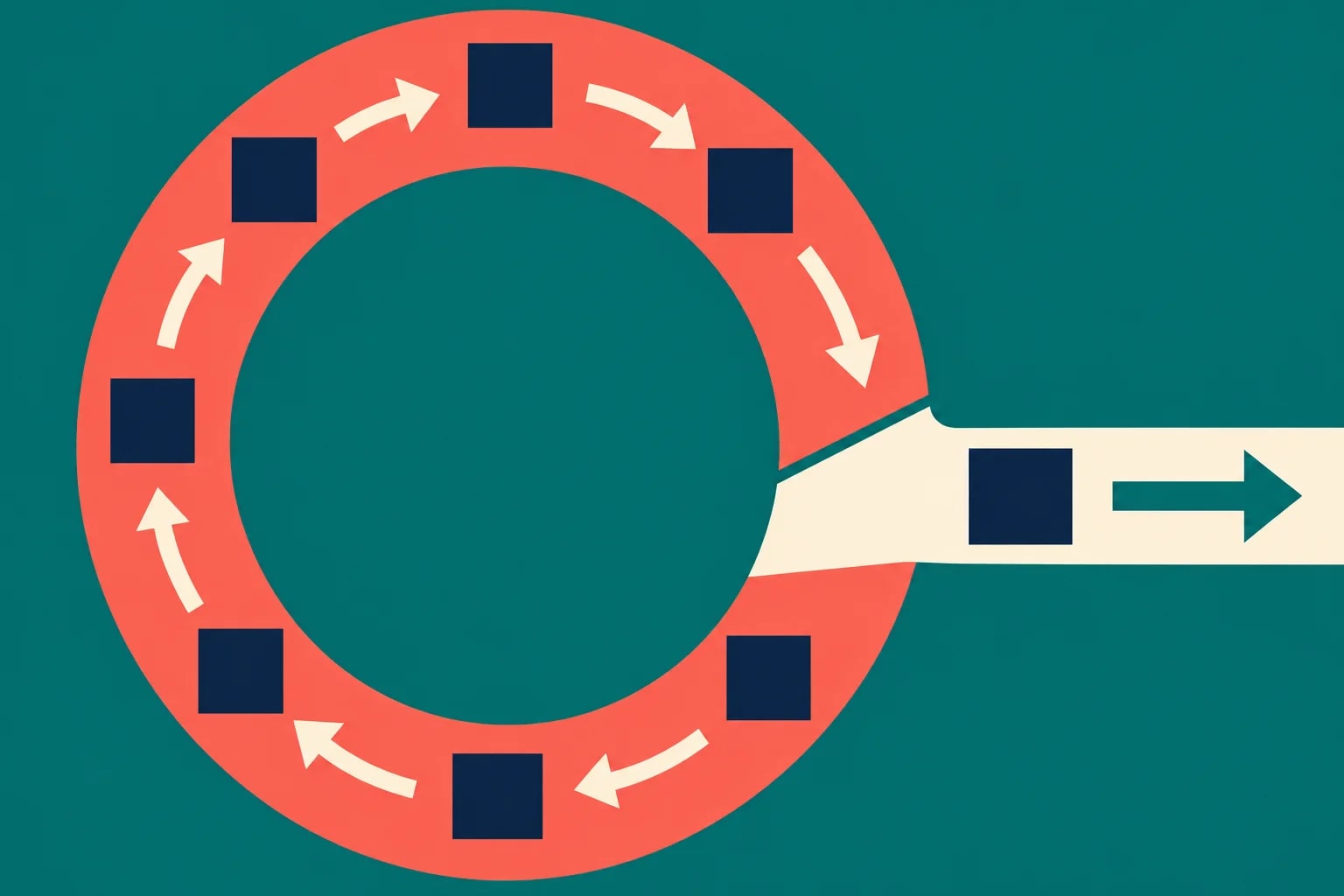
If an Airtable automation keeps running after one legitimate edit, pause the affected automation and map the fields it watches against the fields every related automation writes. Break the feedback path before turning it back on. Changing the run limit or repeatedly dismissing notifications does not repair the cause.
The common pattern is simple: an update starts an automation, the automation writes a field that is being watched, and that write starts another run. Two automations can create the same problem together even when neither appears to repeat itself. Airtable documents both patterns in its automation troubleshooting guide. Product statements in this article were checked November 24, 2026; the project-handoff example and tests are constructed illustrations.
This guide is for an operations owner who needs to stop repeated updates or notifications while preserving legitimate project work. It focuses on the trigger-and-write relationship. If the automation updates the wrong record only once, use the record-ID diagnostic linked at the end instead. A wrong target and a repeating trigger can occur together, but they require separate checks.
Contain the incident without erasing the evidence
Identify the automation associated with the repeated runs and turn it off while you investigate. If another automation is visibly feeding it, pause that participant too. Coordinate with the process owner so employees know which handoff is temporarily manual. Record the time the automated route stopped and the last confirmed completed action.
Save a small set of run-history examples showing the record identifier, triggering change, actions and timestamps. Record the original configuration before editing it. Do not delete records or erase history merely to make the activity stop. You may need those details to distinguish one intended request from ten repeated attempts to process it.
Contain external effects separately. If the automation sends email, creates tasks or changes another system, pausing Airtable does not retract already completed actions. Make a list of affected outputs and let the business owner decide what needs correction. Do not automatically resend everything after the repair: a run can have partially completed before its later step failed.
The prerequisites are access to the base, permission to edit the automation, the relevant run history and a process owner who can identify correct outcomes. Airtable's updated-record trigger documentation lists Owner or Creator permissions for configuration changes and describes availability across plan types with varying limits. Check your workspace's actual allowance and billing before a replay. Do not assume all failed or unwanted runs are free.
Budget for investigation, correction and a supervised restart. If the repair avoids a plan upgrade, count that as cash only when the upgrade would actually have been purchased and is now avoided. Fewer manual checks are released capacity. Keep them separate from subscription savings and from the cost of correcting messages that already went out.
Draw the fields, not just the automation names
For each automation on the relevant table, write down four things: what starts it, which fields it watches, which conditions it evaluates and which fields it changes. Add external actions such as sending a message. Include scripts, integrations and other bases that can write back into the same records; an incomplete map can hide the return path.
Airtable's updated-record trigger responds to changes in selected fields, not only to the new value you had in mind. A trigger watching Status is not inherently an “Approved only” trigger. The same documentation says that creation is a different event: a record created with a field already populated is not an update to that field. Choose the event and the condition separately rather than relying on a convenient name.
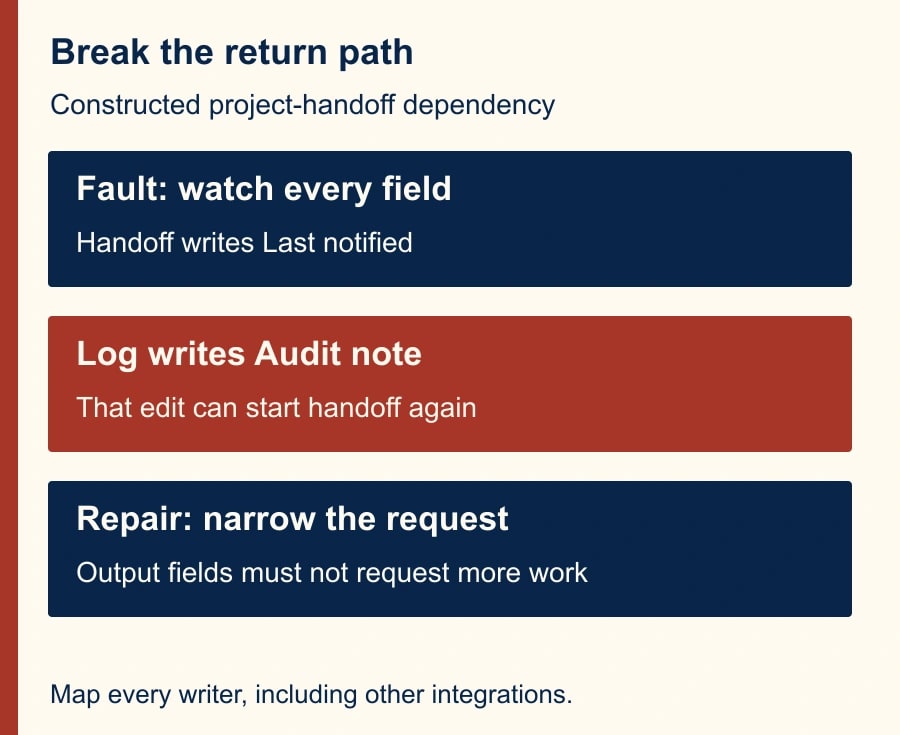
Consider a constructed agency base. Automation A watches all changes on a project and sends a handoff notice, then writes Last notified. Automation B watches Last notified and writes Audit note. Because A watches every field, B's Audit note can start A again. A's own write may also be enough to restart it. The map shows two possible return paths, neither of which represents a new business request.
The intended work is narrower: notify a coordinator when a project becomes ready for handoff. Define readiness explicitly, such as Ready equals Yes and the required owner and brief are present. Keep human request fields separate from automation output fields such as delivery status. Then choose a trigger and conditions that match that transition, and ensure the output writes do not recreate the triggering event.
Choose the smallest repair that matches the job
If the work genuinely starts when a person changes one field, watch that field rather than the entire record. If the work starts when a record reaches a particular state, consider a conditions-based trigger and write down how the record enters and leaves that state. Airtable explains that a record-matches-conditions trigger depends on a record transitioning into the conditions. Do not assume it is a periodic scan of every record already matching them.
For the agency example, one repair is a deliberately controlled Ready transition, with notification outputs written to fields that no longer start the handoff automation. A separate logging automation can read those outputs without writing back to Ready. That creates a one-way path: request, handoff, log. It does not form a circle through a field that requests more work.
Add a guard that skips an update when the intended value is already present, where that makes sense for the action. Airtable's unintended-trigger guidance recommends narrowing watched fields and checking whether values already match. This reduces unnecessary writes, but it should not be presented as a universal exactly-once guarantee for external effects.
A “sent” checkbox can be useful evidence, but its placement matters. If a message succeeds and the later checkbox update fails, a replay might send again. If the checkbox is set before delivery and delivery fails, the record might look finished when it is not. Keep the external action's actual outcome in the investigation, and use the destination system's duplicate-prevention capability where available and appropriate.
Do not solve a one-time handoff by introducing an uncontrolled periodic reset of the sent field. If a project needs a second legitimate handoff, model that as a new request or version with a clear owner. The business rule should explain why the second action is wanted. Otherwise the reset simply gives the loop another entrance.
Distinguish a loop from a legitimate burst
Several runs close together are not automatically a loop. A paste or import can change many records. Your evidence should show whether the same logical request keeps returning without new business input, or whether distinct records each caused one expected action. Count unique record IDs and intended transitions before concluding that the run count is abnormal.
Linked records can also explain a surprising burst. Airtable's unintended-trigger guide says that changing a linked record's primary field can change the linked field displayed on multiple records and trigger automations watching it. Its example of eight linked records produces eight runs from one rename. An edit followed by an undo can create additional changes even when the final displayed value looks unchanged.
For an agency, renaming a client may update many project records that link to that client. If the handoff automation watches that linked field, it may run for reasons unrelated to readiness. Narrow the watched fields if client renaming should not request a handoff. If it should trigger some other task, give that task a separate rule and expected count.
Use both run history and the business timeline. A record's current state is only the final picture. It may not explain the sequence that caused earlier runs. Ask what was edited, by whom or by which integration, and what automation wrote next. Avoid blaming the most recent employee edit when a system-generated write actually completes the loop.
Rehearse six events before restarting
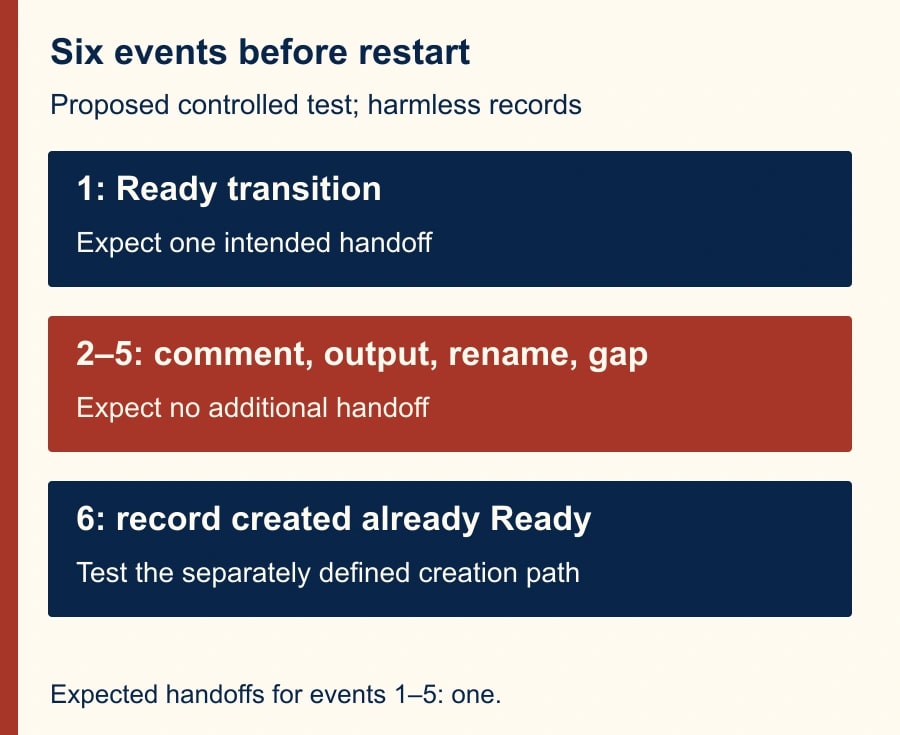
Create harmless test records and replace real external delivery with a safe test destination or another non-production observation method. Document the expected result before changing the configuration. The following constructed fixture is for one approved handoff per Ready transition, with a separate logging step.
- Event 1: change an eligible project's Ready field from No to Yes. Expect one handoff action and the intended log update.
- Event 2: edit an internal comment while Ready remains Yes. Expect no new handoff.
- Event 3: let the automation write its delivery status and audit note. Expect no new handoff caused by those outputs.
- Event 4: rename the linked client. Expect no handoff if client renaming is outside the agreed request rule.
- Event 5: submit a project missing its required owner. Expect no external handoff and a visible exception for the operator.
- Event 6: create a record already marked Ready. Test the separately agreed creation path; do not assume the updated-record trigger covers it.
Across Events 1 through 5, the expected handoff count is one for this fixture. Event 6 has its own explicit expectation based on your creation design. Do not quietly include it in the same count and then call an unexplained extra notification acceptable. The test is about the business event as well as the automation mechanics.
Repeat the fixture after the repair with the original map beside you. Watch the run history long enough to see whether a later action starts another run. A successful individual action test is weaker evidence than the complete trigger-to-output sequence. Record the actual number of runs and handoffs instead of marking the test passed because the final fields look right.
Recover the backlog by outcome
Divide affected requests into completed, incomplete and uncertain. Completed means the business action is confirmed in the destination, not merely that an Airtable step once showed success. Incomplete means the required action is known not to have happened. Uncertain means you need more evidence before replaying. Give the uncertain group a named owner rather than forcing it into the first two categories.
For completed requests, correct misleading local status without repeating the external action. For incomplete requests, approve a limited replay through the repaired route. For uncertain requests, inspect the destination or obtain the relevant confirmation. If the destination cannot distinguish duplicate requests, a human review may be the appropriate recovery step.
Start with a small set whose expected outcomes can all be checked. Reconcile requested handoffs, confirmed destination outputs and local completion records. Stop if the same request creates an unexplained second output, if a write re-enters the trigger path, or if a missing required field reaches external delivery. Preserve that failed example for the next repair.
Measure unintended runs per legitimate handoff, duplicate outputs, exceptions awaiting review and time to recover. A run count of zero is not success if no intended work is being completed. The aim is a correct relationship between business requests and outcomes, with enough evidence to explain every extra attempt.
Your next action is the field map for the affected table. Once that map is one-way, run the six-event fixture and supervise the first live requests. For targeting errors, use our Airtable record-ID repair guide. For records that never entered the automation, see existing-record trigger behavior. Keep the repair specific to the failure you can demonstrate.
Weekly Newsletter
AI Adoption Weekly
New research, field guides, training studies, and tool decisions for operators.
No spam. Unsubscribe anytime.
Related Comparisons
Calculator
AI seat cost calculator
List price × headcount. You enter the hours and the operating assumptions.