
Airtable Updates the Wrong Record: Trace the Record ID Before Rerunning
Trace Airtable Record ID tokens across linked tables, handle missing or ambiguous targets and recover incorrect updates safely.
Published November 18, 2026

If an Airtable automation updates the wrong record, inspect the target table and the source of the Record ID before rerunning it. A fixed ID keeps selecting the same row. A dynamic ID can still be wrong if it belongs to the triggering request rather than the project you meant to change. Repair the selection rule, prove which record it selects, and then recover only the affected fields.
This guide is for an agency or service operations owner whose request table updates a linked project, account or job. It also applies when an automation finds a target using a business identifier. Skip it if the correct row changes but the linked-record list loses existing entries; that needs a separate check of how the replacement list is built. If no action runs at all, begin with the trigger and run history.
The process below is a recommended diagnostic, not a report of testing your base. Product behavior was checked against Airtable’s documentation on November 18, 2026. All record labels, requests and time figures in the example are constructed.
Establish the destination before inspecting the token
Write one sentence that describes the authorized change: “When an approved request arrives, update the delivery status of its one linked project, while preserving the project owner and budget.” This defines the target, the relationship and the permitted fields. Without that sentence, a technically successful update can be the wrong business action.
Airtable’s Update record documentation says the action updates one record identified by one record ID. A static ID selects the same record every time; a dynamic value can select a different record for each run. The selected table must contain the record being updated. Treat these as three separate checks: destination table, destination ID and field mapping.
For an update to the triggering row, its generated ID may be appropriate. For an update to another table, trace the ID of the related destination row instead. A request’s ID does not become its project’s ID simply because the request contains a project name. Similar names and familiar-looking sample values make this mistake easy to miss during configuration.
Assign two owners before making changes. The automation owner reconstructs the selection and action settings. The business owner decides which fields should have changed and approves corrections. Use an account with permission to inspect and edit the relevant automation and destination fields. Confirm the base’s plan limits and remaining automation allowance before a large recovery; the example below does not assume unlimited runs or a particular subscription price.
Preserve the evidence and contain new damage
Record the automation name, run time, triggering record, intended target, actual target and fields changed. Save the current field values before replacing anything. Where available, use activity or revision evidence to establish what existed before the failed update. A screenshot of today’s project row alone cannot show whether another person changed the field after the automation ran.
If new requests could repeat the incorrect write, stop that automation while the owner arranges a manual intake queue. Record the time and which requests still need processing. Do not disable unrelated automations or delete request rows to make the error disappear. The pause needs an owner and a reconciliation list so legitimate work is not silently abandoned.
Separate incorrect targeting from incorrect content. In one incident, the wrong project may have received the right status. In another, the right project may have received an empty owner field. Those require different repairs. Preserve both the selection evidence and the exact values supplied to the action, including empty values.
A three-request trace that exposes a fixed ID
Consider a constructed service base with a Requests table and a Projects table. The Projects table contains Harbor, Juniper and Kestrel. The requests each link to exactly one project and carry an approved status change. The labels below are human-readable stand-ins, not valid Airtable IDs to paste into an automation.
- Request R101 links to project Harbor and asks for status “Ready for review.”
- Request R102 links to project Juniper and asks for status “Awaiting supplier.”
- Request R103 links to project Kestrel and asks for status “Ready for delivery.”
Suppose the action’s Record ID contains a fixed reference to Harbor, left there after the first configuration test. The first request appears correct. The next two requests also update Harbor. If the runs finish in the listed order, Harbor ends with “Ready for delivery”; Juniper and Kestrel retain their earlier statuses. Three successful action results have produced only one intended target and two incorrect targets.
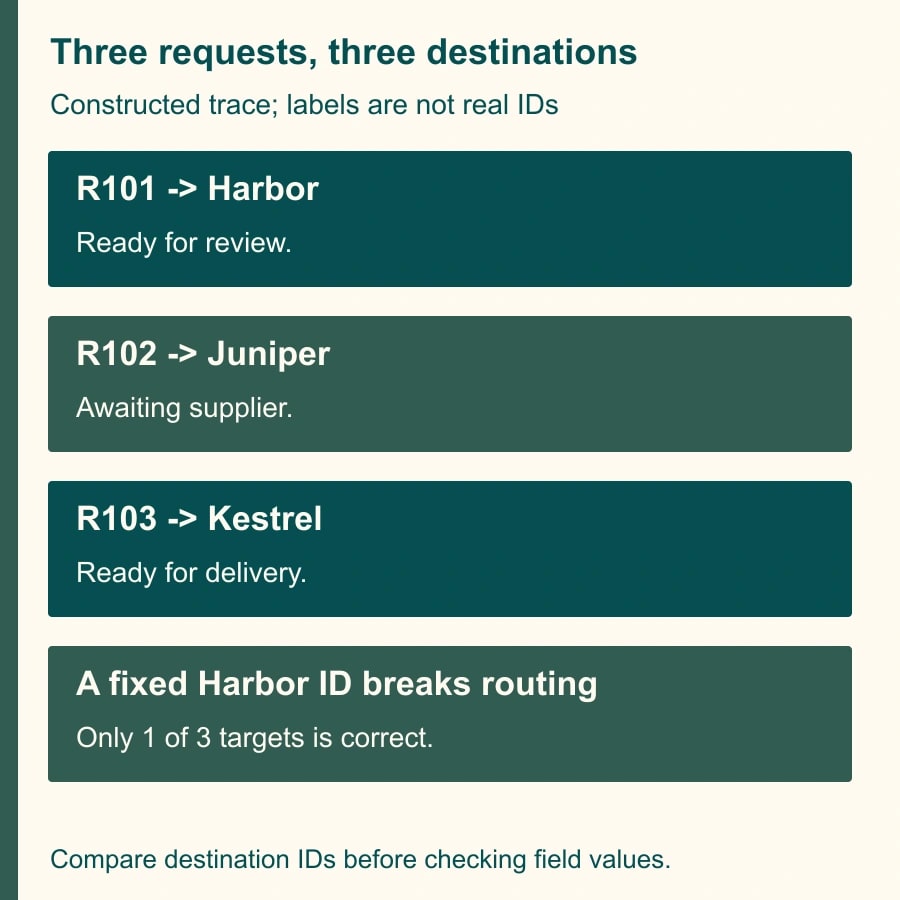
This is why “the test worked” is insufficient when it used only the sample record already named in the action. The useful fixture includes a second request pointing somewhere else and a third request with another distinct target. For each run, compare the expected destination with the resolved destination ID before judging the status value.
The fixed-ID example has three requests and three intended projects. Its target accuracy is one of three, approximately 33.3%, under the stated run order and mappings. That is an illustrative diagnostic result, not an observed Airtable reliability rate. Checking only the last value on Harbor would hide the earlier incorrect overwrite and both missed projects.
Follow the ID from the source to the action
Open the action configuration and identify whether Record ID is literal text or a token from an earlier step. A token is a value supplied by the trigger or another automation action. Airtable’s token guide distinguishes these generated values from ordinary field names. A field that someone named “Record ID” is not automatically the generated identifier of the target record.
Trace the selected token in plain language: “This comes from the project linked on R102, and it resolves to Juniper’s record.” Record the source step, property and destination table. If that sentence instead ends with “R102’s record,” the token is pointing at the request rather than the project. A syntactically plausible identifier is not evidence of the right destination.
Inspect a fresh sample from the intended trigger. Old sample data can make an edited mapping look correct because it still contains the original project. After changing the relationship or test record, refresh the relevant test data and examine the output again. Do not interpret a successful sample lookup as proof that every future request has a valid link.
Also check whether an expression or lookup returns a display name, a list of IDs, or a single ID. These are different inputs. The destination needs the record identifier in the form required by the action. Avoid converting a project name into an ID through assumption or by copying whichever row appears first in a view.
Decide what zero, one and several targets mean
For this workflow, the business rule is exactly one project per approved request. A missing link is an exception, not permission to update a default project. Route it to an operations owner with the request reference and the missing relationship. Keep the request pending until the intended project is confirmed.
Several linked projects require a different decision. If the request genuinely authorizes the same change to every linked project, design and test that multi-record operation explicitly. Airtable documents repeating groups for updating multiple related records using each item’s ID. Do not put a list of IDs into a single-record action and assume it will safely distribute the update. If only one project should change, the business owner must resolve the ambiguity first.
When the tables are not linked, a Find records step can locate a destination. Use a stable, controlled business key rather than a project title that staff may reuse. Inspect the returned identifiers and the match count. Zero results means no identified destination. More than one result means the key or filter has not established a unique destination. Choosing the first result hides the data problem.
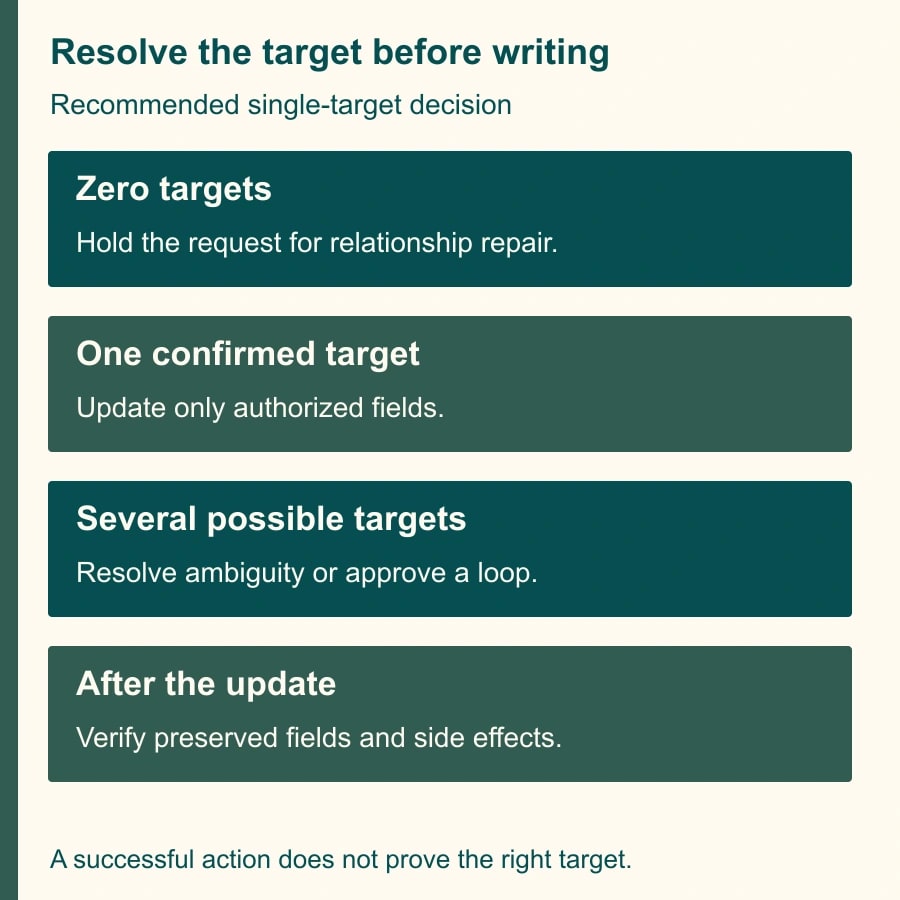
Create an exception record or another visible queue entry containing the request ID, lookup key, returned count and owner. Do not place confidential customer details in a broad notification just to make diagnosis convenient. Keep the information available to the people who can resolve the relationship. The expected output is a confirmed target or a visible hold, never an unowned silent skip.
Restrict the update to authorized fields
After resolving targeting, inspect every mapped destination field. Does the request actually authorize changing it? Does an empty input mean “clear the existing value,” or “leave it unchanged”? Those meanings are not interchangeable. Make the rule explicit for each optional field rather than relying on what an empty box looks like in the editor.
Airtable’s form-update guidance warns that mapped fields are updated each run and blank inputs can overwrite existing values. In a status-only workflow, the simplest protection is to map only the status and any deliberately maintained audit fields. Adding owner, budget and attachments to the action increases the surface for unintended changes.
If the workflow must support both “leave unchanged” and “clear,” capture a separate explicit instruction or design separate approved paths. Test both meanings with controlled records. Do not assume a missing request value carries the existing project value forward. For linked-record fields, review whether the supplied value replaces a list; preserving existing relationships is a separate requirement from selecting the correct destination row.
In the three-request example, record each project’s owner and budget before the test. Afterward, verify those fields are identical to their starting values while the status has changed as authorized. This checks a business invariant: the fields outside the request’s scope remain untouched. A correct status alone does not establish a safe update.
Test a controlled fixture before releasing the queue
Use records clearly separated from live customer work, with controlled downstream effects. Test buttons can execute actions against the selected records; do not treat every test as a harmless preview. Inspect whether a changed status triggers emails, billing steps or another automation before running the fixture. Have the owner arrange an isolated test path where needed.
First run the three valid requests and compare exact expected and actual target IDs. Then test a missing relationship, two linked projects when only one is allowed, no lookup match and two lookup matches. Add an empty optional field and an explicit clearing instruction if the workflow supports clearing. Each exception should produce the agreed hold or approved path without a speculative update.
Finally, test a repeat of the same request. Setting a status to its existing value may seem harmless, but associated notifications or downstream actions may still matter. Define how a completed request is recognized and what evidence prevents accidental replay. Do not promise that a particular trigger or condition will prevent duplicates until the actual workflow’s behavior has been checked.
Save the fixture results with the configuration version, sample IDs, resolved targets, changed fields and resulting side effects. Release only when all authorized changes match and every exception has an owner. If a test modifies an unrelated field or produces an unexpected message, keep the queue manual while the owner repairs the cause.
Recover the affected records without replaying everything
Build a recovery list from run evidence, not just the current contents of the incorrectly updated row. In the constructed incident, R102 and R103 need attention at their intended projects, and Harbor needs a review of its correct final status. The business owner should confirm whether any legitimate later work changed those projects before applying corrections.
For each affected field, record the current value, the evidence-backed correction and who approved it. Restore only values that can be justified. If a prior value is unknown, flag it for the owner rather than reconstructing it from memory or a generated suggestion. Keep a dated repair note so another operator can distinguish the correction from an ordinary customer request.
Do not rerun the entire automation history as a shortcut. A rerun can repeat messages or overwrite later legitimate changes even after the target mapping is fixed. Apply approved corrections through a controlled path, mark the recovered requests and reconcile the remaining queue. Resume normal processing with a small observed group before releasing the rest.
A reusable targeting worksheet
- Business instruction: triggering request, permitted destination and authorized fields.
- Selection trace: destination table, source step, token property and resolved record ID.
- Cardinality rule: response to zero, one or multiple possible destinations.
- Field behavior: unchanged, set or clear; expected preservation of unrelated values.
- Test evidence: distinct targets, exceptions, repeat run and downstream effects.
- Recovery record: affected IDs, prior evidence, approved corrections and completed actions.
Measure exact-target accuracy, exception count, time awaiting relationship repair and unintended field changes. Keep failed targeting separate from missing source data. If twelve incorrect updates each require ten minutes of investigation and correction, the constructed recovery workload is 120 minutes. Preventing that workload would release staff capacity; it would not automatically reduce payroll or establish a cash saving.
Start with one request that should update a different project from the original sample. Trace its destination ID before running it. If the target is correct but existing links disappear, use the guide to preserving linked records during an Airtable update. If the target cannot be found, use the Airtable Find records diagnostic to examine retrieval before changing the update action.
Weekly Newsletter
AI Adoption Weekly
New research, field guides, training studies, and tool decisions for operators.
No spam. Unsubscribe anytime.
Related Comparisons
Calculator
AI seat cost calculator
List price × headcount. You enter the hours and the operating assumptions.