
Excel WORKDAY.INTL Gives the Wrong Due Date: Check the Calendar
Fix Excel business-day deadlines by checking start rules, weekends and closure dates. Two worked calendars explain the expected results.
Published November 24, 2026

When Excel's WORKDAY.INTL returns the wrong due date, check the business calendar before changing the formula. Confirm whether the receipt day counts, which weekdays are closed, and whether the holiday range contains real dates. A formula can calculate exactly what you entered while still promising the wrong service date.
WORKDAY.INTL returns a date a specified number of working days before or after a starting date, with customizable weekends and excluded dates. Microsoft's function reference documents the syntax as WORKDAY.INTL(start_date, days, [weekend], [holidays]). The optional weekend and holiday arguments are part of the calculation, not merely display preferences. Product behavior was checked November 24, 2026.
This guide is for a service-delivery manager maintaining a turnaround tracker, a purchasing coordinator estimating preparation dates, or an operations analyst building a business-day schedule. It uses two constructed calendars to show why the same request can legitimately produce different dates. None of the closure dates below is presented as a universal holiday rule or a verified customer schedule.
Write the promise in a sentence
Before opening the formula bar, write the service rule in ordinary language. For example: “A complete request received by the cutoff is due after three working days; the receipt day does not count; our team works Monday through Friday and excludes the approved closure list.” That sentence supplies decisions the formula cannot infer.
If the promise instead says “the receipt day is Day 1,” it is a different rule. If work starts only after a reviewer accepts the request, the starting date is not necessarily the arrival date. If requests after 3 p.m. start the next day, the tracker needs a cutoff rule before it calls a date-only function. Do not bury these choices in an unexplained subtraction.
This method fits whole working-day commitments. Skip it as the sole solution for an hourly service-level agreement, rotating partial shifts, overnight work or a contract with detailed clock-stopping rules. Those require a schedule model that can represent the relevant hours and exceptions. WORKDAY.INTL is not a staffing engine or a determination of a contractual deadline.
Name the calendar owner and the promise owner. The calendar owner maintains closures and working weekdays; the promise owner approves how receipt, acceptance and cutoff are interpreted. An analyst implements the rule and keeps the test examples. Without these roles, a holiday update can become an accidental change to what customers were promised.
Keep dates as dates
Set up separate inputs for accepted date, turnaround days, weekend pattern and the closure range. Store the result in a date-formatted cell, and retain the original request timestamp elsewhere if it matters. A displayed serial number may mean the result needs date formatting, not that the calculation is broken.
Use unambiguous date entry in the test fixture. For example, =DATE(2026,11,24) constructs November 24 without relying on whether a pasted slash-formatted string is interpreted as month/day or day/month. Enter closure dates with the same discipline. Inspect an imported range instead of assuming that cells which look like dates contain numeric date values.
The function reference says the starting date and day offset are truncated to integers. Therefore, a fractional day input is not a way to request a half-working-day promise through this function. A zero offset returns the specified starting date; do not use zero as an undocumented instruction to advance a weekend date to Monday. Those details matter when a copied formula appears plausible but misses the agreed start rule.
Keep the original imported values when repairing a tracker. Convert and validate in a controlled copy, then compare the result with the known examples. If dates came through a data transformation, fix that interpretation at the source where possible. Changing the visual format of text does not reliably turn the text into the intended date.
Read the seven-day pattern from Monday
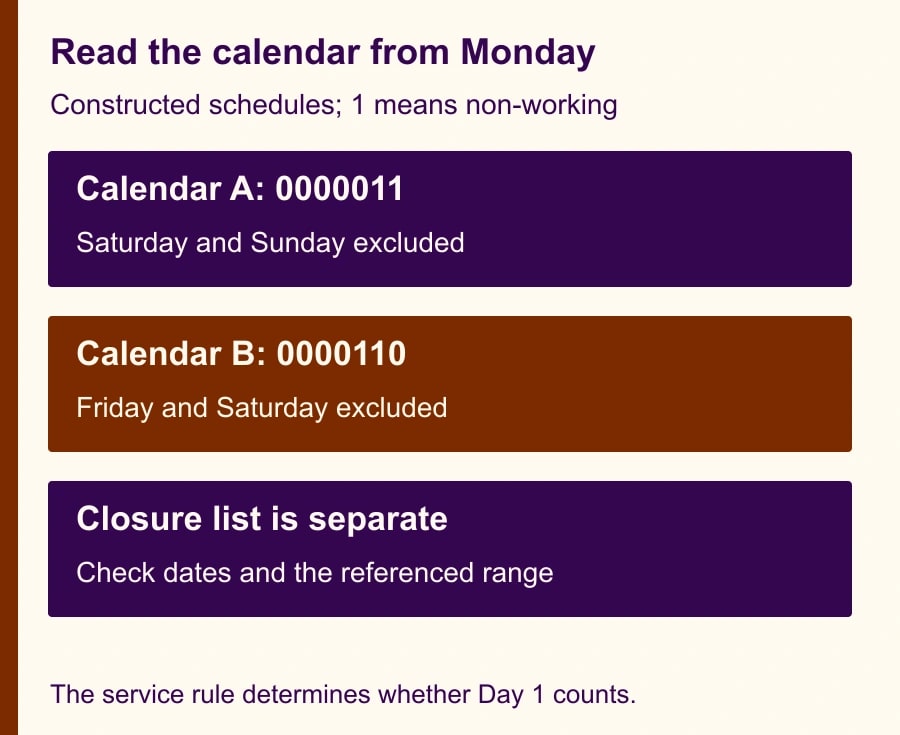
The weekend string uses seven positions, Monday through Sunday. A 1 marks a non-working day and a 0 marks a working day. Thus "0000011" excludes Saturday and Sunday; "0000110" excludes Friday and Saturday. Keep the string in quotation marks in the formula so the leading zeroes remain part of the pattern.
Put the weekday labels above the pattern in your worksheet. Ask the calendar owner to read it back: Monday working, Tuesday working, and so on. This small visual check catches a common assumption that the string starts with Sunday. Do not select a pattern because it is common in a country; use the calendar actually governing the team or supplier's commitment.
A closure list adds specific excluded dates to the recurring weekend rule. It does not redefine every future week. Keep the list in an explicit range or maintained table and record its coverage period. A formula pointing at last year's fixed range can return a convincing date while ignoring this year's closures. The range reference is therefore part of the review, not just the dates displayed nearby.
Work through the first calendar by hand
Use this constructed example. A complete request is accepted on Tuesday, November 24, 2026. The team works Monday through Friday. It is closed on Thursday, November 26 and Friday, November 27 for this example. The promise is three working days after acceptance, excluding the acceptance day.
Put the accepted date in A2, the number 3 in B2 and the two closure dates in H2:H3. The formula is =WORKDAY.INTL(A2,B2,"0000011",$H$2:$H$3). Format the result as a date. The dollar signs keep the closure range fixed when the formula is copied down, which prevents later rows from silently moving the range.
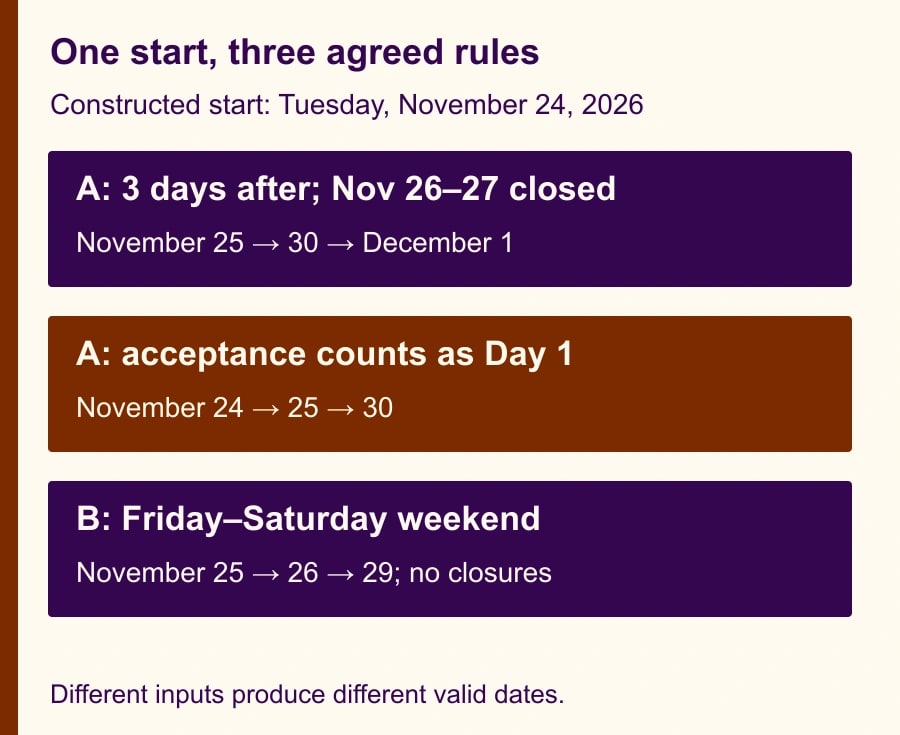
Count the eligible days: Wednesday, November 25 is Day 1. Thursday and Friday are excluded by the closure list. Saturday and Sunday are excluded by the weekend pattern. Monday, November 30 is Day 2. Tuesday, December 1 is Day 3. The expected due date is December 1, 2026.
Remove the closure list in a test copy and the result becomes Friday, November 27. That is not random behavior: the formula now counts Wednesday, Thursday and Friday as the three working days. The difference between November 27 and December 1 exposes a missing-calendar-input problem. Do not “fix” it by adding a hard-coded four calendar days to every result.
Now keep the closure list but change the business promise so that the valid acceptance day counts as Day 1. For this specific fixture, Tuesday is Day 1, Wednesday is Day 2 and Monday, November 30 is Day 3. The expected date becomes November 30. That difference is a policy choice, not a defect in the function.
Do not apply days minus one blindly to every row to implement inclusive counting. First define what happens when the nominal starting date is a closed day, when a request arrives after cutoff and when the requested duration is zero. The fixture's accepted date is already a valid working day. A broader tracker needs explicit rules for the cases that fixture does not cover.
Compare a second legitimate calendar
For a separate constructed supplier calendar, assume Friday and Saturday are non-working days, there are no additional closures in this example, and the acceptance day again does not count. Use the same Tuesday, November 24 start and a three-working-day duration. The pattern is "0000110".
Wednesday, November 25 is Day 1; Thursday, November 26 is Day 2; Friday and Saturday are skipped; Sunday, November 29 is Day 3. The expected date is November 29, 2026. Do not carry the first example's closure list into this second calendar by accident. These are two different approved schedules, not two competing answers for the same inputs.
This matters in a tracker that coordinates a supplier and an internal review team. A supplier preparation date and your team's acceptance date may use different calendars. Give them different columns and visible calendar identifiers. A single generic “business days” formula cannot express two schedules unless the correct inputs are selected for each row.
For a handoff, calculate the supplier's output date under the supplier rule, then apply your team's approved receipt and cutoff rule before calculating internal review. Do not simply add the two working-day counts using one calendar. Where the dependency is more complex than a simple date handoff, use a scheduling tool or a clearly documented model that can represent it.
Use a small regression worksheet
A regression worksheet is a saved set of inputs and expected answers used to check that a later change has not broken existing behavior. Keep it beside the tracker and rerun it whenever the calendar, import method or formula changes. The expected answers should be written from the approved rule, not copied from the formula being tested.
- Standard week: a valid working-day start with no intervening closures; verify the count by hand.
- Closure crossing: use the November 24 three-day fixture above and expect December 1 under Calendar A.
- Missing closure list: deliberately omit the range in a test cell and expect November 27, showing that the test can detect the omission.
- Alternate weekend: use Calendar B and expect November 29, with no additional closures.
- Inclusive promise: use the explicitly valid Calendar A start and expect November 30 when receipt counts as Day 1.
- Invalid input: include a blank start, text that resembles a date, a negative duration where not allowed, and an unsupported weekend pattern; define the business response for each.
The last item is not a request to let errors flow into customer messages. Decide which inputs should be rejected, which should be returned to an owner and which are legitimate. A negative duration can be meaningful for backward planning, but it may be invalid for your service promise. Enforce your business rule before interpreting the function's valid mathematical result.
If an AI assistant proposes the formula, give it these fixtures and ask it to explain the eligible dates one by one. Then verify the formula in the workbook. A fluent explanation is useful for review but does not replace the cell result or the calendar owner's approval. Preserve the prompt and the accepted formula if that helps the next analyst understand the change.
Release the repaired tracker carefully
Compare the old and proposed due dates for a limited set of real, approved records. Separate future commitments from already communicated dates. A corrected formula may reveal that a customer was promised an earlier deadline, but changing the spreadsheet does not notify that customer or resolve the commitment. The service owner must decide how to handle affected cases.
Keep a change log with the old formula, new formula, calendar version, test results and approver. Check that copied rows still point to the intended closure range and that new rows receive the same validation. Protect maintained inputs from casual edits where appropriate while leaving a clear route for authorized calendar updates.
Measure unexplained due-date differences, missing-calendar exceptions and promises that need manual correction. The goal is not simply a workbook without error values. A plausible but incorrect date is often more consequential than a visible formula error because it can reach a customer unchallenged. Stop automated notices if any test case disagrees with the approved rule.
There is usually no new software purchase needed to test an existing Excel workflow, but staff review and repair still take time. Record those hours as implementation cost or capacity use. Do not promise cash savings from fewer corrections without showing an actual spending change. The practical benefit to establish first is a date the team can explain and honor.
Your next action is to write the service promise and count one difficult request by hand. If the formula disagrees, check the starting rule, weekend string and closure range in that order. For date-import problems, see our day/month locale diagnostic. For timestamp boundaries in reporting, use the month-end timestamp checklist.
Weekly Newsletter
AI Adoption Weekly
New research, field guides, training studies, and tool decisions for operators.
No spam. Unsubscribe anytime.
Related Comparisons
Calculator
AI seat cost calculator
List price × headcount. You enter the hours and the operating assumptions.