
Fix Excel SUMIFS Totals That Miss the Last Day of the Month
Check hidden times, use the start of the next month as the upper boundary and reconcile transaction IDs before accepting a monthly sales total.
Published November 15, 2026

If an Excel SUMIFS total misses sales on the last day of the month, check whether the source dates also contain times. A condition that ends at October 31 at midnight excludes transactions later that day. For a whole-month report, use two boundaries: at or after the first day of the month, and strictly before the first day of the next month.
This repair fits finance and sales operations teams working with transaction exports, particularly after a source system starts including timestamps. Preserve the export, reveal the underlying values and reconcile transaction IDs before replacing the reported total. A formula that returns a plausible number can still be using the wrong date field or an incomplete source.
The examples below are constructed. They demonstrate boundary logic and arithmetic rather than a test of a private workbook. Microsoft documentation was checked November 4, 2026. No additional AI product is needed for the repair; an assistant can help explain a formula, but the business owner still has to decide which transactions belong in the period.
Why the dates look right while the total is wrong
Excel stores dates as serial numbers and times as fractions of a day. A cell can display only a date while retaining a time in its value. Microsoft explains this distinction in its date and time calculation guidance. Formatting a timestamp as a short date changes what the reader sees; it does not necessarily remove the time used in comparisons.
That matters when a report uses “less than or equal to the last day.” A date-only value for October 31 represents the start of that day. A transaction at noon is later than that boundary, even though both cells may display October 31. The report can therefore omit almost the entire final day without displaying an error.
The more reliable monthly boundary is the next month's start. Include values greater than or equal to October 1 at 00:00 and less than November 1 at 00:00. This includes every October timestamp represented within that interval without having to guess the final second or fraction of a second.
Do not fix the problem by adding a hand-calculated adjustment to the total. That may make this month's report agree while leaving the underlying selection wrong. The next export can include a different set of times and produce another unexplained variance.
First confirm what “October sales” means
Before editing a formula, name the date that governs the report. Transaction time, posting time, shipment time and invoice date can put the same sale in different periods. The controller or report owner should choose the relevant field. The analyst should record that decision beside the workbook, not bury it inside a formula.
Confirm the time zone too. A source timestamp expressed in Coordinated Universal Time, usually abbreviated UTC, may fall on a different local business date. This guide's formula assumes the input timestamps are already expressed on the reporting basis the team approved. It does not convert time zones or decide how to handle daylight-saving changes.
If the source mixes time zones, preserve the original timestamp and offset, then create a separately reviewed reporting-time field before totaling. Do not strip a visible suffix and assume the remaining clock time is local. Ask the source owner for a consistent export when the interpretation is unclear.
Skip this specific repair if the source contains genuine date-only values and the final day's transactions are missing from the export itself. In that case the problem is upstream completeness, a source filter or a range that stops before the new rows. Widening the date condition cannot recover records the formula never receives.
A six-row example makes the boundary visible
Create a small isolated worksheet with headers in row one: Transaction ID in column A, Reporting time in B and Amount in C. Use six rows with these constructed values. All amounts use the same currency, all timestamps are on the approved reporting basis, and none is a duplicate or cancellation.
- T1: October 1, 2026 at 00:00; amount 100.
- T2: October 15, 2026 at 10:00; amount 200.
- T3: October 31, 2026 at 00:00; amount 300.
- T4: October 31, 2026 at 12:00; amount 400.
- T5: October 31, 2026 at 23:59; amount 500.
- T6: November 1, 2026 at 00:00; amount 600.
The source total is 2,100. The intended October population is T1 through T5: five transactions totaling 1,500. T6 belongs to November and is excluded from October. Keep those expected IDs and totals outside the formula under review so the check does not simply repeat the same mistake.
An upper condition of less than or equal to October 31 at 00:00 includes T1, T2 and T3. It returns 600 and omits T4 and T5, whose amounts total 900. The answer is not a rounding difference; the report selected the wrong population.
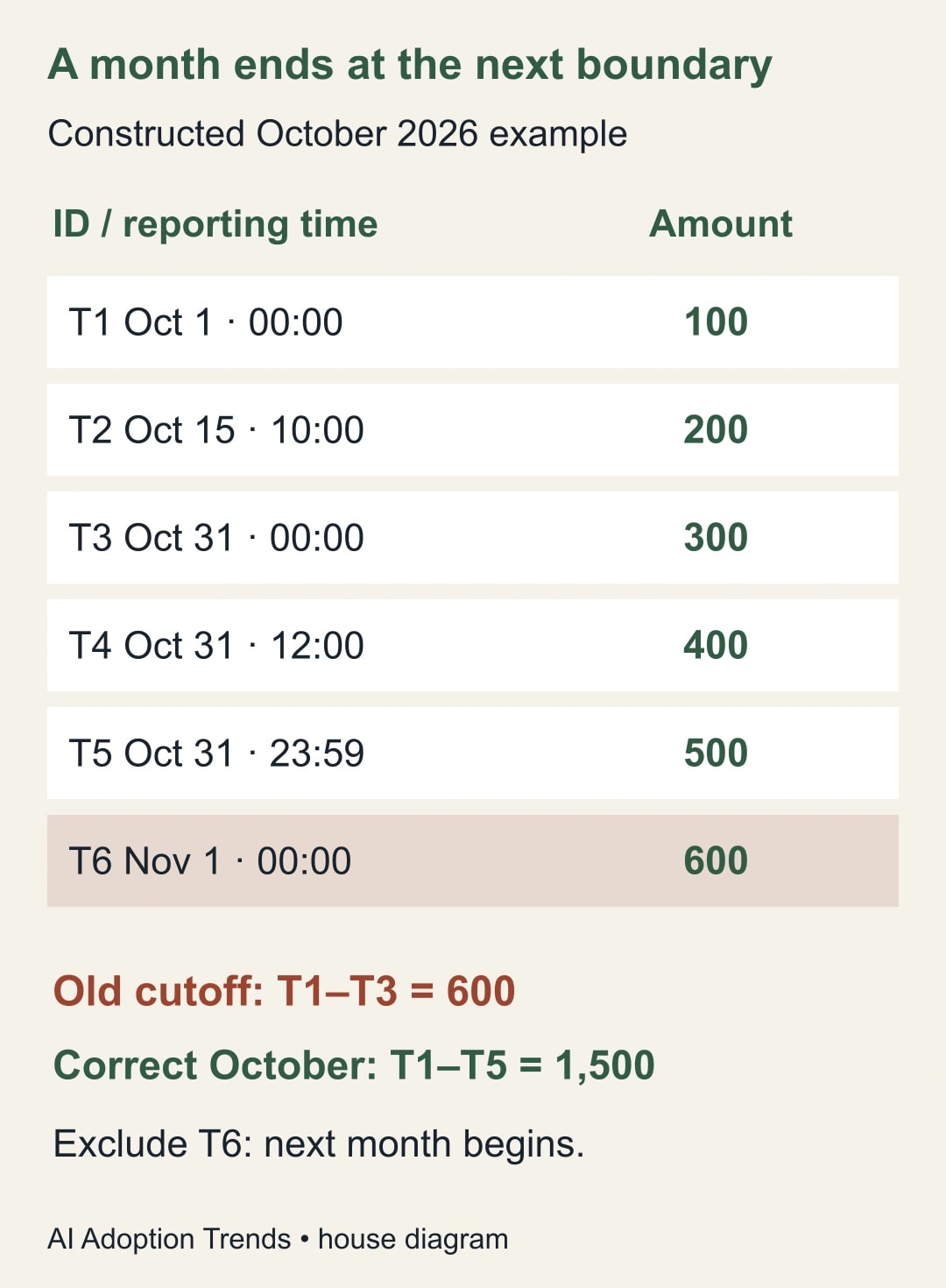
The corrected interval includes T1 through T5 and excludes T6. The amount rises from 600 to 1,500 because two known records are restored to the period. That explanation is stronger than saying the new formula “looks right.” It tells the reviewer exactly why the total changed.
Use an inclusive start and exclusive end
Put =DATE(2026,10,1) in F2 for the start and =DATE(2026,11,1) in G2 for the next boundary. Enter those as formulas so the workbook receives numeric date values rather than ambiguous text. In this six-row example, the corrected formula is =SUMIFS(C2:C7,B2:B7,">="&F2,B2:B7,"<"&G2).
Read it as: add amounts in C2:C7 when the corresponding timestamp is at least F2 and is earlier than G2. Microsoft documents the SUMIFS argument order, comparison criteria and requirement for matching range dimensions in its SUMIFS reference. The boundary choice here is our application of that behavior to a monthly report.
These examples use English function names and comma separators. A localized Excel installation may use different names or separators. Adapt the syntax without changing the interval logic. The important comparison is strictly less than the next month's start, not less than or equal to it.
For a recurring workbook, use clearly labeled boundary cells and verify that they contain midnight values. If a boundary cell accidentally includes noon, the interval shifts even when the displayed date looks correct. A helper label should say “Next month start, excluded” so a future editor does not change the operator while trying to make the formula seem more natural.
Keep all ranges aligned. Extending the amount range without extending the timestamp range is not a valid fix. If the workbook uses a structured Excel table, use the corresponding table columns consistently; if it uses fixed ranges, document how those ranges expand after an import. Test a newly appended row before accepting the next month's output.
Reveal text dates and other competing causes
On a copy of the source, display the reporting-time column with both date and time. You can also inspect representative values in General format and use =ISNUMBER(B2) as a quick type check. A numeric result is necessary for the intended serial-date comparison, but it does not prove that the business date was interpreted correctly.
A date-looking string is a separate problem. For example, an imported field might contain a timestamp as text, including an offset or an unexpected separator. Do not assume changing its display format converts it. Preserve the original, define the source format and test any conversion against known records before using the converted column in the total.
An ambiguous date such as 04/05/2026 needs a source convention. Converting it successfully into a number does not tell you whether the business intended April 5 or May 4. If that is the issue, use the Power Query date-locale repair guide to establish a repeatable import rule.
Check the amount column separately. A repaired date boundary does not convert text amounts, resolve mixed currencies or decide whether a refund is a negative sale. List these exceptions rather than silently replacing them with zero. A report that includes the right IDs but the wrong amounts is still wrong.
Reconcile IDs, counts and amounts together
For the six-row example, write the expected October IDs as T1, T2, T3, T4 and T5. Compare them with the actual selected rows. Then compare the count of five and the amount of 1,500. Each check catches a different kind of problem: totals can agree by coincidence while records are missing or duplicated.
For a real export, use a stable transaction identifier from the source. If one transaction legitimately has several lines, decide whether the control is at transaction or line level and keep both identifiers when needed. Do not remove duplicate-looking rows merely because two amounts and dates match.
Now test the adjoining month. T6 should appear in November exactly once. A useful monthly report has no unexplained gap or overlap at the boundary. Using October's end as November's inclusive start works when both are the same next-month-start value and October's upper comparison remains exclusive.
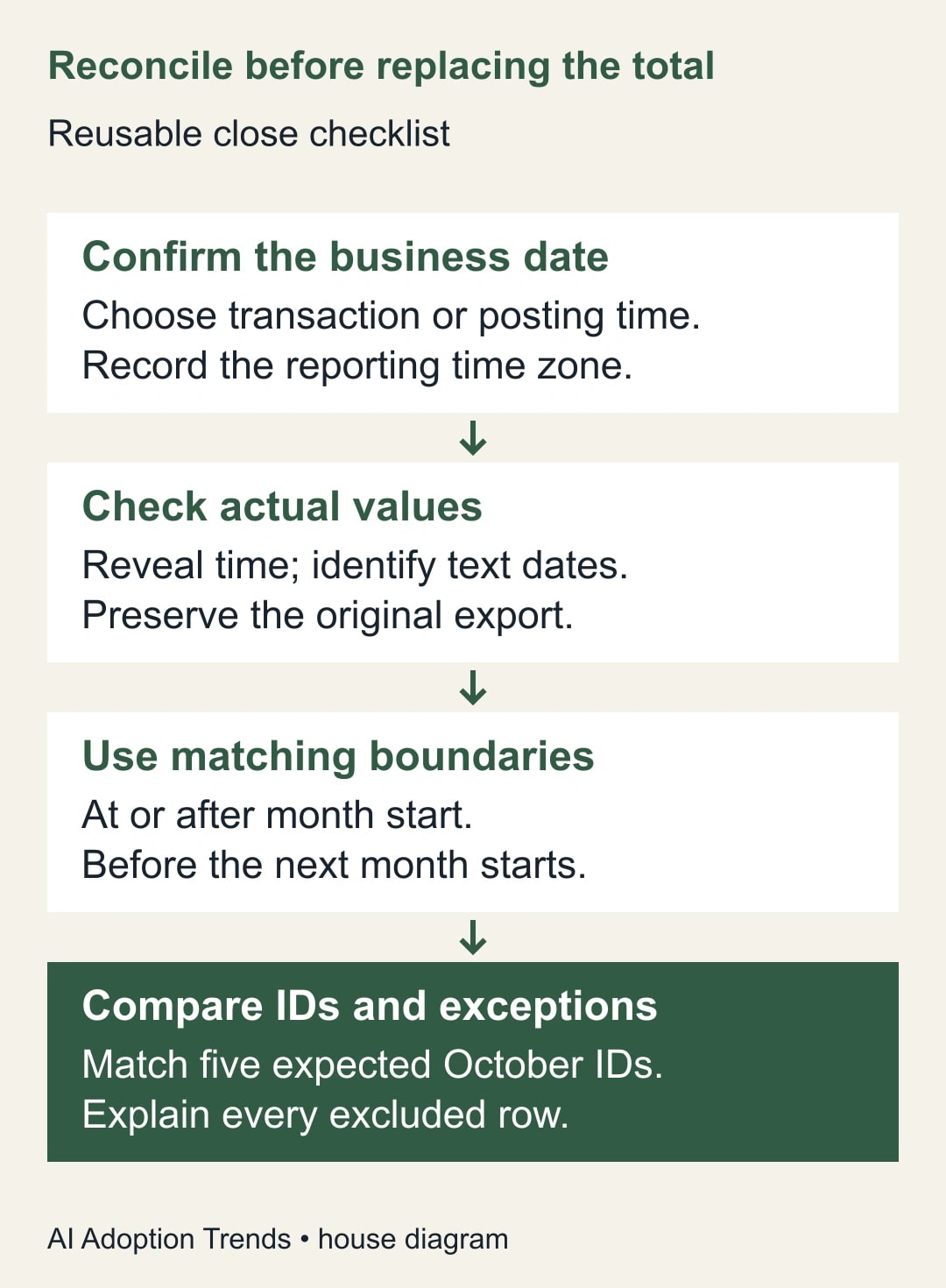
Add boundary cases before accepting the repair: one row just before the month starts, one exactly at the start, one late on the final day and one exactly at the next month start. If fractional seconds exist in the real source, include an appropriate example. The exclusive-next-boundary method avoids making an assumption about the smallest time increment your export can carry.
Keep a short close-control worksheet
- Report purpose: the business measure and owner approving the period definition.
- Source evidence: file name, export time, source filters and expected population.
- Date basis: field name, time zone, source format and conversion rule if needed.
- Boundaries: inclusive start and exclusive next-period start, both checked for hidden time.
- Exceptions: text dates, missing IDs, mixed currencies and unresolved amounts.
- Reconciliation: selected IDs, count, total and next-period boundary checks.
- Change evidence: prior formula, revised formula, reviewer and explanation of the difference.
- Release decision: accepted, held or replaced with a separately approved source report.
The worksheet should remain useful when another analyst runs the process. A formula comment that says “fixed dates” is insufficient. Record the actual fault, such as “old upper boundary represented midnight at the beginning of October 31 and excluded T4 and T5.” That makes the repair understandable during the next close.
Recover the reporting process, not just the cell
If the incorrect total has already been distributed, identify which outputs used it: a sales summary, a variance commentary, an incentive worksheet or an AI-generated management brief. The report owner should decide which recipients need a corrected version and what explanation accompanies it. Keep the original for traceability rather than overwriting the evidence of the change.
An AI summary based on the old total may have invented a business explanation for a data-selection problem. Regenerate or revise that commentary only after the corrected population is approved. Check the explanation again; a better number does not automatically validate the narrative built around it.
Measure unexplained reconciliation differences, the number of held records and the time spent investigating the monthly export. Do not call the restored 900 in the example new revenue. It was already present in the constructed source and was omitted from the report. Likewise, reduced review effort is released staff capacity unless a separate spending decision changes cash cost.
Stop the repair when the business date cannot be agreed, timestamp conversion remains ambiguous or the source population cannot be reconciled. Escalate those issues to the source and report owners. A plausible formula result is not a reason to close an unresolved exception.
Start with the six-row boundary exercise, then compare the last two days of your actual reporting period. If newly imported rows are absent even with correct boundaries, inspect the source range using the Excel missing-new-rows guide. Accept the month only when the selected records and the business definition agree.
Weekly Newsletter
AI Adoption Weekly
New research, field guides, training studies, and tool decisions for operators.
No spam. Unsubscribe anytime.
Related Comparisons
Calculator
AI seat cost calculator
List price × headcount. You enter the hours and the operating assumptions.