
Fix an Excel PivotTable That Leaves Out New Rows
Find why an Excel PivotTable misses new transactions. Check the source boundary, refresh and filters, then verify both record counts and amounts.
Published October 25, 2026

When an Excel PivotTable leaves out new rows, check its source boundary before refreshing it again. Then check whether the refreshed report excludes a new category through a filter. A complete worksheet, a complete PivotTable source and a complete visible report are three separate conditions.
The practical fix is to identify the intended transactions, make sure they belong to the selected source, refresh the report, and reconcile both the record count and the amount. Do not accept a plausible grand total as proof that every new transaction is included.
This guide is for a finance, sales or operations owner maintaining a recurring Excel report. It focuses on a PivotTable built from worksheet data. If your report depends on the workbook Data Model, an external system or a complex Power Query process, use the same diagnostic questions but involve the person who maintains that upstream source.
The example uses constructed sales orders in one currency, with no tax, returns or currency conversion. Microsoft’s documentation was checked on October 25, 2026. The steps are documentation-based guidance, not a claim that we tested your workbook or every Excel edition.
First define what the report should contain
Write one sentence describing the report’s scope: “All unique accepted orders dated October 1–31, grouped by sales region, using the approved order amount.” Include the date field, status rule and unit being counted. Orders, order lines and customers are different units.
If one order has three product lines, counting rows will not necessarily count orders. Decide whether your control total is a line count or an order count before comparing it with the PivotTable. Use a source with one row per intended reporting unit for the small diagnostic example.
Save a working copy of the workbook and retain the original input file. Record the last known correct report date and the last successful refresh. This gives you a point of comparison and avoids turning a troubleshooting session into an unexplained change to the report colleagues already used.
Collect the minimum prerequisites: permission to inspect the source and PivotTable settings, a small list of the newly added records, stable identifiers, and a trusted amount total. No additional AI tool is required. If you use an assistant to explain an unfamiliar setting, verify its suggestion against the actual workbook before changing it.
The cost of this repair is usually attention rather than another subscription. Plan enough time to trace one missing record from input to output and to repeat the normal refresh process once. If you cannot explain where the rows enter the workbook, ask the maintainer before editing the report’s source.
Diagnose the boundary rather than the appearance
A PivotTable can summarize a selected range or an Excel table. Microsoft explains that an Excel table is a useful source because new and updated data in that table is included when the PivotTable is refreshed. The important qualification is “in that table”: visually adjacent rows are not sufficient evidence that the source includes them. Microsoft’s PivotTable source overview
Click inside the report and inspect the source reference. For a worksheet range, compare the final row and columns with the actual data you intend to summarize. For a table, select it and inspect its boundary and headers. Look at the first newly appended record, not only the last visible row.
If the report reads an old range ending before the additions, refreshing will continue to summarize that old range. The refresh is doing what it was configured to do. Repeating it does not make the selected source larger.
Microsoft documents the Change Data Source control under PivotTable Analyze on Windows. For worksheet sources, the Table/Range reference can be changed. Its guidance also distinguishes workbook Data Model sources, which cannot be changed through that same route. Use the route that matches your source type rather than forcing a worksheet repair onto a model-backed report. Change a PivotTable’s source data
Use a count-and-amount control
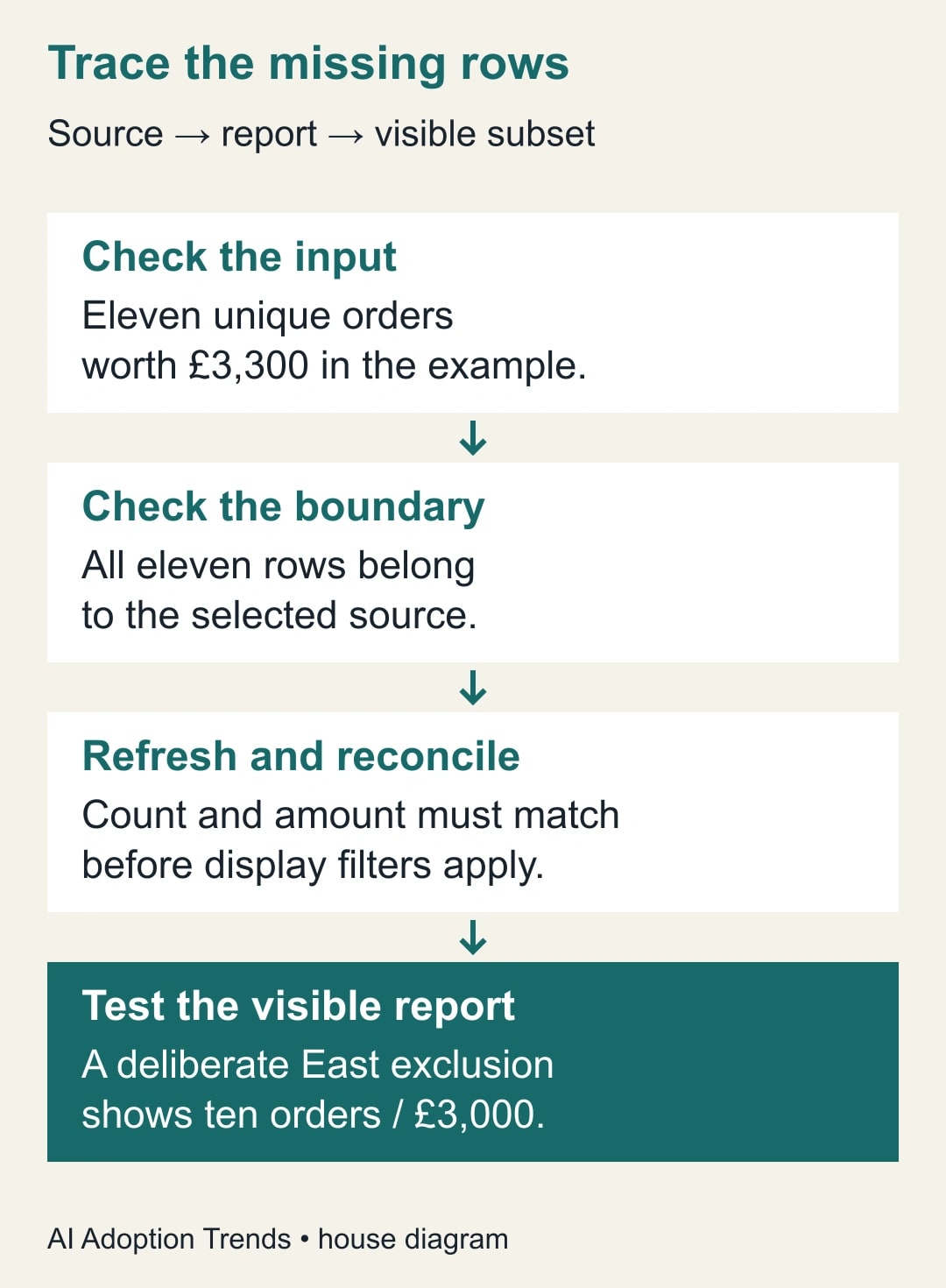
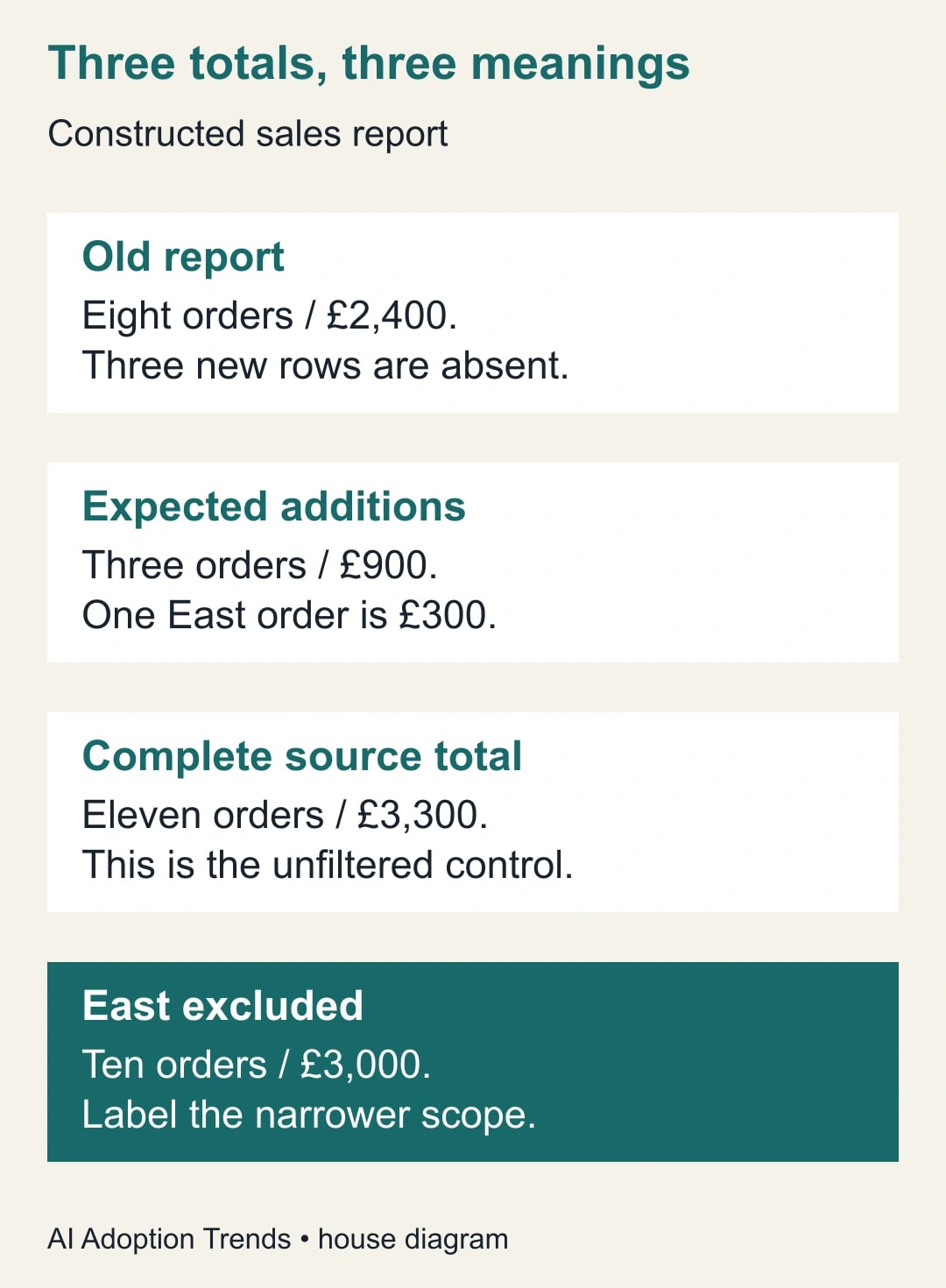
Consider a constructed report with eight original orders totaling £2,400. Three new orders total £900. The intended complete source therefore contains eleven orders totaling £3,300. One of the additions is an East-region order for £300, a category the old report has not displayed before.
Create a short control list of the three new order identifiers and their amounts. Check each against the input, then against the selected source. This list is more diagnostic than scanning a long worksheet for anything that looks new.
Before repairing the report, record what it currently shows. If the PivotTable still shows eight orders and £2,400, the missing £900 may be consistent with the three omitted rows. That is a useful clue, not proof: duplicate or offsetting records can produce the same difference.
After correcting the source boundary, refresh and inspect the report with its intended full population visible. The controls should now be eleven orders and £3,300. Check the three identifiers or their appropriate detail records as well, especially if another change could offset the total.
Now test the East filter deliberately. Excluding that one £300 order produces ten orders and £3,000. This is a valid narrower view if it is intentional and labeled. It is not the complete-source total, and it should not be mistaken for a failed refresh.
The example gives you three distinct states: old source, complete source and filtered display. Keeping those states separate prevents an analyst from expanding the source repeatedly when the remaining difference is caused by the report’s own selection.
Repair the source on a working copy
If the report uses a fixed worksheet range, extend the source reference to include the intended rows and required columns. Check that the header row remains correct. Avoid sweeping in notes, manual totals, blank section headings or a second unrelated dataset simply because they sit below the transactions.
If the report is meant to grow regularly, consider a named Excel table as the maintained source. First make the input rectangular: one header row, consistent columns and one record per row. Give the table a descriptive name that identifies the business data, not a temporary month.
Changing the source type is a maintenance decision, not a ritual required for every repair. For a one-time analysis, a deliberately bounded range may be adequate. For a monthly report that repeatedly misses appended rows, a clearly maintained table usually makes the intended boundary easier to inspect.
Check the fields after any source change. A renamed amount column or a new status heading can affect the report’s configuration. Do not assume that because the PivotTable still appears on screen, it is using the same meaning for each field.
Refresh the PivotTable using the refresh control available in your Excel version. Then compare the full-population count and amount with your control list. Save the working copy with a note describing the source change only after those checks pass.
For a Data Model or external-source report, hand the maintainer a concrete incident: expected record identifiers, source file or system, last correct result, observed count and amount, and the current source type. This is more useful than asking them to “fix Excel.” The missing rows may never have reached the model in the first place.
Test filters and new categories explicitly
Inspect report filters, row and column selections, slicers and any date restrictions that are actually present in the workbook. Record which are intentional. A report labeled “October sales” should not silently retain a restriction chosen for a previous management question.
Use the newly introduced East region as a test category. Confirm that it appears when the report is intended to include all regions, then confirm the total changes by the expected amount when you exclude it. If the source has East but the report cannot show it, investigate the field values and configuration before approving the workbook.
Watch for near-duplicate labels such as “East” and “East ” with a trailing space, or a numeric code stored inconsistently as text and number. Treat those as data-quality issues with a documented correction rule. Do not manually merge categories just because they look similar if the source owner says they mean different things.
Check dates using the business definition of the period. An order entered on November 1 might still have an October order date, while another report uses shipment date. The right answer depends on the agreed scope, not on which date makes the totals match a prior expectation.
If a filter is intentionally narrow, put the scope in the report title or a nearby note. A correct filtered total can still mislead a reader who reasonably assumes it covers the whole business. The label is part of the repair.
Use this release worksheet
Keep the worksheet next to the report’s refresh instructions. It is a proposed control record, not a built-in Excel feature. One short entry per reporting cycle is usually enough for a small recurring report.
- Scope: reporting period, status rule, date field and unit counted.
- Input identity: source file or system, extraction date and owner.
- Source boundary: selected range or table name, with the last included record checked.
- Expected controls: distinct identifiers or row count, plus the amount total.
- New-record sample: identifiers, categories and values that must appear.
- Display selections: intentional filters and the expected effect on totals.
- Result: actual full-population count, amount and any unexplained difference.
- Approval: reviewer, refresh date, saved workbook and unresolved issues.
For the constructed example, the release entry would show eleven orders and £3,300 before optional regional filtering. If the circulated view excludes East, it would separately show ten and £3,000, with “East excluded” visible to readers. Both results can be correct when their scope is clear.
Add one instruction for the next operator: where to append new data and how to confirm it belongs to the maintained source. A repair that only the original analyst understands is likely to fail again when someone else updates the workbook.
Recover from misleading fixes
Do not paste the missing £900 into a report cell to make the grand total agree. That hides the boundary problem and breaks the connection between transactions and results. Repair the source or filter, then regenerate the report from the intended data.
Do not include both transaction rows and a manual subtotal row. The same value can be counted twice while the worksheet still looks orderly. Likewise, do not append the same monthly file again because the first refresh appeared unsuccessful; check identifiers before importing another copy.
If the count is correct but the amount is wrong, inspect values, data types and aggregation meaning. A count of amounts is not a sum of amounts. If the amount is correct but the count is wrong, look for duplicate or offsetting records. Neither control replaces the other.
If changes make the report less understandable, return to the working copy and the recorded baseline. Keep the failing workbook for diagnosis rather than overwriting the only evidence of the issue. Ask the source owner to resolve ambiguous records instead of inventing a balancing adjustment.
Stop release when an unexplained difference remains, a new category cannot be reconciled, or the intended population is still disputed. A delayed report with a clear reason is more useful than an apparently final report whose coverage nobody can explain.
Make the next refresh routine
Assign the input owner responsibility for the source file and the report owner responsibility for the boundary, refresh and display checks. In a small team that may be one person, but the two responsibilities should still be explicit.
Measure whether the next three reporting cycles pass the count-and-amount controls without manual repair. Also record preparation time and any late corrections after circulation. A shorter refresh time is useful only if the report still covers the intended transactions.
If a repaired workflow releases 20 minutes each week, that is staff capacity available for other work. It is not a cash saving unless an actual expense changes. The more immediate benefit may be avoiding decisions based on an incomplete region or period.
Start with one missing identifier and follow it through the source boundary, refresh and filters. If the input itself loses identifiers, use our guide to preserving leading zeros and long IDs in Excel. If the problem begins when monthly files are combined, use the Power Query monthly-file duplication checks.
Weekly Newsletter
AI Adoption Weekly
New research, field guides, training studies, and tool decisions for operators.
No spam. Unsubscribe anytime.
Related Comparisons
Calculator
AI seat cost calculator
List price × headcount. You enter the hours and the operating assumptions.