
XLOOKUP Returns the Wrong Price Band: Check the Threshold Direction
Fix XLOOKUP quantity-band errors with the right match direction, input checks and a boundary worksheet for all-units pricing.
Published November 19, 2026

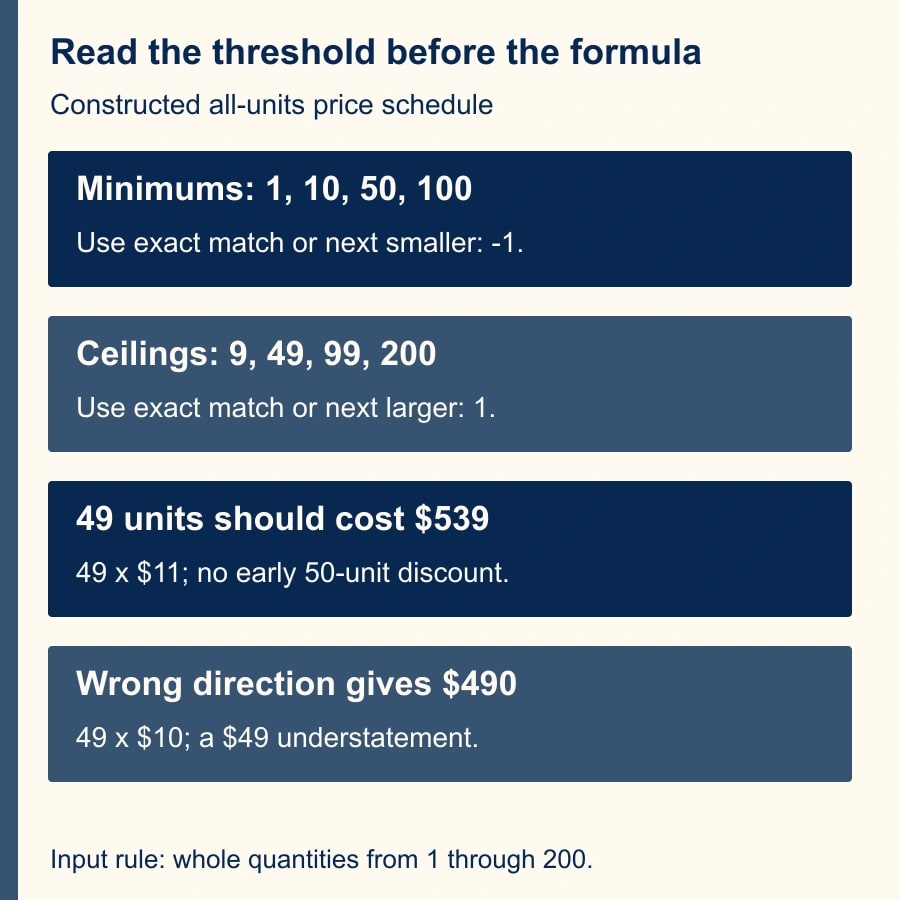
If your price table lists the minimum quantity required for each rate, XLOOKUP needs an exact match or the next smaller threshold: match_mode -1. If the table lists maximum quantities, the direction is usually exact or next larger: match_mode 1. Confirm what the thresholds mean before changing the formula, and check whether the selected price applies to the whole order or only the units inside that band.
A plausible price is not proof of a correct quote. At a quantity of 49, a table beginning a discount at 50 should not grant that discount early. At 50, the same discount may apply to every unit or only to the fiftieth unit, depending on the commercial agreement. Those are business rules that an AI-generated formula cannot decide for you.
This guide is for a sales operations or finance analyst maintaining a modest quote workbook with approved quantity bands. It is a proposed repair and verification process, not a report of a live customer workbook test. All prices and order quantities below are constructed examples in US dollars, excluding taxes, delivery and other charges.
Confirm the rule with the pricing owner
Ask the pricing owner to state one complete sentence: “For this product and price-list version, an order of at least [quantity] receives [rate] on [all units or specified units].” Include currency, effective dates, unit of measure and any maximum order size. A row containing 50 and 10.00 is ambiguous until those details are known.
This workflow fits a single-product example or a workbook that has already selected the correct product's approved band table. Skip a quick formula repair if price selection also depends on contract exceptions, country, customer class or several overlapping lists that have not been resolved. First select the governing agreement; then calculate its quantity band.
You need a copy of the workbook, an approved price schedule, representative orders and an owner authorized to approve corrections. Confirm that the intended Excel version supports XLOOKUP. Microsoft's documentation says it is unavailable in Excel 2016 and Excel 2019, even though those versions appear in the page's broad applicability list. Microsoft's XLOOKUP documentation.
No additional AI subscription is required for the repair. Budget analyst time to inspect formulas and historical quotes, plus pricing-owner time to resolve ambiguous rules. If another system receives the workbook output, include a check of that handoff. A corrected spreadsheet that exports an old cached price has not repaired the quote process.
Read the table as minimum thresholds
Build this small example in a separate copy. Put the minimum quantities 1, 10, 50 and 100 in cells E2 through E5. Put the corresponding unit prices 12, 11, 10 and 9 in F2 through F5. The illustrative agreement allows whole-number orders from 1 through 200 units and applies one selected rate to every unit in the order.
The first row means quantities 1 through 9 cost $12 per unit. The second means 10 through 49 cost $11. The third means 50 through 99 cost $10. The fourth means 100 through 200 cost $9 under this example's stated maximum. The maximum is an explicit input rule; it is not implied by the last threshold in the table.
Put the order quantity in B2. For a valid quantity, the core formula is =XLOOKUP(B2, $E$2:$E$5, $F$2:$F$5, "Review", -1). The fifth argument is match_mode. Microsoft's documented -1 option selects an exact match or the next smaller item; 1 selects an exact match or the next larger item. Omitting it defaults to exact matching. XLOOKUP match modes.
At 49 units, -1 finds the minimum threshold 10 and returns $11. Using 1 instead finds 50 and returns $10, granting the next discount before the quantity qualifies. The incorrect quote subtotal is $490 instead of $539, a $49 understatement. At an exact threshold such as 50, both directions can return the same rate, which is why testing only neat round quantities misses the defect.
Protect the input before looking up a price
The core lookup does not establish that an order quantity is acceptable. A value above 200 could still find the 100 threshold. Text, blanks and fractional quantities also need an explicit decision. In this example they should produce Review rather than a quoteable number.
One proposed formula for C2 is =IF(NOT(ISNUMBER(B2)), "Review", IF(OR(B2<1, B2>200, MOD(B2, 1)<>0), "Review", XLOOKUP(B2, $E$2:$E$5, $F$2:$F$5, "Review", -1))). It first rejects nonnumeric input, then checks the permitted range and whole-number rule. The nested structure avoids asking MOD to interpret text in the same combined condition used to reject it. Use your Excel locale's argument separators if they differ.
Calculate the example subtotal in D2 with =IF(ISNUMBER(C2), B2*C2, "Review"). This prevents a review marker from becoming an apparently usable monetary total. Keep the review state visible in the quote output and stop submission when it appears. Do not substitute zero for an invalid quantity or missing price: a zero-dollar subtotal can look like an authorized discount.
Treat these formulas as starting points to validate in your own workbook, not as a replacement for its input design. If B2 already contains an Excel error, investigate that upstream error rather than wrapping every failure in a silent zero. If fractional quantities are legitimate, replace the whole-number rule with the actual permitted increment and rounding policy.
Keep thresholds and rates numeric and protect the approved table from accidental edits. A number displayed as currency can still have an underlying type or source problem. Do not fix text quantities by blindly converting every identifier or field in the workbook. Product codes and customer references may need their leading zeros preserved.
Minimums and maximums need different tables
A maximum-quantity version of the same whole-number agreement would use ceilings 9, 49, 99 and 200, with prices 12, 11, 10 and 9. For valid quantities, exact or next larger matches the ceiling of the applicable band. At 10, it finds 49 and returns $11. At 49, it returns the same $11 exactly.
Do not change the match direction while keeping a table whose headings describe the opposite convention. Rename the threshold column clearly, write the covered interval beside each band in the review copy and test quantities immediately below and above each boundary. This makes the formula understandable to the next person maintaining it.
Also keep match_mode separate from search_mode, the sixth argument. Microsoft's binary-search options require a correctly sorted lookup array; unsorted data can return invalid results. For this small repair, leave the default search mode and keep the approved threshold table in a clear ascending order for inspection. There is no business benefit in adding a more fragile search option to four rows. XLOOKUP search modes.
Duplicate thresholds require owner review even when the formula returns a number. Two rows beginning at 50 with different prices cannot both govern the same product, date and agreement. Decide which record is authoritative rather than choosing the first or last occurrence to make an error disappear.
The larger trap: all-units versus graduated pricing
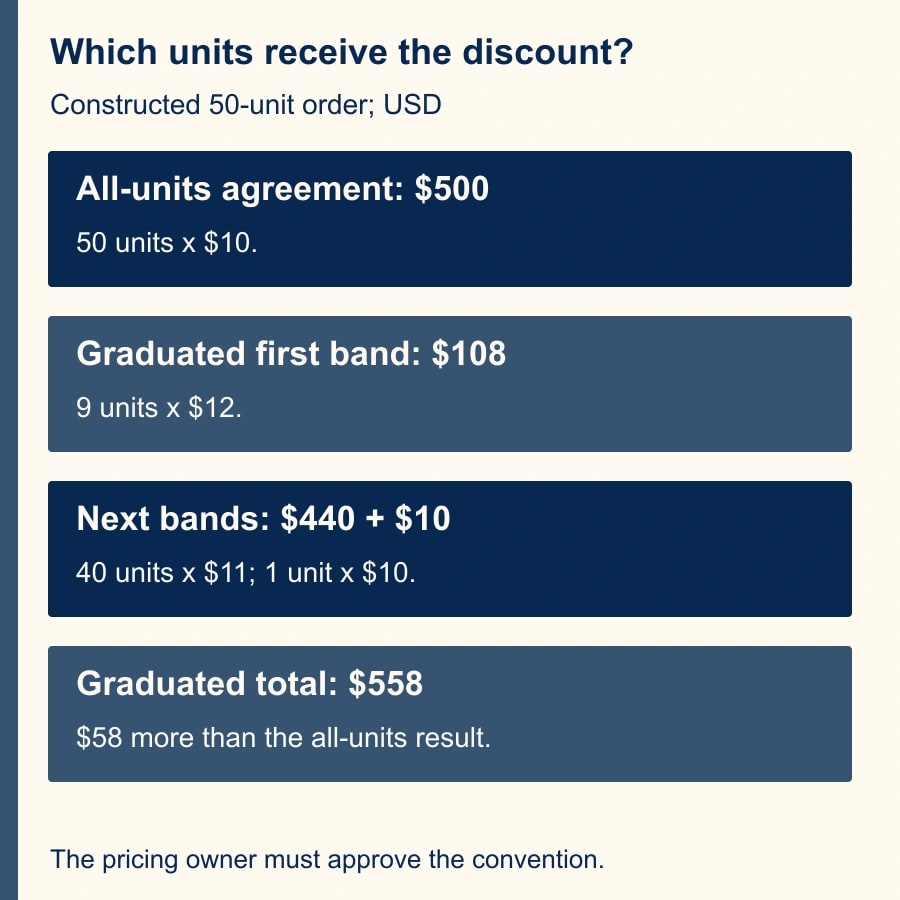
At 50 units, the all-units example charges 50 multiplied by $10, or $500. At 49 units it charges 49 multiplied by $11, or $539. The larger order is $39 cheaper in total. That discontinuity follows from the constructed agreement. It is a reason for the pricing owner to inspect the commercial rule, not automatic evidence that XLOOKUP is broken.
Under a graduated agreement, each block of units has its own rate. Using the same band boundaries for illustration, the first nine units cost $108, the next forty cost $440 and the fiftieth costs $10. The total for fifty units is $558. That is $58 more than the all-units subtotal of $500.
A single returned unit rate multiplied by the entire quantity cannot calculate that graduated total. It discards the prices applying to earlier units. If the agreement is graduated, stop using this all-units formula and build a calculation that prices the number of units in every applicable band. Have the pricing owner approve examples on both sides of each boundary before implementation.
Use an AI assistant, if permitted, to explain a formula or propose test cases. Give it the approved convention explicitly and ask it to state which units receive each rate. Reject a response that uses “tiered pricing” without defining whether it means all-units or graduated pricing. The same phrase is often used for both, and the financial result differs materially.
A reusable boundary worksheet
Create a test sheet with columns for input quantity, expected eligibility, expected unit rate, expected subtotal, actual result and reviewer. Enter expectations from the agreement before copying in the formula result. Otherwise the test can simply repeat the same mistake as the workbook.
- Quantity 1: $12 per unit; subtotal $12.
- Quantity 9: $12 per unit; subtotal $108.
- Quantity 10: $11 per unit; subtotal $110.
- Quantity 49: $11 per unit; subtotal $539.
- Quantity 50: $10 per unit; subtotal $500.
- Quantity 99: $10 per unit; subtotal $990.
- Quantity 100: $9 per unit; subtotal $900.
- Quantity 150: $9 per unit; subtotal $1,350.
- Quantity 200: $9 per unit; subtotal $1,800.
- Blank, text, zero, negative, fractional or greater-than-200 input: Review, with no approved subtotal.
For each actual price-list change, add cases immediately before, at and after the changed boundary. If the agreement introduces a new minimum quantity or an order cap, include the newly invalid cases too. Keep an approved version of the fixture with the workbook so later edits can be checked against a stable expectation.
Record the price-list version and effective date with each test. A formula can pass today's table and still be wrong for an old quote that was governed by an earlier agreement. Historical correction requires the applicable historical rates, not a blanket recalculation using the current table.
Recover existing quotes carefully
Stop new automated quote issuance while a confirmed pricing defect is active. Preserve the affected workbook version and identify which quotes used it. Search by formula version, creation period and product or price-list scope, then recalculate those candidates against the governing agreement.
Separate drafts, sent quotes and accepted orders. Correcting a draft may be straightforward; changing a sent commitment needs the business owner's decision and an appropriate customer communication. Do not automatically resend every quote or overwrite the historical price without preserving the original and the reason for the correction.
For each candidate, record the original subtotal, corrected subtotal, difference, governing agreement and disposition. A $49 calculation difference is an exposure to investigate, not automatically a recovered cash amount. Some quotes may never have been accepted; others may require honoring the original terms.
If errors remain after the match direction is fixed, inspect product selection, duplicate thresholds, numeric types, effective dates and downstream export formulas. Recover the specific defective records rather than rerunning a workflow that could create duplicate proposals or customer messages. Keep the pricing owner responsible for the release decision.
Know when the repair is complete
Require the boundary worksheet to pass, the agreement wording to match the formula and the exported quote to show the same approved result. Have a second person inspect at least one nonthreshold quantity, such as 49, because exact-match examples can conceal the original problem.
Measure incorrect quotes and correction effort over the next reporting period. If the workbook now needs many exceptions, manual overrides or overlapping tables, consider moving the pricing rules into a more controlled quoting process. The stop condition is an unresolved commercial rule, not a formula that merely looks complicated.
Start by labeling your threshold column Minimum quantity or Maximum quantity and testing one value between boundaries. If the selected product or duplicate row is the problem, follow the guide to diagnose XLOOKUP returning the wrong duplicate price. If numeric inputs are being ignored or misread, use the text-amount and number-separator repair guide.
Weekly Newsletter
AI Adoption Weekly
New research, field guides, training studies, and tool decisions for operators.
No spam. Unsubscribe anytime.
Related Comparisons
Calculator
AI seat cost calculator
List price × headcount. You enter the hours and the operating assumptions.