
Stop XLOOKUP Returning the Wrong Price from Duplicate Records
Find ambiguous lookup keys, build an approved price table and test missing, duplicate and revised rates before releasing an order or budget.
Published October 28, 2026

If XLOOKUP returns the wrong price without showing an error, count the matching records before changing the formula. Two rows can share a product code while representing different dates, currencies, pack sizes or approval states. The repair is to establish one approved price for the order’s actual conditions, then let the lookup retrieve it.
This guide is for finance and operations teams using Excel to price orders, prepare budgets or reconcile supplier schedules. It fits a controlled workbook with a modest rate table and an accountable price owner. Skip the formula-only approach when prices depend on complex contractual tiers, customer-specific concessions or overlapping effective dates that nobody can resolve. Those decisions need an approved pricing rule first.
Microsoft documents that XLOOKUP returns the first match by default; an exact match is the default match mode. Reverse search changes which end is searched, not which commercial terms are valid. XLOOKUP is unavailable in Excel 2016 and 2019. Check the recipient’s Excel version before distributing the workbook. Microsoft’s XLOOKUP reference, checked October 28, 2026.
The mistake that looks like a saving
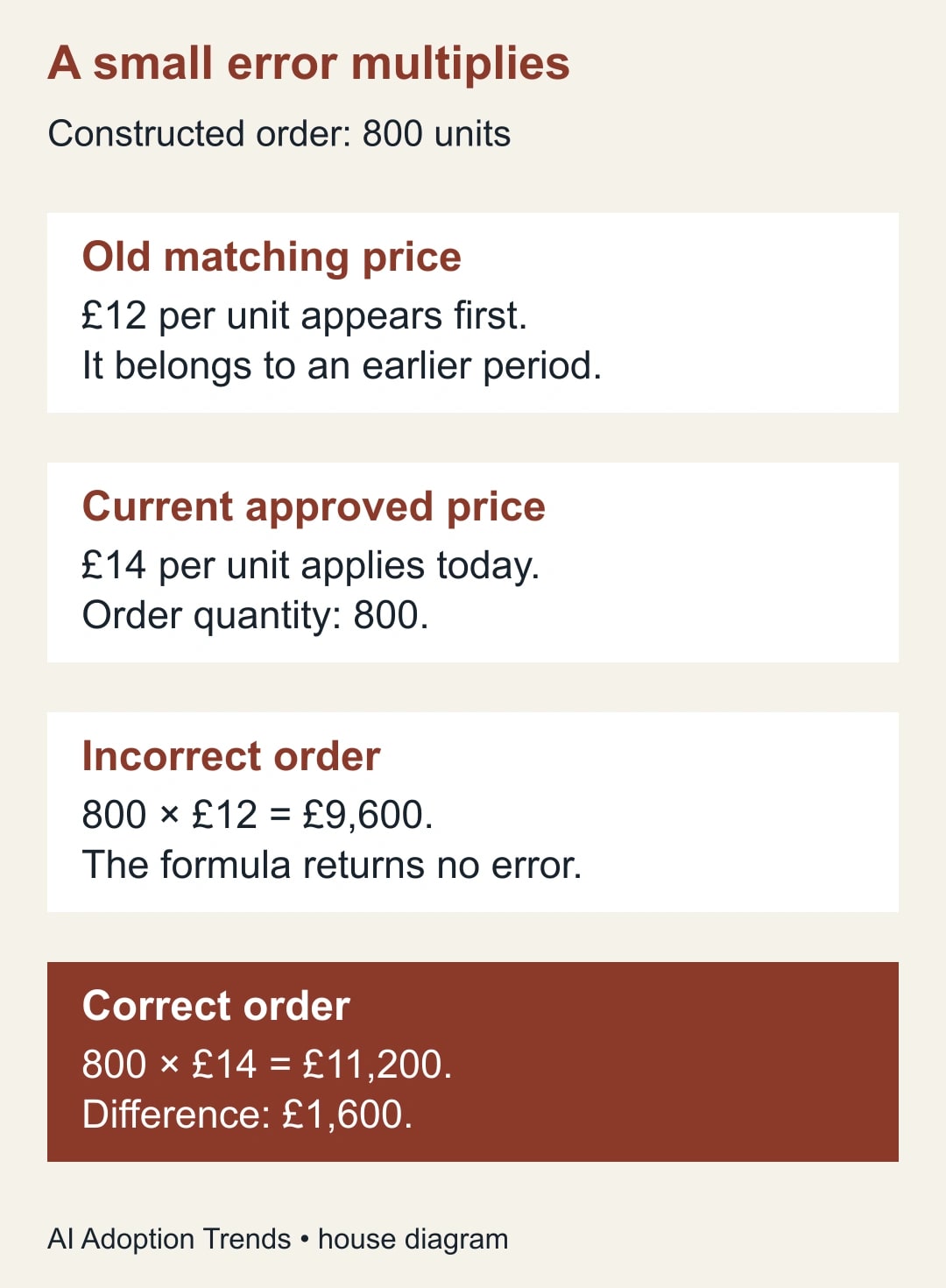
Consider a constructed purchasing example. An order needs 800 units of part P-104. The supplier export contains an older £12 unit price followed by a current approved £14 price. Both rows have the same part code. A lookup against that code alone returns £12, producing an order value of £9,600. The approved value is £11,200. The £1,600 difference is an understatement, not a negotiated saving.
Reversing the search happens to return £14 in this small example. It still fails as a business rule. Add a draft £13 quote at the bottom and the reverse lookup now chooses an unapproved price. Sort the source differently and the apparent repair changes again. The order should not depend on which row somebody happened to paste last.
The useful question is therefore more precise than “Why is Excel wrong?” Ask: “Which source row is approved for this part, currency, unit and pricing date?” Write the answer in words before editing the workbook. If two colleagues give different answers, keep the order on hold until the price owner settles the disagreement.
Prepare a safe diagnostic copy
Save a copy of the workbook and preserve the original supplier export. Record the export date, supplier, currency, pricing period and workbook owner. Keep the existing order output so you can compare old and corrected values. Do not delete duplicate rows from the only source file; you may need them to explain what happened.
You need Excel with XLOOKUP, permission to edit the working copy, the relevant approved commercial schedule, and a reviewer who can confirm rate validity. This method does not require another connector or an AI subscription. The real cost is the time needed to resolve source conflicts and check affected orders. If an existing Excel entitlement covers the work, there may be no additional software purchase, but that does not make the review free.
Choose one disputed order line first. Copy its part code, quantity, currency, unit and pricing date into a small diagnostic area. Include the value currently returned and the source range used by the formula. This creates a test you can repeat after each repair rather than judging the whole workbook by whether its total looks plausible.
Separate duplicate keys from duplicate business records
Filter the source to the disputed code and inspect every matching row. A repeated code is not automatically bad data. One row might be for a case of twelve and another for a single item. Another might be a historic price that must remain available for old invoice checks. Deleting either record could damage a different process.
Classify the matches into four groups: exact copied rows; distinct valid products or units; different pricing periods; and conflicting claims for the same conditions. Exact copies can be removed from a derived working table after retaining evidence. Distinct products need a more specific identifier. Historical rows need a date rule. Conflicting approved rows require a commercial decision, not a clever formula.
Do not normalize identifiers casually. A leading zero may be meaningful, and a supplier’s code may differ from your internal code. If one system calls the item P-104 and another P104, create an explicit mapping approved by the source owner. An AI assistant can suggest likely matches, but it should not silently merge them or authorize a price.
Keep a conflict register with the source row IDs, reason for the conflict, proposed resolution, approver and resolution date. The row ID can be a stable supplier reference or a locally assigned reference tied to the preserved export. Its purpose is to let a second person find the evidence, not merely recognize the displayed amount.
Build one approved table for the pricing date
For a small purchasing workbook, the clearest repair is often a separate approved table for the date being priced. Preserve the full historical source elsewhere. The approved table should contain only the rows that apply to the order date, with one row for each combination of product, currency and unit used by the order.
In this example, use a worksheet named Approved. Put the lookup key in column A, numeric unit price in column B and source reference in column C. Reserve rows 2 through 100 for the worked formula below. A key such as P-104|GBP|EACH makes the conditions visible. Use a separator that cannot appear in the source values, and build keys consistently on both sides.
This simple key deliberately assumes the approved table has already been restricted to one pricing date. It does not solve effective-date selection. If you need multiple dates in one workbook, either produce a separately approved table for each date or have the workbook owner implement and test a date-aware rule. Do not add the date to a text key and assume overlapping price periods have disappeared.
For the constructed case, the approved table contains P-104|GBP|EACH at £14 with its current approved source reference. The older £12 row remains in the preserved history. The draft £13 row stays outside the approved table. The output should now have a documented reason for choosing £14 that remains true after the source is sorted.
Add a visible count gate before the lookup
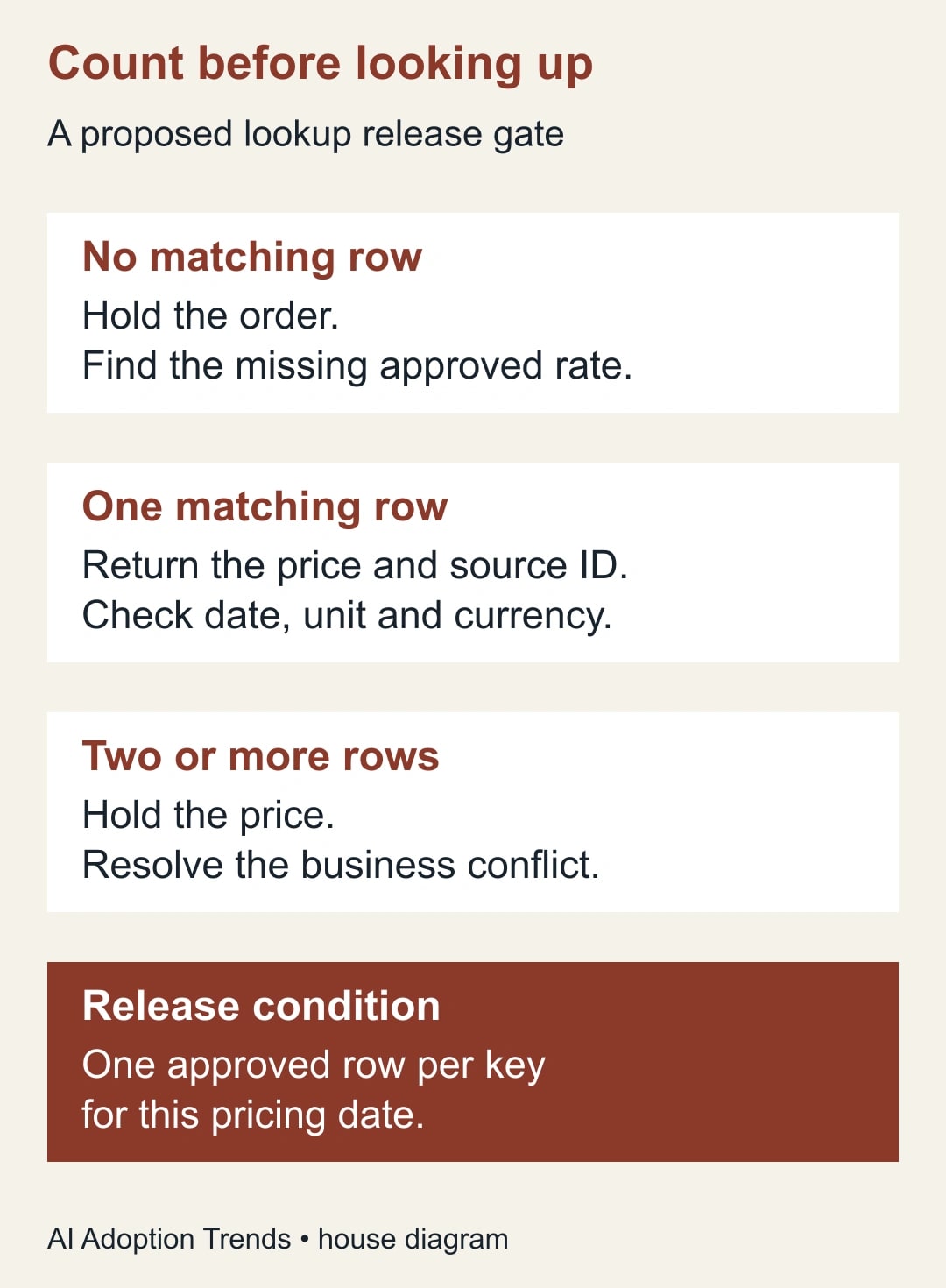
Assume the order’s lookup key is in A2. In B2, count exact occurrences in the approved range with =SUMPRODUCT( --(Approved!$A$2:$A$100 = A2) ). This comparison avoids treating an asterisk in a product identifier as a wildcard. The intended results are zero, one or more than one; each leads to a different action.
In C2, use =IF( A2="", "HOLD: missing key", IF( B2=1, XLOOKUP( A2, Approved!$A$2:$A$100, Approved!$B$2:$B$100, "HOLD: missing", 0 ), "HOLD: missing or duplicate" ) ). The final zero requests exact matching. This formula is an adaptable example, not a tested template for your private workbook. Local Excel settings may require semicolons instead of commas.
Use the same bounded row range in both formulas. If the source expands beyond row 100, the example must be extended or converted to a properly maintained Excel table. Otherwise the count and lookup may agree only because both ignored the new rows. Record the expected source row count as part of the refresh check.
For the underlying functions, see Microsoft’s SUMPRODUCT reference and conditional-formula guide.
Keep the count column visible during review. A result of one means the key is unique within the selected range; it does not prove that the price is approved, current, numeric or in the correct currency. Those are separate checks. In particular, a blank source price must be treated as missing data even if Excel displays a numeric-looking result.
Do not let text hold messages disappear from the order total. A sum can ignore text and still produce a plausible subtotal. Add a prominent release status that requires every order line to have a valid numeric price and every match count to equal one. The purchasing owner should approve the order only when the exception count is zero.
Test the repair with cases that should fail
Create a small test sheet containing at least five cases. Start with the approved P-104 order: expected count one, price £14 and extended amount £11,200 for 800 units. Add an unknown code: expected count zero and a hold. Add a second approved row with the same key: expected count two and a hold, even if both prices are identical.
Next, test a blank key and a valid key whose price cell is blank. Neither should release an order. Finally, test the same product in another currency or unit. A GBP each price must not be substituted for a USD case price just because the product description looks familiar. Write expected results before running the formulas so the test does not merely confirm whatever appears.
Sort the approved table in the opposite order and rerun the cases. The approved answer should remain unchanged. Add a new source row at the bottom and confirm the maintained range includes it. Refresh from a clean copy of the original export to check that the repair survives the actual update process rather than only the hand-edited demonstration.
The arithmetic check is separate from the lookup check. For P-104, 800 × 14 = 11,200 and 800 × 12 = 9,600; 11,200 − 9,600 = 1,600. These amounts exclude tax, freight and discounts. If those items affect the purchasing decision, add them explicitly rather than presenting the unit-price correction as the final landed cost.
Use this release worksheet
- Business decision: which order or budget will use this price, and on what date?
- Match definition: product identifier, currency, unit and any additional approved conditions.
- Source evidence: export version, approved schedule and source row reference.
- Conflict count: zero-match and multiple-match lines, with an owner for each.
- Value checks: numeric price, sensible unit, correct currency and applicable period.
- Reconciliation: old amount, corrected amount, difference and explanation.
- Tests: missing key, duplicate key, blank price, changed sort order and newly added row.
- Release owner: reviewer, approval date and next refresh date.
Keep the worksheet with the workbook or link it from the cover sheet. It is most useful when the next analyst can reproduce the result without asking the original author which hidden tab mattered. A screenshot of a correct total is weaker evidence than a source reference, a preserved test case and a clearly defined selection rule.
Recover affected orders and keep the fix small
If an incorrect price has already been used, identify the affected workbook versions and order lines before sending corrections. Compare each line against the applicable approved schedule. Some historic orders may legitimately use the old rate. Do not overwrite them all with today’s price merely to make the workbook consistent.
Give the purchasing or finance owner a concise impact list: order reference, original price, approved price for that order date, quantity and difference. That owner decides whether to amend an order, explain a budget change or investigate an invoice. Formula repair alone does not authorize a commercial adjustment or establish that money has been lost.
Measure the process by unresolved price exceptions, orders released with an ambiguous key and time required to trace a returned price to evidence. A reduction in review minutes is released staff capacity. It becomes cash savings only if an actual expense changes. Avoid attaching a precise return-on-investment claim to one corrected example.
Stop automating price release when the source owner cannot define a unique applicable row, the range cannot be maintained reliably or reviewers routinely override holds without evidence. A smaller approved schedule and a manual exception queue are better than an elaborate formula nobody can explain. The next action is to run the five failure cases against one live workbook copy and resolve the first ambiguous key.
If duplicate records appear during a reshape rather than a lookup, use the Power Query pivot conflict guide. If codes changed during import, first preserve leading zeros and long identifiers as text.
Weekly Newsletter
AI Adoption Weekly
New research, field guides, training studies, and tool decisions for operators.
No spam. Unsubscribe anytime.
Related Comparisons
Calculator
AI seat cost calculator
List price × headcount. You enter the hours and the operating assumptions.