
Fix Airtable Emails Showing the Wrong Date or Time
Keep the original appointment timestamp, format a separate local-time message field and test midnight and daylight-saving cases before sending.
Published October 28, 2026

If an Airtable automation email shows a different date or time from the base, preserve the original appointment timestamp and create a separate text field for the message. Format that text in the service location’s named time zone, then use it in the email. Do not move the stored appointment by several hours just to make one message look right.
This guide is for dispatch, customer service and operations teams sending appointments, collection slots or service reminders. It addresses the representation of a known appointment in an outgoing message. It does not diagnose every date-based trigger, rebuild a scheduling system or guarantee delivery at an exact minute.
Airtable documents that date and created-time values in automations default to GMT/UTC independently of the base’s display formatting. Its recommended message-formatting pattern uses SET_TIMEZONE inside DATETIME_FORMAT. The result is text, which is what you want for a human-readable message. Airtable’s automation troubleshooting guidance, checked October 28, 2026.
Diagnose the message before changing the appointment
Take one incorrect email and locate its source record. Record the appointment ID, stored date-time value, displayed base value, outgoing text and expected local appointment. Include the source that established the appointment, such as an agreed booking record. The expected answer must come from that agreement, not from whichever screen happens to look familiar.
Ask two separate questions. First, does the stored timestamp represent the agreed instant? Second, does the outgoing message describe that instant in the intended local zone? If the source was imported with the wrong time zone, formatting will only make the wrong appointment more readable. Correcting the underlying booking requires its own review and may affect calendars or other systems.
UTC is a common reference for time; regional zones such as America/New_York describe how that reference appears locally on a particular date. A difference between UTC and local time is not automatically an error. The error occurs when a message uses the wrong representation or leaves the reader unable to tell which one is intended.
Before editing, save the automation configuration and copy the relevant formula or field settings. Keep a record of which message template and token produced the bad output. Route pilot messages only to an internal test address. Testing a corrected template against real customers would turn a formatting investigation into an unexpected rescheduling message.
A midnight example that changes the calendar day
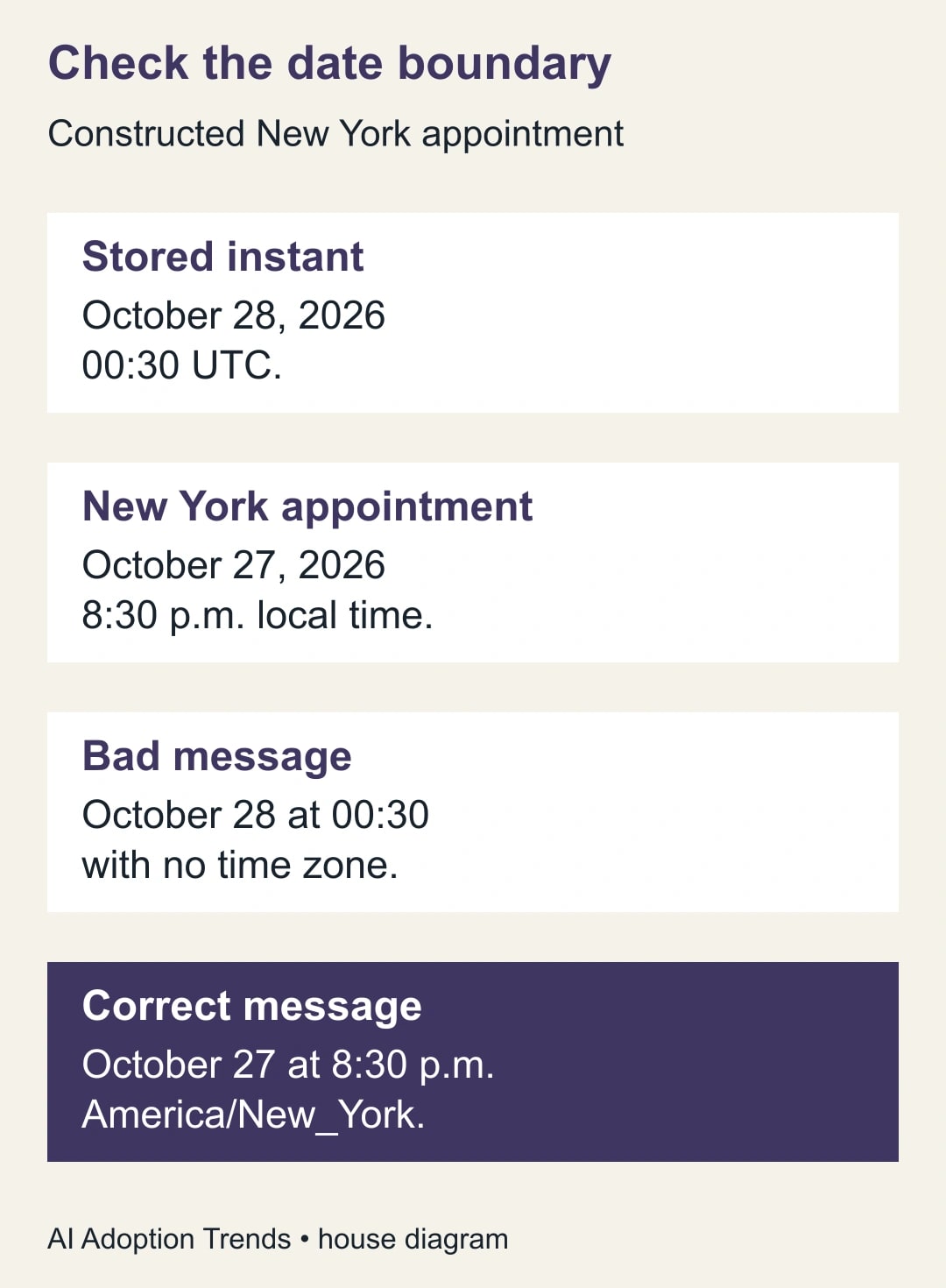
In this constructed example, a service visit is scheduled for October 27, 2026 at 8:30 p.m. in New York. The corresponding UTC timestamp is October 28 at 00:30. An email that prints the raw UTC value without a zone could tell the customer to expect the visit on October 28 at 00:30, even though the underlying booking has not moved.
The correct repair is a message such as “October 27, 2026 at 8:30 p.m., America/New_York.” Your actual customer wording can use a familiar location label, but it should remain unambiguous. For a multi-region service, include the service location as well as the time. A customer traveling elsewhere should not have to infer that the visit follows their laptop’s zone.
Changing the source timestamp from 00:30 UTC to 20:30 UTC would create a different appointment. It might make one unformatted display resemble the desired wall-clock value while breaking calendar integrations and downstream reminders. Preserve the distinction between the instant and the words used to communicate it.
Choose the business zone and name its owner
Decide which location governs the appointment. For an on-site repair, it is normally the service address. For a virtual consultation, it may be the agreed booking zone. For a shipment cutoff, it may be the warehouse. This is a business rule that the operations owner must confirm before anyone writes a formula.
For a single-region team, a fixed named zone in the message formula is easy to review. For multiple regions, maintain an approved zone field or a location-to-zone mapping. Do not infer a zone from a customer’s name, language or current browser location. Missing or unrecognized locations should go to review before a time-sensitive message is sent.
Use named regional zones rather than a permanent “minus four hours” adjustment. The applicable offset can change with the date. Airtable supports named zone identifiers and documents the use of DATETIME_FORMAT with SET_TIMEZONE. Its time zones and locales guide also distinguishes display settings from formula output. Check the identifiers used by your base rather than inventing abbreviations.
Give one person ownership of the mapping and the outgoing wording. The automation builder may implement the field, while dispatch decides what the appointment means. If those responsibilities remain implicit, a later office move or new service region can introduce the same defect without anyone changing the automation itself.
Create a message-only formula field
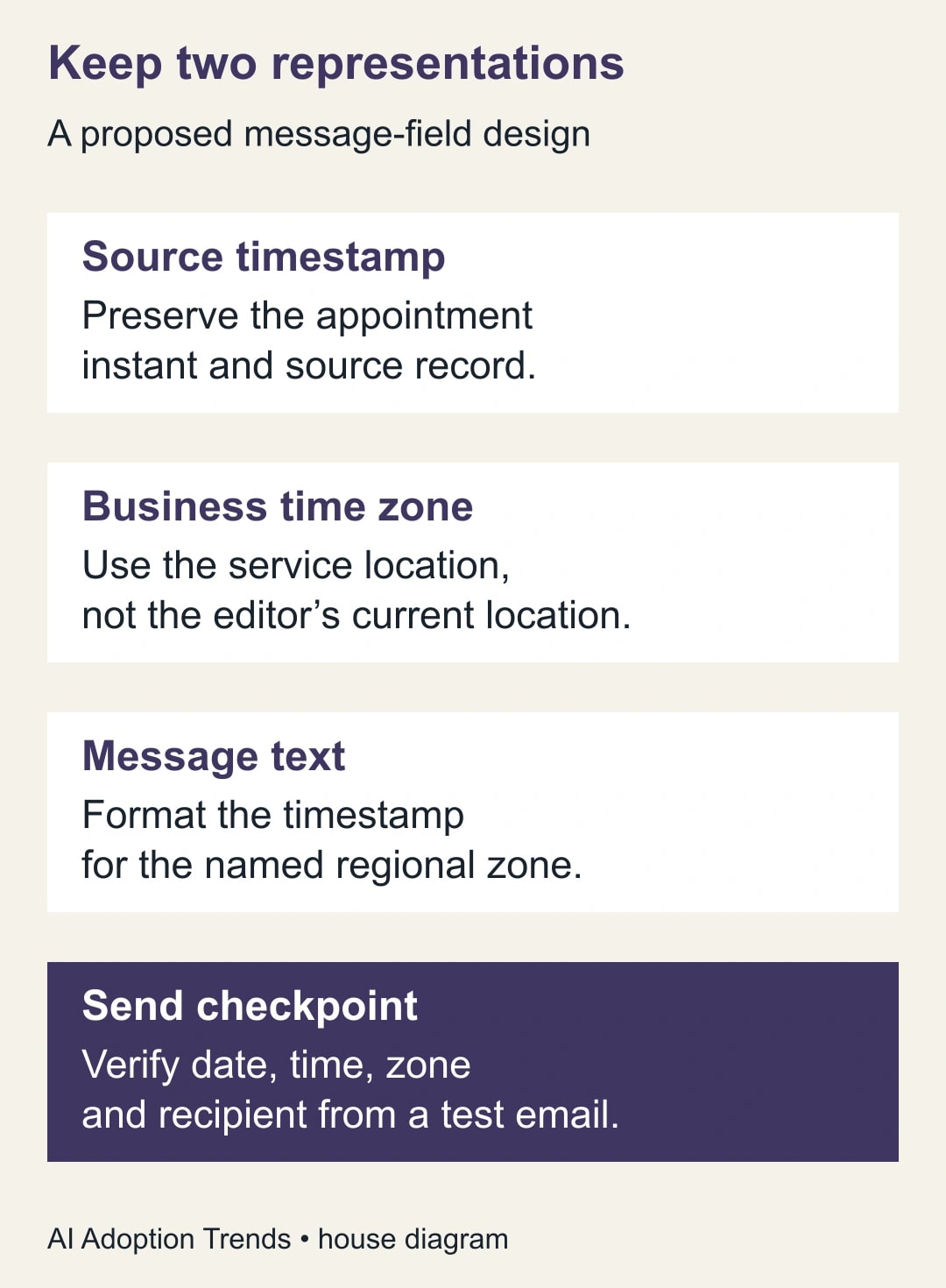
Assume the original date-time field is named Appointment start. In a pilot copy of the base, create a formula field named Appointment message time. An adaptable New York example is IF({Appointment start}, DATETIME_FORMAT( SET_TIMEZONE( {Appointment start}, 'America/New_York' ), 'YYYY-MM-DD h:mm A' ) & ' America/New_York', 'HOLD: appointment missing'). This is a proposed formula to test in your base, not a claim that we ran your private automation.
The blank check deliberately produces a visible hold rather than an invented time. The formatting pattern includes a full date and an AM/PM clock. Use the same named zone in the calculation and the label. If you adapt it for another region, change both together and verify the result against an authoritative booking or calendar view.
Keep the original date-time field for scheduling, sorting and integration. Use the new formula field only where readable message text is required. DATETIME_FORMAT returns text; that property is useful here. Re-parsing the formatted text as a date can bring timezone conversion back into the automation output, as Airtable’s troubleshooting page explains. Do not add DATETIME_PARSE merely because a text result seems less sophisticated.
Use plain straight quotation marks when entering the formula. Select the field name from Airtable’s formula editor to avoid a hidden spelling difference. Airtable’s formula reference documents named-field references and these functions. If your field includes different punctuation or spacing, adapt the reference rather than copying the example unchanged.
Check three sample records in the base before touching the email action: an ordinary daytime visit, the midnight-boundary example and a blank appointment. Expected outputs are the agreed local time, the correct local calendar day and the explicit hold. If any one fails, keep the existing production message unchanged while you investigate.
Replace the outgoing token and inspect a real test email
In the pilot automation, replace the raw Appointment start token in the email body with Appointment message time. Check the subject line and any other repeated appointment text too. It is easy to repair the body while leaving an incorrect date in the subject or an attached summary. Use one approved message field wherever the same representation is needed.
Retest the action with a current sample record, then send an actual pilot email to the internal test recipient. Read the delivered message rather than relying solely on the action preview. Confirm the date, clock time, time-zone label, service address and record reference. A correct formula does not prove the template inserted the correct field.
Verify that the automation’s decision to send remains separate from its display text. A message should not be sent when the appointment is blank, cancelled, awaiting confirmation or mapped to an unknown zone. Add or retain the appropriate eligibility checks for your process. The text “HOLD” is a diagnostic aid, not a suitable customer notification.
Record the test record ID and delivered message evidence. Avoid copying customer details into a broadly shared troubleshooting document. The useful evidence is the field mapping and expected-versus-observed time, not a collection of real addresses. A constructed appointment can exercise the formatting without exposing a customer’s schedule.
Test across the seasonal change
Use two dated New York examples to test why a fixed offset is fragile. October 28, 2026 at 13:00 UTC is 09:00 in New York. November 4, 2026 at 13:00 UTC is 08:00 in New York. The same UTC clock time has a different local representation after the seasonal change. These are constructed conversion checks, not observed customer bookings.
If the business intends a recurring 09:00 New York appointment, the corresponding UTC time must follow the local zone’s rules. Formatting a stored instant cannot decide whether a recurrence should preserve local time or UTC time. That choice belongs to the booking system and the appointment owner. Escalate a recurrence problem rather than hiding it in an email formula.
Add a case near local midnight, a case after the change, a blank date, an unknown zone and a rescheduled appointment. For ambiguous local times around a clock change, retain a timestamp that identifies the actual instant and confirm the booking explicitly. A bare local clock value may be insufficient to distinguish two occurrences.
Do not use NOW or TODAY as a precision delivery clock. Airtable documents periodic recalculation behavior for those functions; they are not a guarantee that an action fires at an exact second. This article’s proposed formula formats the appointment field itself. If the reminder fires at the wrong time even though its wording is correct, investigate the trigger separately.
A reusable message-time acceptance sheet
- Appointment identity: record ID, booking reference and source of the agreed time.
- Stored value: original timestamp and whether it includes a time or only a date.
- Business zone: service location, approved regional identifier and mapping owner.
- Expected message: full local date, clock time and explicit zone or location label.
- Actual message: subject and body from the delivered internal test email.
- Edge cases: midnight, seasonal change, blank value, unknown zone and reschedule.
- Sending rule: confirmed appointment, correct recipient and no unresolved hold.
- Release record: template version, reviewer, test evidence and rollback owner.
Use a separate case for date-only fields. A due date such as “inspection required by Friday” is not necessarily an appointment instant. Adding midnight and converting it across zones can move the displayed day without any business justification. Decide whether the process needs a calendar date or a timestamp before applying a timezone formula.
Correct messages without changing the booking twice
If incorrect messages have already gone out, identify the affected template version and records. Compare the booking source with the delivered wording. Separate messages with merely unfamiliar formatting from messages that could cause a customer to attend on the wrong day. The operations owner should decide which need a correction and how urgently.
For an affected appointment, send one clear correction through the established customer-contact process. State the confirmed local date, time and location, and whether the appointment itself changed. Do not automatically resend every reminder after deploying the new formula; some customers may already have received a personal clarification or cancelled the visit.
Track a small quality measure: correctly rendered appointment messages divided by reviewed pilot messages, plus the number of unresolved date exceptions. For example, nineteen correct messages out of twenty is 95%, but the one failure still blocks broad release if it sends a customer to the wrong date. An attractive average does not make that defect acceptable.
The first useful milestone is a delivered test email that agrees with the booking source in all edge cases. Keep the pilot small until a second person can trace the source timestamp to the outgoing words. If the source instant is wrong, stop the formatting rollout and repair the booking data through its owner.
For a trigger that never runs, use the Airtable existing-record trigger guide. For recurring meetings across regional clock changes, check the time-zone anchor and future occurrences before assuming every local hour should stay fixed.
Weekly Newsletter
AI Adoption Weekly
New research, field guides, training studies, and tool decisions for operators.
No spam. Unsubscribe anytime.
Related Comparisons
Calculator
AI seat cost calculator
List price × headcount. You enter the hours and the operating assumptions.