
Fix Power Query Rounding Differences Before Changing the Total
Trace rounding differences to the calculation stage, midpoint rule and data type, with small test cases before changing a reconciliation query.
Published October 29, 2026

When a Power Query total differs by a few cents, compare the calculation steps before changing the final number. Check whether each line is rounded before summing, which rule handles exact midpoints and which numeric type is used. Preserve the raw amounts while testing a proposed correction. A small discrepancy can be a real rule difference rather than a bad transaction.
Power Query’s Number.Round defaults to rounding midpoint ties to the nearest even number. That is easy to miss if a workbook, source system or written business rule expects ties to round away from zero. The function also accepts a precision and an explicit rounding mode. Microsoft documents the Number.Round behavior.
Documentation checked October 29, 2026. This guide is for analysts reconciling transaction exports, invoice reports or operational cost summaries. It explains how to diagnose the difference and prepare a reviewable repair. It does not choose an accounting, tax or contractual rule for your organization. The responsible finance owner must identify the rule the report is supposed to implement.
First confirm that you are comparing the same records
Before examining decimals, compare the source population. Check transaction count, reporting period, currency and stable row identifiers. Missing records, duplicated joins and different filters can create a small difference by coincidence. Do not label a discrepancy “rounding” merely because its absolute value is below a dollar.
Choose one document or small group that exhibits the problem. Save the original export, the existing query and the downstream workbook result. Give the case a reference so everyone compares the same version. Keep the refresh date and any source-system parameters with it.
Ask the report owner what the amount represents: a raw unit rate, extended line amount, tax amount, converted amount or final document total. Those are different calculation stages. A unit price may legitimately carry more decimal places than the final payable amount, and rounding it early can change every line that uses it.
If you cannot identify the intended calculation stage, stop the repair and resolve that question. Changing Number.Round arguments without knowing the business rule can make the sample match while making the next report wrong. The useful outcome is an explained rule implemented consistently, not a total forced to agree once.
Separate display formatting from a changed value
A cell displaying 10.00 may still contain a value with additional decimal places. Inspect the underlying values and the query steps rather than relying on the visible number of decimals. A report can display every line to two places while calculating a total from more precise inputs.
Create diagnostic columns instead of replacing the source amount. Keep RawAmount, CandidateRoundedAmount and Difference, with the source identifier alongside them. The candidate column is a proposal for testing. It should not feed the approved reporting output until the owner has accepted the rule and the regression checks have passed.
Also check whether a formatted amount has become text. Text that looks like money is not a reliable input for later arithmetic. Keep the approved numeric result separate from any presentation string, and verify the final column type after loading the data into the next step of the workflow.
Write down the sequence in ordinary language before touching code. For example: “Multiply quantity by the source rate, round each extended line to two places using the approved midpoint rule, then sum the rounded lines.” A second report that sums raw extended lines and rounds once at the end implements a different sequence.
See how rounding order creates a cent
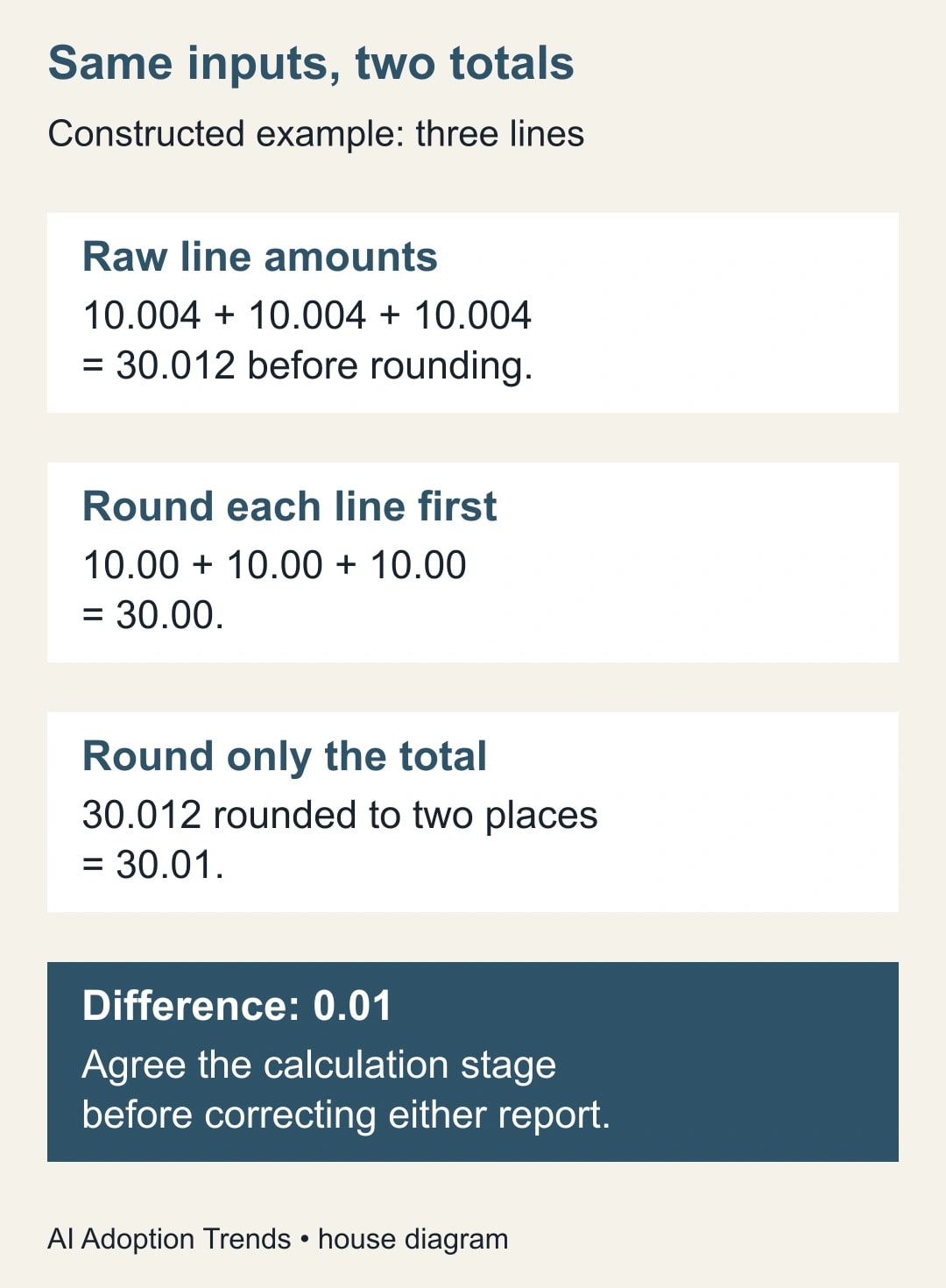
Use this constructed arithmetic example to isolate the order of operations. Three raw line amounts are 10.004, 10.004 and 10.004. Rounding each line to two decimal places gives 10.00, 10.00 and 10.00, which sum to 30.00.
Summing the raw amounts first gives 30.012. Rounding that total to two decimal places gives 30.01. The one-cent difference does not require a midpoint tie: it comes from rounding at a different stage. Both calculations can be internally consistent while only one matches the agreed reporting rule.
Now consider a reconciliation that adds an unexplained adjustment of 0.01 to the line-rounded report. It makes this example match the total-rounded report, but it does not repair the rule. A different set of lines could produce no difference or a difference in the opposite direction.
Preserve both candidate totals in the diagnostic output and label their calculation sequences. Have the owner select the intended sequence using the underlying policy or source-system specification. Record that evidence with the change request so the next analyst does not have to rediscover the reason.
Test exact midpoints with both signs
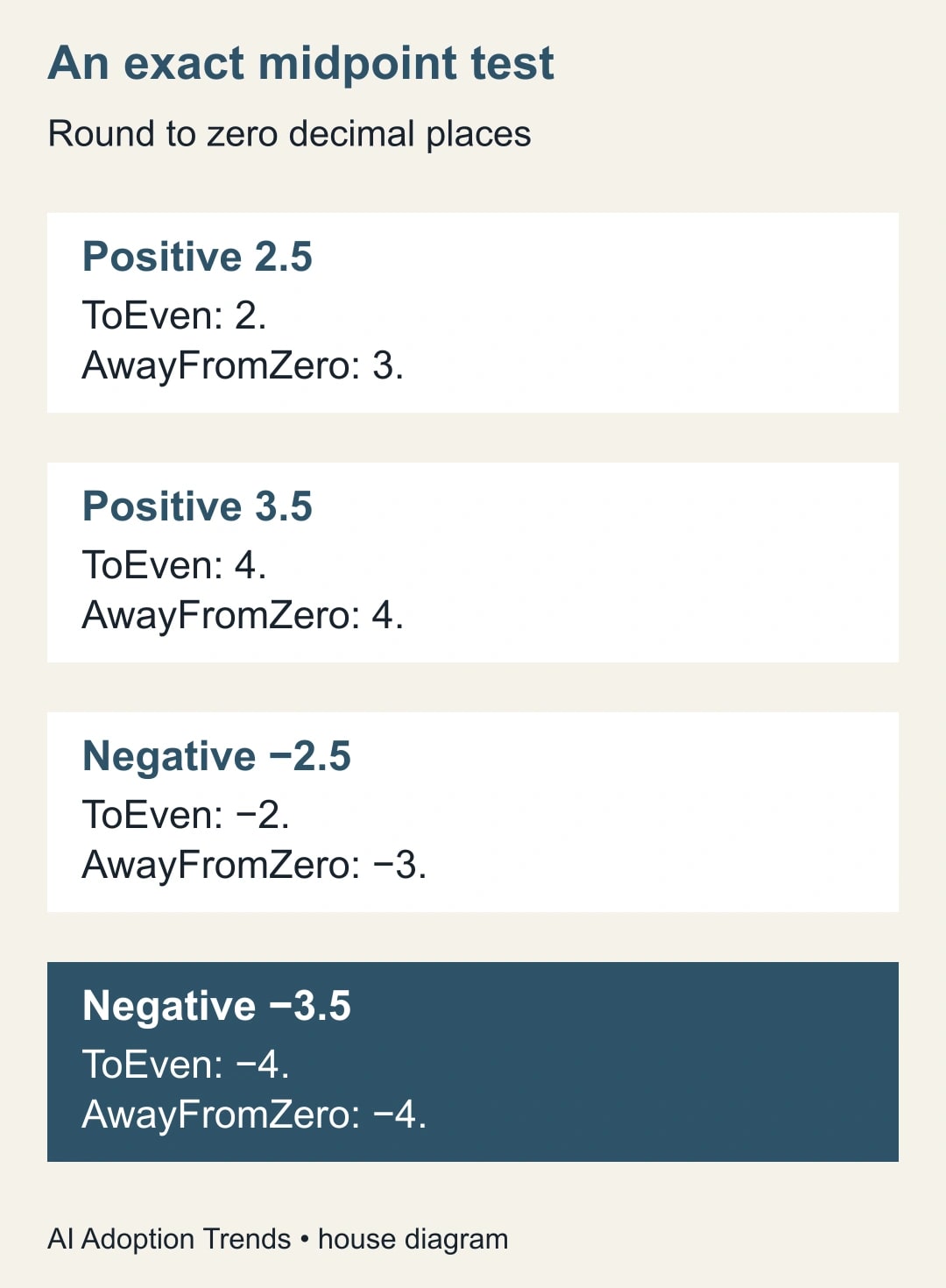
After agreeing the stage, test the midpoint rule separately. At zero decimal places, 2.5 lies exactly between 2 and 3. Rounding to the nearest even integer produces 2; rounding away from zero produces 3. For 3.5, both methods produce 4, so a test containing only 3.5 would fail to reveal the distinction.
Negative values matter too. At zero decimal places, −2.5 becomes −2 under ties-to-even and −3 under ties-away-from-zero. For −3.5, both produce −4. Include credit notes or reversals in the real test set; a rule that looks correct only for positive invoices is incomplete.
Microsoft’s RoundingMode values describe how exact ties are resolved. AwayFromZero does not mean every non-integer is always pushed outward, and Up is not a synonym for away from zero when the value is negative. Choose the named rule that matches the approved policy rather than guessing from an English label. Microsoft lists the rounding modes and their meanings.
These half-integer examples are useful because they expose the tie rule directly. For decimal boundary cases in a real export, inspect numeric representation as well. Do not assume that a displayed value ending in 5 is stored as an exact mathematical midpoint after all preceding transformations.
Check the numeric type before changing the formula
Power Query’s Decimal Number uses binary floating-point representation, which cannot represent every decimal fraction exactly. Fixed Decimal Number, also called Currency.Type, has four digits after the decimal separator. It is not automatically a two-decimal money rule. Microsoft’s data-type documentation explains the difference.
Choose a type based on the required precision and range of the business data. If a source rate legitimately needs six decimal places, converting it to a four-decimal type at the beginning can discard information before the intended rounding stage. A later formula cannot reconstruct the lost precision.
Likewise, do not add a tiny arbitrary value to every amount just to make a troublesome sample round the expected way. That changes the data and may create new errors for negative amounts or values on the other side of a boundary. Diagnose the representation and the rule instead.
Record the type at each consequential stage: imported rate, calculated line amount and final rounded result. If the query combines currencies or applies exchange rates, separate that calculation from the initial rounding repair. Mixing a rate-source change with a rounding change makes it harder to establish which one caused the difference.
Make the proposed query change explicit
For an approved two-decimal, ties-away-from-zero rule on an already calculated numeric line amount, an adaptable custom-column expression is Number.Round([RawAmount], 2, RoundingMode.AwayFromZero). For an approved ties-to-even rule, name RoundingMode.ToEven explicitly. Keeping the rule visible helps the next maintainer understand that it was deliberate.
These expressions are based on Microsoft’s documented function syntax; they have not been executed in your workbook. Replace RawAmount with the actual approved numeric column and test in a copy of the query. Do not paste the expression into an earlier rate column unless that is the stage the owner selected.
If the rule rounds each line, sum the new rounded-line column for the candidate document total. If the rule rounds once per document, group the raw amounts by the correct document identifier, calculate the raw document sum and apply rounding to that sum. Keep currency and any other required grouping fields in the design so unrelated amounts are not combined.
Handle missing values separately from zero. Number.Round returns null for a null input, but a missing amount may require a held document rather than a quietly incomplete total. Count missing and invalid amounts in the release check. The owner should decide which cases are acceptable and which must be repaired upstream.
Build a small regression pack
Create an expected-results worksheet before replacing the production query. Include the three-line 10.004 example, the four half-integer midpoint cases, a zero, a negative credit and a missing amount. Add several real documents with known approved totals and one case that previously failed.
For each case, record the raw input, precision, midpoint rule, calculation stage, expected value and observed value. Keep the mathematical examples separate from workbook execution results. A calculation checked on paper or in another programming language is useful, but it does not prove the actual Power Query steps are configured correctly.
Check row counts and identifiers as well as totals. The repair should not remove an error row, duplicate a document or convert an identifier into a number. Refresh from the same frozen source twice and confirm that the result is stable. Then test the next representative source file before promoting the change.
Use a tolerance only when the owner has defined what it means. A blanket “ignore differences below one cent” can hide missing records or accumulate unexplained adjustments. Keep the raw difference visible even if a documented reporting rule permits a specific tolerance for a specific comparison.
Keep the approval record short and complete
Use this repair worksheet:
- Report and case: source version, document IDs, period and currency.
- Existing behavior: current type, rounding stage, precision and midpoint rule.
- Required behavior: approved rule and the evidence that establishes it.
- Proposed change: exact query step and affected output columns.
- Expected results: small arithmetic cases and representative real documents.
- Observed results: workbook test evidence, row counts and unexplained differences.
- Release: finance owner, query maintainer, accepted version and rollback copy.
- Monitoring: next refresh check, exceptions and owner for source-data problems.
The finance owner approves the business rule; the query maintainer implements it; the report consumer confirms that the downstream workbook uses the intended output. If those are three different people, give each a specific question rather than asking everyone to “review the spreadsheet.”
When a discrepancy remains, classify it by cause: source population, calculation stage, midpoint rule, numeric precision or downstream use. Leave unexplained cases open. Do not label the entire repair successful because the grand total happens to match after offsetting errors cancel each other out.
Release the rule, then watch the next refresh
Promote the accepted query version with the original available for recovery. Check the first production refresh against the expected document population and a selected set of approved totals. If the consumer still references an old column or cached output, fix that handoff before concluding that the query change failed.
Measure unexplained discrepancies and time spent resolving them. A reduction in correction work is useful operational capacity; the arithmetic difference itself is not a saving. Do not turn a one-cent reconciliation correction into a financial benefit claim.
Start with one mismatched document and write its calculation sequence in plain language. If the records differ before rounding, use the guide to reconciling missing Power Query records rather than removing errors. If a merge inflated the population, first repair duplicate matches that inflate totals. Rounding should be investigated after those population questions are settled.
Weekly Newsletter
AI Adoption Weekly
New research, field guides, training studies, and tool decisions for operators.
No spam. Unsubscribe anytime.
Related Comparisons
Calculator
AI seat cost calculator
List price × headcount. You enter the hours and the operating assumptions.