
Move Compact Pivot Tables Between Excel and Sheets Without Losing Meaning
Test compact pivot layouts with a reconciled cost example, clear hierarchy and an Excel return check before using them for recurring reporting.
Published October 29, 2026

Use compact pivot layouts when the reader needs to follow a hierarchy in limited space, then reconcile the report before and after moving it between Excel and Google Sheets. Preserve a flat source table separately. A compact presentation can make a cost report easier to read, but it does not establish that the underlying calculation is correct.
Google announced compact pivot layouts on October 28, 2026. The layout nests row fields in one column with indentation and inline expand/collapse controls. Google also says compact formatting is preserved when importing from Excel and exporting back. Rapid Release rollout began October 22; Scheduled Release is due to begin November 6, with each rollout taking up to 15 days. It is available to Workspace and personal accounts. Check availability in your account before promising a handoff date. Google’s release notice explains the change.
The practical decision is whether the recipient can still answer the same business questions after the file moves. This guide proposes a small acceptance test for that decision. It does not claim that every Excel workbook feature survives conversion or that a private workbook has been tested.
Choose the report that benefits from compact form
A pivot table summarizes transaction rows into groups. In a project-cost report, Department, Project and Cost category can form three levels of row labels. Compact form puts those levels into a shared display column; outline form gives row fields separate columns. The hierarchy still matters even when the visual footprint shrinks.
This is a useful option for a monthly review pack where a manager starts with department totals and opens a project to understand the detail. It can also reduce the space needed to show a hierarchy beside a chart or commentary. Test the actual screen or printed page used in that meeting rather than assuming fewer columns always means better readability.
Keep a flat table when the recipient needs to filter individual records, join the data to another system or import it into a database. A nested presentation contains parent labels and subtotals that are useful to a human but dangerous when mistaken for transaction rows. Send the flat source or an agreed export for that separate job.
Before starting, identify the report owner, the person receiving the file, the source-data owner and the intended reporting period. You need access to both applications if you want to verify a round trip yourself. Otherwise the receiving owner must perform and record the return checks. Budget time for that person; file compatibility is not proven by the sender alone.
Preserve the original and write down its meaning
Save an unchanged copy of the workbook and record the source range, row fields, column fields, value measure and filters. Include the currency and whether the amounts represent actuals, commitments or forecasts. A correct sum of the wrong measure can look entirely plausible in a polished pivot.
The most useful baseline is small enough to calculate independently. Choose one department, two projects and a handful of transactions. Record the expected parent totals and at least one leaf value, meaning the lowest-level value shown in the hierarchy. Also record a category that should be absent because of a deliberate filter.
Do not use a screenshot as the only baseline. A screenshot can show the collapsed appearance but cannot establish which rows were included or how a total was computed. Keep the source rows or their stable identifiers with the check record. The recipient should be able to trace a number back to the original transactions.
State the purpose of the change in one sentence: “Keep the cost review readable in Sheets while preserving the approved hierarchy and totals on return to Excel.” That scope makes it easier to reject unrelated changes to formulas, categories or data-cleansing rules during the same handoff.
Build a seven-thousand-dollar test
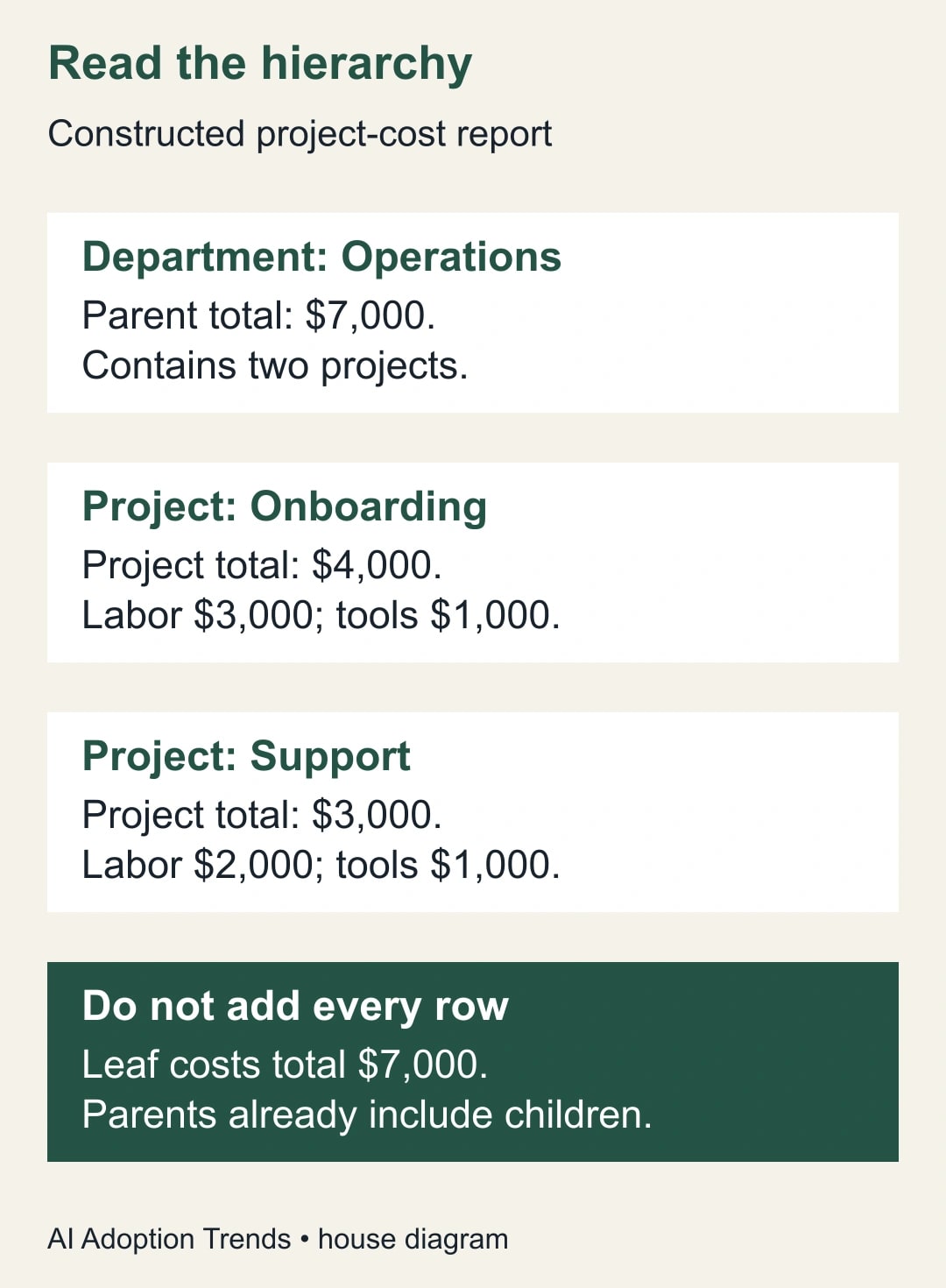
Here is a constructed example, not a customer result. The Operations department has two projects. Onboarding contains labor of $3,000 and tools of $1,000, giving a $4,000 project total. Support contains labor of $2,000 and tools of $1,000, giving a $3,000 project total. Operations therefore totals $7,000.
Use Department, Project and Cost category as the row hierarchy, and sum the Amount field. The smallest source example has four transaction rows. If the real export contains multiple transactions per category, keep those rows and verify that the pivot sums them into the same four category values.
In compact form, the reader should recognize Operations as the parent of Onboarding and Support. Under each project, Labor and Tools must remain children of that project. The repeated Tools label is deliberate: a reader who sees only “Tools $1,000” without its parent cannot tell which project it belongs to.
Never add every visible number in this display. Adding the $7,000 department total, the $4,000 and $3,000 project totals, and the four category values counts the same underlying costs three times, producing $21,000. The correct transaction total remains $7,000. This is why a compact pivot is a report view, not a substitute for a clean transaction export.
Apply the layout without changing the calculation
Work on the saved test copy. Open the pivot editor and confirm the fields and value measure against the baseline. Where the compact-layout option has reached your account, select it and inspect the nested row labels. If it is unavailable, retain the existing layout and schedule the test after availability is confirmed; do not rebuild the report just to mimic the appearance.
Expand Operations, then Onboarding, and trace the $3,000 labor amount back to its source. Collapse the project and confirm that $4,000 still represents the project total. Repeat for Support. Check that the reader can distinguish a subtotal from an individual category amount without relying only on color.
Google’s pivot controls allow ordering, sorting, totals and filters. Its documentation warns that filtering by selected values may require updating the filter when source values change. Record those settings during the handoff instead of treating them as decoration. Google’s pivot customization guidance explains the controls.
Now compare the compact view with the original. Changing the presentation should not change the agreed source population, measure or expected totals. If a number changes, stop and investigate the source range, filter, aggregation and data types. Do not explain away a discrepancy as a visual side effect without identifying its cause.
Make hidden context visible to the recipient
Add a short report note outside the pivot: reporting period, currency, measure, excluded categories and last refresh date. For example: “October actual costs in USD; approved transactions only; forecasts excluded; source captured October 29.” The exact wording should match your data, not the constructed example.
Include a note about the row hierarchy when the audience is unfamiliar with compact layouts. “Department → Project → Cost category” is enough for many reports. If the same project name exists in two departments, use a stable project identifier in the source and a clear display label so readers do not infer that the two groups are the same.
Treat blanks deliberately. An empty project field might represent an unassigned cost, an incomplete export or a valid shared expense. Decide with the source owner which interpretation applies. Do not relabel every blank “Other” merely to improve the presentation; that can conceal missing ownership.
Ask the receiving manager to answer three questions from the test copy: What is Operations’ total? Which project contains this Tools cost? Which source transactions make up Onboarding labor? A handoff that preserves arithmetic but loses those answers still fails its purpose.
Reopen the returned Excel copy
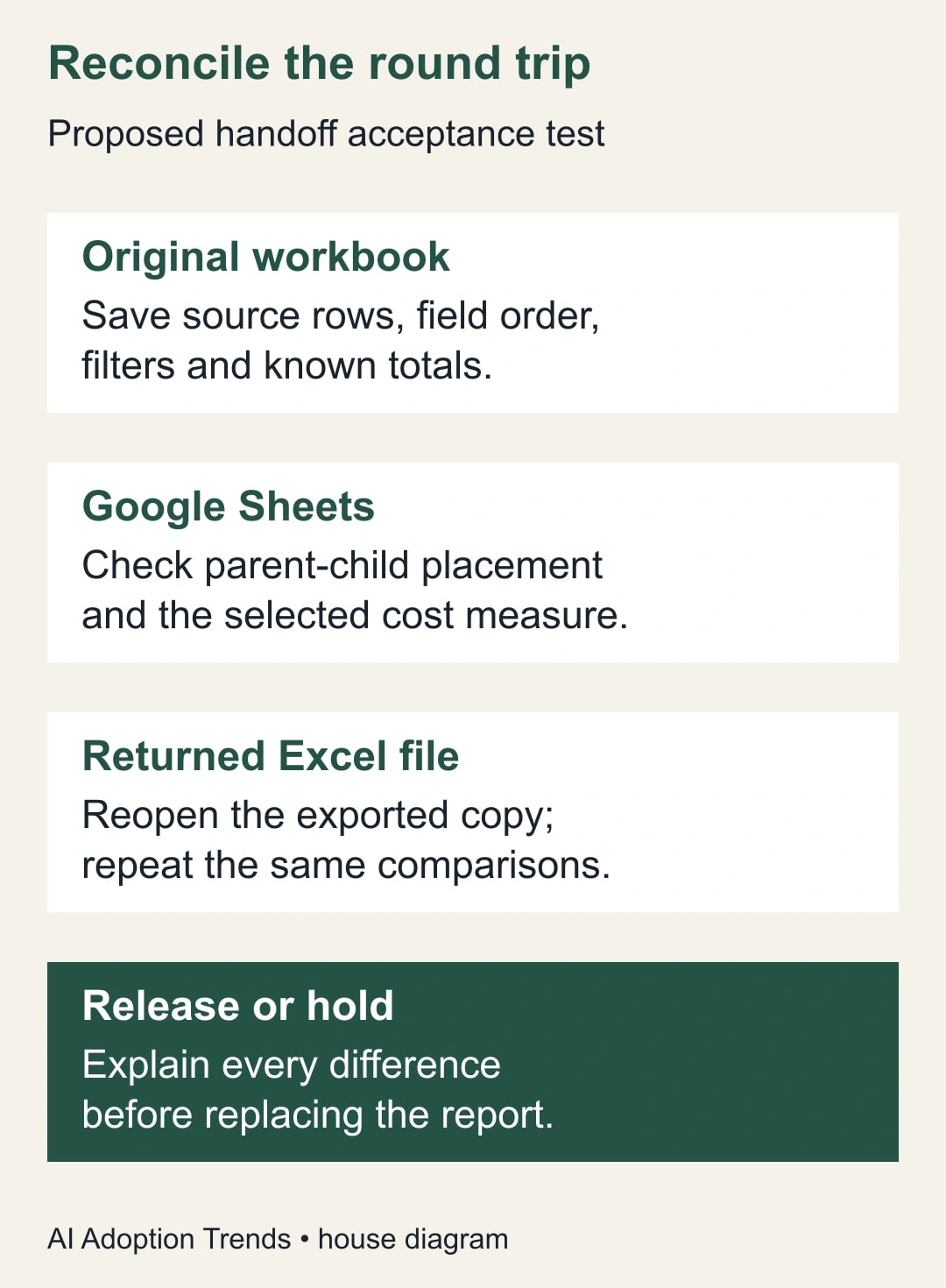
Export the test report back to Excel using the normal file-download path available to the account. Save it as a new version and open that actual file in the recipient’s Excel environment. Do not inspect only the Sheets view and assume the downloaded workbook will behave identically.
Repeat the original checks: $7,000 department total, $4,000 Onboarding, $3,000 Support and the four category amounts. Inspect the hierarchy, collapsed state, labels and filters. Check that the value measure remains a sum of Amount rather than a count of records or another aggregation.
If the recipient intends to refresh the workbook, include a controlled refresh test using the agreed source. Otherwise label the deliverable as a dated report snapshot. A file that displays yesterday’s numbers correctly has not necessarily passed tomorrow’s refresh workflow.
Record differences separately. A harmless row-width change may need a layout adjustment; a changed filter requires a data-population investigation. An unsupported workbook feature may require retaining the original Excel file as the operational master. Do not replace that master until the owner accepts the actual returned file.
Use a handoff acceptance sheet
Copy this checklist into the work request and fill it before moving the recurring report:
- Report identity: name, period, owner and original version.
- Source population: row count, source location and deliberate exclusions.
- Meaning: currency, measure and Department → Project → Cost category hierarchy.
- Baseline checks: expected parent totals and selected leaf values.
- Sheets result: observed totals, filters, labels and expand/collapse behavior.
- Excel return result: the same observations from the exported file.
- Recipient task: answers to the three business questions and any confusion.
- Decision: accepted version, unresolved differences, next owner and rollback copy.
Each numerical check should have an expected value, observed value and pass or hold decision. “Looks right” is not a useful result for a recurring finance report. Equally, do not create dozens of redundant checks if a few carefully chosen values expose the important failure modes.
For a larger report, add one negative control: a transaction that should be excluded, with its exclusion reason. If it appears after the handoff, the report may have retained the grand total by coincidence while changing the population. A source-row count and a known excluded item help detect that kind of error.
Decide whether to keep the new layout
Measure the recipient’s work as well as the preparer’s. In a constructed pilot, suppose ten review questions previously required 25 minutes and the compact report takes 18. That releases seven minutes for that review under those conditions. It does not prove the change will save the same amount across every report, nor does it create cash savings by itself.
Also count clarification requests, incorrect group interpretations and unexplained reconciliation differences. A seven-minute speed improvement is not useful if a manager assigns the wrong project owner to a cost. Keep the original layout available until the team has completed a real reporting cycle with the accepted version.
Stop the conversion if the receiver cannot trace a subtotal, if a required filter changes, or if the returned workbook cannot support its intended next use. The fallback can be a stable report snapshot plus a separate flat source file. That is often a better handoff than forcing one workbook to serve presentation, analysis and system import simultaneously.
Start with the four-row example and one real department. For missing source records, use the separate guide to fixing Excel PivotTables that omit new rows. For conflicting values during a data transformation, see resolving duplicate values before a Power Query pivot. Those are different repairs from choosing a compact display.
Weekly Newsletter
AI Adoption Weekly
New research, field guides, training studies, and tool decisions for operators.
No spam. Unsubscribe anytime.
Related Comparisons
Calculator
AI seat cost calculator
List price × headcount. You enter the hours and the operating assumptions.