
Import Mailchimp Contacts Without Losing Opt-Outs or Good Data
Reconcile subscription status, duplicates and field updates before a Mailchimp import, then verify the results before sending a newsletter.
Published October 29, 2026

Before importing contacts into Mailchimp, reconcile three things: who may receive the newsletter, which audience already holds their status and which fields you intend to change. Split new contacts from existing-contact updates, preserve a before-import export and check the results before any send. A successful upload does not prove that the resulting audience is correct.
The most easily missed data risk is a blank field. Mailchimp’s import guidance says that blank fields in an update can overwrite and erase existing information. It also says imports do not change the marketing status of existing contacts. Those two behaviors make an undifferentiated “replace everything” file a poor migration plan. Mailchimp documents these import rules.
Documentation checked October 29, 2026. This guide is for a newsletter operator moving an existing permission-based list or updating known subscribers. It uses constructed counts and proposed checks, not a live import. It does not import anyone, send a campaign or assume that a business contact has agreed to marketing.
Establish which audience owns the record
Choose the destination audience before preparing the upload. Record its name and identifier with the import request. If your account contains several similarly named audiences, have a second person confirm the destination against the newsletter’s current signup form and campaign process.
Mailchimp treats audiences independently and does not detect duplicate addresses, bounces or unsubscribes across them. Creating a fresh audience is therefore not a way to inherit the old audience’s protections. Reconcile relevant suppression records before deciding which contacts can move. Mailchimp also requires permission when importing subscribed contacts. Its import documentation explains the audience boundary.
The practical implication is simple: an address appearing in the source export is not enough. You need to know whether the person opted in to this newsletter, opted out later, or has an unresolved status. Where records conflict, hold the address and have the newsletter owner resolve the evidence rather than choosing whichever record produces a larger list.
Assign one person to prepare the file and one accountable owner to approve the import. In a small business these may be the same person, but use a separate review pass. Include someone who understands the existing signup and unsubscribe process; a technically clean CSV cannot answer a permission question by itself.
Keep contact status separate from customer status
Subscribed contacts have opted in to marketing. Non-subscribed contacts may have interacted with the business without opting in, while unsubscribed contacts have opted out. Cleaned addresses are undeliverable, and pending contacts have not completed confirmation. Those distinctions matter when preparing a newsletter list. Mailchimp’s contact-status guide defines the categories.
A paid invoice, a downloaded quote or an entry in a sales spreadsheet should not silently become “subscribed.” Preserve the original evidence and channel. Email permission does not establish SMS permission, and a contact’s relationship with one publication does not automatically establish the intended relationship with another.
Create a working reconciliation file with the email address, source record identifier, source status, destination status, evidence reference and proposed action. Keep sensitive evidence in its approved storage location; the working file can contain a reference rather than unnecessary personal detail.
Use explicit actions such as new eligible subscriber, update approved fields, preserve opt-out or hold for review. Avoid a generic “import” action that hides the reason. When the next operator opens the file, they should understand why an address was included without repeating the entire investigation.
Reconcile a hundred-row source file
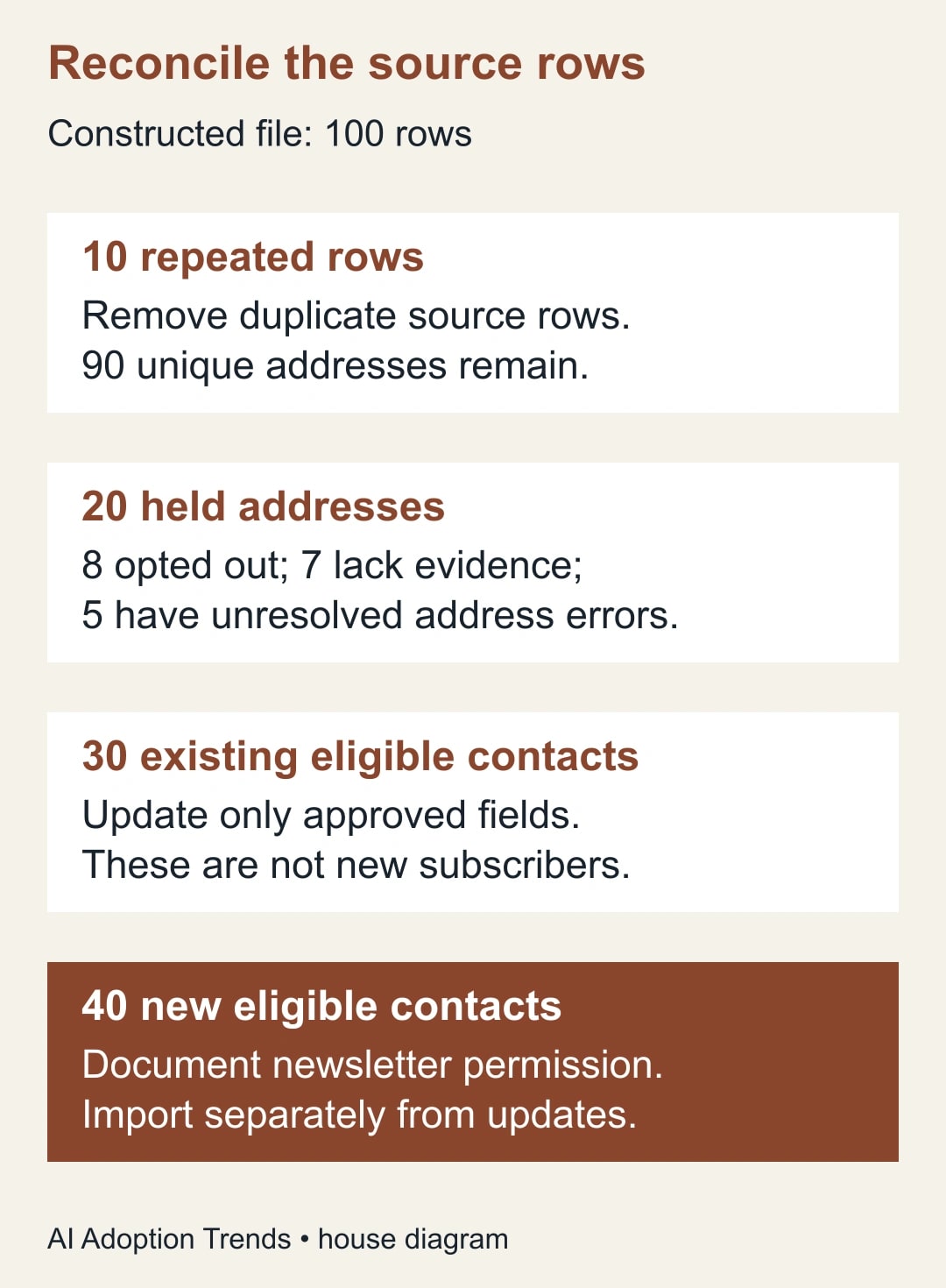
Consider a constructed source file containing 100 rows. Ten rows repeat addresses already represented elsewhere in that file, leaving 90 unique addresses. Of those, eight are opted out, seven lack adequate permission evidence and five have unresolved address errors. Those twenty addresses are held out of the proposed subscribed import.
The remaining seventy divide into thirty existing eligible contacts and forty new eligible contacts. These categories are mutually exclusive in this example: 10 repeated rows plus 20 held addresses plus 30 existing contacts plus 40 new contacts equals the original 100 rows.
The expected increase in subscribers is forty, assuming every new eligible address is accepted and no other changes occur. The thirty existing contacts may have approved field updates, but they are not thirty additional subscribers. Keep both counts visible so an “added or updated” result is not reported as audience growth.
Do not force a real file into these proportions. Use the same reconciliation structure with actual counts, and investigate every difference. An address can have several problems, so choose one primary disposition for the count while retaining all issue notes. Otherwise the same record may be counted twice in the held total.
Decide which source owns each field
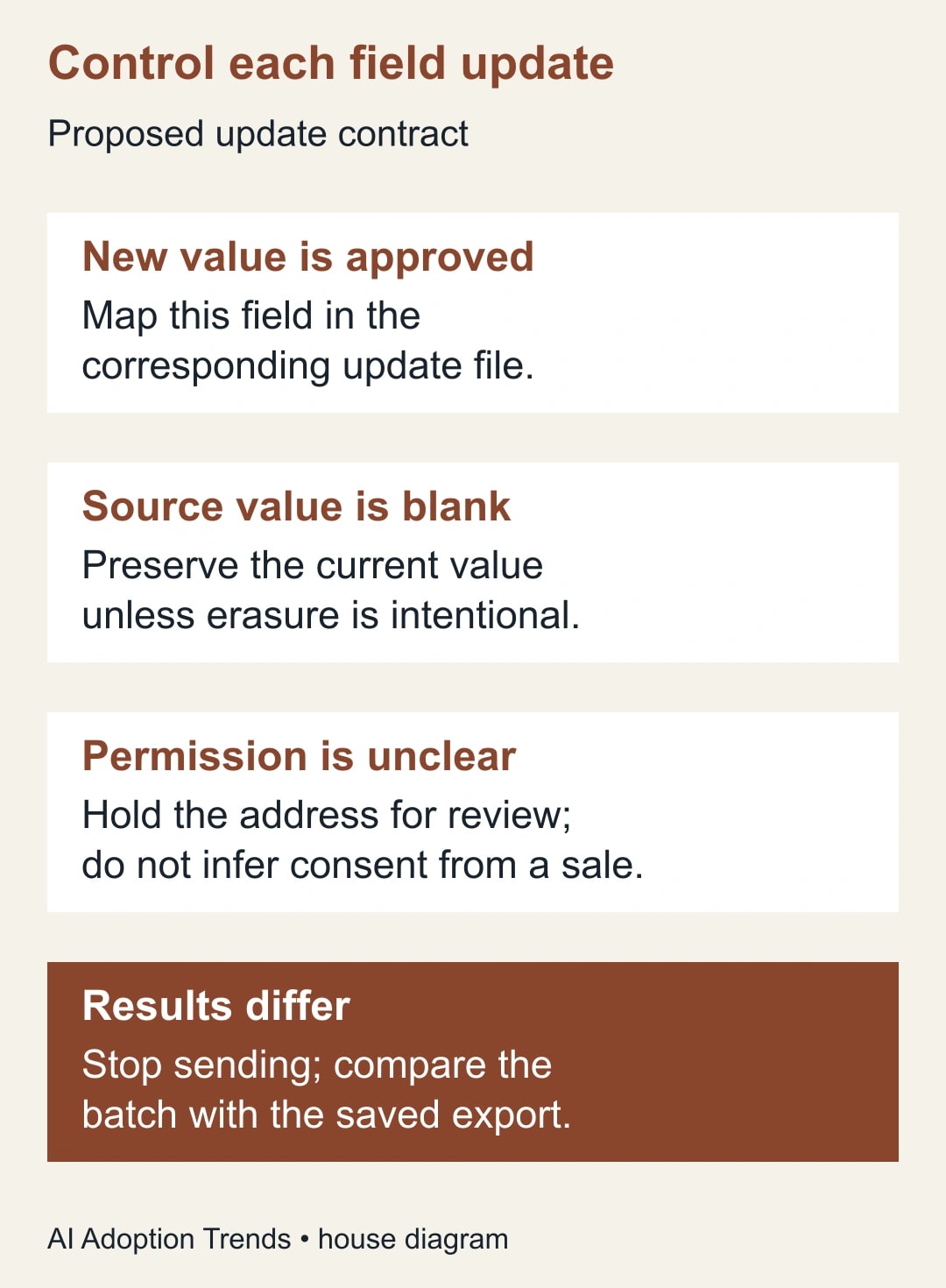
Prepare a field-update contract before mapping columns. For each destination field, record the approved source, whether new values may replace existing values and what a blank means. A company name from the current customer system might be authoritative; an empty name from an event-registration export usually is not.
For example, suppose an existing subscriber’s profile contains “Priya Shah” and the incoming file has an empty First Name cell. If the intent is only to update a team-interest tag, do not map an empty First Name column as part of that update. Split the file into records and fields that share the same intended treatment.
When some rows have approved new names and others should retain the current names, create a narrow update file for the approved name changes. Do not fill missing values with guesses or a generic placeholder merely to avoid blanks. A blank that means “unknown in this export” is different from a deliberate request to erase the existing value.
Keep the original source file, the prepared import file and a before-import destination export. Record filenames, creation times and row counts. Store them in the approved business location with access limited to the people doing the work. These copies are evidence for reconciliation and recovery, not material to circulate with an ordinary campaign brief.
Check the file before touching the import screen
Verify the email-address column and the exact fields you intend to map. Inspect punctuation, whitespace and obvious malformed addresses, but do not automatically rewrite an address based on a guess. A suspected typo should go back to the source owner; “correcting” it can create a different person’s address.
Deduplicate using a documented rule and preserve the original values. Where two records disagree on name, status or preferences, choose the approved source for that field or hold the conflict. Do not let the first or last row in a sort become the business rule by accident.
Keep separate files for distinct marketing statuses and distinct update treatments. Mailchimp’s import flow handles one email marketing status at a time. Confirm the destination, update-existing choice, field mapping and selected status in the final summary before completing the import. The provider’s import instructions describe that review sequence.
Check account capacity and the expected billable contact count with the account owner before a large import. Do not assume that the number of new subscribers is the only billing input. Use the current account’s plan information for an actual cost decision; this guide does not quote a universal monthly price.
Run a bounded pilot with a stop condition
Choose a small, already approved subset that exercises the intended changes: one new eligible address, one existing contact with an approved update and one existing contact whose good fields must remain intact. Do not upload held or opted-out addresses just to see whether the platform rejects them. The pilot should test the approved operation, not manufacture a permission exception.
Before completing it, inspect automations that could react to new contacts, tags or other changes. Have their owner confirm the expected behavior and hold any unintended sends through the account’s supported controls. An import review should include its downstream effects, not just the audience table.
Use a clear batch tag or other supported identifier to find the pilot records later. The identifier is for tracing the change; it does not grant marketing permission. Record the pilot’s expected additions, expected updates and fields that must remain unchanged.
Stop if an address gains an unexpected status, a preserved field is erased, an automation behaves unexpectedly or the count cannot be explained. Do not continue with the remaining file while assuming the discrepancy will average out. Repair the preparation rule, then repeat a small approved check before expanding.
Read the result as a reconciliation
Mailchimp’s import history distinguishes additions, updates, skipped records and address errors. In an update import, the headline can combine added and updated contacts. The provider advises accessing affected error addresses within 24 hours. Check the report promptly and save the relevant evidence. Mailchimp explains how to interpret import results.
For the constructed full batch, compare the observed new-contact count with forty and the intended update population with thirty. Then inspect the actual changed records. A total of seventy processed records would not, by itself, prove that the right forty were added or that the thirty updates preserved unrelated fields.
Sample records from every treatment group, including records with blank source fields that were intentionally excluded from updates. Compare the before and after values against the field contract. Check the final newsletter recipient segment separately from the total audience count.
If an address is rejected, record the reported reason and the next owner. Do not repeatedly re-import the same rejected rows or move them to another audience to bypass the result. A syntax error, an existing opt-out and an unresolved permission question require different responses.
Plan recovery before you need it
Pause the next send if the imported population or field updates are wrong. Preserve the import report, prepared file and before-import export. Identify exactly which records and fields changed before choosing a repair. Broadly deleting the audience can remove unrelated records and make the situation harder to reconstruct.
Mailchimp provides an undo-import function, but its scope must be understood before relying on it. In particular, undoing an import does not restore field values that were updated on existing contacts. Keep the saved export and review the supported recovery path for the actual change. Read Mailchimp’s undo-import guidance before using it.
For a field overwrite, prepare a narrow restoration plan from the before-import evidence and have the owner approve the affected records. For a permission error, stop the send and resolve the status through the appropriate contact-management process. An import file is not a substitute for deliberately correcting an existing marketing status.
Close the batch with evidence
Use this reusable completion record:
- Destination: audience name, identifier and newsletter owner.
- Source reconciliation: original rows, duplicates, held records, existing contacts and new contacts.
- Permission: evidence location, opt-out reconciliation and unresolved conflicts.
- Field contract: mapped fields, approved replacement rules and blank handling.
- Pilot: expected changes, observed changes and downstream automation checks.
- Full import: report reference, additions, updates, exclusions and error owners.
- Recipient check: approved newsletter segment and held-send decision.
- Recovery evidence: source file, prepared files, before-import export and accountable owner.
Measure the quality of the migration through unexplained count differences, incorrect statuses and unintended field changes. A larger audience is not the success criterion. A correct, traceable audience that can receive the intended newsletter is.
Start by reconciling twenty source records against the destination before preparing the full upload. If identifiers are being altered by spreadsheet software, use the guide to preserving leading zeros and long identifiers in CSV workflows. If an automated process will prepare or execute future changes, define its read, draft, send and change approval boundaries before giving it that responsibility.
Weekly Newsletter
AI Adoption Weekly
New research, field guides, training studies, and tool decisions for operators.
No spam. Unsubscribe anytime.
Related Comparisons
Calculator
AI seat cost calculator
List price × headcount. You enter the hours and the operating assumptions.