
Power Query Key Didn’t Match: Repair the Workbook Navigation Step
Fix Power Query’s key-not-found error by identifying the intended workbook object, then reconcile records and totals before refresh.
Published November 26, 2026

If Power Query reports that the key did not match any rows after a workbook changes, inspect the step that selects the worksheet or Excel table. Confirm the object name and object type against the file you actually received. Do not replace the selection with “the first sheet” merely to make refresh succeed: that can load the wrong data without another error.
This guide is for an analyst importing a recurring supplier, sales or operations workbook. It focuses on selecting the correct object inside that workbook. A missing file, a renamed data column and an access-permission problem need different repairs. Locate the first failing step before changing anything, and preserve the last trusted report while the source is investigated.
Understand what the error is pointing at
Power Query is the import and transformation tool used in Excel and Power BI. Its steps read a source, select the required data and apply transformations. A navigation step commonly selects a named worksheet or table from the workbook's contents. The “key” in this error can therefore identify a workbook object; it does not necessarily mean that a customer or invoice identifier is missing.
Microsoft's common-issues guide lists a changed table name and insufficient access among possible causes of this error. It also describes credential-related cases in Power BI. Treat those as diagnostic possibilities, not proof that your file was renamed. Read Microsoft's explanation of the key-match error. Sources in this guide were checked November 26, 2026.
Microsoft's Excel.Workbook function documentation shows selecting worksheet contents by an Item value. That is why a workbook can still open normally while the query fails: the file exists, but the requested object may no longer be present under the expected identity. Read the Excel.Workbook reference.
Use this repair when the previous step exposes the workbook's available objects and the next selection fails. If the source step cannot open the file, investigate location, credentials or availability first. If navigation succeeds and a later step cannot find a column, use the required-versus-optional column guide. That distinction prevents an object-selection repair from masking a different defect.
Preserve the evidence and isolate the failure
Save a working copy of the report and retain the incoming workbook unchanged. Record the source filename, location, modified time, expected reporting period and the full error details. If the report supports payments, inventory or a management decision, mark the current refresh as unverified. An old successful output should not quietly become today's report just because it still displays numbers.
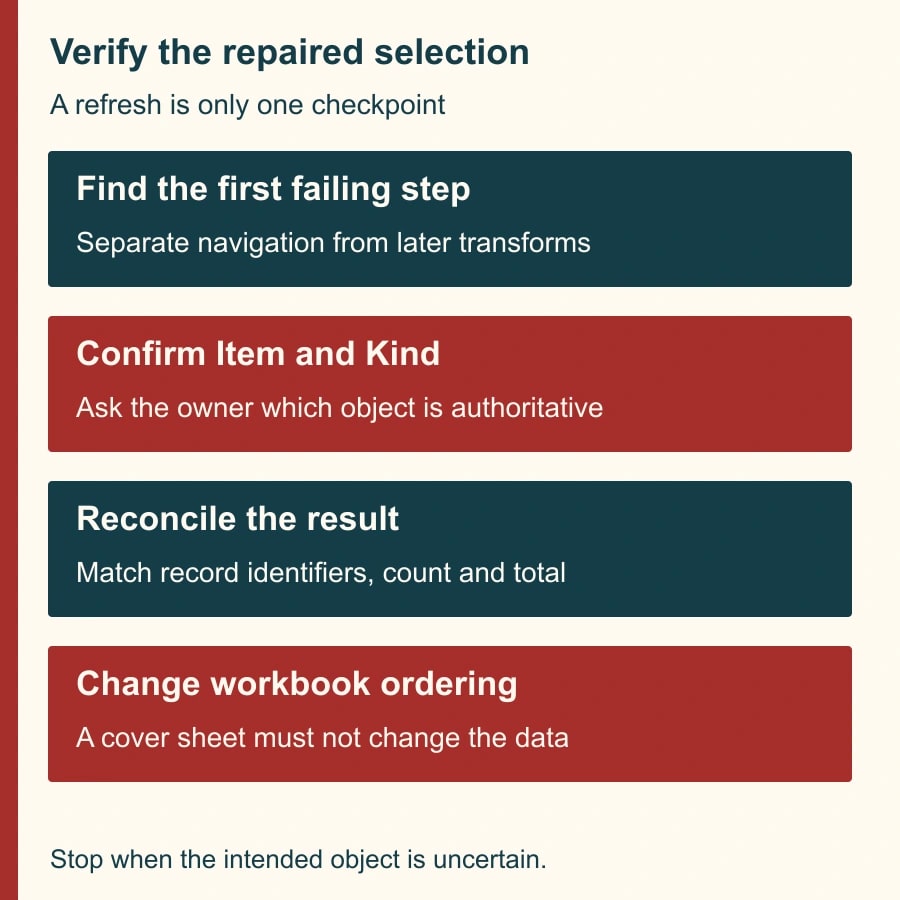
Open the query editor and move through Applied Steps from the source toward the error. Find the last step that displays expected data and the first step that fails. Inspect the formula bar where available. Do not delete several steps at once; you would lose the evidence showing whether the failure occurred during object selection, header handling or a later transformation.
Microsoft recommends recording the specific error and examining individual query steps. It also warns that changes to source table and column names can break refresh. Read Microsoft's data-source error guidance. Keep the investigation tied to those observed steps rather than trying broad reset instructions from an unrelated connector problem.
Ask the source owner whether the workbook template changed. A supplier may have renamed a tab for a new month, converted a range to an Excel table or added a cover sheet. Those changes look small to a person reading the workbook but can change the object a query expects. Obtain the intended business meaning as well as the new name.
Compare name and type, not appearance
At the workbook-contents step, inspect the available object rows. Depending on the connector and generated query, you may see fields such as Item, Kind and Data. Compare the values used by the navigation expression with the actual values now available. A worksheet named Orders and an Excel table named Orders are different kinds of object even if they display related information.
For illustration, a generated selection might look like Source{[Item="Orders", Kind="Table"]}[Data]. Read that as “select the Data for the object whose Item is Orders and whose Kind is Table.” This is an explanatory example, not a replacement to paste blindly into every query. Your previous step may have another name, and the actual object values must come from your own source preview.
If the file now contains a table called Orders_Export, decide with the source owner whether that is the intended replacement. If it is, update the navigation selection in the working copy using the appropriate interface or a carefully reviewed expression. If the rename was accidental and other reports depend on the original template, restoring the agreed source name may be the better fix.
Do not change a worksheet selection to a table selection solely because their names resemble each other. A worksheet can include title rows, notes, subtotals or material outside the table's boundaries. Changing object type may require a deliberate redesign of later steps. Inspect headers, row boundaries and data types after the selection, even when the editor no longer reports an error.
A two-object workbook that catches the dangerous fix
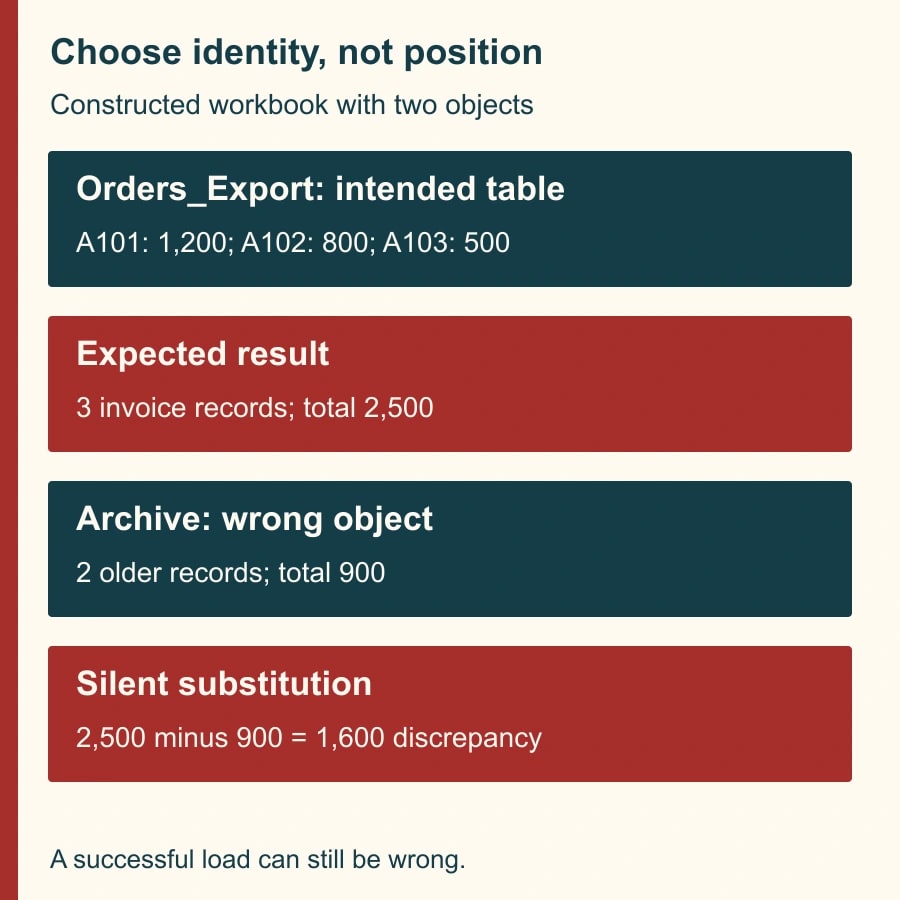
Consider a constructed supplier workbook containing an Orders_Export table and an Archive worksheet. The intended table has three invoice records: A101 for $1,200, A102 for $800 and A103 for $500. Its total is $2,500. The archive has two older records totaling $900. These are invented values for a reproducible repair exercise, not a customer incident.
The query previously selected a table named Orders. After the source owner renames it Orders_Export, navigation fails. An analyst replaces the named selection with a positional selection of the first available object. If the archive happens to be first, refresh may return $900 successfully. The absence of an error would conceal a $1,600 difference from the intended $2,500 report.
The correct repair selects the approved current table by its observed identity, then checks the resulting three invoice IDs and $2,500 total. The analyst also confirms the reporting period and verifies that each invoice appears once. The comparison is more demanding than matching a grand total because two wrong records can occasionally offset each other.
Now add a new cover worksheet before the other objects and refresh the working copy again. The query should still select the intended table. This is a useful regression check for accidental dependence on order. You are not testing whether Power Query can read a workbook; you are testing whether your query still chooses the correct business data after a harmless layout change.
Use a repair worksheet the next analyst can follow
- Expected source: filename or controlled location, reporting period, source owner and template version.
- Failing step: exact step name, error details and the last successful preview.
- Requested object: the name and kind used by the navigation selection before repair.
- Observed object: the replacement name and kind, plus evidence that it represents the intended dataset.
- Chosen repair: restore the source name or update the query, with the owner who approved the choice.
- Reconciliation: expected and actual row count, unique business identifiers, totals and reporting dates.
- Refresh test: reopen and refresh from the real source location, then confirm the loaded output and downstream report.
- Handoff: change date, reviewer, rollback copy and the condition that should stop the next refresh.
This worksheet is useful even for a small file because it captures the part an error message cannot establish: which dataset the business intended. Keep the record alongside the query documentation. A comment saying “fixed refresh” gives the next analyst no help when a similarly named object appears next month.
Check later steps before trusting the result
Once navigation succeeds, follow the remaining steps to the loaded output. Confirm that header promotion has not turned the first data row into column names, that type conversion has not removed meaningful leading zeros and that filters still select the intended period. These are review questions, not an instruction to rebuild working transformations unnecessarily.
Compare a few named records from source to output, including a normal record, a credit or negative amount if the dataset contains one, and a record near the reporting-period boundary. Use the full expected population for row and total reconciliation. A small preview can make a repair look correct while the final loaded query still excludes a portion of the file.
Refresh the destination, not just the editor preview. Check the worksheet table, model or report that the business actually reads. If several queries depend on the repaired one, review their refresh results too. A changed object can restore the base import while leaving a downstream query dependent on an old shape or column set.
For a folder-combine process, inspect the sample-file transformation and the files to which it is applied. A navigation fix suitable for one workbook may fail on older files with the original object name. Do not assume the newest file represents the entire folder. Either standardize the agreed template or define and test an explicit rule for the supported variants. Use our monthly-file reconciliation guide for the separate problem of counting each period once.
Handle permissions and ambiguity without guessing
If the expected object is visible to one person but not the account that refreshes the report, involve the data owner or administrator. The correct response may be an approved access change, not a new table name. Avoid broadening access or disabling privacy controls as a generic fix for this error. Record the identity and environment that reproduce the problem.
If two candidate objects could plausibly be correct, stop the repair until the source owner identifies the authoritative one. Similar names such as Current, Final and Final2 are not a reliable selection rule. Ask for a stable machine-readable object name and a separate human-facing title if the supplier wants to label each month's workbook differently.
Do not wrap the entire navigation failure in an instruction that returns an empty table and then publish a zero total. That converts a visible missing-source problem into apparently valid business data. An optional dataset can have an explicit empty-result policy, but required invoice or sales data should fail visibly when its identity cannot be established.
Make the next refresh cheaper to diagnose
Agree on a source contract with the workbook owner: stable table name, expected columns, one reporting period per file where appropriate, and notification before structural changes. This need not be a legal document. A short shared specification can prevent an enthusiastic template redesign from breaking several recurring reports.
The report owner maintains the query and reconciliation; the source owner maintains the agreed export; a reviewer approves changes that affect financial or operational decisions. Keep those responsibilities visible. If the same person fills all three roles in a small business, retain the checklist and a rollback copy rather than pretending an independent review occurred.
Budget time for diagnosis, source confirmation, repair and verification. A constructed estimate of twenty minutes for each of those four activities is eighty minutes of staff capacity. It is not an observed repair time or a cash saving. A recurring monthly failure can justify improving the export process, but compare actual incident effort before buying another connector or redesigning the pipeline.
The next action is to inspect the step before the error and write down the requested and available object identities. Repair the smallest confirmed mismatch, then reconcile records, totals and dates through the final report. Stop if the intended object remains ambiguous. A successful refresh is only useful when it refreshes the right data.
Weekly Newsletter
AI Adoption Weekly
New research, field guides, training studies, and tool decisions for operators.
No spam. Unsubscribe anytime.
Related Comparisons
Calculator
AI seat cost calculator
List price × headcount. You enter the hours and the operating assumptions.