
Google Calendar and Outlook Guest Additions: Check Who Gets the Update
Test Google Calendar and Outlook guest additions in both directions, verify later updates, and check document access separately.
Published November 26, 2026

When someone adds a guest to a meeting that crosses Google Calendar and Outlook, check the organizer's event and one later update before assuming the new person is fully included. An invitation email, a name on one attendee's copy and access to the presentation are three different things. A reliable handoff verifies each part that the meeting needs.
For a client-service coordinator, the simplest control is a named organizer, an approved guest list and a short rehearsal using test accounts. Keep the original event as the reference. Creating another meeting to work around an uncertain guest addition can leave people with conflicting times, duplicate reminders and two places to look for the latest agenda.
What Google changed
On November 19, 2026, Google announced improved synchronization of guest additions across calendar services. When a Google Calendar guest adds people to an event organized by another service, such as Outlook, Google says it notifies the organizer by email. In the reverse direction, Google says it updates the event's guest list when it receives a similar notification from another calendar service. Read Google's guest-addition announcement.
The announced rollout starts November 19 for Rapid Release domains and December 2 for Scheduled Release domains, with up to fifteen days for visibility. Google describes no separate administrator or end-user setting for this feature. As of this November 26 check, a scheduled rollout date is not evidence that every account already behaves identically. Verify the actual account pair used for your meetings.
The useful consequence is fewer manual repairs when attendees add colleagues. The limit is just as important: notification to a third-party organizer is not a promise that every external calendar client, account policy or mailbox filter will process the change in the same way. The rehearsal below tests the business outcome rather than assuming interoperability from an announcement.
Decide whether guests should add anyone
This guide fits ordinary cross-company project meetings, supplier reviews and client workshops where adding a colleague is expected. It is not a reason to widen attendance at a confidential discussion. Before testing synchronization, the organizer should decide who may invite additional people and how additions are approved under the organization's normal practice.
For a sensitive meeting, ask participants to send proposed names to the organizer. The organizer can then make the approved change directly. That process may be less convenient, but it keeps one person responsible for the audience. If the business cannot establish who is allowed to attend, stop there; improving delivery of invitations will not fix an undefined access decision.
Write the meeting's audience rule in plain language: named project staff only, approved supplier representatives, or a broader working group. Keep that instruction separate from software permissions. An attendee might technically be able to forward something even though doing so is outside the meeting's purpose. The coordinator needs both a clear rule and an understanding of the controls actually available.
Use a meeting with no confidential subject or attachments for the first test. Prerequisites are an organizer on one service, an initial guest on the other, a third test attendee and access to inspect the resulting events and mail. Include your administrator when a company policy, delegate arrangement or external invitation rule affects the flow. Do not change those policies just to make a demonstration pass.
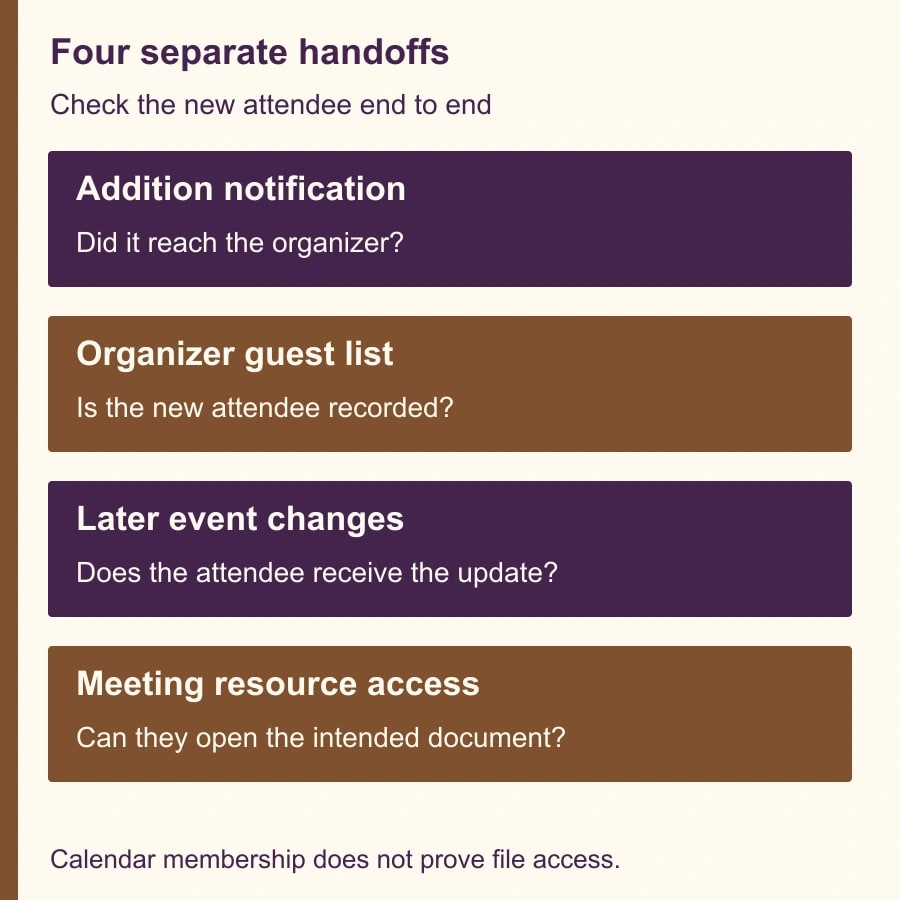
Follow the four handoffs separately
The first handoff is the guest addition itself. Record who added which email address and from which calendar application. Use the actual address, not only the display name: two accounts can share a name, and a colleague may have both personal and business identities. Confirm that the intended address belongs on the meeting.
The second handoff is notification to the organizer and the organizer's resulting guest list. Inspect the event in the organizer's account, not just the original attendee's copy. Note whether the organizer receives a notification, whether any action is needed and whether the intended new guest appears. This is the point at which a local-looking success may fail to become a shared meeting change.
The third handoff is a subsequent event update. Change a harmless test detail, such as the agenda text, and send the update using the organizer's normal process. Then make a controlled time change. Confirm the new attendee sees the intended event and latest details. Record the actual result and timing; do not invent a universal delivery deadline from one successful test.
The fourth handoff is access to meeting resources. A calendar invitation does not by itself establish permission to read a Drive file, open a client portal or view a restricted recording. Test each required resource under the new attendee's identity. Keep permissions narrow and approved. A blocked document is a resource-access issue even if the calendar synchronization worked perfectly.
Run the rehearsal in both directions
In the first trial, let an Outlook user organize a test meeting and invite a Google Calendar user. Have the Google guest add the approved third attendee where the account and event allow it. The Outlook organizer checks the notification and authoritative event, then sends the agenda and time updates. The new attendee reports what arrived and what appears in their calendar.
In the second trial, reverse the organizer and initial guest. A Google Calendar user creates the event, the external guest adds the approved attendee using the other service's supported workflow, and the Google organizer inspects the resulting guest list. Repeat the later updates. Passing one direction does not establish the other, especially when different clients or organizations handle the messages.
Use the same simple meeting title and record a unique test reference for each direction. Keep the date comfortably in the future so reminders and response timing do not confuse the result. After the trial, cancel the test events from their respective organizers and verify cleanup. Do not reuse a real customer appointment as a disposable test fixture.
For a recurring meeting, run a separate controlled rehearsal before relying on the change for a series. Distinguish an update to one occurrence from an update to the entire series. This guide does not assume the announcement guarantees every recurring-event edge case. If the team cannot confidently identify which event instance changed, use organizer-managed invitations until the behavior is understood.
A worked acceptance record
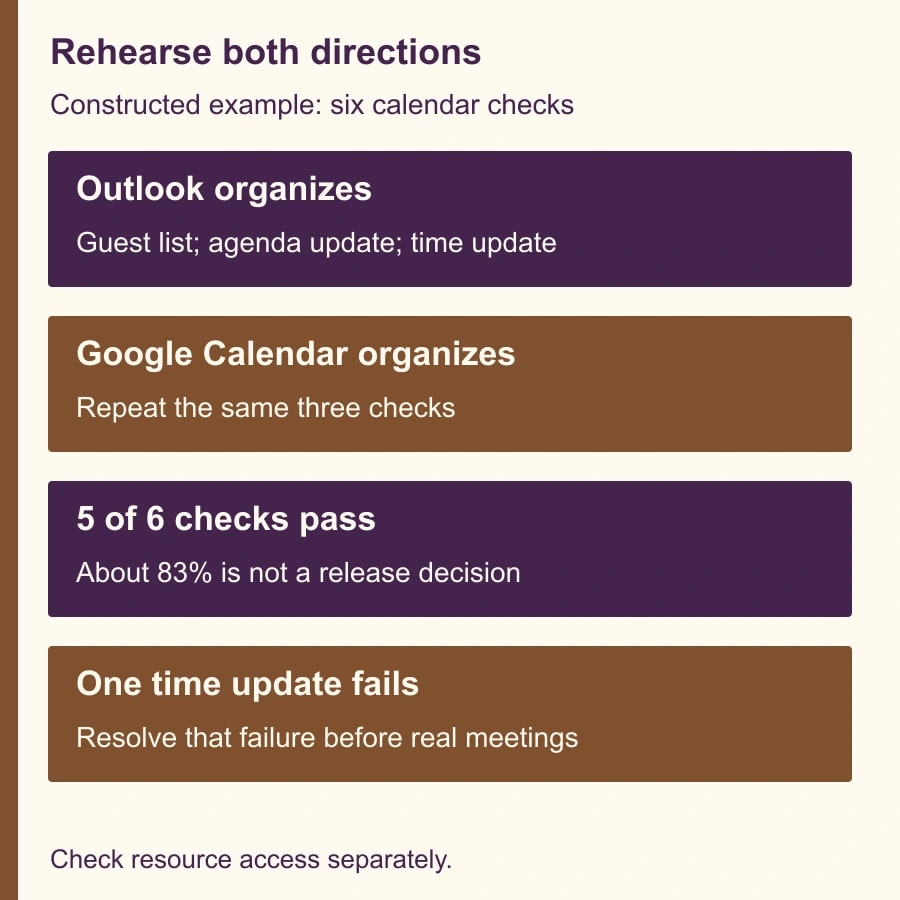
Consider a constructed client-workshop rehearsal with two directions and three checks per direction: organizer guest list, agenda update and time update. That produces six acceptance checks. Suppose the first direction passes all three, while the reverse direction passes the guest-list and agenda checks but the new attendee still sees the old time. The result is five of six checks passed, not a completed rollout.
Five divided by six is about 83%. That percentage is useful only as a summary of this tiny constructed exercise. It is not a measured reliability rate for Google or Outlook. The failed time update is a blocker for using that account pair without a manual check because the meeting depends on everyone joining at the right time.
Add a separate resource check for each new attendee. Suppose both can open the meeting link, but one cannot open the briefing document. That is a permissions repair, not evidence that the guest-addition feature failed. Keeping the checks separate prevents the coordinator from repeatedly resending invitations when the real problem is a restricted file.
The acceptance record should include the organizer, calendar service, application used, test guest address, event reference, addition time, notification result, later update results and resource-access outcome. Record the observed behavior in words as well as a pass or fail. A note such as “agenda updated, time stayed at 10:00 until account refreshed” is more useful to support than “sync broken.”
Diagnose a missing invitation without multiplying events
Start by confirming the address and checking the organizer's event. If the new person is absent there, investigate the addition or notification path. If the person is present but cannot find the invitation, investigate delivery and invitation handling. If they see the event but old details, investigate the specific update and client behavior. These are different repair paths.
Google's invitation help recommends checking the recipient's inbox, spam folder, notification settings and settings that limit automatic addition of invitations. It also documents removing and re-adding a guest when the invitation still cannot be found. Use that targeted repair only after identifying the affected person and coordinating the extra notification. Read Google's invitation troubleshooting steps.
Avoid repeatedly forwarding the original invitation as a substitute for maintaining the organizer's guest list. A forwarded message may help someone find details, but it does not prove they will receive later changes. Likewise, an attendee saying “I have it” may mean they have a copied email rather than the current event. Ask which calendar entry they see and whether it matches the latest organizer update.
When the meeting is imminent, use an approved direct message or call to confirm the time and joining details while the technical issue is investigated. Label that as a temporary coordination step. Keep the event owner responsible for the final record so the emergency workaround does not become a second unofficial calendar that everyone must maintain.
Keep documents and audience approval distinct
Before sharing a briefing, confirm whether the added person should see the full document or a limited version. A new specialist may need the technical appendix but not a commercial negotiation history. Ask the document owner to make that decision. Do not solve a single access request by changing the file to unrestricted link sharing unless that broader audience is explicitly intended.
Retest access after the permission change under the recipient's real account. A coordinator opening the file successfully proves only the coordinator's access. Check the relevant mobile or web experience if participants will use it during the meeting. Our Meet presented-file access guide covers the related distinction between sharing a visible link and granting access to its contents.
When an attendee is removed, review the resources separately. Removing a name from an event should not be treated as evidence that every previously shared file or portal permission has been revoked. The resource owner should follow the normal access process. The calendar owner and document owner may be different people, so put both names in the meeting checklist.
Give the process a cost and a stopping rule
There is no need to buy a new scheduling platform merely to test this change. Use the approved calendar accounts the business already operates and budget staff time for a short rehearsal. Check any applicable account or administrator requirements in your environment; this guide does not promise identical functionality across every client or subscription.
For a constructed planning estimate, two twenty-minute direction tests plus fifteen minutes to document the result require fifty-five minutes of coordinator time. If an administrator spends another twenty minutes checking policies, total allocated effort is seventy-five minutes. This is capacity spent on validation, not a cash saving. Compare it with actual missed-update repairs over the next few weeks before claiming a benefit.
Stop broad adoption if a test creates duplicate events, exposes an unintended audience or leaves new attendees on stale times. Keep organizer-managed additions as the fallback and collect the evidence needed for support. A small rollout with known exceptions is more useful than a blanket announcement that cross-calendar invitations are fixed.
Start with one account pair and the six-check rehearsal. Publish the result to the coordinators who use that pair, including the date and known limitations. For follow-up communication, use our Calendar guest-email and delegate guide. The goal is a guest who receives the right updates and can access the right material, with one person accountable for the meeting record.
Weekly Newsletter
AI Adoption Weekly
New research, field guides, training studies, and tool decisions for operators.
No spam. Unsubscribe anytime.
Related Comparisons
Calculator
AI seat cost calculator
List price × headcount. You enter the hours and the operating assumptions.