
Fix Missing Email Attachments in a Power Automate Intake Flow
Trace attachment metadata and file content separately, retrieve the intended files and reconcile each request before marking intake complete.
Published October 31, 2026

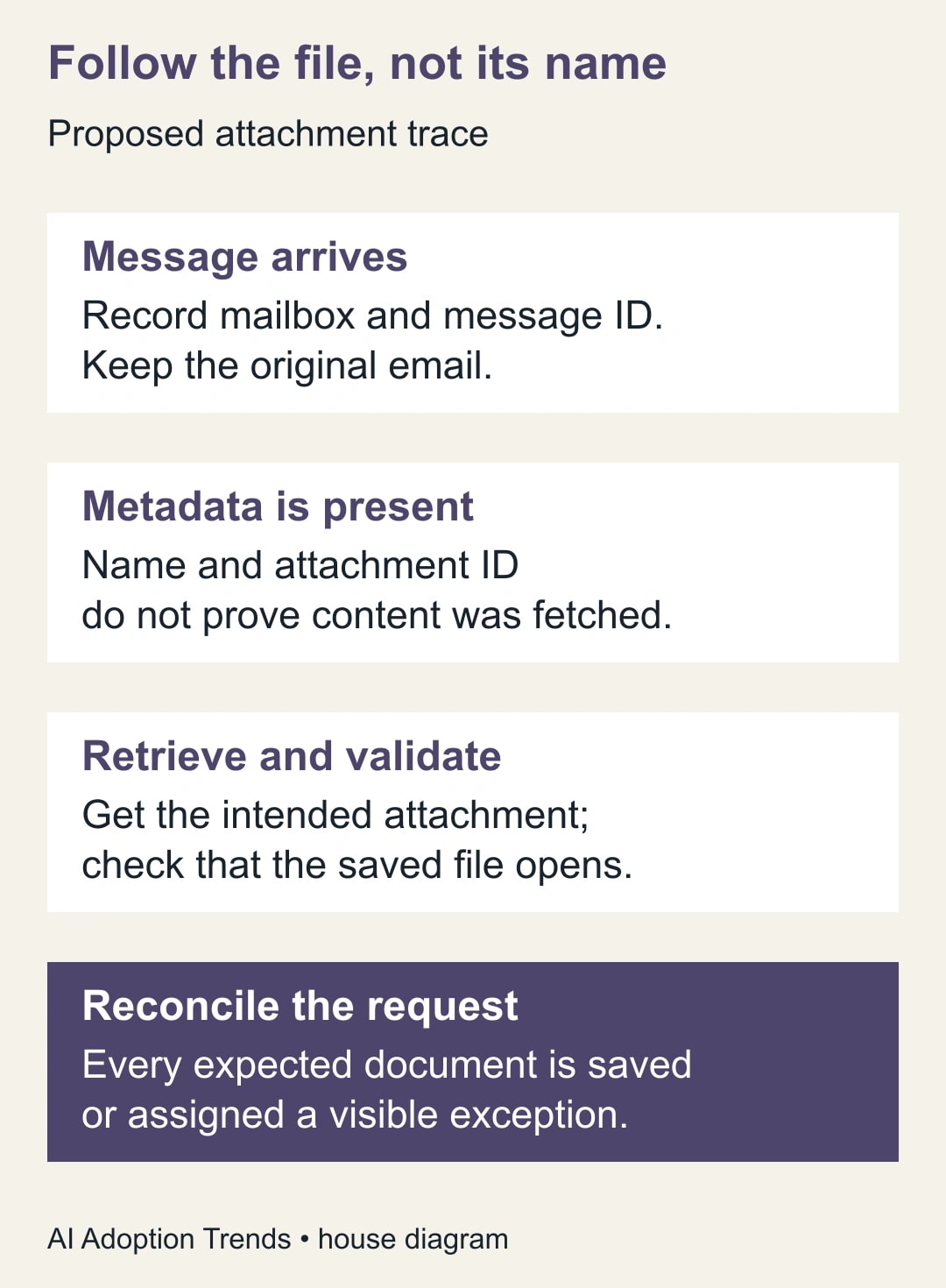
When an email intake flow sees a filename but saves no usable document, trace attachment metadata and file content separately. Record the message and attachment IDs, retrieve the intended attachment, and verify the saved file before marking the business request complete. A successful trigger or a nonempty filename is not evidence that the document arrived at its destination.
This guide is for operations teams collecting ordinary business documents through a Microsoft 365 mailbox and Power Automate. It fits a bounded intake process such as receiving a quote pack or a service-request form. It is not a way to bypass protected mail, access restrictions or the organization’s file-handling rules. If the sender supplied a cloud link rather than a file, use an approved link-access process instead of pretending it is an attachment.
Establish which stage failed
There are four separate questions: did the message enter the monitored mailbox, did the flow identify the intended attachment, did it retrieve content, and did the destination store a usable file? A fifth question belongs to the business owner: does that file satisfy the request? Keeping these questions separate prevents a technical repair from becoming a false completion signal.
Microsoft’s Office 365 Outlook connector distinguishes attachment metadata from content. Include Attachments controls content; fields such as name and ID may still be present without it. Microsoft also warns that downloading everything in the new-mail trigger can time out under concurrent attachment traffic, and recommends Include Attachments set to No with Get Attachment (V2) for retrieval in that situation. Read the connector’s attachment guidance.
That recommendation changes where retrieval occurs. It does not mean content can be omitted from the rest of the flow. If a later Create file action still receives an empty trigger-content field, the flow has moved the download step without connecting its output to the destination.
Start with one known message and a safe copy
Keep the original email and the last working flow version. Use a test copy and harmless sample files while investigating. Record the mailbox, message reference, received time, expected filenames and observed destination files. Avoid rerunning the whole production process until you know whether earlier attempts created downstream records or notifications.
You need authorized access to the mailbox, the flow’s run history and the destination. The flow’s connection identity may differ from the person inspecting the email in Outlook, so verify both. For shared mailboxes, confirm the intended mailbox context and permissions rather than assuming that personal-mailbox success proves shared-mailbox access.
Budget for maintenance and reconciliation time, the applicable Power Automate entitlement, mailbox service and destination storage or connector costs. The Outlook connector is classified as Standard, but that alone does not establish that the complete flow has no incremental cost. Check every connector and the organization’s actual licensing before expanding the design. Review the connector classification and operations.
Give one person ownership of the business queue and another, where practical, ownership of technical repair. The queue owner decides whether a request has all required documents. The maintainer diagnoses retrieval and storage. A file that opens correctly can still be the wrong quote version; a valid business document can still be waiting in a failed flow.
Check the trigger before the file action
Inspect the monitored folder and the trigger filters against the known message. Power Automate can trigger based on email properties such as folder, sender, subject or attachment presence. A message excluded by those conditions never reaches your attachment-processing logic. See Microsoft’s email-trigger setup.
Decide whether messages without files should be excluded or recorded as incomplete requests. For a narrow file-collection utility, excluding them may be acceptable. For a business intake queue, a sender saying “attached” but forgetting the file may require a visible exception. Filtering such messages out entirely can make the automation look clean while requests go unanswered.
Compare the trigger output with the email itself. If no run exists, investigate trigger scope and delivery before changing a Create file action. If a run exists and shows the expected attachment name but no content, proceed to retrieval. If content appears but the saved file is wrong, inspect destination mapping. Change one layer at a time so the test tells you which repair mattered.
Retrieve each intended file with traceable inputs
For an explicit-retrieval design, use Get Attachment (V2) with the message ID and the current attachment’s ID. The connector also exposes Original Mailbox Address for shared-mailbox retrieval and returns Content Bytes for the attachment. Keep those identifiers together; a filename is not a substitute for the attachment ID. Check Get Attachment (V2)’s inputs and output.
Process the attachment collection so each selected item gets its own retrieval and result record. Do not use a single filename copied from the first item for every file. Test two attachments with different names and contents; both must arrive independently and remain associated with the original message.
For a SharePoint destination, Create file takes the destination location, name and file content. Map the retrieved content into that content input, rather than the attachment metadata object or a string containing the filename. Use the destination connector’s current field definitions and verify the resulting artifact. Read the SharePoint connector reference.
Avoid adding encoding conversions merely because an online example contains them. First inspect what the selected action returns and what the destination expects. An unnecessary conversion can turn valid content into a file that has the right extension but will not open. The acceptance test is the saved file’s actual content and usability, not the appearance of a familiar filename.
Keep destination naming separate from identity. Two different messages can contain “quote.pdf,” and one message can contain confusingly similar names. Choose a collision policy that preserves the request reference and original filename in the record. Do not silently overwrite an earlier document unless the business process explicitly calls for replacement and retains the needed history.
Decide which attachments belong to the request
An inline logo, a quoted image and a business document can all appear in attachment-related data. Inspect the available inline indicator, file type and name as evidence, then apply a rule agreed with the queue owner. Do not equate every image with junk: a photograph may be the required service evidence.
A useful first rule is deliberately narrow: for this request type, collect the agreed document formats and route anything unexpected to review. If the workflow excludes a known signature logo, record why that exclusion is safe. Keep the count of excluded items distinct from missing required documents. “One item excluded” is not the same as “the quote pack is complete.”
For a link-only message, create a separate status such as “source link requires review.” Do not follow arbitrary links or broaden sharing automatically to make a download work. The owner may need to request access or ask for a supported file delivery. Preserve enough context to resolve the request without copying the entire email into an unnecessarily broad log.
Use a manifest to reconcile the work
A manifest is a small register describing what each request was expected to contain and what happened to each file. It can be implemented in the approved system the team already uses. The important property is traceability from message to attachment to destination result.
- Request reference and mailbox context.
- Message ID and received time, with a safe way for an authorized reviewer to find the original.
- Attachment ID, original name, type and expected role in the request.
- Decision: collect, intentionally exclude, review link or hold for recovery.
- Retrieval result and destination file reference, including a failed or uncertain outcome.
- Validation result: opens correctly, matches the expected sample or needs business review.
- Owner, next action and closure decision for the overall request.
Keep sensitive content out of general-purpose logs. The manifest normally needs identifiers and decisions, not the full attachment body. Set its audience and retention according to the team’s actual operational requirements. This is a practical record of work, not a reason to create a second uncontrolled document repository.
A six-message acceptance pack
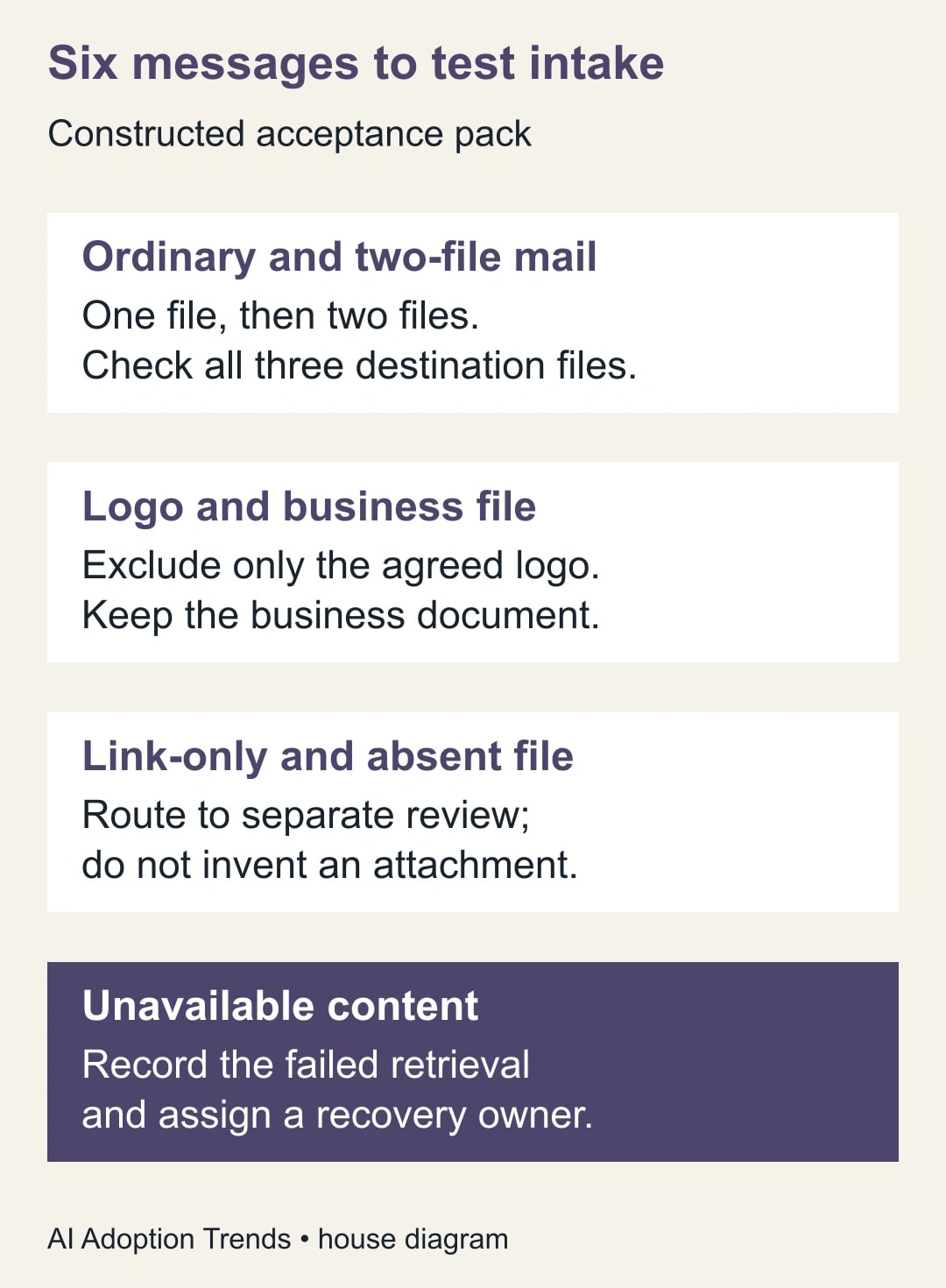
Use this constructed pack before restoring live intake. It specifies expected behavior, not measured product performance. Make the test files visibly different so a mapping error cannot pass merely because every file opens.
M1 contains one ordinary PDF. M2 contains two ordinary files with different contents. M3 contains a known signature logo plus one required business document. Under the agreed rule, these messages should produce four accepted business files in total: one plus two plus one. The logo should have a documented exclusion, not be mistaken for the required document.
M4 contains only a source link. M5 says a document is attached but has no file. Both should remain visible as unresolved business requests under this example’s intake policy. They should not produce invented files or silently vanish from the queue.
M6 contains a file whose content cannot be retrieved by the test connection. It should produce a failed-retrieval record with an owner and a next action. The request remains incomplete. A run that reaches its final step without a usable document does not pass this case.
The expected accounting is six message references, three requests complete on document collection, and three requests requiring review or recovery. That is separate from the file count: four business files saved, one known logo excluded, and one attempted business-file retrieval unresolved. Business acceptance of the collected files may still be a later step.
Repeat M2 with the same filenames but different contents in a new message. Confirm the collision policy preserves both requests correctly. Then repeat delivery of the original M2 and confirm the process does not create uncontrolled duplicate files or duplicate downstream tasks. Those two tests distinguish a legitimate new submission from a repeat of the same operation.
Recover without multiplying downstream work
When retrieval fails, inspect the message and attachment identifiers, mailbox context, connection access and the recorded error. Confirm that the original still exists and remains accessible through the approved path. Fix the cause on the test copy, then replay only the work whose outcome is known to be incomplete.
If destination creation timed out, search the destination before retrying. A missing success response does not prove the file was never created. Record whether the file exists, whether it is usable and whether any later action occurred. Otherwise a recovery run may create a second file and send a second notification for one request.
If a saved file is corrupt, compare its size and contents with the original and inspect the exact content mapping. A matching name and extension are weak evidence. For the sample pack, open the saved file and confirm its distinctive test content. In production, use the organization’s approved validation and scanning process rather than asking staff to open unexpected files indiscriminately.
If failures affect protected or unusual messages, hold them for the appropriate mail or security owner. Do not strip protection or copy content through a personal account to make the workflow succeed. The repair must respect the source’s intended access while keeping the business request visible.
Measure complete intake rather than green runs
Track requests received, expected documents, usable files saved, intentional exclusions, unresolved retrievals and time to recovery. Reconcile those measures with the mailbox sample regularly during the pilot. A high run-success rate can coexist with missing documents if the flow never checks whether content arrived.
Stop automatic completion if the process cannot distinguish empty content from a valid file, if collisions overwrite unrelated requests, or if the queue owner cannot account for missing-document messages. Retain a manual intake route while repairing the flow. Continue when the six-message pack passes in the actual connection context and a bounded live sample reconciles from mailbox to destination.
Start with one known failed message and the manifest fields above. If recovery risks repeating business actions, use the guide to prevent duplicate Power Automate effects. If the file arrives but the next Excel step fails, investigate locked-file recovery as a separate stage rather than changing a working attachment download.
Weekly Newsletter
AI Adoption Weekly
New research, field guides, training studies, and tool decisions for operators.
No spam. Unsubscribe anytime.
Related Comparisons
Calculator
AI seat cost calculator
List price × headcount. You enter the hours and the operating assumptions.