
Fix a Looker Studio Date Filter That Uses the Wrong Business Date
Trace a date control to each chart’s date-range dimension, then reconcile five sample orders before changing a bookings or delivery dashboard.
Published October 31, 2026

If a Looker Studio date filter returns the wrong orders, inspect the chart’s date-range dimension before changing date formatting. That setting determines which business date makes a record eligible. A chart displaying DeliveryDate can still be filtered by OrderDate if its configuration says so. First write the intended question, then prove the selected records answer it.
This guide is for report owners reconciling bookings, delivery, service completion or similar operational measures with more than one date in the source. It is especially useful for a spreadsheet-backed report where each row has several milestones. It is not a remedy for missing source records, duplicated joins or an undefined business metric. Those problems need separate investigation even if changing the date field makes one total look closer to expectations.
Separate the period from the event
“October orders” is incomplete. It could mean orders placed during October, delivered during October or still open at the end of October. Those populations can differ substantially. A date control supplies the period; the chart’s date-range dimension supplies the event used to select records.
Google’s documentation, now under Data Studio, explains that each chart uses its own date-range dimension. A single control may therefore filter different charts by different date fields. That is useful when intentional and confusing when hidden. Read how date-range controls select records.
Write a complete metric sentence before editing: “Show the count and value of orders whose DeliveryDate falls from October 1 through October 31, 2026.” Add the row meaning and treatment of missing dates. For this guide’s example, one row represents one order, the value is an order value in USD, and a missing delivery date does not count as an October delivery.
Ask the business owner to confirm that sentence. A report maintainer should not quietly redefine bookings as deliveries to make two charts agree. The correct result may be two different totals with two clear labels. A repair is complete when the report answers the intended questions, not when every number matches every other number.
Use five known orders as an answer key
The following constructed dataset contains five orders. It is small enough to reconcile by inspection, and it includes the boundary and missing-value cases that make a date error visible. All dates are already agreed business dates rather than raw timestamps.
- O1: ordered September 28, 2026; delivered October 2, 2026; value 100 USD.
- O2: ordered October 3, 2026; delivered October 20, 2026; value 200 USD.
- O3: ordered October 30, 2026; delivered November 1, 2026; value 300 USD.
- O4: ordered September 25, 2026; delivered September 30, 2026; value 400 USD.
- O5: ordered October 31, 2026; delivery date missing; value 200 USD.
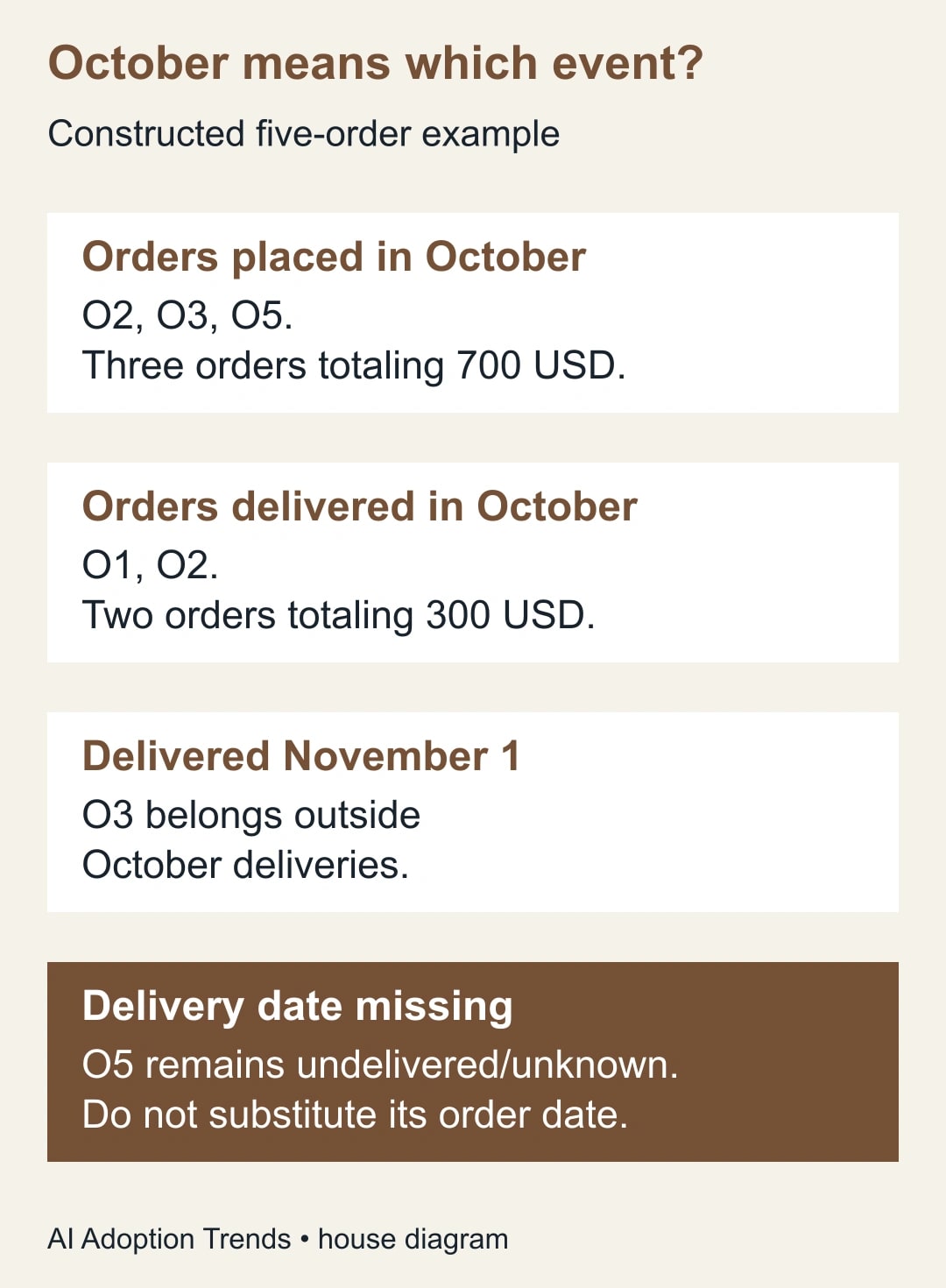
For October order dates, O2, O3 and O5 qualify. That is three orders and 700 USD. For October delivery dates, O1 and O2 qualify. That is two orders and 300 USD. The total across all five rows is 1,200 USD, which is useful as a source check but is not either October metric.
O3 is the boundary test: its order belongs in October and its delivery belongs in November. O5 is the missing-date test. Substituting its order date for its missing delivery date would make an unknown or unfinished delivery look completed in October. Keep that uncertainty visible instead of solving it with a convenient date.
O1 is equally important. A filter based on order date excludes it from October even though the delivery happened in October. A dashboard can therefore undercount completed work while still showing a plausible total. Compare IDs, not just the total value, because different mistaken populations can occasionally add to the same amount.
Diagnose one chart on a copy
Save the current report state and work on a copy or isolated diagnostic page. Record the source, current date settings and an example discrepancy. You need report-edit access, enough source access to verify the sample rows and a business owner who can confirm the metric. Include analyst time and any query or connector usage charges in the repair cost; the procedure does not inherently require buying another reporting tool.
Start with a simple table that exposes order ID, the relevant dates and the value. Keep it at one row per order for this test. Use a fixed October 1–31, 2026 period so the expected answer will not shift tomorrow. Temporarily avoid unrelated filters on the diagnostic copy, but record what you remove so the final test can restore the intended report behavior.
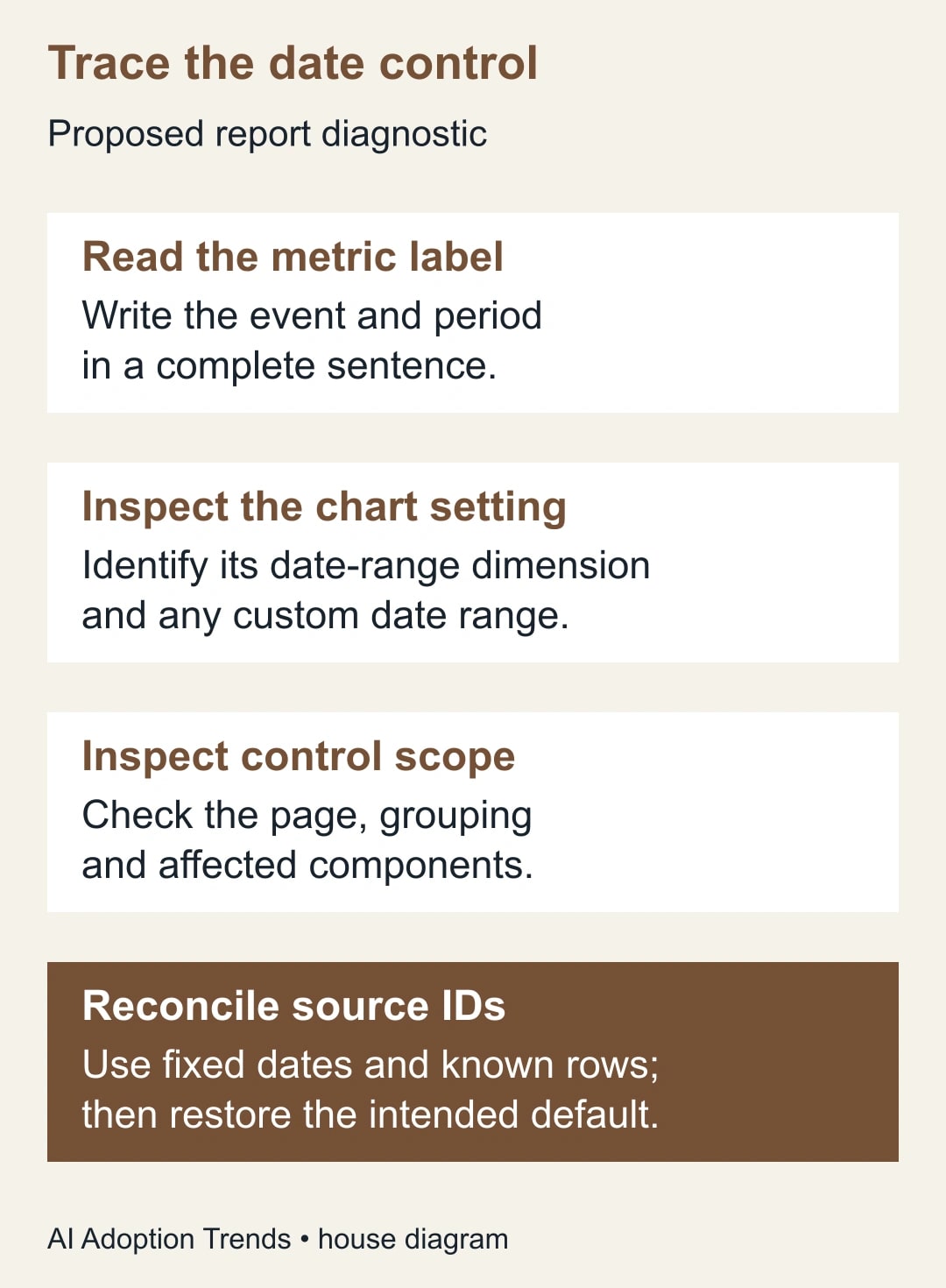
Select the affected chart in edit mode and inspect Setup, then its Date range dimension. Choose the valid field that corresponds to the agreed event where the connector permits it. Google requires a complete year-month-day date; some connectors, including Google Ads and Analytics, set the dimension automatically and do not allow changing it. Date-time fields can be used, but the date-range filter ignores their time units. Check Google’s date-range configuration rules.
Do not change a field merely because its name sounds right. Inspect actual values and types in the source. A column called DeliveryDate could contain planned dates, actual completion dates or text placeholders. The report cannot infer which meaning management intended. Resolve that with the source owner and rename or document the field clearly.
After selecting the delivery field, the example table should show O1 and O2 for October, totaling 300 USD. Switch the fixed period to November 1 only: O3 should appear, totaling 300 USD. Switch to September 30 only: O4 should appear, totaling 400 USD. These narrow checks reveal boundary behavior more clearly than comparing two large monthly totals.
Check whether the control reaches the chart
If a chart does not respond, inspect control scope and overrides separately from the date field. Google documents page-wide date controls, with scope limited by grouping or overridden by an individual chart’s date-range property. The presence of a calendar control on the page does not prove every component follows it. Review control scope and chart overrides.
Make a small inventory of the affected page: chart title, source, intended event, date-range dimension, custom range and control group. Then change the control to a period with a known different result and record which charts move. This is a behavioral check of the actual report, not just a configuration inspection.
An intentional fixed-period comparison chart may correctly stay unchanged. Label that exception clearly. An unlabeled chart that remains on an old custom range needs either a configuration repair or a visible explanation. Do not remove every override indiscriminately; some may support a legitimate comparison.
For a mixed page, prefer explicit titles such as “Orders placed in selected period” and “Orders delivered in selected period.” The same calendar selection can drive both while preserving their distinct meaning. If users repeatedly interpret the page as one common population, separate the views or add a short explanation near the control. A correct configuration that routinely leads to the wrong decision is still a usability problem.
Resolve dates upstream when their meaning is unstable
A timestamp records a moment; a business date assigns that moment to a calendar day under a chosen convention. If the source spans time zones, agree which business zone determines the reporting day before extracting a date. Do not repair a boundary discrepancy by adding or subtracting a fixed hour amount without checking the source convention and seasonal clock changes.
For example, a late-night event can belong to one calendar day in one location and the next day elsewhere. The business may want warehouse-local delivery dates or a single headquarters reporting date. Either can be defensible when documented. A mixture across records is much harder to reconcile.
Ask the data owner to supply an explicit business-date field when that is the most maintainable option. Retain the original timestamp for investigation. Test events around midnight and the relevant clock-change dates using the actual transformation. This article’s five-row example deliberately starts with agreed dates; it does not claim to validate a private timestamp-conversion pipeline.
For missing dates, define a separate exception or outstanding-work view. Avoid filling an actual completion date with a planned date or an order date just to include the record in a chart. That substitution changes the event being measured. If the source uses a placeholder date, convert it under an approved rule and account for the affected records.
Test the finished page, not just the repaired table
Once the diagnostic table passes, apply the intended configuration to the production candidate and restore other filters. Test the control with each relevant source and chart. Check the default period on first opening the report, a user-selected fixed range and any comparison period the business uses. Defaults can differ by connector, so an initial view needs its own acceptance check. Review date-range defaults.
Reconcile counts and values together. For the example, October deliveries must contain exactly O1 and O2, count two and value 300 USD. An extra duplicate row might preserve the distinct order count while inflating the value. A missing order and an incorrect replacement might preserve the value while changing the population. The ID list is the strongest small-sample evidence.
Also test a period with no qualifying deliveries. Decide how the report should distinguish no activity from unavailable data, and verify the visible result. A blank chart should not silently imply zero when the source failed to refresh. Record the source freshness separately from the date-selection rule.
Have a normal viewer explain the page back to you: which event is being counted, what period is selected and what a missing delivery date means. If that explanation is wrong, improve the label or layout before release. The goal is a report that supports the decision without requiring the maintainer to narrate every chart.
A reusable date-filter repair worksheet
- Business question: event, population, metric, currency and reporting period in one sentence.
- Source meaning: one row represents what; date field definition; timestamp zone if relevant; missing-date rule.
- Configuration: source, chart date-range dimension, custom range, control scope and intentional exceptions.
- Answer key: sample IDs, expected count and expected value for at least two fixed periods.
- Boundary checks: first and last day, next-period event, missing date and no-activity period.
- Whole-page checks: initial default, user-selected range, other filters, labels and source freshness.
- Release record: business owner, report maintainer, accepted version, evidence and rollback location.
The worksheet should retain the expected IDs, not only a screenshot of the final total. When a later source change breaks the report, those IDs and definitions make the problem easier to locate. Update the test data only when the business rule changes, and record why the old answer key is no longer appropriate.
Know when to stop changing the filter
If the five-row pack passes but the real report still disagrees, stop cycling through date formats. Compare source coverage, duplicate records, joins, excluded statuses and freshness. A date filter cannot restore records that never reached the source or repair a value multiplied by a blend.
Release when the intended event, selected IDs and visible labels agree, with unresolved exceptions disclosed. Monitor the next reporting close against the same definitions. Success is fewer unexplained reconciliations and a report the business owner can interpret correctly, not simply a larger or smaller total.
Start by writing the metric sentence and reproducing the five-order answer key on a copy. For filters that affect some charts but not others, see how to trace field IDs and filter scope. For a broader analytics discrepancy, use the GA4 and Looker Studio reconciliation guide to separate definitions, source coverage and reporting settings.
Weekly Newsletter
AI Adoption Weekly
New research, field guides, training studies, and tool decisions for operators.
No spam. Unsubscribe anytime.
Related Comparisons
Calculator
AI seat cost calculator
List price × headcount. You enter the hours and the operating assumptions.