
Microsoft Copilot for Beginners: Your First Useful Week
Start with three real jobs, copyable prompts, and a simple way to check the answers. You can get useful work done before building an agent or adding tools.
Published September 28, 2026

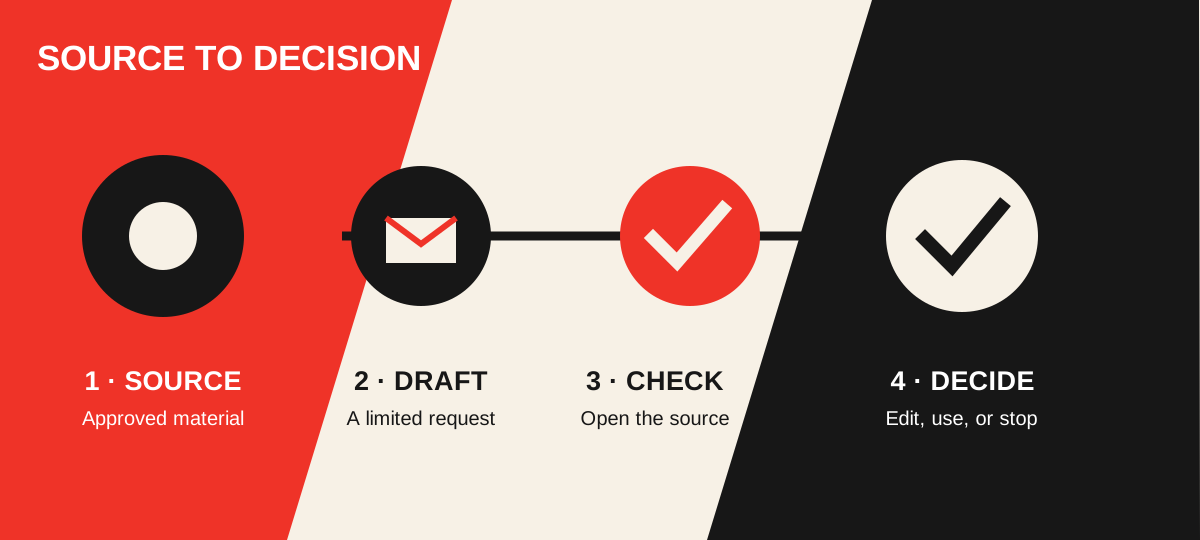
You do not need to build an elaborate assistant to get value from Microsoft Copilot. A good first week is three small jobs: shorten something you already have, draft something you will review, and organize a decision. You stay in charge of the source, the facts, and anything sent to another person.
This series is about Microsoft 365 Copilot at work and agents made in its Agent Builder or Copilot Studio. GitHub Copilot is a separate coding product. Buttons and available features vary by license and administrator settings. Microsoft’s getting-started guidance recommends giving Copilot a goal, context, expected output, and source. Use that pattern even if your screen looks different.
Day one: ask for a summary you can verify
Example: a team lead has a six-page project update and needs a two-minute briefing. Open an approved document in Word or reference it from Copilot Chat if your account has access. Ask for decisions and open questions, then compare the answer with the document. This is a draft briefing, not an authoritative new record.
Summarize this project update for a two-minute team briefing.
Use only this document. Give me: decisions already made,
open questions, named owners, and dates. Cite the relevant
sections. If an owner or date is missing, say “not stated.”
Do not invent a next step.
If Copilot cannot read the file, attach or open an approved copy through the route your organization allows. Do not paste restricted material into an unapproved account to work around a permission error. Microsoft says work data shown by Copilot depends on the user’s existing permissions; the exact grounding available also depends on the product and license. Microsoft explains the permission boundary.
Day two: turn rough notes into a draft
Example: a customer success manager needs to follow up after a meeting. Give Copilot only the approved notes and ask for a courteous draft. Check the recipient, commitment, price, dates, and tone before sending. A draft can save effort even when Copilot has no permission to send mail.
Draft a short follow-up email from these approved notes.
Thank the customer for the meeting, recap the two agreed
actions, and ask one clear question about the open item.
Do not add a deadline, price, promise, or attachment that
the notes do not contain. Leave a bracketed placeholder
where a fact needs my confirmation. Do not send it.
This is a useful limit, not a failure. The person who knows the customer approves the final message. If the notes disagree with the draft, edit the draft; do not assume a fluent sentence is a verified fact.
Day three: prepare a decision, with the gaps visible
Example: an operations manager has three vendor proposals. Copilot can set up a comparison using the criteria you choose. Tell it which documents to use and what it should leave blank. The manager then checks the proposal language and decides whether to ask vendors for missing information.
Compare these three approved proposals for our renewal.
Use the attached proposals only. Make a table with
contract term, annual price, data export rights, support
hours, and cancellation terms. Cite the page for each
entry. Mark missing information “not found.” End with
three questions we should ask; do not recommend a winner.
Start with low-impact material or a small approved set of files. Copilot may summarize the wrong version, miss a clause, or treat an unstated point as obvious. The check is simple: open the cited source for every fact that could change money, customer treatment, or policy.
A prompt can be simple and still be good
Try this four-part shape: “Do this job; use this material; return this format; stop at this boundary.” A useful follow-up is “Show me which source supports each claim and what you could not find.” If the answer is off, narrow the task or correct the source. You are learning how to direct a tool, not taking a test.
Some Microsoft 365 Copilot experiences can work with business email, meetings, and files when the account and license allow it; other Copilot Chat experiences have less work-data access. Microsoft’s grounding guide describes the distinction. If a feature is absent, use the available chat and approved documents. You can still get substantial help drafting, structuring, and checking your own work.
Know when to pause
Pause when a source is missing, a document is sensitive and its approved use is unclear, the output names a person who should not see it, or a proposed action would create a commitment. Ask the document owner or your administrator which workspace is approved. For everyday drafting, keep the first run private and review it yourself. For a repeatable question that several people ask, build a small private agent in Part 2.
Weekly Newsletter
AI Adoption Weekly
New research, field guides, training studies, and tool decisions for operators.
No spam. Unsubscribe anytime.
Related Comparisons
Calculator
AI seat cost calculator
List price × headcount. You enter the hours and the operating assumptions.